Refresh loader

Category : Digital Solutions

Home > Archive for Digital Solutions

How Should CEOs Fix a Late App Launch? Ultimate Guide

Rescuing A Delayed App Launch: A 30-Day Technical Turnaround Framework

A delayed app launch is stressful for any leadership team. Deadlines pass, stakeholders grow impatient, and budgets stretch thin. For product owners and CEOs, this situation can feel overwhelming.

The good news is that most delayed launches can be rescued. With the right framework, enterprise teams can regain momentum quickly. This article outlines a practical 30-day turnaround plan for enterprise web and mobile software.

Why Enterprise App Launches Get Delayed

Before fixing the problem, it helps to understand common causes of delay. Recognizing these patterns can prevent future setbacks.

Scope Creep During Development

Many projects expand beyond their original scope. New features get added mid-development, which stretches timelines significantly. Without strict change control, scope creep becomes a major source of delay.

Poor Communication Between Teams

Enterprise projects often involve multiple teams working across different locations. When communication breaks down, misunderstandings multiply. This leads to duplicated work, missed deadlines, and frustrated stakeholders.

Technical Debt And Legacy Systems

Older codebases can slow development significantly. Integrating new features with outdated systems often takes longer than expected. Technical debt, if ignored, compounds over time and creates larger delays later.

Unclear Ownership And Accountability

When no one clearly owns key decisions, projects stall. Teams wait for approvals that never come, or worse, make conflicting choices. Clear accountability structures prevent this kind of paralysis.

The 30-Day Turnaround Framework

This framework breaks recovery into four focused weeks. Each phase builds on the previous one, creating steady momentum toward launch.

Week One: Diagnose And Stabilize

The first week focuses on understanding exactly where things stand. Start with a full technical audit of the codebase, infrastructure, and current bugs. This creates a clear baseline for decision making.

Next, gather the leadership team to align on priorities. Decide what must ship at launch versus what can wait. This step alone often removes weeks of unnecessary work from the remaining schedule.

Finally, freeze new feature requests immediately. Stabilizing scope early prevents further delays during the recovery process.

Week Two: Rebuild The Roadmap

With a clear picture in hand, teams can now rebuild a realistic roadmap. Break remaining work into small, testable tasks. This makes progress easier to track and communicate.

Assign clear ownership for every major task. Each item should have one accountable person, even if multiple people contribute. This reduces confusion and speeds up decision making significantly.

Additionally, set up daily check-ins during this critical phase. Short, focused meetings keep everyone aligned without wasting time.

Week Three: Accelerate Execution

The third week is about focused execution. Teams should prioritize the highest-risk items first. Tackling difficult problems early prevents last-minute surprises before launch.

Automated testing becomes essential during this phase. Catching bugs early saves significant time compared to fixing them after deployment. Similarly, continuous integration pipelines help teams ship updates safely and quickly.

Leadership should also prepare a communication plan for stakeholders. Regular updates build confidence, even when challenges arise. Transparency matters more during a turnaround than during smooth sailing.

Week Four: Test, Polish, And Launch

The final week focuses on quality assurance and final preparations. Conduct thorough testing across devices, browsers, and user scenarios. This step protects against embarrassing post-launch issues.

Prepare a rollback plan in case something goes wrong after launch. Having this safety net reduces pressure on the team and protects the business. Finally, plan a soft launch if possible, releasing to a smaller audience before a full rollout.

Leadership’s Role During A Turnaround

CEOs and product owners play a critical role during recovery. Their decisions and behavior directly influence team morale and outcomes.

Making Fast, Clear Decisions

Delayed projects often suffer from indecision. Leaders must be willing to make quick calls, even with incomplete information. Waiting for perfect certainty usually causes more delay than making an imperfect decision quickly.

Protecting The Team From Distractions

During a turnaround, focus is everything. Leaders should shield their teams from unrelated requests and unnecessary meetings. This protects the limited time available for actual recovery work.

Communicating With Stakeholders Honestly

Stakeholders appreciate honesty more than false optimism. Sharing realistic timelines, even when they are not perfect, builds long-term trust. This honesty also reduces pressure on the technical team to cut corners.

Common Mistakes To Avoid During Recovery

Even well-intentioned recovery efforts can go wrong. Avoiding these mistakes improves the odds of a successful turnaround.

Adding New Features Mid-Recovery

It can be tempting to add “just one more feature” before launch. However, this almost always extends the timeline further. Strict scope discipline is essential throughout the entire 30-day process.

Skipping Proper Testing

Under time pressure, teams sometimes cut testing short. This often leads to bigger problems after launch, damaging user trust. Quality assurance should never be the first thing sacrificed.

Ignoring Team Burnout

Recovery periods can be intense, but burnout reduces productivity over time. Leaders should watch for signs of exhaustion and adjust workloads when needed. A sustainable pace produces better results than constant crunch.

Choosing The Right Metrics Before Launch

Before the final week arrives, teams should agree on what success actually looks like. Vague goals like “make it work well” are not measurable. Instead, define specific targets such as crash-free session rates or page load speed thresholds.

Sharing these targets with the entire team creates shared accountability. Everyone understands exactly what “done” means, which reduces last-minute disagreements. This clarity also makes it easier to communicate progress to stakeholders outside the technical team.

When To Bring In Outside Support

Sometimes internal teams need additional expertise to complete a turnaround successfully. Bringing in experienced partners can accelerate progress significantly, especially for complex enterprise systems.

External specialists often bring fresh perspective and proven frameworks. They can identify blind spots that internal teams might miss after months of pressure. This support can be the difference between another missed deadline and a successful launch.

Measuring Success After The Turnaround

Once the app has launched, the work is not quite finished. Tracking the right metrics helps confirm whether the turnaround truly succeeded.

Monitoring Post-Launch Stability

Watch crash rates, load times, and error logs closely during the first weeks. Early detection of issues prevents small problems from becoming major setbacks. Most enterprise teams find the first two weeks after launch to be the most revealing.

Gathering User Feedback Early

User feedback offers valuable insight that internal testing cannot fully replicate. Encourage users to report issues through simple, accessible channels. Acting on this feedback quickly shows customers that their experience matters.

Reviewing What Caused The Original Delay

A successful turnaround should also include a lessons-learned review. Teams should document what caused the original delay and how it was resolved. This record becomes valuable for preventing similar issues on future projects.

Building Long-Term Resilience After Recovery

A successful rescue should not be a one-time event. Enterprise teams can apply lessons from the turnaround to strengthen future development cycles.

Establishing stronger scope-control processes helps prevent future scope creep. Similarly, investing in automated testing infrastructure pays dividends on every future release. Teams that treat recovery as a learning opportunity tend to avoid repeating the same mistakes.

How Should CEOs Fix a Late App Launch

Conclusion

A delayed app launch does not have to end in failure. With focused diagnosis, clear ownership, and disciplined execution, most enterprise teams can recover within 30 days. This framework provides a practical roadmap for product owners and CEOs facing this exact challenge.

Strong leadership, honest communication, and disciplined scope management make the biggest difference. Combine these with the right technical support, and even a badly delayed launch can become a success story.

Every enterprise team faces setbacks at some point. What separates successful companies is how quickly and effectively they respond when things go off track.

Schedule Agency Transition Consultation today and get expert support to rescue your delayed app launch.

Frequently Asked Questions

  1. How can enterprise teams rescue a delayed app launch quickly?

Teams can rescue a delayed launch by diagnosing root causes, freezing scope, rebuilding a realistic roadmap, and executing with clear ownership over a focused 30-day period.

  1. What causes most enterprise app launch delays?

Common causes include scope creep, poor communication, technical debt, and unclear ownership among project teams.

  1. Should CEOs get involved directly in a launch turnaround?

Yes, leadership involvement is critical. CEOs and product owners help make fast decisions, protect team focus, and communicate honestly with stakeholders.

  1. Is a 30-day turnaround realistic for enterprise software?

Yes, with disciplined scope management and clear priorities, many enterprise teams can achieve a successful launch within 30 days.

  1. When should a company bring in outside help for a delayed launch?

Outside help is useful when internal teams lack specific technical expertise or need an objective perspective to identify blind spots quickly.

Also Read:

How Do You Plan a Fractional CTO Transition? Ultimate Guide

How Does Interoperability Break Global Barriers: A Complete Guide

How Does a Virtual CTO Guide Tech Planning? Complete Guide

How a Virtual CTO Helps You Plan for AI, Automation, and Future Technologies

Technology moves fast, and many businesses struggle to keep up. Leaders often lack the time or expertise to plan a clear tech strategy. This gap can leave companies behind their competitors.

A Virtual CTO offers a practical solution. This expert provides high-level technology guidance without a full-time salary. Businesses gain strategic direction while controlling costs.

This blog explores how a Virtual CTO helps you plan for AI, automation, and future technologies. You will learn what this role involves and why it matters for growing businesses.

Business owners often feel pressure to adopt new technology quickly. Without proper guidance, this rush can lead to wasted budgets and poor tool choices that fail to deliver real value.

What Is a Virtual CTO?

A Virtual CTO is an experienced technology leader who works with your business part-time or on contract. This person offers the same strategic thinking as a full-time Chief Technology Officer.

Unlike an in-house executive, a Virtual CTO serves multiple clients. This structure keeps costs lower while still providing expert guidance. Small and mid-sized businesses often use this model to access top-level talent.

The role covers many areas. These include technology strategy, system architecture, vendor selection, and team guidance. A Virtual CTO also helps businesses avoid costly technology mistakes.

Communication style matters greatly in this role. A skilled Virtual CTO explains technical concepts in plain language. This helps non-technical founders make informed decisions without needing a computer science background.

Many startups use Virtual CTOs during early growth stages. Established companies also hire them when facing major technology shifts, such as adopting AI or automation tools.

A Virtual CTO also acts as a bridge between technical teams and business leadership. Founders without a technical background often struggle to evaluate vendor claims or engineering timelines. This role translates complex ideas into clear business decisions.

Flexibility sets this role apart from traditional hires. Some businesses need only a few hours of guidance each month. Others require deeper involvement during a major project. A Virtual CTO adjusts to fit each situation.

How a Virtual CTO Plans for AI Adoption

Adopting AI requires more than buying software. A Virtual CTO first studies your business processes. This helps identify where AI can create the most value.

Next, the Virtual CTO builds a clear road-map. This road-map outlines which AI tools to adopt, in what order, and why. It also includes timelines and expected outcomes for each step.

Data readiness is another key focus. AI systems need clean, organized data to work well. A Virtual CTO assesses your current data setup and recommends improvements before launching AI projects.

Finally, the Virtual CTO helps manage risk. AI adoption can raise concerns around security, bias, and compliance. Expert guidance ensures your business avoids common pitfalls during this transition.

Budgeting is another area where a Virtual CTO adds value. AI projects can vary widely in cost, depending on scope and complexity. This expert helps leadership set realistic budgets and avoid overspending on unnecessary tools.

Vendor evaluation also falls under this role. Many AI platforms make bold promises. A Virtual CTO cuts through marketing claims and tests tools against your actual business needs before recommending a purchase.

This vetting process saves businesses from costly false starts. Instead of signing a year-long contract based on a slick demo, leadership gets an honest assessment grounded in real requirements and measurable outcomes.

Supporting Automation Across the Business

Automation can save time and reduce errors across many departments. However, choosing the right tools requires careful planning. A Virtual CTO evaluates your workflows to find automation opportunities.

For example, a Virtual CTO might identify repetitive tasks in customer service, finance, or operations. These tasks often become strong candidates for automation software or AI-driven tools.

The Virtual CTO also considers integration. New automation tools must work well with your existing systems. Poor integration can create more problems than it solves, so this step matters greatly.

Training is another part of the process. Employees need guidance on using new automated systems. A Virtual CTO often works with teams to ensure smooth adoption and reduce resistance to change.

Measuring results matters just as much as implementation. A Virtual CTO sets clear metrics before launching automation projects. This allows leadership to see real returns, such as time saved or errors reduced, rather than relying on guesswork.

Security reviews also accompany most automation projects. New tools often require access to sensitive business data. A Virtual CTO ensures each system meets proper security standards before full deployment.

Cost analysis rounds out the automation process. A Virtual CTO compares the price of new tools against the time and money they save. This ensures every automation investment delivers a clear, measurable return.

Preparing for Future Technologies

Technology does not stand still. What works today may become outdated within a few years. A Virtual CTO helps businesses stay ready for what comes next.

This involves monitoring emerging trends, such as advanced AI models, blockchain applications, or new cybersecurity tools. A Virtual CTO filters through the noise to identify technologies worth watching.

Long-term planning is essential here. Rather than reacting to every new trend, a Virtual CTO builds a flexible technology strategy. This strategy can adapt as new tools and risks emerge.

Additionally, a Virtual CTO helps businesses build scalable systems. Technology chosen today should support growth tomorrow. This forward-thinking approach saves money and reduces future disruption.

Regular technology reviews often become part of this process. A Virtual CTO may schedule quarterly check-ins to reassess your tech stack. This keeps your business aligned with both current needs and future opportunities.

Competitor awareness also plays a role. A Virtual CTO tracks how similar businesses use technology to gain an edge. This insight helps your company avoid falling behind in a fast-changing market.

Why Businesses Choose a Virtual CTO Over Full-Time Hires

Hiring a full-time CTO can be expensive. Salaries, benefits, and equity packages add up quickly. Many small and mid-sized businesses cannot justify this cost early on.

A Virtual CTO provides similar expertise at a fraction of the price. Businesses pay only for the time and services they need. This flexibility makes expert guidance accessible to more companies.

Speed is another advantage. Hiring a full-time executive can take months. A Virtual CTO can often start much faster, providing immediate support during critical growth periods.

Finally, businesses gain broad experience. Virtual CTOs typically work across many industries and technologies. This exposure often leads to fresh ideas and better solutions than a single in-house hire might offer.

Risk also decreases with this model. If a Virtual CTO is not the right fit, businesses can adjust the arrangement far more easily than ending a full-time employment contract. This flexibility reduces long-term commitment risk.

Objectivity is another underrated benefit. An outside expert often gives more honest feedback than an internal hire who worries about office politics. This candor can lead to better, more practical technology decisions.

 Virtual CTO helps you plan for AI, automation, and future technologies

Conclusion

Planning for AI, automation, and future technologies can feel overwhelming. A Virtual CTO simplifies this process with expert guidance and clear strategy.

This role helps businesses adopt new tools wisely, avoid costly mistakes, and stay prepared for what comes next. Companies gain strong technology leadership without the expense of a full-time executive.

As technology continues to evolve, having the right guidance matters more than ever. A Virtual CTO offers that guidance, helping businesses grow with confidence and clarity.

Consider your current technology challenges honestly. If your team lacks the time or expertise to plan ahead, a Virtual CTO may be the missing piece your business needs.

Take time to research candidates carefully. Look for proven experience across AI, automation, and strategic planning before committing to a long-term working relationship.

Frequently Asked Questions

  1. What does a Virtual CTO do? A Virtual CTO provides strategic technology leadership on a part-time or contract basis, guiding AI adoption, automation, and overall tech strategy.
  2. How is a Virtual CTO different from a full-time CTO? A Virtual CTO works with multiple clients and costs less than a full-time hire, while still offering expert-level guidance.
  3. Can a Virtual CTO help small businesses with AI? Yes. A Virtual CTO helps small businesses identify AI opportunities, prepare data, and build a clear adoption road-map.
  4. Is hiring a Virtual CTO cost-effective? Yes. Businesses pay only for the services they need, making expert technology leadership more affordable than a full-time role.
  5. When should a business hire a Virtual CTO? Businesses often hire a Virtual CTO during growth phases, before adopting new technology, or when planning major automation projects.

Also Read:

Complete Guide to How a vCTO Future-Proofs Business

How Should Growing D2C Brands Handle Payments: Complete Guide

How a VCTO Helps Startups Choose Technology

Technology decisions shape the future of every business. Choose the wrong tools and you waste money, slow down teams, and fall behind competitors. Choose the right ones and your business scales faster with less friction. However, not every company can afford a full-time Chief Technology Officer. That is where a virtual CTO comes in. A VCTO gives businesses expert technology leadership without the cost of a permanent hire. This guide explores exactly how that works.

What Is a Virtual CTO?

A virtual CTO, also called a fractional CTO or on-demand CTO, is an experienced technology leader who works with a business on a part-time or contract basis. They bring the same strategic knowledge as a traditional CTO but at a fraction of the cost.

Virtual CTOs work across industries and company sizes. Startups use them to build their first technology roadmap. Growing businesses use them to manage digital transformation. Established companies use them during critical transitions or when evaluating new platforms.

Furthermore, a virtual CTO is not just a consultant who gives advice. They roll up their sleeves and work alongside internal teams. They assess current systems, identify gaps, recommend solutions, and guide implementation. As a result, technology decisions become more informed and more aligned with business goals.

How a VCTO Helps Startups Choose Technology

How a VCTO Evaluates Your Current Technology Stack

Before recommending new tools, a virtual CTO takes a deep look at what a business already uses. This evaluation is called a technology audit or tech stack assessment.

During this process, the virtual CTO maps out every tool, platform, and system in use. They assess how well each one performs, how much it costs, and whether it integrates with other systems. Additionally, they identify redundancies, where businesses are paying for multiple tools that do the same thing.

This audit also uncovers hidden risks. Outdated software, unsupported platforms, and poor security configurations are common findings. Knowing where these risks exist allows businesses to address them before they cause serious problems.

Moreover, a virtual CTO looks at how teams actually use the technology. Powerful tools only add value when people use them correctly. Adoption gaps are a common problem that a skilled virtual CTO identifies and addresses early.

The Technology Selection Process

Choosing the right technology is not about picking the most popular or most expensive option. It is about finding the best fit for the business’s specific needs, budget, and goals. A virtual CTO brings a structured approach to this decision.

First, they define the requirements. What problem needs to be solved and What does the ideal outcome look like? What constraints exist around budget, timeline, and integration? These questions form the foundation of the selection process.

Second, they research available options. The technology market changes quickly. A seasoned virtual CTO stays current with new tools, platforms, and emerging trends. They know which vendors are reliable and which ones overpromise. Consequently, businesses avoid costly mistakes from choosing immature or poorly supported solutions.

Third, they evaluate options against the defined criteria. This involves demos, proof-of-concept tests, and security assessments. Additionally, the virtual CTO checks vendor references and reviews support quality before making a recommendation.

Finally, they present a clear recommendation with reasoning. Business leaders receive a concise explanation of why one option is better than another. This makes it easier to align stakeholders and move forward with confidence.

Technology Integration: Where Most Businesses Struggle

Selecting the right technology is only half the battle. Integration is where many businesses lose time and money. Poorly integrated systems create data silos, workflow bottlenecks, and frustrated employees.

A virtual CTO leads the integration process with a clear plan. They define how new tools will connect with existing systems. They work with vendors, developers, and internal teams to ensure everything functions as expected. Furthermore, they set realistic timelines and milestones to keep the project on track.

Data migration is often the most challenging part of technology integration. Moving data from an old system to a new one carries risk. A VCTO ensures this process is handled carefully. They set up testing environments, run trial migrations, and verify data integrity before going live.

Change management is another critical factor. New technology only delivers results when people use it effectively. A VCTO develops adoption plans, organizes training sessions, and communicates changes clearly. Similarly, they address resistance from team members who are comfortable with old systems.

Aligning Technology With Business Strategy

Technology should always serve the business strategy, not the other way around. This is one of the most important contributions a virtual CTO makes. They ensure that every technology decision connects to a business objective.

For example, if a company wants to grow its customer base, the virtual CTO identifies tools that support sales automation, customer engagement, and data analytics. If the goal is to reduce operational costs, they look at automation platforms and process optimization tools.

Additionally, a VCTO helps build a technology roadmap. This is a long-term plan that maps out which technologies will be adopted, when, and why. It gives leadership a clear view of where the business is headed technologically. As a result, teams can plan resources and budgets more effectively.

The roadmap also prevents reactive technology decisions. Without a plan, businesses often buy tools in response to immediate problems without considering long-term fit. A virtual CTO helps avoid this trap by encouraging proactive, strategic thinking.

The Cost Advantage of a VCTO

Hiring a full-time CTO is expensive. Salaries for senior technology leaders often exceed six figures annually. Startups and small businesses rarely have that budget. However, they still need expert technology guidance to grow and compete.

A virtual CTO offers the same expertise at a much lower cost. Businesses pay only for the time and engagement they need. This flexibility is valuable, especially during periods of rapid change or specific technology projects.

Moreover, the return on investment from a virtual CTO is measurable. Better technology decisions reduce wasted spending. Faster integration means teams reach full productivity sooner. Furthermore, stronger security and more reliable systems reduce costly disruptions.

For growing businesses, the VCTO model scales naturally. As needs grow, the level of engagement can increase. When a company reaches the point where a full-time CTO is justified, the VCTO has often already built the foundation for a strong hire.

Conclusion

Technology decisions are too important to make without expert guidance. A virtual CTO brings the experience, objectivity, and strategic thinking that businesses need. They evaluate current systems, select the right tools, and lead successful integrations. Most importantly, they align technology with business goals so every investment drives real results. For any business looking to grow smarter and move faster, a virtual CTO is one of the most valuable assets available.

Frequently Asked Questions

1. What does a virtual CTO do exactly?
A virtual CTO provides part-time or contract-based technology leadership. They evaluate existing systems, recommend new tools, manage technology integrations, and align tech strategy with business goals.

2. How is a virtual CTO different from an IT consultant?
A virtual CTO takes a strategic leadership role, not just a technical advisory one. They make decisions, manage teams, and own outcomes. An IT consultant typically advises on specific technical problems without taking ongoing leadership responsibility.

3. What types of businesses benefit most from a virtual CTO?
Startups, small and mid-size businesses, and companies undergoing digital transformation benefit most. They need expert tech leadership but cannot yet justify the cost of a full-time CTO hire.

4. How much does a virtual CTO typically cost?
Costs vary based on engagement level and experience. Many virtual CTOs work on a retainer or project basis. Rates are significantly lower than a full-time executive salary while still providing high-level expertise.

5. How do I know if my business needs a virtual CTO?
If your business is making major technology decisions without expert leadership, struggling with system integration, or spending money on tools that do not deliver results, a virtual CTO can provide immediate value.

Read More:

Why a vCTO Is Better Than Temporary IT Consulting

How vCTO Makes Tech Strategy a Business Asset

Common Vcto Myths and the Strategic Truths Behind Them

Myth One: A Vcto Is Just a Coder

Many people think a vcto is just a lead dev with a new title. This is a big myth that can hurt your firm. A vcto does not just write code for your app. Instead, they lead your whole tech plan and your team. You need him to think about the big picture and your growth. They look at how tech fits into your real business goals. For this reason, they are more like a boss than a worker. Therefore, you get high level leadership that a coder cannot give.

The truth is that he builds a bridge between your ideas and your tech. Specifically, they help you make smart choices that save you cash. They do not just fix bugs in your script. Consequently, they make sure your firm is ready for the long term. In addition, they talk to your board and your investors for you. This means they act as a true partner in your success. Thus, a vcto is a strategic asset for any startup head.

Common vcto Myths and the Strategic Truths Behind Them

Myth Two: Remote Means Out of Touch

Some bosses fear that a vcto will not know what is going on. They think being virtual means they are out of the loop. However, this is not true in our digital world today. He uses great tools to stay close to your team at all times. They join your daily calls and check your work frequently. Because of this, they often know more than a boss who is in the office. They see the data and the results with total clarity.

Transition words help us see how ahe stays connected to you. For example, they use video and chat to lead your devs every day. They also set up clear tracks for every task in your firm. This makes the work easy to see and easy to manage from anywhere. As a result, your team feels more supported and more focused. Furthermore, he brings a global view to your small startup. They know what the best firms in the world are doing right now. You get the best of both worlds with a vcto.

Myth Three: Only Tech Firms Need a Vcto

Another common myth is that only app firms need a vcto. This is a mistake that many non tech bosses make. In fact, every modern firm runs on tech today. If you have a site or a shop, you need him to stay safe. They ensure your data stays out of the hands of hackers. Therefore, they protect your brand and your customer trust. He also helps you pick the right tools to sell your goods online.

A vcto looks for ways to make your work much faster and easier. For instance, they might find a tool that does your chores for you. This frees up your time to focus on your real passion. In addition, they help you scale your systems as you get more fame. This prevents a crash when you have a big sale or a new launch. So, he is vital for any firm that wants to grow in a smart way. Truly, ahe is the best guard for your digital life.

Myth Four: A Vcto Is Too High in Cost

Cost is a major concern for many early stage startups. Some think a vcto is only for firms with a lot of gold. But the truth is that he is a very lean choice. You only pay for the time you actually need from them. This is much cheaper than hiring a full time head of tech. For this reason, you get elite skills at a price you can afford. You save on tax and health fees and office space too.

A vcto also helps you save money by stopping bad tech buys. They ensure you do not waste cash on tools that do not work. Because of this, he often pays for their own cost in a few months. They also help you raise more money by proving your tech is strong. Investors love to see him on your team list. Similarly, they help you plan your budget with total precision and care. Thus, a vcto is a smart financial move for your startup journey.


Frequently Asked Questions

1 Is a vcto as good as a full time CTO?

Yes, for most startups, he gives you the same level of skill. They provide the same strategy and leadership but with more flexibility for you.

2 Can a vcto help with my cloud security?

Absolutely, he makes sure your cloud is locked tight. They implement the best tools to guard your data from any digital threats or hacks.

3 How does a vcto manage a team they cannot see?

They use tools like Jira and Slack to track every task. He focuses on the results and the data to ensure the team is fast.

4 Does a vcto work for many firms at once?

Yes, he often helps a few firms at the same time. This is how they keep their skills sharp and their costs low for you.

5 Will a vcto stay with me for a long time?

You can keep him for as long as you need their help. Many firms keep them for years as a trusted part of their core team.

Read More:

The Ultimate 90 Day vcto Checklist for Every Founder

How to Use VCTO Insights for Software Ownership

How a vcto Prevents Costly Technical Mistakes: Full Guide

The Right Time to Hire a vcto for Your Technology Roadmap

Deciding when to upgrade your technical leadership is a major milestone for any growing company. Many founders start by managing their own development teams or relying on a lead engineer. However, there comes a point where technical debt and strategic gaps begin to hinder growth. This is exactly when a business should consider hiring a vcto to provide high-level guidance. A vcto offers the expertise of a seasoned executive without the massive financial commitment of a permanent hire.

Identifying the specific triggers for this transition is essential for your success. If your current team is struggling to meet deadlines or if your technology stack feels outdated, you are likely ready for professional oversight. A vcto brings a fresh perspective to your existing processes and helps align your tools with your long-term goals. The following sections will detail the clear signs that your business is ready for this strategic move.

The Right Time to Hire a vcto for Your Technology Roadmap

Navigating Rapid Growth and Scalability Challenges

One of the most common reasons to hire a vcto is during a period of rapid expansion. When your user base grows quickly, your underlying infrastructure must be able to handle the increased load. If you notice frequent system crashes or slow performance, a vcto can step in to architect a more scalable solution. They ensure that your technology grows alongside your business rather than becoming a bottleneck.

Furthermore, a vcto helps you plan for future capacity needs before they become emergencies. They analyze your current system architecture and identify potential points of failure. By implementing automated scaling and robust cloud solutions, a vcto provides the stability your customers expect. This proactive approach prevents costly downtime and keeps your reputation intact during critical growth phases.

Bridging the Gap Between Business and Technology

Many entrepreneurs find themselves struggling to translate their business vision into technical requirements. If you feel like your developers and your management team are speaking different languages, a vcto is the perfect bridge. They possess the unique ability to understand market needs and turn them into actionable development roadmaps. This alignment ensures that every dollar spent on technology contributes directly to your bottom line.

A vcto also assists in high-level decision-making regarding software and vendor selection. Instead of choosing tools based on popularity, a vcto selects them based on your specific business objectives. They evaluate the return on investment for every new feature or platform you consider. This strategic oversight prevents wasteful spending on unnecessary technology and keeps your team focused on what truly matters for your brand.

Managing Technical Debt and Security Risks

As a company evolves, it often accumulates technical debt from quick fixes and outdated code. If your development team spends more time patching old bugs than building new features, you need a vcto. They create a plan to refactor critical systems and modernize your codebase. This investment in code quality reduces long-term maintenance costs and speeds up your overall development cycle.

Security is another area where a vcto provides invaluable protection. Smaller businesses are often targets for cyberattacks because they lack sophisticated security protocols. A vcto implements industry-standard security frameworks and ensures your data is encrypted and backed up. They also handle compliance requirements, which is vital if you are handling sensitive customer information or expanding into regulated industries.

Preparing for Fundraising or Mergers

If you are planning to seek investment or prepare for an acquisition, your technical foundation will be under intense scrutiny. Investors perform deep technical due diligence to ensure your product is built on a solid foundation. Hiring a vcto before you start the fundraising process allows you to clean up your documentation and prove your scalability. They act as a credible technical voice during meetings with potential stakeholders or buyers.

A vcto can also help you create a long-term technology vision that excites investors. They demonstrate that your company has a clear path forward and the leadership necessary to execute it. By having a vcto on your team, you signal to the market that you take your technical infrastructure seriously. This increased confidence often leads to better valuations and more successful funding rounds for your business.


Frequently Asked Questions

1 Is a vcto different from a regular consultant?

Yes, a vcto is a leadership role focused on long-term strategy and team management. A consultant is usually hired for a specific, short-term project or a single technical problem.

2 How does a vcto improve development speed?

By removing technical bottlenecks and implementing better agile processes, a vcto helps your team work more efficiently. They ensure that developers are focused on high-impact tasks rather than constant fire-fighting.

3 Can a startup afford a vcto?

Startups are actually the primary users of the vcto model. Because it is a part-time or contract-based role, it fits perfectly within the limited budgets of early-stage companies.

4 Will a vcto manage my existing developers?

Yes, a key responsibility of a vcto is to provide mentorship and oversight to your current engineering team. they help set coding standards and perform regular performance reviews.

5 Does a vcto work on-site or remotely?

The “v” in vcto stands for virtual, meaning they primarily work remotely. This allows you to hire the best talent from around the world regardless of your physical location.

Read More:

The vcto Hiring Checklist: Finding the Right Tech Partner

How Virtual CTO Navigate Technical Debt for New Founders?


Gmail DLP: New Updates for Max Email Security

Gmail remains the primary communication channel for businesses worldwide. Therefore, it is also the most common point of data leakage. Employees, whether accidentally or maliciously, can easily share sensitive information like client lists, financial records, or intellectual property. This kind of data exposure leads to huge compliance fines and serious reputational damage. Consequently, protecting this flow of information is absolutely vital. Google Workspace has recently introduced significant updates to Data Loss Prevention (DLP) for Gmail. These changes are designed to provide stronger, more immediate protection. We will explore how these powerful new tools can help your business secure its most critical communications.

Gmail DLP: New Updates for Max Email Security

The Shift to Instantaneous (Synchronous) DLP Scanning

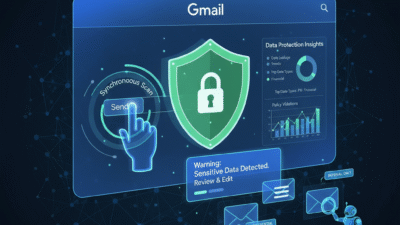
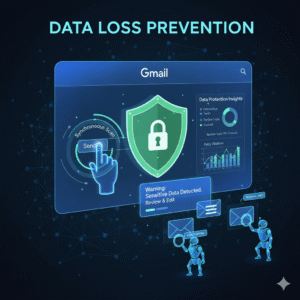
One of the most impactful recent updates to Data Loss Prevention in Gmail is the move to instantaneous, or synchronous, scanning. Previously, DLP rules were often applied asynchronously, which meant there could be a short but critical delay between the user hitting “Send” and the rule being enforced. Therefore, the email might temporarily leave the secure perimeter of the user’s outbox.

Now, however, the DLP scan happens instantly when the user clicks the Send button. Consequently, the user is notified immediately if the message violates a policy. This real-time enforcement is a major security improvement. Furthermore, this change aligns Gmail DLP with the instantaneous protection already available in Google Drive and Chat. Ultimately, this synchronous scanning drastically minimizes the window for data leakage.

Empowering Users with Customizable Warnings and Actions

A key part of effective Data Loss Prevention is user education. Most data leaks happen because of simple human error, not malicious intent. Therefore, Gmail’s updated DLP now provides more actions than just blocking an email outright. Specifically, administrators can configure a “Warn” action. This action displays a notification to the user about the sensitive content.

Additionally, the administrator can fully customize this warning message. This customizable warning allows the IT team to include specific policy details and links to relevant training materials. Consequently, the user is educated on the spot. The user can then choose to either edit the message to remove the sensitive data or, if appropriate, override the warning and send the message, with the action logged for auditing. This granular control transforms DLP into a powerful educational tool for the entire business.

Gaining Clarity with New Gmail Data Protection Insights

Security teams struggle to manage risks they cannot see clearly. Now, a new feature called Gmail Data Protection Insights gives administrators the visibility they truly need. Specifically, this reporting tool provides daily, high-level analytics on the sensitive data leaving the organization via email. Therefore, IT leaders can see trends, such as the most common data types (like passport numbers or bank details) being flagged in outgoing messages. Furthermore, these insights help administrators assess whether their existing Data Loss Prevention rules are effective. Consequently, the team can move from a reactive posture—responding to breaches—to a proactive one. Thus, these insights are crucial for refining policies and addressing potential risk patterns before they become actual security incidents.

Leveraging Data Classification Labels for Deeper Control

Data classification is a strong foundation for any effective Data Loss Prevention strategy. Therefore, Google has integrated data classification labels directly into Gmail. Specifically, administrators can create or use existing Google Drive labels to tag emails based on their sensitivity. Consequently, a message can be automatically labeled “Internal Only” or “Confidential Financial Data.” Now, DLP rules can use these labels as a condition. For example, a rule can be set to automatically block any email with the label “Highly Confidential” from being sent to an external recipient. Furthermore, the auto-classification labeling feature uses DLP rules to apply these labels automatically. This seamless integration provides deeper, more targeted control over sensitive information, which is a significant boost to Data Loss Prevention.

Best Practices: Setting Up Powerful DLP Rules

Implementing Data Loss Prevention effectively requires careful rule construction. You must start by identifying your company’s most sensitive data types (PII, credit card numbers, health records). Then, use the robust library of predefined content detectors in Google Workspace. Furthermore, administrators should utilize the minimum number of matches and the confidence threshold settings. This tuning prevents too many false positives that frustrate employees. Moreover, a best practice is to always start new rules in “Audit only” mode. This allows the security team to monitor the rule’s impact passively and adjust the settings before enforcing actions like “Block” or “Quarantine.” Consequently, a phased approach minimizes disruption and ensures a smooth rollout of your Data Loss Prevention strategy.

Protecting Against Accidental Leaks and Insider Threats

The majority of data leaks are due to human error—the wrong attachment, the wrong recipient, or a simple lapse in judgment. Data Loss Prevention acts as a crucial safety net against these accidental leaks. Because the new synchronous scanning immediately alerts the user, they have the chance to correct the error before the sensitive email ever leaves the system. However, DLP is also a powerful tool against insider threats. By setting up monitoring rules for specific keywords, file types, or even communication patterns, administrators can flag suspicious activity. Consequently, messages suspected of containing proprietary information being sent to personal accounts can be automatically quarantined for admin review. This dual-purpose protection is essential for securing modern business communication.

Conclusion

The enhancements to Gmail’s Data Loss Prevention capabilities mark a necessary and significant step forward in enterprise email security. Moving to instantaneous scanning eliminates the risk window. Furthermore, customizable warnings turn policy enforcement into an educational opportunity for your users. Finally, integrating features like Data Protection Insights and classification labels provides the necessary clarity and granularity for managing risk at scale. Ultimately, securing business emails is not just about avoiding fines; moreover, it is about protecting your intellectual property, client trust, and brand reputation. Therefore, utilizing these advanced Data Loss Prevention tools in Google Workspace is no longer optional. Instead, it is a mandatory element of a mature, modern security strategy.


Frequently Asked Questions (FAQs)

1. What is the difference between synchronous and asynchronous DLP scanning?

Synchronous scanning is a key update where the Data Loss Prevention rule is checked instantly when the user clicks “Send.” This prevents the email from leaving the outbox if sensitive data is found. Asynchronous scanning, the older method, applied the rule after a short delay, which created a small window for potential leakage.

2. How do I access the new Gmail Data Protection Insights?

The new Gmail Data Protection Insights are reports available to Google Workspace administrators in the Admin console. They provide aggregate data on sensitive content detected in outgoing emails. Administrators use these insights to refine and strengthen their existing Data Loss Prevention rules.

3. What is the benefit of the new “Warn” action in DLP rules?

The “Warn” action notifies the sender about sensitive content before the email is sent, which helps prevent accidental sharing. The customizable message allows administrators to educate the user immediately about the policy violation, encouraging correction and better future compliance.

4. Which types of sensitive data can Gmail DLP detect?

Gmail Data Loss Prevention can detect a vast array of sensitive data types using predefined content detectors. This includes, but is not limited to, credit card numbers, Social Security Numbers, passport numbers, and various international ID numbers, along with custom keywords and regular expressions.

5. How do data classification labels enhance Gmail DLP?

Classification labels (like “Confidential” or “Internal Only”) allow administrators to create highly targeted Data Loss Prevention rules. These rules can be configured to block or warn against specific actions—such as external sharing—only when a message has a particular sensitivity label attached to it.

Also Read: New Google Workspace: Must-Try School 

The Zero Trust Shift: Securing Hybrid Work with ZTNA

The old security walls are gone. Hybrid work is the norm today. Relying on the old “castle-and-moat” idea is risky. This old plan trusted all inside the work net. Consequently, Zero Trust Architecture (ZTA) is the key to safe work. Zero Trust uses one rule: never trust. Always verify.

All users, devices and data must be checked. This is true even for access inside the network. This constant check is vital.

New Zero Trust fixes are part of the net. They use smart tools like AI. They use flexible access rules. Thus, these tools give better security. Workers are everywhere now. For this reason, a strong Zero Trust plan is a must for all firms. Moreover, this plan knows threats are everywhere. Therefore, the net is never trusted by default. This change helps keep the whole system safe.

Image Of The Zero Trust Shift: Securing Hybrid Work with ZTNA

Beyond The Basics: The Evolution of ZTA Pillars

The first Zero Trust design only focused on two things. First, it focused on strong Identity and Access Management (IAM). Second, it focused on dividing the net. However, threats are much smarter now. Therefore, the whole design has changed. Now it includes more detail. Also, it includes smarter access checks across all digital tools. Thus, these new improvements are making security stronger. Also, they are making the process clearer for the workers who use the system.


Context-Aware Access and Evaluation

Access checks cannot stay static. They cannot only depend on a name and a code. Instead, access decisions are always changing. They change based on many factors. Therefore, new Zero Trust systems check many different things. They check these things all the time. They check for every access request. This non-stop check is great.

For example, the system checks these key factors:

  • User Identity and Role: Who is the person trying to log in? What can this person do based on their job?
  • Device Posture: Is the device following all company rules? Is the system fully up-to-date? Does the device have the right virus scan running? For this reason, if a device’s score drops, the system cuts off access fast. Or, it lowers the access level right away.
  • Location and Geolocation: Where is the access request starting from? Is this a strange place for this worker to be?
  • Time of Day: Is the worker trying to look at secret data late at night? For instance, is it at 3 AM?

This continuous check means the system never just gives trust easily. Access can quickly change. Also, the system can stop access right in the middle of a session. This happens if the risk goes up. This action prevents a hacker from moving inside the net. Therefore, Zero Trust gives great control.


The Rise Of AI And Automation

Artificial intelligence (AI) is the main power source for the next step in Zero Trust. AI and machine learning look at huge logs of data. They do this in real time by looking for strange things. They flag risky actions that people would miss. This speed is vital now.

New AI improvements give great help. For example, AI-driven fixes include:

  • Automated Data Classification: AI automatically reads and sorts data. It gives the data labels like “Secret.” This task is crucial. This ensures that the rules for Data Loss Prevention (DLP) work right. This is true no matter where the data is kept. This helps protect private customer details.
  • Behavioral Analytics: The system learns what is normal for a user. Consequently, if a worker suddenly uses an app they never touch, the AI sees it. Or, if the worker starts getting too much data, the AI detects the odd change. Then, the system forces a re-check. Or, it blocks the action. This step helps a lot. It also stops bad behavior.

The system uses Threat Detection and Response (XDR). XDR combines security facts. It gathers data from emails and computers. It gives a full picture of any threat. Thus, the system can quickly block bad computers or users. Truly, Zero Trust gets its power from these tools.


From VPN to ZTNA: Securing The Hybrid Workforce

The biggest change in the Zero Trust setup is the move from old VPNs. Now, everyone uses Zero Trust Network Access (ZTNA). This move is necessary. It secures all remote work teams.

VPNs had a major fault. They gave a user access to the whole net once checked. This was a single point of failure. Conversely, ZTNA replaces this old way. It uses true least-privileged access. Therefore, a remote worker only makes a small, safe link. This link goes only to the one app the worker needs. It does not connect to the whole net.

This change has many pluses. The attack area shrinks greatly. Thus, it makes it hard for a hacker to find a way in. Also, the risk of harm is low if a computer is hacked. This cuts the “blast radius” of any break-in. ZTNA also runs quietly. It is fast and better for the user. It avoids the slow-down issues that were common with old VPNs. Thus, choosing ZTNA is a main step toward full Zero Trust.


ZTNA Versus VPN Comparison

Feature Old VPN Model Zero Trust Network Access (ZTNA)
Trust Model Implicit Trust (Trusts all once door opens) Never Trust, Always Verify (Checks every action)
Access Granularity Grants network access (You get the whole floor) Grants application access (You get one desk)
Attack Surface High (Exposes the net to hackers) Low (Apps stay hidden from hackers)
Lateral Movement Easy (Hacker moves freely) Blocked (Access is limited to one app)

ZTNA simplifies security a lot. You do not need to check complex firewall rules for every user. Instead, the rule is based on the user’s name. This rule follows the user. Thus, the security stays the same everywhere. Consequently, ZTNA fixes the main problem of securing workers who move often.


Key components for a robust zero trust workspace

Building a full ZTA needs many layers of defense. You must cover every part of your digital work area. These three core parts work well together. They deliver very strong workspace security.

1. Identity and Endpoint Security

A strong system for Identity and Access Management (IAM) is the most basic need. This involves forcing all users to use Multi-Factor Authentication (MFA). MFA adds a safe step after the password. It also requires using Single Sign-On (SSO). SSO centralizes the login process. Furthermore, the focus on Endpoint Security has grown. Zero Trust Architecture checks all devices deeply. It checks phones and computers. It must ensure that all devices meet strict rules before they can connect. If a worker uses their own phone, the system keeps company info separate. This is vital.


2. Micro-Segmentation and Networking

Micro-segmentation is a powerful tool. It cuts the whole net into small zones. Gaining access to any zone needs a separate, clear pass. This stops a hacker from moving around easily. If an attacker breaches one part, their harm is small. They cannot move to the finance server from the marketing server easily. They need a new key. Likewise, the network side has changed. It now views the computers in the main office as just another untrusted part. This is key. This guarantees that the rules work the same way for every link. It does not matter if a worker is at home or in the main office.


3. Data Protection and Governance

In the end, the main job of Zero Trust is to protect the info. New fixes focus on applying consistent DLP policies. These rules apply to all apps. They work for cloud apps. They work for in-office apps. This step ensures that secret info is always safe. It must be safe when it sits still. It must be safe when it moves. Also, Zero Trust creates a full record. This audit trail shows every access try. It shows every data action. This clear record is needed. It greatly improves security. Moreover, this transparency makes meeting rules much simpler. Thus, security teams can easily prove compliance.


Conclusion: Building a Secure Future

The move to Zero Trust Architecture is not a trend. It is a required security shift. The shift to hybrid work has killed the idea of a safe net border. Consequently, firms must use the “never trust, always verify” rule. This ensures that security is used everywhere. It is used on every person and device. It does not matter where they are.

This modern security plan is built on many key fixes. For instance, ZTNA replaces old VPNs. AI uses constant checks to find threats fast. Micro-segmentation stops hackers from moving around inside the net. Furthermore, focusing on the person and the device’s health makes access choices smart. Therefore, companies that use a full Zero Trust plan will gain a major plus. They will keep their data safer. They will simplify compliance and will also give their workers a safe way to work from anywhere. Truly, a strong Zero Trust plan is the best choice for future business safety.


Frequently Asked Questions

1. What does “never trust, always verify” actually mean in practice?

It means the system checks the user every time they want to do something. For example, when a user logs in, the system checks them. When they click on a new app, the system checks them again. Consequently, the system treats the whole net as a dangerous place. It trusts nothing easily.


2. How does zero trust prevent lateral movement?

Zero Trust uses micro-segmentation. This divides the net into small, secure areas. When a user gets access, they only get a small link to just one resource. Therefore, if a hacker gets that user’s access, they cannot move to other parts of the net. They are stuck in a tiny zone.


3. Is ZTNA a replacement for my VPN?

Yes, Zero Trust Network Access (ZTNA) is now taking the place of old VPNs. VPNs gave users access to the entire net. This was risky. However, ZTNA grants access only to one specific app. This is after the user and device are fully checked. This makes security much better for people working from home.


4. How does context-aware access improve security?

Context-Aware Access makes security decisions smart. It uses real-time info. For instance, it checks the device’s health. It checks the user’s location. It uses this info to guess the risk. Then, it changes the access level right away. It can deny access if the risk is too high.


5. Why is ai so important to the latest zero trust enhancements?

AI is key because it can check for threats faster than any person. It learns what is normal. It then flags strange actions fast. This allows the system to find hackers right away. Consequently, the hacker has very little time to cause harm in the workspace.


Also Read: Latest Outlook Updates: Smarter Scheduling and AI Suggestion

Latest Outlook Updates: Smarter Scheduling and AI Suggestion

Maximizing Your Day: The Power of Smarter Scheduling in the Latest Outlook Updates

For years, Microsoft Outlook has been the go-to tool for managing email and calendars. However, the world of work is rapidly changing. We now face more meetings, more emails, and more digital clutter than ever before. To fight this, the latest Outlook updates have introduced a powerful game-changer: artificial intelligence (AI). This new wave of smarter scheduling and AI suggestions is not just a minor tweak; it’s a complete revolution in how we manage our time and communicate.

By embracing these innovative features, you can turn your overwhelmed inbox and calendar into a streamlined system of productivity. This comprehensive guide will walk you through the most significant advancements, showing you exactly how the latest Outlook updates will help you regain control of your day.

Image Of Latest Outlook Updates

The Era of AI-Powered Productivity with Latest Outlook Updates

The core of the latest Outlook updates is Microsoft’s commitment to an AI-first future. This strategy focuses on integrating intelligent technology right into the tools you use every day. The goal is simple: to automate the routine, time-consuming tasks so you can focus on work that truly matters. AI is no longer a futuristic concept; it is an active, essential part of your daily workflow. Consequently, your email client is transforming into a full-fledged personal assistant.

Furthermore, this transformation means that every new feature is designed to learn from your habits. Outlook’s AI observes how you prioritize emails, when you prefer to meet, and who your most important contacts are. As a result, the suggestions it provides become more accurate and personalized over time. This continuous learning loop ensures that the latest Outlook updates deliver constantly improving efficiency. Ultimately, you get to experience an email and calendar system that is uniquely tailored to your professional needs, making your workday smoother and less stressful. This new level of customization is what sets the new experience apart.

Scheduling Assistant: Going Beyond Basic Availability

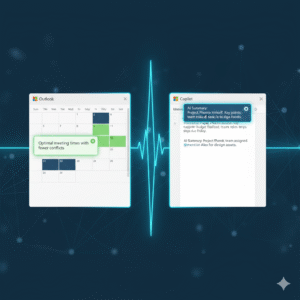
Finding a meeting time that works for everyone is one of the most frustrating parts of office life. The old method involved endless back-and-forth emails, checking multiple calendars, and dealing with time zone headaches. Thanks to the latest Outlook updates, the Scheduling Assistant has evolved into a truly “smarter” tool.

The Scheduling Assistant now uses AI to do more than just check for open blocks on a calendar. It intelligently analyzes everyone’s schedule, considering factors like typical working hours, previously scheduled commitments, and even travel time between different locations. For instance, if a colleague is traveling, the assistant will automatically account for their time zone change and an appropriate buffer.

What’s more, this feature doesn’t just show you available slots; it actively suggests the optimal time. It might recommend a time that avoids a major conflict or one that minimizes back-to-back meetings for attendees. The objective of these latest Outlook updates is to eliminate the dreaded “When are you free?” chain, allowing you to create meeting invites in just a few clicks. This is a massive time saver for any professional.

Copilot Integration: Your Personal Email and Calendar Coach

The most significant AI addition in the latest Outlook updates is the integration of Copilot. This tool acts as an advanced virtual assistant living right inside your email and calendar. Copilot’s capabilities extend across both your inbox and your meeting management, providing unparalleled assistance. For example, in your email, Copilot can instantly summarize lengthy email threads. If you open a discussion with dozens of replies, it will condense the entire conversation into a few key bullet points, highlighting decisions and action items. This one feature can save you hours of reading every week.

Moreover, Copilot assists with drafting emails, which is a major benefit of the latest Outlook updates. You can simply provide a natural language prompt, such as, “Draft a reply to Sarah politely declining her meeting request but suggesting a follow-up call next week.” Copilot will then generate a professional, well-written draft. Beyond drafting, Copilot offers “coaching” suggestions, which are another powerful aspect of the latest Outlook updates. It analyzes the tone of your message before you send it, ensuring that you convey the intended sentiment, whether that’s firm, friendly, or urgent. Therefore, Copilot makes you a more effective and efficient communicator, ultimately improving your professional interactions.

Focused Inbox and Smart Prioritization

A cluttered inbox is a major source of anxiety and lost time. To combat this, the latest Outlook updates have refined the Focused Inbox feature, making it more intelligent than ever. The Focused Inbox automatically sorts your incoming mail into two tabs: “Focused” for emails the AI deems most important, and “Other” for everything else, like newsletters, promotions, and less critical correspondence.

The AI uses a complex set of criteria to determine priority. It learns your habits, paying attention to who you reply to most often and which threads you spend the most time reading. It also analyzes the email’s content, looking for keywords that signify urgency or importance, such as project names or your manager’s name. This process of smart prioritization in the latest Outlook updates ensures that the critical messages are always visible, which significantly reduces the time you spend sifting through junk

You can, of course, train the AI by manually moving emails between the two tabs. This action teaches the system your personal preferences, making the sorting more accurate as you continue to use the feature. This dynamic learning process is key to a calm and efficient inbox.

Enhanced Meeting Insights and Recaps

The latest Outlook updates also bring intelligence directly into the meeting experience, both before and after the event. Before a meeting, the new Meeting Insights feature provides context by pulling relevant documents and email threads related to the topic. This preparation step ensures that you are never walking into a meeting cold. You will have all the necessary background information at your fingertips, which allows you to contribute more meaningfully to the discussion. This is a clear move towards proactive productivity.

Following the meeting, a powerful new capability from the latest Outlook updates is the automatic Meeting Recap. For meetings conducted in Microsoft Teams (and integrated with Outlook), the AI automatically generates a summary. This recap includes a meeting transcript, a list of all attendees, and, crucially, a list of suggested action items.

Instead of relying on manual note-taking, the AI captures everything and highlights the most important outcomes. This feature is especially valuable for people who missed the meeting or need to quickly recall a specific decision. This advancement is a key part of the new intelligent workflow, making meetings not just easier to schedule, but also more effective in their outcomes. The latest Outlook updates ensure that you don’t just attend a meeting; you leave with clear, actionable results.

Security and Search: Intelligent Defenses and Discovery

Productivity in Outlook isn’t just about scheduling; it’s also about having confidence in the system and being able to quickly find what you need. The latest Outlook updates have significantly beefed up the security features using AI. The system now uses advanced machine learning models to detect sophisticated phishing attempts and zero-day threats that traditional filters might miss. It constantly analyzes sender behavior and email content, providing a dynamic defense that keeps your sensitive information safe. This quiet, intelligent defense is working for you 24/7, providing peace of mind.

Similarly, the search function in the latest Outlook updates has undergone a major overhaul. The search bar now understands natural language queries much better than before. Instead of having to use perfect keywords, you can type, “Find the email John sent last week about the Q3 budget” and the system will understand the intent and quickly surface the correct message, attachments included. The AI-powered search even prioritizes results based on your communication history, putting the most relevant conversations right at the top. This ability to instantly retrieve information is a core component of the enhanced user experience delivered by the latest Outlook updates, saving you precious minutes throughout your workday.

The Future of Work is Here

The introduction of smarter scheduling and AI suggestions represents a significant leap forward. The latest Outlook updates are a clear signal that Microsoft is committed to transforming our digital workspaces. By embracing these AI-powered features—from the intelligent Scheduling Assistant and the robust Copilot integration to the streamlined Focused Inbox and the proactive Meeting Recaps—you can dramatically improve your personal and team productivity.

Take the time to explore these new tools. Customizing the AI to your specific working style is an investment that will pay off immediately, allowing you to finally spend more time on meaningful work and less time managing your inbox and calendar. The future of smarter, more efficient work is officially active in the latest Outlook updates.

Frequently Asked Questions (FAQs)

1. What is the most significant new feature in the latest Outlook updates?

The most significant new feature is the integration of Copilot, which is an AI assistant that provides real-time help. It can draft emails, summarize long email threads into key bullet points, and offer “coaching” suggestions on the tone and clarity of your messages before you send them.

2. How does the “Smarter Scheduling” feature actually save me time?

The smarter scheduling in the latest Outlook updates saves time by using AI to analyze the calendars of all participants, considering time zones, travel, and existing meetings. Instead of you manually checking for open slots, the Scheduling Assistant automatically suggests the single optimal time that works for everyone, virtually eliminating the back-and-forth email negotiation process.

3. Will the new Focused Inbox in the latest Outlook updates delete my non-priority emails?

No, the Focused Inbox will not delete your emails. It simply sorts incoming messages into two tabs: “Focused” for important emails (based on AI analysis of your habits and sender priority) and “Other” for less critical messages. You can switch between the two tabs at any time to view all your mail, and you can train the AI by manually moving messages to improve its sorting accuracy.

4. Is Copilot available for all versions of Outlook after the latest Outlook updates?

Copilot is part of the Microsoft 365 ecosystem. Access to the full range of Copilot features, especially the drafting and summarizing tools, generally requires a Copilot for Microsoft 365 subscription, which may be available for business/enterprise accounts or as an add-on for personal subscriptions, depending on your organization’s setup.

5. How has the search function improved in the latest Outlook updates?

The search function now uses AI and Natural Language Processing (NLP) to understand what you mean, not just the keywords you type. For instance, you can type a phrase like “Find the attachment from the meeting last Tuesday about the new project,” and the search will intelligently prioritize the most relevant results from your entire history of mail and files.

Also Read: Microsoft Loop Explained: A Game-Changer for Collaboration

The Future of Docs: Google’s Emoji Reactions Explained

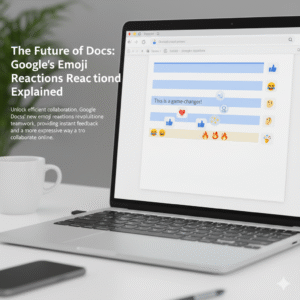
Have you ever found yourself in a Google Doc, wanting to show you agree or disagree, but a full comment just feels like too much? In fact, everyone has. Now, Google Docs has an answer for that common feeling. This is a game-changer for digital collaboration. Indeed, it is changing how teams work together. The new feature, therefore, is Google Docs’ real-time emoji reactions. You can now react instantly to text with a thumbs-up, a laughing face, or any other emoji. This simple addition, in a sense, is a big step forward for collaboration. Consequently, this change has major implications for how we work together.

Image of Google's emoji Reactions

Emojis: More Than Just Fun

You might wonder, naturally, if emoji reactions are just for fun. However, they serve a deeper purpose in today’s work environment. To begin with, they offer a quick way to give feedback. For example, you can give a thumbs-up to a section you like. This signals your support without a long comment. As a result, your colleague knows you have seen their input. Ultimately, this speeds up the review process.

Additionally, emojis add nuance. This is important. For instance, a simple sentence can be hard to read. A sentence like “This is a good idea” can be interpreted in different ways. Conversely, adding a 🙏 or a ✨ emoji makes the positive meaning clear. In contrast, a 🤔 emoji can gently suggest that you need more information. Therefore, emojis help with tone.

Furthermore, they streamline the review process. Consequently, this makes it easier for everyone. For example, instead of writing out long feedback, you can highlight text. You can then add a ❤️ or a ❓ emoji. This makes feedback visual. Likewise, it is less wordy.

More importantly, emojis build a better work culture. Since many people work remotely, this is very important. Therefore, emoji reactions add a human touch. A well-placed 😂 or 🎉 emoji can, in fact, celebrate a team win. Similarly, it can lighten the mood. Therefore, it helps with team morale. It is like having a silent cheerleading squad in your document. Finally, emojis help identify consensus. You can quickly see which parts of a document everyone likes (lots of 👍) or which parts need more discussion (a bunch of 🧐). As a result, this helps the document owner to see team sentiment.


How It Works: Super Easy!

Therefore, how does the feature work? In the first place, it’s quite simple. First, highlight the text you want to react to. After that, a small emoji icon appears. This icon is next to the text. It looks like the comment icon. Next, click the emoji icon. A selection of emojis will pop up. Then, choose your emoji. It will then appear next to the text. Of course, you can also see who reacted. In short, it’s a quick and easy process.


The Future of Collaboration

The new emoji reaction feature is a big step for Google Docs. Consequently, it is a big step for digital collaboration. For this reason, it makes our work more human. As our work changes, tools that help us communicate better will become very important. Therefore, this feature is very useful. It will, in fact, make online collaboration more expressive. This is because it is a very natural way to communicate. So, do not just comment. React. This will make your collaborative experience more engaging.

What do you think of this new feature?


FAQs

1. How do you add an emoji reaction in Google Docs?

To add a reaction, you must highlight the text. After that, you will see a small emoji icon. Then you can select your emoji.

2. Is this feature available to everyone?

This feature is available to most Google Docs users. In short, it is being rolled out to personal and business accounts.

3. Can I use any emoji?

Yes, you can use any emoji from the selection. This includes common emojis like 👍, ❤️, and 😂.

4. Can I see who added a reaction?

Yes, you can. You can see who added each emoji. This is very useful. It provides extra context.

5. How does this improve teamwork?

This feature helps teams in many ways. For example, it gives instant feedback. It also makes communication more expressive. Additionally, it helps build team morale. All things considered, it improves collaboration.

Also Read: Google Meet’s New AI Noise Cancellation: A Game-Changer

Microsoft 365 Copilot: Complete Guide (2025)

Microsoft 365 Copilot

AI-Powered Microsoft 365 Copilot: A New Era of Productivity

The world of work is always changing. Consequently, the tools we use must keep up. In a world where efficiency is key, Microsoft has introduced an amazing AI assistant. It’s called Microsoft 365 Copilot. This tool is no longer a futuristic idea. In fact, it’s a real benefit for businesses of all sizes.

So, how does Copilot truly work? What does it mean for your daily work?

What Exactly is Microsoft 365 Copilot?

Basically, Microsoft 365 Copilot is a smart AI tool. It works with you across the Microsoft 365 suite. It is built on a large language model (LLM). Its true power comes from its link to the Microsoft Graph. This unique connection lets it access and understand your personal data. For instance, it can read your emails, calendar events, and chat history. Therefore, it is more than just a general AI. It is an AI that understands your specific work.

Essentially, Microsoft 365 Copilot is a productivity engine. It can create text, summarize info, and make presentations. It also analyzes data. All you need to do is use natural language commands. For example, instead of searching through old documents, you can simply ask Copilot to find a key detail for you. This saves your mental energy. You can then focus on strategic thinking, creative problem-solving, and human connections. After all, these are the unique skills AI can’t copy.

How Microsoft 365 Copilot Works Across Key Applications

The real strength of Microsoft 365 Copilot is its seamless integration. It works across the apps you use every single day. Because it’s not a separate product, it can assist you at every step of your workday.

1. AI Assistance in Microsoft Word

The blank page can be intimidating. However, with Copilot, that feeling is gone. For example, you can give it a simple instruction. “Draft a 10-page business plan for a new marketing campaign,” you might say. Copilot will then create a full first draft. It pulls facts and insights from your documents. Furthermore, it can help you improve your writing. It can summarize long documents or rewrite paragraphs. In addition, it can even translate text into another language.

2. AI Assistance in Microsoft Excel

The days of complex formulas are ending. This is where Microsoft 365 Copilot really stands out. A task that once needed advanced skills is now a simple conversation. For instance, you can ask, “Show me the top products by region in a pivot chart.” Copilot will build it instantly. Likewise, it can find trends and identify unusual data. Ultimately, it can even provide written explanations of your data. This makes complex spreadsheets easy for everyone to understand.

3. AI Assistance in Microsoft Teams

Meetings can waste a lot of time. Luckily, Microsoft 365 Copilot changes this completely. During a meeting, it can summarize the main points. It also lists action items in real-time. If a team member misses a meeting, they can just ask Copilot for a summary. They will get a detailed and accurate report. Consequently, nobody ever has to feel left out of a conversation again.

4. AI Assistance in Microsoft Outlook

Managing your inbox can be a full-time job. With Microsoft 365 Copilot, it becomes much easier. First, it can summarize long email chains. This helps you get the main idea in a few seconds. In addition, it helps you write professional emails. It gives suggestions for tone and content. This saves you from staring at a blank screen for a long time. Therefore, you can focus on the most important messages without feeling overwhelmed.

Real-Life Business Applications for Microsoft 365 Copilot

Beyond the individual user, Microsoft 365 Copilot changes how entire business departments work.

  • For Marketing and Sales: Use it to quickly write blog posts. It can also analyze customer feedback from surveys. It can even summarize long market research reports to find key details. This helps marketing teams be more flexible and data-driven.
  • For Human Resources: You can speed up the creation of training materials. It can also draft new company policies. Furthermore, it can summarize employee surveys to find key trends.
  • For Project Management: With Copilot, you can quickly create project plans. It can also track progress by summarizing team updates. Ultimately, it can generate status reports for stakeholders with one command. This greatly reduces the busywork of managing a project.

The Strategic Edge: Why Microsoft 365 Copilot is a Game-Changer for SMEs

For small and medium-sized businesses (SMEs), Microsoft 365 Copilot is a huge advantage. In the past, large companies had the budget to hire dedicated experts. Now, SMEs can get similar abilities without the high cost.

Microsoft 365 Copilot helps a small team act like a much bigger one. It allows them to achieve the same level of productivity as a large company. Consequently, SMEs can compete more effectively. They can spend more time on customer relationships and innovation. Ultimately, this lets small businesses focus on what they do best. The AI handles the hard work for them.

Microsoft 365 Copilot vs. Traditional Productivity Tools

The main difference between Copilot and old tools is the shift from passive to proactive. A regular word processor is just a tool; you have to do all the work. On the other hand, Copilot gives you a first draft, a summary, or data analysis. This saves you many hours of manual work.

A traditional spell-checker corrects your typos. In contrast, Copilot can rewrite a whole paragraph to make it clearer. You might manually create a chart in Excel. However, Copilot can understand your goal and build the chart for you. It intelligently suggests the best way to show your data.

Ensuring Security and Compliance with Microsoft 365 Copilot

Data security is a major concern with AI. Luckily, Microsoft built Microsoft 365 Copilot with top-level security. It works within your existing Microsoft 365 security system.

Your data remains your property. Copilot does not use your data to train its models for others. Furthermore, Microsoft 365 Copilot respects your data permissions. It can only see the information you have permission to access. This protects sensitive data. You can use the power of AI without risking your company’s security.

Getting Started with Microsoft 365 Copilot Today

The future of work is not far away; it is here now. Microsoft 365 Copilot shows how AI can help people, not replace them. By automating daily tasks and assisting with complex ones, it helps people and businesses unlock new levels of productivity.


Frequently Asked Questions (FAQS) 


1. What is the main difference between Microsoft 365 Copilot and other AI tools?

Copilot is an AI assistant built directly into your Microsoft 365 apps. It uses your own work data to provide personalized help, while other tools like ChatGPT are general-purpose chatbots.

2. Is Microsoft 365 Copilot secure and private?

Yes. It operates within your company’s existing Microsoft 365 security. Your data is not used to train the AI model for others.

3. What specific tasks can Copilot help me with?

It can draft emails in Outlook, summarize documents in Word, analyze data in Excel, and create meeting summaries and action items in Teams.

4. How can my business get started with Microsoft 365 Copilot?

You need to have a qualifying Microsoft 365 subscription. Copilot is then available as an add-on license for each user in your business.

5. How does Copilot get context from my work?

It connects to the Microsoft Graph, which maps the relationships between your documents, emails, and chats. This allows it to understand your work and give relevant answers.

Also Read: Updates in Google Workspace: September 2025