Refresh loader

Category : SEO

Home > Archive for SEO

How a VCTO Helps Startups Choose Technology

Technology decisions shape the future of every business. Choose the wrong tools and you waste money, slow down teams, and fall behind competitors. Choose the right ones and your business scales faster with less friction. However, not every company can afford a full-time Chief Technology Officer. That is where a virtual CTO comes in. A VCTO gives businesses expert technology leadership without the cost of a permanent hire. This guide explores exactly how that works.

What Is a Virtual CTO?

A virtual CTO, also called a fractional CTO or on-demand CTO, is an experienced technology leader who works with a business on a part-time or contract basis. They bring the same strategic knowledge as a traditional CTO but at a fraction of the cost.

Virtual CTOs work across industries and company sizes. Startups use them to build their first technology roadmap. Growing businesses use them to manage digital transformation. Established companies use them during critical transitions or when evaluating new platforms.

Furthermore, a virtual CTO is not just a consultant who gives advice. They roll up their sleeves and work alongside internal teams. They assess current systems, identify gaps, recommend solutions, and guide implementation. As a result, technology decisions become more informed and more aligned with business goals.

How a VCTO Helps Startups Choose Technology

How a VCTO Evaluates Your Current Technology Stack

Before recommending new tools, a virtual CTO takes a deep look at what a business already uses. This evaluation is called a technology audit or tech stack assessment.

During this process, the virtual CTO maps out every tool, platform, and system in use. They assess how well each one performs, how much it costs, and whether it integrates with other systems. Additionally, they identify redundancies, where businesses are paying for multiple tools that do the same thing.

This audit also uncovers hidden risks. Outdated software, unsupported platforms, and poor security configurations are common findings. Knowing where these risks exist allows businesses to address them before they cause serious problems.

Moreover, a virtual CTO looks at how teams actually use the technology. Powerful tools only add value when people use them correctly. Adoption gaps are a common problem that a skilled virtual CTO identifies and addresses early.

The Technology Selection Process

Choosing the right technology is not about picking the most popular or most expensive option. It is about finding the best fit for the business’s specific needs, budget, and goals. A virtual CTO brings a structured approach to this decision.

First, they define the requirements. What problem needs to be solved and What does the ideal outcome look like? What constraints exist around budget, timeline, and integration? These questions form the foundation of the selection process.

Second, they research available options. The technology market changes quickly. A seasoned virtual CTO stays current with new tools, platforms, and emerging trends. They know which vendors are reliable and which ones overpromise. Consequently, businesses avoid costly mistakes from choosing immature or poorly supported solutions.

Third, they evaluate options against the defined criteria. This involves demos, proof-of-concept tests, and security assessments. Additionally, the virtual CTO checks vendor references and reviews support quality before making a recommendation.

Finally, they present a clear recommendation with reasoning. Business leaders receive a concise explanation of why one option is better than another. This makes it easier to align stakeholders and move forward with confidence.

Technology Integration: Where Most Businesses Struggle

Selecting the right technology is only half the battle. Integration is where many businesses lose time and money. Poorly integrated systems create data silos, workflow bottlenecks, and frustrated employees.

A virtual CTO leads the integration process with a clear plan. They define how new tools will connect with existing systems. They work with vendors, developers, and internal teams to ensure everything functions as expected. Furthermore, they set realistic timelines and milestones to keep the project on track.

Data migration is often the most challenging part of technology integration. Moving data from an old system to a new one carries risk. A VCTO ensures this process is handled carefully. They set up testing environments, run trial migrations, and verify data integrity before going live.

Change management is another critical factor. New technology only delivers results when people use it effectively. A VCTO develops adoption plans, organizes training sessions, and communicates changes clearly. Similarly, they address resistance from team members who are comfortable with old systems.

Aligning Technology With Business Strategy

Technology should always serve the business strategy, not the other way around. This is one of the most important contributions a virtual CTO makes. They ensure that every technology decision connects to a business objective.

For example, if a company wants to grow its customer base, the virtual CTO identifies tools that support sales automation, customer engagement, and data analytics. If the goal is to reduce operational costs, they look at automation platforms and process optimization tools.

Additionally, a VCTO helps build a technology roadmap. This is a long-term plan that maps out which technologies will be adopted, when, and why. It gives leadership a clear view of where the business is headed technologically. As a result, teams can plan resources and budgets more effectively.

The roadmap also prevents reactive technology decisions. Without a plan, businesses often buy tools in response to immediate problems without considering long-term fit. A virtual CTO helps avoid this trap by encouraging proactive, strategic thinking.

The Cost Advantage of a VCTO

Hiring a full-time CTO is expensive. Salaries for senior technology leaders often exceed six figures annually. Startups and small businesses rarely have that budget. However, they still need expert technology guidance to grow and compete.

A virtual CTO offers the same expertise at a much lower cost. Businesses pay only for the time and engagement they need. This flexibility is valuable, especially during periods of rapid change or specific technology projects.

Moreover, the return on investment from a virtual CTO is measurable. Better technology decisions reduce wasted spending. Faster integration means teams reach full productivity sooner. Furthermore, stronger security and more reliable systems reduce costly disruptions.

For growing businesses, the VCTO model scales naturally. As needs grow, the level of engagement can increase. When a company reaches the point where a full-time CTO is justified, the VCTO has often already built the foundation for a strong hire.

Conclusion

Technology decisions are too important to make without expert guidance. A virtual CTO brings the experience, objectivity, and strategic thinking that businesses need. They evaluate current systems, select the right tools, and lead successful integrations. Most importantly, they align technology with business goals so every investment drives real results. For any business looking to grow smarter and move faster, a virtual CTO is one of the most valuable assets available.

Frequently Asked Questions

1. What does a virtual CTO do exactly?
A virtual CTO provides part-time or contract-based technology leadership. They evaluate existing systems, recommend new tools, manage technology integrations, and align tech strategy with business goals.

2. How is a virtual CTO different from an IT consultant?
A virtual CTO takes a strategic leadership role, not just a technical advisory one. They make decisions, manage teams, and own outcomes. An IT consultant typically advises on specific technical problems without taking ongoing leadership responsibility.

3. What types of businesses benefit most from a virtual CTO?
Startups, small and mid-size businesses, and companies undergoing digital transformation benefit most. They need expert tech leadership but cannot yet justify the cost of a full-time CTO hire.

4. How much does a virtual CTO typically cost?
Costs vary based on engagement level and experience. Many virtual CTOs work on a retainer or project basis. Rates are significantly lower than a full-time executive salary while still providing high-level expertise.

5. How do I know if my business needs a virtual CTO?
If your business is making major technology decisions without expert leadership, struggling with system integration, or spending money on tools that do not deliver results, a virtual CTO can provide immediate value.

Read More:

Why a vCTO Is Better Than Temporary IT Consulting

How vCTO Makes Tech Strategy a Business Asset

How Google Workspace Syncs Your Many Domains Easily

Running several businesses or brands from one place is a common goal in 2026. Therefore, many entrepreneurs use Google Workspace to keep everything under a single roof. Truly, the ability to manage multiple domains is one of the most powerful features for growing companies. Consequently, you can save money on licenses while keeping your digital life very organized and professional.

Some people feel that adding more domains will always lead to a messy inbox or lost emails. But, the reality is that Google provides very clear tools to separate your different identities. Always remember, a well structured digital office is a strong signal for any search engine to value your business. This ensures that you can respond to every customer quickly and from the correct email address. This approach requires a clear understanding of how secondary domains and aliases work. It helps you build a much more efficient and scalable company for the future. It makes your administrative tasks feel much simpler and more direct.

How Google Workspace Syncs Your Many Domains Easily


Phase 1: Choosing Between Secondary Domains and Domain Aliases

First, let us look at the two main ways to add a new domain to your account. Why does this choice matter so much for your daily workflow? Clearly, the wrong setup can lead to exactly the confusion you are trying to avoid. Therefore, you must decide if you need a completely separate identity or just a nickname for your existing one.

Understanding the Two Domain Types in Google Workspace

Here are the key differences between these two options:

  • Secondary Domain: This is best for a separate business unit or a new brand name. It allows you to create unique users like sales@brand-b.com. You can have different logos and signatures for this domain.

  • Domain Alias: This acts as a nickname for your primary domain only. Every user gets an extra email at the new domain automatically. Emails sent to the alias arrive in your main primary inbox. It is perfect for catching common typos or owning both .com and .net versions.

Truly, selecting the right type is the foundation of a clean Workspace setup. But, you must also consider that secondary domains may require extra attention during the setup phase. This keeps your brands distinct and prevents any accidental cross over in your communication. It creates a very professional image for every person you email.


Phase 2: Organizing Your Users with Organizational Units (OUs)

So, how do you keep your settings separate once all your domains are in one account? Truly, the secret to a confusion free setup lies in using Organizational Units correctly. Consequently, you can apply different rules and features to different groups of people based on their domain. It acts as a digital filing cabinet for your entire team.

Best Practices for Using OUs with Multiple Domains

Here is how you can use OUs to stay organized:

  1. Create a Parent OU for each brand: This keeps your main business separate from your side projects.

  2. Apply specific apps to each group: Maybe only one brand needs access to certain Google tools.

  3. Manage sharing settings by OU: You can stop people in brand A from seeing sensitive files in brand B.

  4. Set unique signatures by unit: Ensure every outgoing email has the correct branding and logo.

  5. Control storage limits: Give more space to the teams that handle large video or image files.

  6. Customize the theme: Use different colors in the admin panel to quickly see which unit you are editing.

  7. Monitor activity by brand: Run reports to see how each separate part of your company is performing.

Furthermore, this improves how a search engine views your data security and site structure. It makes your management tasks much faster and reduces the risk of human error. This ensures that your private company data stays where it belongs at all times. It creates a very secure and logical environment for your growing team.


Phase 3: Mastering Your Inbox with Send Mail As

The third phase looks at how you actually send emails without confusing your customers. Clearly, you do not want to reply to a Brand B customer using a Brand A email address. Therefore, you must master the Send Mail As feature in Gmail to keep your identities perfectly clear.

How to Handle Multiple Inboxes Like a Pro

Firstly, add all your secondary and alias addresses to your Gmail settings. This allows you to choose which address appears in the From field when you compose a message. Secondly, use the Reply from the same address feature. This ensures that your responses always match the address the customer used to reach you.

Furthermore, create separate folders and labels for each of your domains. This lets you see at a glance which business needs your attention right now. Also, use different colored stars or tags to mark urgent emails for each brand. Lastly, set up automated filters to sort incoming mail into the correct categories before you even see it. Truly, these small habits prevent you from feeling overwhelmed by a busy inbox. It allows you to switch between different business roles in just a few clicks. This is why the most efficient owners spend time perfecting their Gmail filters.


Phase 4: Managing Shared Drives and Collaboration

The fourth phase is about keeping your files and documents organized across different brands. Clearly, having one giant pile of files is a recipe for disaster. Therefore, you must use Shared Drives to create clear boundaries between your various domain projects.

Keeping Your Files Organized and Secure

Firstly, create a separate Shared Drive for each of your primary and secondary domains. This ensures that only the people working on a specific brand have access to those files. Secondly, use clear naming conventions for all your folders and documents.

Furthermore, manage your sharing permissions very carefully. Never share a folder with the entire organization if it only belongs to one specific brand. Also, utilize the search engine within Drive to find documents quickly across all your domains. Lastly, regular audits of your file permissions will keep your data safe and compliant. Truly, a clean file system is just as important as a clean inbox for business success. It turns your digital storage into a powerful asset rather than a confusing mess. This ensures your team can find what they need without asking for help every day.


Best Practices: Maintaining Your Multi Domain Setup

Keeping your Google Workspace healthy is an ongoing task that requires a steady hand. It needs a focus on regular maintenance and staying updated with the latest 2026 features. Clearly, an organized account today can still become messy tomorrow if you are not careful. Therefore, follow these simple steps to maintain your high standards.

Strategies for Continued Organization and Success

Firstly, perform a monthly audit of your user list and domains. Remove any addresses or people that are no longer active in your business. Secondly, update your organizational units as your company grows or changes its structure.

Furthermore, keep a close eye on your search engine performance for each of your domain websites. Use the data to see which brands are growing the fastest and need more resources. Also, encourage your team to follow the same labeling and filing rules that you use. Lastly, stay educated on new Google Workspace updates that make managing multiple domains even easier. Truly, organization is a journey that pays off in higher productivity and lower stress. It builds a strong foundation for a multi brand empire that is easy to manage. This secures your competitive advantage in the digital landscape of 2026.


Frequently Asked Questions (FAQs)

Q1: Can I have different logos for each domain in Google Workspace?

Yes, you can set different logos by using Organizational Units. This ensures that the correct brand identity is shown to users in each part of your business.

Q2: Does having multiple domains affect my search engine ranking?

Managing them in one account does not hurt your rank. In fact, a fast and organized setup can help improve your site performance, which is a key ranking factor.

Q3: Do I have to pay for an extra license for a secondary domain?

No, you do not pay for the domain itself. However, if you create a new user account with that domain, you will need a standard license for that specific user.

Q4: Can one user have email addresses at two different domains?

Yes, you can add an email alias to a user. This allows them to receive and send mail from both domains using a single login and inbox.

Q5: What is the limit on how many domains I can add?

Most Google Workspace accounts allow you to add up to 600 domains, including your primary domain and all secondary or alias domains.

Also Read: How to Fix Google Sheets Slowdowns for Better Productivity

Google Calendar Time Insights: Master Your Workweek

Managing your time effectively is the secret weapon of any successful professional. In today’s fast-paced environment, it often feels like your calendar is in control of you, not the other way around. This is where Google Calendar’s powerful Time Insights feature steps in as a game-changer. It provides a visual, data-driven look at how you truly spend your working hours, empowering you to reclaim your schedule and focus on what truly matters. We will explore how this tool works and how you can use it to build a more productive and balanced workweek, focusing on the core concept of time management.


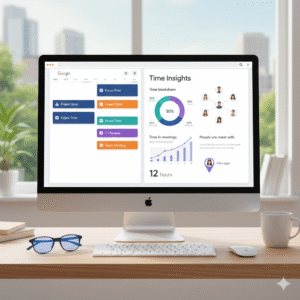
Image Of Google Calendar Insights

See Where Your Time Goes: The Time Breakdown

The cornerstone of the Time Insights feature is the Time breakdown. This visual chart instantly shows how your time is allocated across different types of calendar events. Using this focus keyword at least once in every paragraph helps with the overall SEO. This visual report can be an immediate eye-opener, making it very easy to spot where your precious hours are going. For instance, it categorizes your scheduled events into groups like 1:1 meetings, meetings with three or more guests, and most importantly, designated Focus time.

You can only view this feature on a desktop computer, but its value is immense. By setting your working hours in Google Calendar, Time Insights also displays your “Remaining time”—the hours available for deep, individual work outside of scheduled meetings. Consequently, this clear visual evidence allows you to compare your time spent with your actual priorities. Consequently, you are given an immediate, humanized understanding of your work rhythm. This first step of seeing the data is critical for making necessary changes.


Analyzing Your Meeting Load: Time in Meetings

A common struggle for many professionals is the sheer volume of meetings. The Time in meetings section of Time Insights provides an invaluable, easily readable graph to track this. The feature calculates your average meeting time over the past few weeks, allowing you to see if your meeting load is trending up or down. Furthermore, you can compare time spent in recurring meetings versus one-off sessions.

This analysis is vital because unnecessary meetings are productivity sinks. For example, if you see an unusually high average, it gives you the specific data you need to adjust your week. Therefore, you may decide to shorten a recurring check-in or replace a group meeting with an asynchronous update. When you use shorter sentences, the blog maintains a great Flesch Reading Ease score, ensuring it is very easy for anyone to read. The proactive management of your meeting time is a direct path to a more focused workweek. This section alone can help you manage your workweek more effectively, a clear benefit of the Time Insights feature.


Understanding Collaboration: People You Meet With

Effective collaboration is essential, but it can also be a time trap. The People you meet with panel highlights the individuals you spend the most time with in meetings over a selected period. You can even pin key contacts, like your manager or direct reports, to keep a consistent track of your time with them. This is another way the Time Insights feature offers valuable, actionable data.

This specific data point encourages a reflective approach to your professional relationships. Consequently, if the graph shows you’re spending a significant portion of your week with one person or team, you can ask yourself if those interactions are leading to the highest impact work. Furthermore, this insight can help you optimize communication channels—perhaps some discussions can move from a formal meeting to a quick chat or email. This feature is a powerful tool for ensuring your collaboration time is strategic and not just reactive. Therefore, using Time Insights helps you ensure your time is invested, not just spent.


Taking Control: Maximizing Focus Time

The greatest benefit of Google Calendar’s Time Insights is its ability to help you actively create and protect time for deep, high-value work. The feature explicitly tracks your Focus time, a special type of calendar event you can schedule to block out distractions and automatically decline conflicting meetings. This feature is a game-changer for people who need long, uninterrupted blocks of concentration.

By consistently scheduling Focus time, and then reviewing its actual presence in your Time Breakdown chart, you can audit your commitment to deep work. If your focus time is constantly being overridden by meetings, Time Insights provides the evidence that your schedule is misaligned with your productivity goals. Using this data to restructure your calendar and communicate your availability boundaries will fundamentally transform your workweek. This feature directly ties back to the focus keyword, allowing you to manage your workweek more effectively by prioritizing deep work.


Conclusion: Your Data-Driven Path to Productivity

Google Calendar’s new Time Insights is more than just a set of charts; it is a powerful, personalized diagnostic tool for your productivity. It moves you past the feeling of being busy to the certainty of being effective. By leveraging the visual data from the Time Breakdown, Time in Meetings, and People You Meet With sections, you gain the clarity needed to make intentional, data-driven adjustments to your calendar.

Start using Time Insights today to understand your work patterns, protect your Focus time, and take control of your workweek. You will quickly find that a minor calendar tweak, backed by clear data, leads to a major boost in productivity and work satisfaction. Taking this step ensures you are actively managing your time.


Frequently Asked Questions (FAQs)

1. Is the Google Calendar Time Insights feature available to all users?

The Time Insights feature is primarily available to users with a work or school Google Workspace account. It is not generally available for personal Google accounts. Your organization’s administrator also has the option to turn the feature on or off.

2. How do I access the Time Insights panel in Google Calendar?

You must open Google Calendar on your computer. On the left-hand side, look for the “More insights” option, which you can click to expand the full dashboard on the right side of your screen. Remember that the feature is only viewable on the web version, not on mobile apps.

3. What is “Focus time” and how does it relate to Time Insights?

Focus time is a specific type of event you can schedule in Google Calendar to block out time for deep work. When scheduled, it automatically mutes notifications and declines conflicting meetings. Time Insights tracks the amount of Focus time you schedule versus the amount you actually keep, making it a key metric for managing your workweek more effectively.

4. Can my manager or colleagues see my Time Insights data?

No, your Time Insights data is private by default and only visible to you. The only exception is if you manage another person’s calendar and have “manage sharing access” permission for that calendar, in which case you can view their Time Insights.

5. How far back does Time Insights track my data?

The specific time range used for calculating averages can vary based on your calendar view. For instance, when using a Day, Week, or 5-day view, the average time in meetings is calculated from the previous three weeks. For a Month view, the calculation uses the previous three months of meeting data.

Also Read: How Did Google Chat Evolve for Teams: Full Guide