Refresh loader

Category : Digital Marketing

Home > Archive for Digital Marketing

How Do You Plan a Fractional CTO Transition? Ultimate Guide


Replacing an Overpriced Agency: How a Fractional CTO Transitions You from a $15,000/Mo Agency to an In-House/Offshore Hybrid Team

Many companies pay a marketing or development agency a huge monthly fee. Fifteen thousand dollars a month is common for growing businesses. That fee often buys inconsistent results and limited real ownership. Meanwhile, a fractional CTO can help you build something better and cheaper. This guide explains how that transition actually works in practice. You will see why agencies become expensive over time. Additionally, you will learn how a fractional CTO builds an in-house or offshore hybrid team. This matters most for CEOs and managing directors who are tired of paying too much for too little. If your agency invoice feels heavier every quarter, this guide is for you. It is written specifically for decision-makers who sign that invoice each month. Let us walk through a smarter, more sustainable path forward. This shift is not about cutting corners on quality. It is about spending your budget on outcomes instead of overhead.

Why Overpriced Agencies Become a Problem Over Time

Agencies often start strong but grow expensive as your needs grow too. Early on, an agency can move fast without heavy internal overhead. However, as your product matures, agency costs tend to rise steadily. You end up paying senior rates for work that junior staff could handle. Meanwhile, knowledge stays locked inside the agency, not inside your company. This creates a dangerous dependency that is hard and costly to unwind. Furthermore, agencies juggle multiple clients at once. Your project competes for attention with several others every single week. This often leads to slower response times and shifting account managers. Turnover at the agency also means you keep re-explaining your business context. New account managers rarely understand your goals as well as the last one did. This constant re-onboarding wastes time that should go toward real progress. Many CEOs also notice a mismatch between agency invoices and delivered value. Meetings pile up, yet core problems stay unsolved for months. A fifteen-thousand-dollar-per-month agency retainer adds up to serious annual spend. Over three years, that cost can exceed the price of a strong internal team. This is the moment many CEOs start asking a hard question. Common warning signs include rising invoices without matching output, unclear technical documentation, and a growing feeling that no one truly understands your product but you. Is there a better way to build and own our technology long term? Many CEOs sit with this question for months before acting on it. The good news is that the transition is far less risky than it seems.

How a Fractional CTO Leads the Transition

A fractional CTO offers a practical bridge between agency dependence and full ownership. Unlike a full-time hire, a fractional CTO works part-time at a lower cost. They bring senior-level technical judgment without a six-figure salary commitment. The right fractional CTO has led in-house engineering teams before, not just consulted on the sidelines. This hands-on background matters because the transition requires real operational leadership, not only advice. Their first job is a clear-eyed audit of your current agency relationship. This audit reveals exactly what work needs deep expertise. It also reveals what work can move to less expensive resources. Many companies are surprised to learn how much routine work an agency was charging premium rates for. This discovery alone often justifies the cost of bringing in a fractional CTO. Next, the fractional CTO builds a transition roadmap with clear milestones. This roadmap avoids the risk of cutting the agency off too soon. Instead, it phases work away gradually as new capability comes online. Meanwhile, the fractional CTO starts hiring or vetting talent for your new team. This might include in-house specialists for core, sensitive work. It often also includes offshore engineers for cost-efficient, well-defined tasks. This hybrid model balances quality, cost, and control very effectively. Offshore does not mean lower quality when the fractional CTO manages hiring carefully. Strong offshore engineers, properly vetted and well managed, often match agency quality at a fraction of the cost. The fractional CTO oversees this new team the same way a full-time executive would. They review code, manage sprints, and report progress directly to you. Over time, your company builds real technical ownership instead of renting it every month. This ownership becomes an asset on its own, separate from any single vendor relationship. Investors and acquirers value companies with strong internal technical capability. A business that owns its technology tells a much stronger growth story.

The Financial and Quality Case for a Hybrid Team

The financial case for this transition is often dramatic once you see the numbers. A fifteen-thousand-dollar agency retainer totals one hundred eighty thousand dollars a year. A fractional CTO typically costs a fraction of that amount monthly. Meanwhile, a lean hybrid team, combining local and offshore talent, often costs less overall. Many companies cut total technology spend by thirty to fifty percent during this shift. This is not a race to the bottom on cost alone. The goal is paying fair rates for exactly the skill level each task truly needs. At the same time, they gain full visibility into their technical roadmap. They also gain intellectual property ownership that stayed with the agency before. Beyond cost, speed often improves too. A dedicated team, managed directly, responds faster than a shared agency resource. Quality also tends to improve as ownership and accountability increase. Engineers on a dedicated team care more about long-term outcomes. Agency staff, by contrast, often rotate between unrelated client projects. Direct-hire and offshore engineers on a hybrid team stay with your codebase for years, not weeks. That continuity shows up in fewer bugs and cleaner, better-documented code. Additionally, decision-making speeds up once approvals no longer route through an agency account manager. Your fractional CTO can approve changes the same day, not the same month. This transition is not only about saving money. It is about building a technology function that truly belongs to your company. This shift also reduces key-person risk tied to a single outside vendor. When technology knowledge lives inside your company, growth plans become far more predictable.

A Phased Roadmap to Make the Switch Smoothly

Making this shift smoothly requires careful, phased planning. First, the fractional CTO documents everything currently locked inside the agency relationship. This includes code repositories, credentials, and undocumented technical decisions. Second, they identify quick wins that can move in-house within the first month. Third, they build a hiring plan for permanent and offshore roles together. Fourth, they run a parallel period where both the agency and new team work briefly side by side. This overlap prevents any dangerous gap in support during the switch. Fifth, they formally offboard the agency once the new team proves it is ready. Throughout this process, communication with your board and stakeholders stays clear and honest. CEOs should expect this transition to take roughly ninety to one hundred twenty days. Rushing the process creates unnecessary risk to your product and customers. Sixth, the fractional CTO sets up documentation standards so knowledge never again lives in one place only. Seventh, they establish clear reporting rhythms so you always know exactly where things stand. This visibility is often the biggest relief CEOs mention after finishing the transition. Consider a mid-size software company paying fifteen thousand dollars monthly to its agency. After a four-month transition, it built an in-house lead engineer role paired with two offshore developers. Total monthly cost dropped to roughly eight thousand dollars, saving over eighty thousand dollars a year. More importantly, feature delivery time dropped by nearly forty percent within six months. This kind of outcome is common, not exceptional, when the transition is planned carefully. A steady, well-managed transition protects both your business and your reputation. Customers rarely notice a well-run transition, which is exactly the goal. The best transitions feel invisible from the outside while transforming everything on the inside.

How Do You Plan a Fractional CTO Transition

Conclusion

Replacing an overpriced agency does not mean sacrificing quality or speed. A skilled fractional CTO builds a leaner, smarter, and more accountable team instead. This hybrid approach blends the best of in-house control and offshore efficiency. CEOs who make this shift typically save significant money every single year. They also gain a technology function they finally, truly own. If your agency relationship feels expensive and opaque, it may be time for a change. A structured, well-planned transition can transform your technology costs and outcomes. The right fractional CTO treats this as a partnership, not a one-time project. They stay involved until your new team runs smoothly on its own. That ongoing support is often what separates a successful transition from a stressful one.

Schedule Agency Transition Consultation. Talk to a fractional CTO about moving from an overpriced agency to a leaner, in-house or offshore hybrid team.

Frequently Asked Questions

1. How long does an agency-to-hybrid-team transition take?

Most transitions take ninety to one hundred twenty days. This timeline allows a careful handover without disrupting product delivery or customer experience.

2. Will switching from an agency reduce our technology quality?

No, a well-managed hybrid team often improves quality. Dedicated engineers build deeper product knowledge than rotating agency staff typically develop.

3. How much can a company save by replacing a $15,000 a month agency?

Many companies cut total technology spend by thirty to fifty percent. Savings depend on team size, location mix, and the complexity of ongoing work.

4. What does a fractional CTO actually do during this transition?

A fractional CTO audits the agency relationship, builds a transition roadmap, hires or vets talent, and manages the new in-house or offshore team directly.

5. Is an offshore team a good fit for sensitive or core product work?

Offshore talent works well for well-defined, cost-efficient tasks. Core, sensitive work often stays in-house under a fractional CTO’s direct oversight.

Also Read:

How Do You Know If You Need a Virtual CTO? Complete Guide

How Does Interoperability Break Global Barriers: A Complete Guide


How Should Growing D2C Brands Handle Payments: Complete Guide

How to Build a Cross-Border Payment Strategy for D2C Brands

Selling across borders opens huge growth opportunities. However, international payments bring real challenges. A weak cross-border payment strategy can quietly kill your conversion rates and stall growth before it really begins.

D2C brands often expand globally without a clear payment plan. Customers abandon carts when checkout feels unfamiliar or unsafe. Meanwhile, currency confusion and high fees frustrate buyers further.

This guide breaks down how to build a strong cross-border payment strategy. We will cover currencies, gateways, compliance, and customer trust. By the end, you will know exactly where to start, whether you are entering your first new market or scaling across many regions at once.

Why Cross-Border Payment Strategy Matters for D2C Brands

Global shoppers expect a smooth checkout experience. If payments feel foreign or confusing, they leave. Therefore, your payment setup directly affects revenue in ways many teams underestimate.

A solid cross-border payment strategy reduces cart abandonment. It also builds trust with international customers. Trust matters more when people are paying in an unfamiliar currency.

Additionally, payment friction can quietly drain profits. Hidden fees, failed transactions, and slow settlements all add up. Over time, these issues limit how fast your brand can scale internationally.

D2C brands compete directly with local businesses in every market. Local competitors often offer familiar payment methods already. Consequently, your brand must match that same level of comfort and speed.

Speed matters just as much as familiarity. Shoppers rarely wait around for a slow or confusing checkout page. Every extra second spent figuring out a payment step increases the chance they abandon the purchase entirely.

Finally, regulations vary from country to country. Ignoring compliance can lead to blocked payments or legal trouble. A thoughtful strategy prevents these costly surprises before they happen.

The Growing Importance Of Global D2C Sales

More D2C brands are selling internationally than ever before. Shoppers now discover products through social media regardless of location. This means international demand often arrives before a brand feels ready for it.

Without a clear payment plan, this sudden demand can backfire. Customers who cannot pay easily will simply choose a competitor instead. Therefore, preparing your payment infrastructure early protects revenue you might otherwise lose.

Brands that plan ahead can capture this demand confidently. They avoid scrambling to fix checkout issues after losing sales. A proactive cross-border payment strategy turns global interest into real, measurable growth.

Core Elements of a Strong Cross-Border Payment Strategy

Every effective strategy starts with currency support. Customers prefer to see prices in their own currency. This small detail builds instant trust and reduces confusion.

Next, offer local payment methods wherever possible. Credit cards are not universal. Many regions rely on digital wallets, bank transfers, or region-specific apps. For example, some markets favor wallets over cards entirely.

Payment gateway selection is equally important. Choose providers that support multiple currencies and regions well. Some gateways specialize in specific markets, while others offer broader global coverage.

Fraud prevention should also be part of your plan. International transactions carry higher fraud risk than domestic ones. Strong fraud detection protects both your business and your customers.

Furthermore, settlement speed matters for cash flow. Some providers hold funds longer during currency conversion. Understanding these timelines helps you plan your finances more accurately.

Tax and duty transparency also plays a growing role in customer trust. Shoppers dislike unexpected charges appearing after checkout. Displaying estimated duties upfront prevents frustration and reduces refund requests later.

Customer support availability across time zones matters, too. International buyers may need help outside your usual business hours. Offering multilingual support alongside your payment strategy strengthens overall customer confidence.

Steps to Build Your Cross-Border Payment Strategy

Start by researching your target markets carefully. Identify preferred payment methods in each region. This research should guide every decision that follows.

Second, choose payment partners with strong global reach. Look for providers offering multi-currency support and local payment options. Compare their fees, since international transaction costs vary widely. Ask each provider for a breakdown of hidden charges before signing any agreement.

Third, localize your checkout experience fully. This includes currency display, language, and familiar payment icons. A localized checkout feels safer and more trustworthy to shoppers. Even small visual cues, like a recognizable wallet logo, can meaningfully boost customer confidence at the final step.

Fourth, test your payment flow in each target market. Simulate transactions to catch errors before real customers do. This step often reveals hidden issues with currency conversion or gateway limits.

Fifth, monitor performance after launch. Track approval rates, failed payments, and abandonment by country. This data helps you refine your cross-border payment strategy over time.

Finally, stay updated on regional compliance requirements. Tax rules and payment regulations change often. Regular reviews keep your business protected and compliant.

Choosing Between Global And Regional Providers

Global payment providers offer broad coverage across many countries at once. This convenience works well for brands entering several markets simultaneously. However, broad coverage does not always mean the best local experience.

Regional providers, in contrast, often specialize in specific payment habits. They may offer better approval rates within their focus market. Combining a global provider with select regional partners often delivers the strongest results.

Weigh setup complexity against performance gains carefully. Adding more providers increases technical work but can also increase approval rates. This trade-off should guide your final cross-border payment strategy decisions.

Common Mistakes D2C Brands Make With Cross-Border Payments

Many brands assume one payment gateway fits every country. This assumption often backfires. Different regions have different preferred providers and payment habits.

Another common mistake is ignoring currency display. Showing only your home currency confuses international buyers. As a result, many shoppers abandon their carts before completing checkout. This is one of the most avoidable errors in cross-border e commerce.

Some brands also underestimate transaction fees. Cross-border fees can add up quickly if left unmanaged. Reviewing your fee structure regularly helps protect profit margins.

Poor fraud management is another risk area. International orders need stronger verification without adding friction. Balancing security and convenience takes careful planning.

Overlooking mobile checkout is another frequent oversight. Many international shoppers browse and buy primarily through mobile devices. A payment flow that works smoothly on desktop but struggles on mobile will quietly lose sales in every new market you enter.

Lastly, brands sometimes ignore local regulations entirely. This can lead to blocked transactions or account suspensions. Staying compliant should never be an afterthought in global expansion.

How To Fix These Mistakes Quickly

Start by running a checkout audit from a customer’s perspective. Try completing a purchase using different currencies and devices. This exercise often reveals friction points that internal teams miss entirely.

Next, benchmark your fees against at least two alternative providers. Even small percentage differences add up significantly at scale. Switching providers, or renegotiating terms, can free up meaningful budget for other priorities.

Finally, build a simple compliance checklist for each new market. Include tax registration, data privacy rules, and payment regulations. Reviewing this checklist before launch prevents costly delays after you go live.

How to Build a Cross-Border Payment Strategy for D2C Brands

Conclusion

A strong cross-border payment strategy is essential for D2C growth. It builds trust, reduces friction, and protects your revenue. Without it, global expansion becomes far riskier than it needs to be.

Focus on local currencies, trusted gateways, and regional payment methods. Test everything before launch, then monitor performance closely. Small improvements in checkout experience can lead to major gains in conversions.

Global e commerce is only getting more competitive. Brands that invest in a thoughtful cross-border payment strategy will win more international customers. Start reviewing your current setup today, and build a plan that scales with your growth.

Every market you enter will teach you something new about buyer behavior. Use that knowledge to keep refining your approach over time. Brands that treat payment strategy as an ongoing process, rather than a one-time setup, consistently outperform those that do not.

Frequently Asked Questions

  1. What is a cross-border payment strategy?

A cross-border payment strategy is a plan for accepting payments from international customers smoothly, securely, and cost-effectively.

  1. Why do D2C brands need a cross-border payment strategy?

It reduces cart abandonment, builds customer trust, and ensures compliance while selling in different countries and currencies.

  1. What payment methods should international checkout include?

Include major credit cards, popular digital wallets, and region-specific payment options based on your target markets.

  1. How do currency conversion fees affect D2C brands?

Poorly managed conversion fees can shrink profit margins. Choosing the right payment partner helps minimize these costs.

  1. How often should brands review their cross-border payment strategy?

Review your strategy regularly, especially when entering new markets or when regulations and payment trends change.

Also Read:

Complete Guide to How a vCTO Future-Proofs Business

Could Choosing Local Acquiring Instantly Double ROI: Complete Guide

How Did Google Chat Evolve for Teams: Full Guide

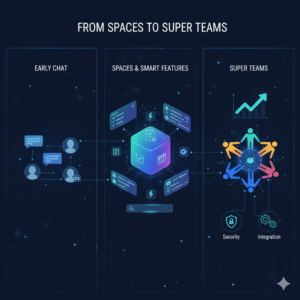
Google Chat has changed a lot. It has moved from simple chats to powerful tools. These tools help teams work better. This change is big for business productivity. Google Chat is now more than just a chat app. It helps teams of all sizes work together. This story will look at how Google Chat has grown. It will show its new features. It will explain how these help make ‘super teams’ in any company.

The Early Days: Simple Chat and Basic Teamwork

Google Chat began as a part of Google Workspace. Before, it was Google Hangouts Chat. Its main job was simple. It let people send messages to each other. Users could chat one-on-one. They could also chat in small groups. The first goal was quick talk. It was good for fast questions. It helped teams share simple updates.

At that time, features were basic. You could send text and could share files. You could start a video call. This was fine for many teams. But as work changed, teams needed more. They needed deeper ways to work together and needed tools to manage projects. They needed better ways to share info. Google Chat had to grow. It had to meet these new needs. It had to help businesses do more.

Image Of The Evolution of Google Chat for Business Productivity

The Rise of “Spaces”: Organized Work Hubs

The biggest step in Google Chat’s growth was “Spaces.” Google renamed the feature from “Rooms” to “Spaces.” This change was more than just a new name. It showed a new way of thinking. Spaces became central hubs for teamwork. They were not just for chat but for working on projects which helped manage tasks and let teams share files easily.

A Space is like a project room. All things related to a project go there. This includes talks, files, and tasks. Think of a Space for a marketing project. All talks about ads, images and videos are there. All tasks like “design new banner” are listed there. This makes work much more organized. It helps teams stay on track. This design helps cut down on many emails. It stops endless group chats. It puts all key info in one spot. This boosts teamwork a lot.

Smart Features for Better Productivity

Google Chat did not stop at Spaces. It added many smart features. These features help teams do more. They make daily work easier.

  • Integrated Task Management: Tasks are now part of Spaces. You can create a task and assign it to a team member. You can set a due date and can track its progress. All team members can see these tasks. This helps keep everyone aligned. It makes sure no task is forgotten.
  • Enhanced File Sharing and Collaboration: Google Chat connects deeply with Google Drive. You can share documents, sheets, and slides easily. Team members can open files right from Chat. They can work on them together. They can even see file updates in the Space. This smooth flow saves time. It makes working on documents much easier.
  • Smart Replies and Suggestions: The app uses AI to help. It suggests quick replies. This saves time when you are busy. It also suggests useful actions. For example, it might suggest “create a task” based on your chat. These small helps add up. They make work faster.
  • Powerful Search: Finding old info in chats can be hard. Google Chat has strong search tools. You can find messages, files, and tasks fast. You can search across all your Spaces. This means no more digging through old emails. All info is at your fingertips.

From Teams to “Super Teams”: The Evolution in Action

The goal of these changes is clear. It is to turn regular teams into “super teams.” A super team works very well together which is highly productive. It gets things done fast. Google Chat helps make this happen in several ways:

  • Improved Clarity and Focus: Spaces keep work topics separate. This means less noise. Team members can focus on one project at a time. They do not get lost in too many chats.
  • Better Project Management: With tasks and files in one place, project tracking is simple. Managers can see progress. Team members know their roles. This leads to projects finishing on time.
  • Faster Decision Making: All info is easy to find. Team members can quickly talk and share ideas. This speeds up choices. It helps avoid delays.
  • Enhanced Team Cohesion: A shared Space builds a sense of team. Everyone works towards the same goal. They share wins. This makes the team feel stronger. It makes them work better together.
  • Integration with Other Tools: Google Chat works well with other apps. It connects with apps inside and outside Google Workspace. This means you can add tools your team already uses. This makes it a central hub for all work.

Security and Control for Business Use

For businesses, security is key. Google Chat offers strong security features. This helps protect sensitive company data.

  • Data Encryption: All messages and files are encrypted. This keeps info safe from bad actors.
  • Admin Controls: IT admins have full control. They can manage who joins Spaces and can set rules for data sharing. They can track usage. This ensures data compliance. It meets company policies.
  • Retention Policies: Businesses can set rules for how long data is kept. This helps meet legal needs. It keeps company records safe.

These security features mean businesses can trust Google Chat. They can use it for all kinds of team work. They know their data is protected.

The Future of Google Chat

Google Chat will keep growing. We can expect even more smart features. It will likely get deeper links with AI. It might offer more ways to automate tasks. The focus will stay on helping teams. It will aim to make them more productive. It will help them achieve more.

Google Chat is not just a messaging app. It is a full platform for teamwork which helps turn any group of people into a powerful, efficient “super team.” For businesses, this means better results and happier teams. It means reaching goals faster.


FAQs

1. How has Google Chat changed from its early days?

Google Chat started as a simple messaging app. It was mostly for quick talks. Now, it has grown into a full teamwork platform. It includes features for tasks, files, and project management, mainly through “Spaces.”

2. What are “Spaces” in Google Chat, and why are they important?

“Spaces” are central hubs for team projects. They bring together conversations, files, and tasks for a specific topic or project. They are important because they organize work, reduce email clutter, and improve team focus.

3. How does Google Chat help with task management?

Google Chat lets users create, assign, and track tasks directly within a Space. You can set due dates and see progress. This feature helps teams manage project workflows and ensures everyone knows what needs to be done.

4. Can Google Chat integrate with other business tools?

Yes, Google Chat connects deeply with Google Drive for file sharing. It also works well with other apps inside and outside Google Workspace. This makes it a central tool for managing different aspects of business work.

5. What security features does Google Chat offer for businesses?

Google Chat includes strong security features. These include data encryption for messages and files. It offers admin controls for managing users and data rules. It also has data retention policies to meet legal and company needs.

Also Read: The Zero Trust Shift: Securing Hybrid Work with ZTNA

The Zero Trust Shift: Securing Hybrid Work with ZTNA

The old security walls are gone. Hybrid work is the norm today. Relying on the old “castle-and-moat” idea is risky. This old plan trusted all inside the work net. Consequently, Zero Trust Architecture (ZTA) is the key to safe work. Zero Trust uses one rule: never trust. Always verify.

All users, devices and data must be checked. This is true even for access inside the network. This constant check is vital.

New Zero Trust fixes are part of the net. They use smart tools like AI. They use flexible access rules. Thus, these tools give better security. Workers are everywhere now. For this reason, a strong Zero Trust plan is a must for all firms. Moreover, this plan knows threats are everywhere. Therefore, the net is never trusted by default. This change helps keep the whole system safe.

Image Of The Zero Trust Shift: Securing Hybrid Work with ZTNA

Beyond The Basics: The Evolution of ZTA Pillars

The first Zero Trust design only focused on two things. First, it focused on strong Identity and Access Management (IAM). Second, it focused on dividing the net. However, threats are much smarter now. Therefore, the whole design has changed. Now it includes more detail. Also, it includes smarter access checks across all digital tools. Thus, these new improvements are making security stronger. Also, they are making the process clearer for the workers who use the system.


Context-Aware Access and Evaluation

Access checks cannot stay static. They cannot only depend on a name and a code. Instead, access decisions are always changing. They change based on many factors. Therefore, new Zero Trust systems check many different things. They check these things all the time. They check for every access request. This non-stop check is great.

For example, the system checks these key factors:

  • User Identity and Role: Who is the person trying to log in? What can this person do based on their job?
  • Device Posture: Is the device following all company rules? Is the system fully up-to-date? Does the device have the right virus scan running? For this reason, if a device’s score drops, the system cuts off access fast. Or, it lowers the access level right away.
  • Location and Geolocation: Where is the access request starting from? Is this a strange place for this worker to be?
  • Time of Day: Is the worker trying to look at secret data late at night? For instance, is it at 3 AM?

This continuous check means the system never just gives trust easily. Access can quickly change. Also, the system can stop access right in the middle of a session. This happens if the risk goes up. This action prevents a hacker from moving inside the net. Therefore, Zero Trust gives great control.


The Rise Of AI And Automation

Artificial intelligence (AI) is the main power source for the next step in Zero Trust. AI and machine learning look at huge logs of data. They do this in real time by looking for strange things. They flag risky actions that people would miss. This speed is vital now.

New AI improvements give great help. For example, AI-driven fixes include:

  • Automated Data Classification: AI automatically reads and sorts data. It gives the data labels like “Secret.” This task is crucial. This ensures that the rules for Data Loss Prevention (DLP) work right. This is true no matter where the data is kept. This helps protect private customer details.
  • Behavioral Analytics: The system learns what is normal for a user. Consequently, if a worker suddenly uses an app they never touch, the AI sees it. Or, if the worker starts getting too much data, the AI detects the odd change. Then, the system forces a re-check. Or, it blocks the action. This step helps a lot. It also stops bad behavior.

The system uses Threat Detection and Response (XDR). XDR combines security facts. It gathers data from emails and computers. It gives a full picture of any threat. Thus, the system can quickly block bad computers or users. Truly, Zero Trust gets its power from these tools.


From VPN to ZTNA: Securing The Hybrid Workforce

The biggest change in the Zero Trust setup is the move from old VPNs. Now, everyone uses Zero Trust Network Access (ZTNA). This move is necessary. It secures all remote work teams.

VPNs had a major fault. They gave a user access to the whole net once checked. This was a single point of failure. Conversely, ZTNA replaces this old way. It uses true least-privileged access. Therefore, a remote worker only makes a small, safe link. This link goes only to the one app the worker needs. It does not connect to the whole net.

This change has many pluses. The attack area shrinks greatly. Thus, it makes it hard for a hacker to find a way in. Also, the risk of harm is low if a computer is hacked. This cuts the “blast radius” of any break-in. ZTNA also runs quietly. It is fast and better for the user. It avoids the slow-down issues that were common with old VPNs. Thus, choosing ZTNA is a main step toward full Zero Trust.


ZTNA Versus VPN Comparison

Feature Old VPN Model Zero Trust Network Access (ZTNA)
Trust Model Implicit Trust (Trusts all once door opens) Never Trust, Always Verify (Checks every action)
Access Granularity Grants network access (You get the whole floor) Grants application access (You get one desk)
Attack Surface High (Exposes the net to hackers) Low (Apps stay hidden from hackers)
Lateral Movement Easy (Hacker moves freely) Blocked (Access is limited to one app)

ZTNA simplifies security a lot. You do not need to check complex firewall rules for every user. Instead, the rule is based on the user’s name. This rule follows the user. Thus, the security stays the same everywhere. Consequently, ZTNA fixes the main problem of securing workers who move often.


Key components for a robust zero trust workspace

Building a full ZTA needs many layers of defense. You must cover every part of your digital work area. These three core parts work well together. They deliver very strong workspace security.

1. Identity and Endpoint Security

A strong system for Identity and Access Management (IAM) is the most basic need. This involves forcing all users to use Multi-Factor Authentication (MFA). MFA adds a safe step after the password. It also requires using Single Sign-On (SSO). SSO centralizes the login process. Furthermore, the focus on Endpoint Security has grown. Zero Trust Architecture checks all devices deeply. It checks phones and computers. It must ensure that all devices meet strict rules before they can connect. If a worker uses their own phone, the system keeps company info separate. This is vital.


2. Micro-Segmentation and Networking

Micro-segmentation is a powerful tool. It cuts the whole net into small zones. Gaining access to any zone needs a separate, clear pass. This stops a hacker from moving around easily. If an attacker breaches one part, their harm is small. They cannot move to the finance server from the marketing server easily. They need a new key. Likewise, the network side has changed. It now views the computers in the main office as just another untrusted part. This is key. This guarantees that the rules work the same way for every link. It does not matter if a worker is at home or in the main office.


3. Data Protection and Governance

In the end, the main job of Zero Trust is to protect the info. New fixes focus on applying consistent DLP policies. These rules apply to all apps. They work for cloud apps. They work for in-office apps. This step ensures that secret info is always safe. It must be safe when it sits still. It must be safe when it moves. Also, Zero Trust creates a full record. This audit trail shows every access try. It shows every data action. This clear record is needed. It greatly improves security. Moreover, this transparency makes meeting rules much simpler. Thus, security teams can easily prove compliance.


Conclusion: Building a Secure Future

The move to Zero Trust Architecture is not a trend. It is a required security shift. The shift to hybrid work has killed the idea of a safe net border. Consequently, firms must use the “never trust, always verify” rule. This ensures that security is used everywhere. It is used on every person and device. It does not matter where they are.

This modern security plan is built on many key fixes. For instance, ZTNA replaces old VPNs. AI uses constant checks to find threats fast. Micro-segmentation stops hackers from moving around inside the net. Furthermore, focusing on the person and the device’s health makes access choices smart. Therefore, companies that use a full Zero Trust plan will gain a major plus. They will keep their data safer. They will simplify compliance and will also give their workers a safe way to work from anywhere. Truly, a strong Zero Trust plan is the best choice for future business safety.


Frequently Asked Questions

1. What does “never trust, always verify” actually mean in practice?

It means the system checks the user every time they want to do something. For example, when a user logs in, the system checks them. When they click on a new app, the system checks them again. Consequently, the system treats the whole net as a dangerous place. It trusts nothing easily.


2. How does zero trust prevent lateral movement?

Zero Trust uses micro-segmentation. This divides the net into small, secure areas. When a user gets access, they only get a small link to just one resource. Therefore, if a hacker gets that user’s access, they cannot move to other parts of the net. They are stuck in a tiny zone.


3. Is ZTNA a replacement for my VPN?

Yes, Zero Trust Network Access (ZTNA) is now taking the place of old VPNs. VPNs gave users access to the entire net. This was risky. However, ZTNA grants access only to one specific app. This is after the user and device are fully checked. This makes security much better for people working from home.


4. How does context-aware access improve security?

Context-Aware Access makes security decisions smart. It uses real-time info. For instance, it checks the device’s health. It checks the user’s location. It uses this info to guess the risk. Then, it changes the access level right away. It can deny access if the risk is too high.


5. Why is ai so important to the latest zero trust enhancements?

AI is key because it can check for threats faster than any person. It learns what is normal. It then flags strange actions fast. This allows the system to find hackers right away. Consequently, the hacker has very little time to cause harm in the workspace.


Also Read: Latest Outlook Updates: Smarter Scheduling and AI Suggestion

Microsoft Loop Explained: A Game-Changer for Collaboration

Microsoft Loop: A Collaboration Revolution

Modern work, indeed, demands seamless teamwork. However, traditional tools often create silos. Documents sit in one place, chat in another. This fragmentation, consequently, slows everyone down. Conversely, Microsoft Loop offers a fresh approach. It is, therefore, a truly game-changing platform. This new tool redefines how teams work together.

What exactly is Microsoft Loop, then? Essentially, it is a flexible canvas. It combines components, pages, and workspaces. Therefore, it brings content and people into one space. These “Loop components” are key. They are live, portable pieces of content. For instance, a checklist or a table. Furthermore, they sync everywhere instantly. Thus, collaboration becomes fluid and dynamic. This makes teamwork much more efficient.


Understanding Loop Components: The Core Innovation

Loop components are, by and large, the heart of Loop. They are small, interactive elements. You can share them easily across apps. For example, use them in Teams or Outlook. A component might be a paragraph of text. Similarly, it could be a task list for your team. Even a dynamic table can be a component. The magic, however, is their live nature.

Whenever someone edits a component, it updates. This update happens everywhere it exists. Therefore, everyone always sees the latest version. This prevents version control headaches. Furthermore, it eliminates endless email threads. You no longer need to send updated attachments. Instead, changes appear automatically. This makes real-time collaboration truly effortless. Moreover, these components are highly portable. You can copy and paste them freely. They maintain their live sync wherever they go. This allows for incredibly flexible work.


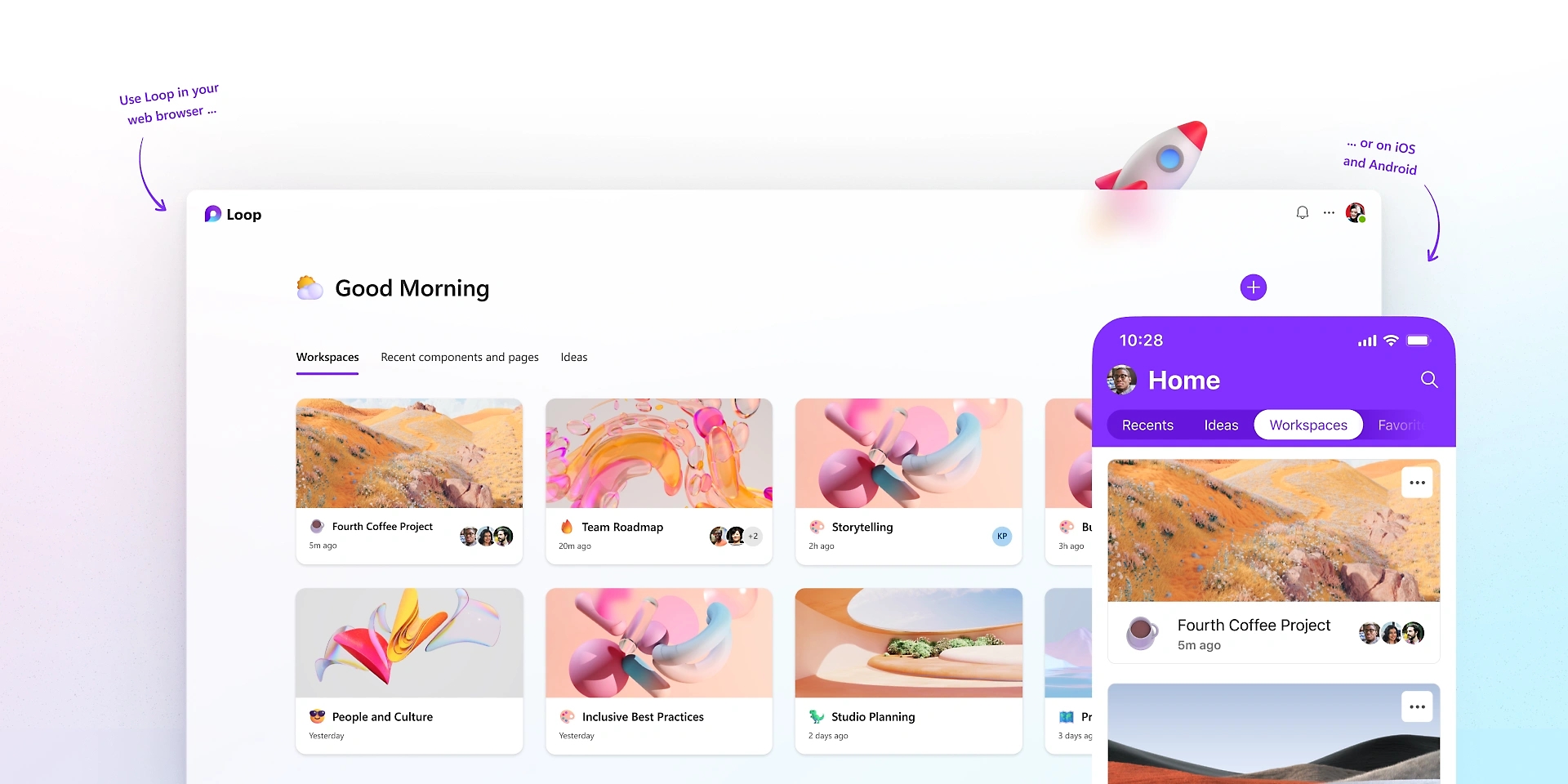
Image of Microsoft Loop

Loop Pages: The Flexible Canvas

Loop pages, consequently, serve as flexible canvases. They are dedicated spaces for thinking. Here, teams can organize all components. A page is, therefore, a place for collective ideas. You can start with a blank page easily. Then, you add various components as needed. For instance, drop in a task list component. Similarly, add a paragraph for notes. You can even include a progress tracker.

These pages are, in fact, highly adaptive. They grow with your project’s needs. You can easily drag and drop elements. Rearranging content is simple and quick. Furthermore, pages support rich media content. Include images, links, or even videos. The goal is to capture all relevant information. This ensures everything stays in one logical place. Therefore, Loop pages create a centralized hub. It consolidates all project assets effectively. This greatly enhances project visibility. Consequently, your team remains perfectly aligned.


Loop Workspaces: Your Project’s Home

Loop workspaces, by the same token, are project homes. They are shared online environments. Here, teams organize all their pages. A workspace, therefore, holds related project content. For example, a marketing campaign needs its own workspace. Similarly, a product development project gets one too. Workspaces bring together all relevant pages. They help group interconnected information together.

Each workspace has its own unique structure. You can customize it for your team. Access control is also managed easily. Decide who can view or edit content. This ensures data security and privacy. Furthermore, workspaces facilitate team oversight. Leaders can quickly see all ongoing projects. They monitor progress across different pages. Therefore, Loop workspaces provide a clear overview. They simplify project management greatly. Consequently, they foster structured, efficient collaboration.


Integrating Loop with Microsoft 365

Microsoft Loop, in fact, integrates deeply. It works seamlessly within Microsoft 365. This integration is a major advantage. Components function across different applications. For instance, use them in Microsoft Teams. You can share a task list in a chat. Your team updates it right there. The changes reflect everywhere instantly. This includes the original Loop page.

Similarly, use components in Outlook emails. Embed a live voting table in a message. Recipients vote directly within the email. Moreover, the results update automatically. This eliminates constant email chains. Furthermore, it streamlines decision-making processes. Loop also connects with Word and OneNote. This ensures content consistency across tools. Therefore, Loop extends the power of 365. It makes all your apps more interactive. Consequently, it creates a truly connected work ecosystem.


Real-Time Co-creation and Feedback

Loop greatly enhances real-time collaboration. It allows multiple users to edit simultaneously. Everyone sees changes as they happen, therefore. This fosters a highly interactive environment. For example, brainstorm ideas together instantly. Each team member contributes their thoughts. The page updates for everyone right away. This accelerates the creative process greatly.

Furthermore, feedback loops become much faster. You can get instant input on content. Colleagues highlight sections for review. They add comments directly to components. These comments are also live and trackable. Therefore, revisions are quick and efficient. This reduces project timelines significantly. Moreover, it ensures all voices are heard. Microsoft Loop makes collaboration truly responsive. It transforms feedback into a fluid conversation. Consequently, it promotes faster project completion.


Use Cases: Where Loop Shines Brightly

Microsoft Loop shines in many work scenarios. Consider project management first. Teams track tasks and progress efficiently. A shared checklist updates for everyone. Deadlines are clearly visible to all. Similarly, it excels in meeting management. Create a live agenda for every meeting. Attendees add notes and action items directly. These updates are accessible afterwards.

Furthermore, brainstorming sessions benefit immensely. Teams co-create ideas on a shared page. Each person contributes to the canvas. No ideas are lost or forgotten. Moreover, content creation becomes truly collaborative. Draft documents or presentations together. Live components ensure everyone works on the same version. Therefore, Loop boosts productivity everywhere. It provides a unified workspace for diverse tasks. Consequently, it solves many common collaboration challenges.


The Future of Hybrid Work with Loop

Hybrid work is the new standard, clearly. Teams work from various locations. They often have different time zones, too. This setup presents unique communication challenges. Microsoft Loop, however, bridges these gaps easily. It creates a persistent, shared workspace. Remote and in-site workers access the same content. They contribute whenever it suits them best.

Live components ensure consistent information. Everyone stays updated, regardless of location. This minimizes misunderstandings and delays. Furthermore, it fosters a sense of inclusion. All team members contribute equally to the project. Their input is visible and valued. Therefore, Loop supports a flexible work culture. It adapts to different schedules seamlessly. Consequently, it strengthens teamwork in any environment.


How Loop Differs from Existing Tools

You might wonder about other tools. How does Loop stand apart, then? It is more than just a document editor. Also, it is more than just a chat platform. Loop combines features from many places. It draws from wikis, documents, and messaging. The key difference is the “live component.” This element is unique to Loop.

Other tools offer real-time editing, certainly. However, their content is often static. It is fixed within one document or app. Loop components are truly portable. They maintain their live state everywhere. This fluidity is a game-changer. Furthermore, the workspace concept is distinct. It organizes pages and components logically. Therefore, Microsoft Loop offers a novel approach. It creates a truly dynamic, interconnected system. Consequently, it provides a unique collaboration experience.


Getting Started with Microsoft Loop

Beginning with Loop is quite straightforward. First, look for Loop in your Microsoft 365. It might be accessible through Teams or Outlook. You can also visit https://www.google.com/search?q=loop.microsoft.com directly. Then, create your very first workspace. Give it a meaningful and clear name. Next, start adding new pages to your workspace. Each page can serve a different purpose.

Finally, begin populating pages with components. Try a simple task list component first. Share it with your team members easily. See how it updates in real time for everyone. Experiment with different component types. Explore the various templates available to you. Therefore, starting small is a great strategy. Gradually integrate Loop into your daily workflow. Consequently, you will discover its true power.


Benefits for Different Roles

Microsoft Loop offers benefits across many roles. Project managers track progress better. They visualize tasks and deadlines clearly. Team leads can foster better engagement. They create spaces for open collaboration. Individual contributors, likewise, gain efficiency. They access all needed information in one place. Developers use it for shared code snippets. Marketers create campaigns with live updates.

Sales teams track client interactions effectively. HR departments manage onboarding processes. Even educators can use it for group projects. Students collaborate on shared assignments easily. Therefore, Loop enhances productivity for everyone. It adapts to specific departmental needs. Consequently, it streamlines workflows for diverse professionals.


The Path Ahead for Microsoft Loop

Microsoft Loop is still evolving, naturally. Microsoft continues to add new features. They listen to user feedback actively. Expect more integrations in the future. It will likely connect with more third-party apps. This will further extend its overall reach. Performance enhancements are also expected. The user experience will only improve over time.

Therefore, Loop represents a significant investment. It shows Microsoft’s commitment to collaboration. The goal is to simplify complex teamwork. It aims to empower hybrid and remote teams. Consequently, Loop will become a cornerstone. It will shape the future of modern work. Thus, it truly is a game-changer for digital collaboration.

Frequently Asked Questions (FAQs)

1. What is the fundamental difference between Loop and OneNote?

OneNote, indeed, is primarily for personal notes. Conversely, Loop is built for dynamic teamwork. Loop’s content is portable and live. For example, a Loop component updates everywhere. OneNote content, however, stays fixed within its own page. Thus, Microsoft Loop offers true cross-app fluidity.

2. Does Loop replace existing Microsoft 365 apps like Teams or Word?

No, not at all, quite the opposite. Loop enhances these other apps. For instance, you use Loop components inside Teams. It brings live content into those conversations. Microsoft Loop is, therefore, a complementary tool. It makes the entire 365 ecosystem more dynamic.

3. Where can I use Loop components currently?

Currently, you can use components in several places. This includes Microsoft Teams chat messages. You can also use them in Outlook emails. Furthermore, you can find them within the main Loop app. Microsoft is constantly adding more locations, however.

4. Are Loop components secure, especially when shared externally?

Yes, Loop components are secure, absolutely. They inherit security settings automatically. This is based on where the component is hosted. Furthermore, sharing is managed through your organization’s settings. Access control is always clearly defined. Therefore, Microsoft Loop maintains robust enterprise security.

5. Can I use Loop if my team members are not on Microsoft 365?

Generally speaking, all editors need a Microsoft account. They need one to access and edit components. However, you can share components with guests. This depends on your specific tenant settings. Microsoft Loop works best within the 365 ecosystem, therefore.

Also Read: The Future of Docs: Google’s Emoji Reactions Explained


Google Drive Smart Search: How AI Finds Your Files

Do you ever feel like Google Drive just knows what you’re looking for? Actually, it’s not a coincidence; instead, it’s the result of some incredibly smart technology. Essentially, this system uses artificial intelligence (AI) to find files before you even start looking for them. This smart search feature has certainly changed how we find our documents, shifting from simple keyword searches to something truly intelligent. For instance, the AI acts like a personal assistant, always working to make your life easier. This amazing capability is a major part of its success.

This advanced technology saves us lots of time, of course. For example, it helps eliminate the frustrating process of manually searching through folders. Likewise, the AI works in the background, consistently learning your habits and predicting your needs. As a result, it analyzes not just the file names, but also the actual content inside. This ultimately provides a personalized and surprisingly intelligent search experience. Truly, this AI-powered function makes finding what you need on Google Drive simpler and faster than ever.


The Brains Behind the Operation: How AI Works

The core of Google Drive’s smart search, undoubtedly, is its powerful AI. In fact, it uses a mix of machine learning, natural language processing (NLP), and deep learning models. Instead of simply looking for exact keyword matches, the AI interprets your search queries. For instance, it understands the context. For example, if you type “project alpha notes from last week,” the AI does not just look for those specific words in a file name; rather, it understands that you want a file related to “Project Alpha,” a specific type of document (“notes”), and a particular time (“last week”). Consequently, this is a massive improvement over traditional search methods.

Furthermore, the AI learns from your past actions and habits. Therefore, it remembers which files you access often, who you collaborate with, and what documents you use for specific tasks. Similarly, it analyzes the content of your files—whether it’s a contract, a presentation, or a report—to better categorize and show you the most relevant results. This continuous learning process, in fact, ensures the search results get more accurate and more personal over time. In conclusion, the system truly works for you.


Image of Google Drive Smart Search

Beyond Keywords: The Benefits of AI-Powered Search

The benefits of Google Drive smart search go far beyond just a simple keyword match. For many people, the most obvious benefit is the huge amount of time saved. After all, when you find a file in seconds instead of minutes, you can stay focused on your work. The AI’s ability to understand context means you do not have to remember the exact file name. Thus, you can use natural language, making the search feel more like talking to a helpful assistant.

This intelligent system also improves teamwork. For instance, when you are working in a shared drive, the AI can suggest files based on what your coworkers are doing, which makes collaboration much smoother. Additionally, it can automatically classify and label sensitive content, offering an extra layer of security. Of course, this smart classification helps you maintain an organized and efficient digital workspace without lots of manual effort. Because of its proactive nature, the system often shows you relevant files before you even begin a search, anticipating your needs and helping you stay on top of everything.


Making the Most of Smart Search: Practical Tips

To fully use the power of Google Drive’s AI-powered search, a few simple habits can help. While the AI is very smart, a consistent approach to file organization makes its job even easier. To begin, use clear and descriptive file names. For example, “Meeting Notes” is okay; however, “Q4 Marketing Strategy Meeting Notes – 09.2025” is much better. Therefore, this provides the AI with more useful information for its algorithms.

Another useful tip is to use file descriptions and starring. In addition, adding a short description or important keywords to a file gives the AI more context. Consequently, you should also “star” important or frequently used files to signal their priority. The more information and context you provide, the better the AI can learn and deliver accurate, useful results. By combining these simple organizational habits with the platform’s advanced AI, you can create a highly efficient and personalized digital workspace.


FAQs

1. How does AI-powered search in Google Drive differ from a traditional search? Traditional search relies on keyword matching. By contrast, AI-powered search uses machine learning and NLP to understand the context of your query. This, as a result, provides more accurate and personalized results based on your digital habits.

2. Does Google Drive’s AI search use my personal data? Yes, it analyzes your activity, such as the files you access and your collaboration patterns. For this reason, the data helps to personalize your search experience and offer more relevant file suggestions. Google, however, has privacy controls that allow you to manage how this data is used.

3. Can AI find files if I do not remember their name? Absolutely. Given that the AI understands context and content, you can search using natural language. For example, you can search for “presentation from last month about the client report” and the AI will probably find the right file without you needing its exact name.

4. How can I improve my search results on Google Drive? You can improve your search results by using consistent and descriptive file names. Additionally, you should add descriptions to your documents and star important files. The more context you provide, the better the AI becomes at finding the right files for you.

5. Is the smart search feature available to all users? Yes, the smart search functionality is a main feature of Google Drive and is available to all users with a Google account.

Also Read: The Future of Docs: Google’s Emoji Reactions Explained

The Future of Docs: Google’s Emoji Reactions Explained

Have you ever found yourself in a Google Doc, wanting to show you agree or disagree, but a full comment just feels like too much? In fact, everyone has. Now, Google Docs has an answer for that common feeling. This is a game-changer for digital collaboration. Indeed, it is changing how teams work together. The new feature, therefore, is Google Docs’ real-time emoji reactions. You can now react instantly to text with a thumbs-up, a laughing face, or any other emoji. This simple addition, in a sense, is a big step forward for collaboration. Consequently, this change has major implications for how we work together.

Image of Google's emoji Reactions

Emojis: More Than Just Fun

You might wonder, naturally, if emoji reactions are just for fun. However, they serve a deeper purpose in today’s work environment. To begin with, they offer a quick way to give feedback. For example, you can give a thumbs-up to a section you like. This signals your support without a long comment. As a result, your colleague knows you have seen their input. Ultimately, this speeds up the review process.

Additionally, emojis add nuance. This is important. For instance, a simple sentence can be hard to read. A sentence like “This is a good idea” can be interpreted in different ways. Conversely, adding a 🙏 or a ✨ emoji makes the positive meaning clear. In contrast, a 🤔 emoji can gently suggest that you need more information. Therefore, emojis help with tone.

Furthermore, they streamline the review process. Consequently, this makes it easier for everyone. For example, instead of writing out long feedback, you can highlight text. You can then add a ❤️ or a ❓ emoji. This makes feedback visual. Likewise, it is less wordy.

More importantly, emojis build a better work culture. Since many people work remotely, this is very important. Therefore, emoji reactions add a human touch. A well-placed 😂 or 🎉 emoji can, in fact, celebrate a team win. Similarly, it can lighten the mood. Therefore, it helps with team morale. It is like having a silent cheerleading squad in your document. Finally, emojis help identify consensus. You can quickly see which parts of a document everyone likes (lots of 👍) or which parts need more discussion (a bunch of 🧐). As a result, this helps the document owner to see team sentiment.


How It Works: Super Easy!

Therefore, how does the feature work? In the first place, it’s quite simple. First, highlight the text you want to react to. After that, a small emoji icon appears. This icon is next to the text. It looks like the comment icon. Next, click the emoji icon. A selection of emojis will pop up. Then, choose your emoji. It will then appear next to the text. Of course, you can also see who reacted. In short, it’s a quick and easy process.


The Future of Collaboration

The new emoji reaction feature is a big step for Google Docs. Consequently, it is a big step for digital collaboration. For this reason, it makes our work more human. As our work changes, tools that help us communicate better will become very important. Therefore, this feature is very useful. It will, in fact, make online collaboration more expressive. This is because it is a very natural way to communicate. So, do not just comment. React. This will make your collaborative experience more engaging.

What do you think of this new feature?


FAQs

1. How do you add an emoji reaction in Google Docs?

To add a reaction, you must highlight the text. After that, you will see a small emoji icon. Then you can select your emoji.

2. Is this feature available to everyone?

This feature is available to most Google Docs users. In short, it is being rolled out to personal and business accounts.

3. Can I use any emoji?

Yes, you can use any emoji from the selection. This includes common emojis like 👍, ❤️, and 😂.

4. Can I see who added a reaction?

Yes, you can. You can see who added each emoji. This is very useful. It provides extra context.

5. How does this improve teamwork?

This feature helps teams in many ways. For example, it gives instant feedback. It also makes communication more expressive. Additionally, it helps build team morale. All things considered, it improves collaboration.

Also Read: Google Meet’s New AI Noise Cancellation: A Game-Changer

AI-Powered Writing in Gmail & Docs

In the fast-paced digital world, writing is a constant task. We write emails, create documents, and draft reports every single day. Therefore, any tool that can make this process faster and more efficient is a game-changer. For years, Google’s Smart Compose has offered simple sentence completions. In contrast, today’s AI-powered writing tools in Gmail and Docs, now powered by the Gemini model, are in a different league entirely. This new evolution moves far beyond simple suggestions. In fact, it provides a truly collaborative writing experience. This is a huge shift, consequently changing how we interact with our digital documents.

Image of AI-Powered Writing in Gmail & Docs

From Autocomplete to a True Co-Author

Smart Compose, originally a clever machine-learning feature, was a great start. It provided predictive text and helped correct grammar. However, it was, at its core, a reactive tool. It simply responded to what you typed. Today’s AI-powered writing is proactive. It can understand the context, purpose, and even the tone of your content. For instance, you can simply write a short prompt like, “Write an email to my team about the upcoming project deadline.” Immediately, the AI will generate a complete, professional draft. This is a significant improvement. It saves you time, of course. It also helps you overcome writer’s block.


Writing with AI in Google Docs: A Seamless Experience

The integration of Gemini into Google Docs offers a powerful new way to write. First, the “Help me write” feature acts as a blank canvas. You just give it a simple command, and it will generate a first draft. Furthermore, it can refine your work with remarkable ease. For example, you can select a paragraph. You can then prompt the AI to “shorten it,” “elaborate on this idea,” or “make it more formal.” This allows you to sculpt your text with a few simple clicks.

In addition, you can use the AI to generate bullet points from a dense paragraph, summarize a long article, or even brainstorm new ideas. Consequently, this makes the writing process more fluid. The AI-powered writing tool is always there, waiting to help you.


AI in Gmail: Mastering Your Inbox

The new AI-powered writing features in Gmail make managing your inbox far more efficient. In fact, it’s a huge time-saver. Consider this: you receive an email. You can now use the AI to draft an entire reply based on the original message. You can, for instance, ask it to “write a reply accepting the meeting invitation” or “draft a polite decline.” The AI understands the context. It can even extract details like names and dates. It then generates a personalized, context-aware response. Furthermore, it can summarize long email threads. This lets you quickly grasp the key points without reading every single message. Therefore, this helps you clear your inbox faster. It also helps you respond more thoughtfully and efficiently.


The Future of Writing is Collaborative

Ultimately, the goal of this AI-powered writing is not to replace human creativity. Instead, it is to enhance it. The AI acts as a smart co-pilot. It handles the mundane parts of writing. This frees you to focus on the more creative aspects. It helps you articulate your thoughts more clearly. It also helps you communicate more effectively. As these tools continue to evolve, they will become more personalized. They will learn your unique style and tone. Consequently, the collaboration will become even more seamless. We are, therefore, moving toward a future where writing is a partnership between human intelligence and AI, creating content that is both faster and better than ever before.


FAQs

1. What is the difference between Smart Compose and the new AI writing features?

Smart Compose provided simple word and sentence predictions. In contrast, the new AI-powered writing features, now based on the Gemini model, can generate entire drafts, rewrite selected text, and summarize content based on a detailed understanding of context.

2. How do I access these new AI features in Gmail and Docs?

These features are now being rolled out to Google Workspace users. You can find them through the “Help me write” button in Docs and through new prompts and options when drafting an email in Gmail.

3. Will these AI tools change my personal writing style?

The AI tools are designed to assist you, not replace you. They can, however, learn from your style. You should always review and edit the suggestions to ensure they align with your voice and intent.

4. Can the AI write about any topic?

The AI can write about a wide range of topics. However, you should use it responsibly. Always verify any facts or information it provides. In addition, avoid using it for sensitive or confidential material.

5. Is my data safe when using these AI writing tools?

Google states that it handles user data with care. It applies its standard data protection and privacy measures to these new AI features.

Also Read: Microsoft 365 Copilot: Complete Guide (2025)

Know More

Microsoft 365 Copilot: Complete Guide (2025)

Microsoft 365 Copilot

AI-Powered Microsoft 365 Copilot: A New Era of Productivity

The world of work is always changing. Consequently, the tools we use must keep up. In a world where efficiency is key, Microsoft has introduced an amazing AI assistant. It’s called Microsoft 365 Copilot. This tool is no longer a futuristic idea. In fact, it’s a real benefit for businesses of all sizes.

So, how does Copilot truly work? What does it mean for your daily work?

What Exactly is Microsoft 365 Copilot?

Basically, Microsoft 365 Copilot is a smart AI tool. It works with you across the Microsoft 365 suite. It is built on a large language model (LLM). Its true power comes from its link to the Microsoft Graph. This unique connection lets it access and understand your personal data. For instance, it can read your emails, calendar events, and chat history. Therefore, it is more than just a general AI. It is an AI that understands your specific work.

Essentially, Microsoft 365 Copilot is a productivity engine. It can create text, summarize info, and make presentations. It also analyzes data. All you need to do is use natural language commands. For example, instead of searching through old documents, you can simply ask Copilot to find a key detail for you. This saves your mental energy. You can then focus on strategic thinking, creative problem-solving, and human connections. After all, these are the unique skills AI can’t copy.

How Microsoft 365 Copilot Works Across Key Applications

The real strength of Microsoft 365 Copilot is its seamless integration. It works across the apps you use every single day. Because it’s not a separate product, it can assist you at every step of your workday.

1. AI Assistance in Microsoft Word

The blank page can be intimidating. However, with Copilot, that feeling is gone. For example, you can give it a simple instruction. “Draft a 10-page business plan for a new marketing campaign,” you might say. Copilot will then create a full first draft. It pulls facts and insights from your documents. Furthermore, it can help you improve your writing. It can summarize long documents or rewrite paragraphs. In addition, it can even translate text into another language.

2. AI Assistance in Microsoft Excel

The days of complex formulas are ending. This is where Microsoft 365 Copilot really stands out. A task that once needed advanced skills is now a simple conversation. For instance, you can ask, “Show me the top products by region in a pivot chart.” Copilot will build it instantly. Likewise, it can find trends and identify unusual data. Ultimately, it can even provide written explanations of your data. This makes complex spreadsheets easy for everyone to understand.

3. AI Assistance in Microsoft Teams

Meetings can waste a lot of time. Luckily, Microsoft 365 Copilot changes this completely. During a meeting, it can summarize the main points. It also lists action items in real-time. If a team member misses a meeting, they can just ask Copilot for a summary. They will get a detailed and accurate report. Consequently, nobody ever has to feel left out of a conversation again.

4. AI Assistance in Microsoft Outlook

Managing your inbox can be a full-time job. With Microsoft 365 Copilot, it becomes much easier. First, it can summarize long email chains. This helps you get the main idea in a few seconds. In addition, it helps you write professional emails. It gives suggestions for tone and content. This saves you from staring at a blank screen for a long time. Therefore, you can focus on the most important messages without feeling overwhelmed.

Real-Life Business Applications for Microsoft 365 Copilot

Beyond the individual user, Microsoft 365 Copilot changes how entire business departments work.

  • For Marketing and Sales: Use it to quickly write blog posts. It can also analyze customer feedback from surveys. It can even summarize long market research reports to find key details. This helps marketing teams be more flexible and data-driven.
  • For Human Resources: You can speed up the creation of training materials. It can also draft new company policies. Furthermore, it can summarize employee surveys to find key trends.
  • For Project Management: With Copilot, you can quickly create project plans. It can also track progress by summarizing team updates. Ultimately, it can generate status reports for stakeholders with one command. This greatly reduces the busywork of managing a project.

The Strategic Edge: Why Microsoft 365 Copilot is a Game-Changer for SMEs

For small and medium-sized businesses (SMEs), Microsoft 365 Copilot is a huge advantage. In the past, large companies had the budget to hire dedicated experts. Now, SMEs can get similar abilities without the high cost.

Microsoft 365 Copilot helps a small team act like a much bigger one. It allows them to achieve the same level of productivity as a large company. Consequently, SMEs can compete more effectively. They can spend more time on customer relationships and innovation. Ultimately, this lets small businesses focus on what they do best. The AI handles the hard work for them.

Microsoft 365 Copilot vs. Traditional Productivity Tools

The main difference between Copilot and old tools is the shift from passive to proactive. A regular word processor is just a tool; you have to do all the work. On the other hand, Copilot gives you a first draft, a summary, or data analysis. This saves you many hours of manual work.

A traditional spell-checker corrects your typos. In contrast, Copilot can rewrite a whole paragraph to make it clearer. You might manually create a chart in Excel. However, Copilot can understand your goal and build the chart for you. It intelligently suggests the best way to show your data.

Ensuring Security and Compliance with Microsoft 365 Copilot

Data security is a major concern with AI. Luckily, Microsoft built Microsoft 365 Copilot with top-level security. It works within your existing Microsoft 365 security system.

Your data remains your property. Copilot does not use your data to train its models for others. Furthermore, Microsoft 365 Copilot respects your data permissions. It can only see the information you have permission to access. This protects sensitive data. You can use the power of AI without risking your company’s security.

Getting Started with Microsoft 365 Copilot Today

The future of work is not far away; it is here now. Microsoft 365 Copilot shows how AI can help people, not replace them. By automating daily tasks and assisting with complex ones, it helps people and businesses unlock new levels of productivity.


Frequently Asked Questions (FAQS) 


1. What is the main difference between Microsoft 365 Copilot and other AI tools?

Copilot is an AI assistant built directly into your Microsoft 365 apps. It uses your own work data to provide personalized help, while other tools like ChatGPT are general-purpose chatbots.

2. Is Microsoft 365 Copilot secure and private?

Yes. It operates within your company’s existing Microsoft 365 security. Your data is not used to train the AI model for others.

3. What specific tasks can Copilot help me with?

It can draft emails in Outlook, summarize documents in Word, analyze data in Excel, and create meeting summaries and action items in Teams.

4. How can my business get started with Microsoft 365 Copilot?

You need to have a qualifying Microsoft 365 subscription. Copilot is then available as an add-on license for each user in your business.

5. How does Copilot get context from my work?

It connects to the Microsoft Graph, which maps the relationships between your documents, emails, and chats. This allows it to understand your work and give relevant answers.

Also Read: Updates in Google Workspace: September 2025

Updates in Google Workspace: September 2025

The digital world changes fast. Staying updated with the latest tools is a must. Google Workspace, a leader in productivity and collaboration, is always innovating. This September 2025, a wave of new Workspace updates is here. These changes are exciting. They show Google’s commitment to a smarter, more intuitive work environment. Most of the new features use Gemini AI. They help you work better and faster. These improvements cover Gmail, Drive, Meet, and Sheets. Get ready to explore the key updates you shouldn’t miss.

Gemini AI: The Brain Behind the Brilliance

google workspace
Artificial intelligence is changing how we work. In Google Workspace, AI is no longer a separate tool. It’s now a part of everything you do. Gemini AI has become a proactive partner. It anticipates your needs and offers quick solutions. This deeper integration is a major step. It moves from simple automation to sophisticated intelligence. The goal is to make your work easier. Gemini helps you get rid of boring tasks. Consequently, you can focus on more important things. Google wants every user to feel like they have a personal assistant.

A Smarter Google Drive: Gemini Summaries

Looking for a specific document can be a hassle. You might have to open many files just to find the right one. This process is often time-consuming. However, a new update makes things much easier. Gemini summaries now appear on suggested files. This is a huge change. Before you open a file, Gemini gives you a quick summary. This includes Docs, Sheets, Slides, and PDFs. It helps you quickly see what a document is about. As a result, you can save valuable time. You can also prioritize your work more effectively. This makes your Drive home page an intelligent information hub.

Creating Perfect Presentations in Google Slides

Making a great presentation takes work. You spend hours writing the perfect text. Still, poor wording can ruin your message. Fortunately, the new Refine Text feature, powered by Gemini, is here to help. You no longer have to struggle to find the right words. Gemini helps you edit text boxes in Slides. It offers smart suggestions. For example, you can shorten a long paragraph. You can also rephrase an idea for better clarity. You can even formalize the tone. Additionally, you can use a custom prompt. This lets you get a very specific result. This feature helps you be more impactful and save time.

Enhanced Document Scanning on Android

Many of us work on the go. This means we often need to scan physical documents with our phones. But scans can be blurry or have shadows. This makes them look unprofessional. Google Drive on Android has a new and improved scanning tool. This update gives you professional-grade scanning. You can now crop and rotate documents easily. You can also apply filters to make the text clearer. Most importantly, you can now erase shadows. This makes your scans clean and professional-looking. Now, digitizing receipts or notes is both easy and reliable.

Smarter Tools for Education

AI is also transforming education. Google is helping both students and teachers. There is a new subscription called Google AI Pro for Education. It offers many powerful features. These new tools are in NotebookLM. Students can now use them to study better. For instance, NotebookLM can turn documents into flashcards and quizzes. You simply upload your notes. Then, the AI creates study aids for you. This helps with active recall, which improves memory. For teachers, it means more engaging lessons. For students, it’s like having a personal tutor.

Better Collaboration and Communication

Teams need to communicate well to succeed. Google Workspace is always improving its tools to help teams connect. September’s updates help you stay in the loop and work together smoothly.

Stay Notified in Google Chat

Sometimes, you miss small but important reactions to your messages. This can be frustrating. Now, Google Chat sends real-time push notifications for reactions. This helps you stay on top of conversations. You won’t miss any feedback. Therefore, communication with your team becomes more fluid and responsive.

Find Changes Easily in Google Sheets

Tracking changes in a shared spreadsheet can be hard. The version history often shows everything, making it confusing. Now, Sheets has a new condensed version history view. This view shows only the rows with changes. This helps you quickly see what’s been updated. It saves time and prevents you from missing important edits.

Smooth Meetings in Google Calendar

Scheduling meetings with people on different calendar apps can be tricky. They may not get the Meet link automatically. When you invite an Outlook user to a Google Meet, the link is now added to the location field. This simple change makes joining meetings much easier. It ensures your meetings start on time.

Protecting Your Privacy

Privacy is crucial. When you copy a Calendar event, you don’t want to share private notes. Now, when you copy or duplicate an event, the Meet conference and its notes are not copied over. This protects your information. It ensures that meeting access and details stay secure.

The Future of Your Workflow

These September 2025 updates show Google’s clear strategy. They are building an intelligent ecosystem. Gemini AI is a core part of this. It helps automate repetitive tasks. It also improves your creative potential. These updates are about more than just new features. It is  about smarter ways to work. They help you manage information better. It also improve how you collaborate. By using these new tools, you are future-proofing your workflow. You will produce higher-quality work and be more productive.

Frequently Asked Questions (FAQs)

1. What is the main focus of the Google Workspace September 2025 updates? The updates focus on deeper Gemini AI integration. This improves productivity in apps like Drive, Slides, and for educational tools. 2. How do Gemini summaries in Google Drive work? They give you quick, AI-generated summaries of documents on your Drive homepage. This helps you understand a file’s content without opening it. 3. What can Gemini AI do for Google Slides? Gemini’s new “Refine Text” feature helps you edit text in Slides. It can shorten text, rephrase sentences, or format them into bullet points. 4. Are there improvements for mobile users? Yes. The Google Drive app for Android has a new scanning tool. It helps you easily crop, filter, and remove shadows from scanned documents. 5. How do these updates improve collaboration? New features help in many ways. For instance, in Sheets, you can see a condensed version history. In Chat, you get notifications for message reactions. Also, Meet links are now automatically added to invitations for external users.