Refresh loader

Category : Cloud management

Home > Archive for Cloud management

How Does vCTO Governance Fix IT Vendor Confusion? Ultimate Guide

Managing 3 Different Software Vendors: Unifying Disjointed IT Agencies Under Single-Point vCTO Governance

Many growing businesses end up working with multiple IT vendors over time. One agency builds the website. Another manages cloud infrastructure. A third handles custom software development. Individually, each vendor may do good work. Together, however, they often create confusion, delays, and rising costs.

This is where single-point vCTO governance becomes valuable. A virtual CTO, or vCTO, acts as a central point of accountability across all your technology vendors. In this guide, we will explore why managing multiple software vendors is harder than it looks, and how vCTO governance solves these challenges effectively.

The Hidden Cost of Managing Multiple Software Vendors with vCTO

At first, working with several specialized vendors seems efficient. Each agency focuses on what it does best. However, coordination between vendors often falls on internal teams that lack technical depth. This creates communication gaps and slows down decision-making.

Additionally, vendors rarely share the same priorities. One agency may recommend a tool that conflicts with another vendor’s system. Without a unifying strategy, businesses end up with fragmented technology stacks. This fragmentation increases costs and creates security risks over time.

Finance managers often notice this problem first. Invoices arrive from multiple vendors with overlapping services. Meanwhile, operations managers struggle to get clear answers when something breaks, since no single vendor takes full ownership of the outcome.

Consequently, many businesses reach a breaking point. They realize that managing three or more disjointed IT agencies costs more in time and stress than it saves in specialization. This is exactly the gap that vCTO governance is designed to close.

What Is Single-Point vCTO Governance?

A vCTO is an experienced technology leader who works with your business on a fractional or contract basis. Unlike a full-time CTO, a vCTO provides strategic oversight without the cost of a permanent executive hire. This makes it accessible for startups, SMEs, and mid-sized enterprises alike.

Single-point governance means the vCTO becomes the central authority across all your software vendors. Instead of each agency reporting separately to different internal stakeholders, they report through one coordinated strategy. This eliminates conflicting priorities and creates a unified technology roadmap.

Furthermore, a vCTO evaluates each vendor’s performance against shared business goals. This includes cost efficiency, security standards, and long-term scalability. As a result, businesses gain a clear, objective view of whether their current vendor mix actually serves their needs.

This model works particularly well for businesses undergoing digital transformation. When multiple systems need to work together, having one accountable technology leader prevents costly misalignment between vendors.

How vCTO Governance Solves Vendor Management Problems

One major benefit is centralized decision-making. Instead of juggling separate conversations with three vendors, business owners get consolidated recommendations from their vCTO. This saves significant time for CEOs and operations leaders who are not technical specialists themselves.

Additionally, a vCTO standardizes communication across vendors. They set clear expectations, timelines, and reporting formats for every agency involved. This consistency reduces misunderstandings and keeps projects on track more reliably.

Security also improves under this model. A vCTO reviews each vendor’s practices against a unified security standard. This is especially important when vendors have access to sensitive customer or financial data. Without this oversight, gaps between vendors can create serious vulnerabilities.

Cost control improves too. A vCTO often identifies overlapping services between vendors that waste budget. For example, two agencies might unknowingly offer similar hosting or monitoring services. Consolidating these reduces unnecessary spend significantly.

Implementing vCTO Governance in Your Business

Start by mapping your current vendor landscape. List every software vendor, their scope of work, and their reporting relationships. This exercise alone often reveals overlaps and gaps that were previously invisible to leadership.

Next, bring in a vCTO with experience across your specific technology needs. Look for someone who has managed multi-vendor environments before, ideally within your industry. This experience helps them quickly identify risks and opportunities within your existing setup.

After onboarding, the vCTO should establish clear governance processes. This includes regular vendor review meetings, shared performance metrics, and a unified technology roadmap. These processes ensure accountability across all parties involved.

Finally, measure results over time. Track metrics like project delivery speed, incident response times, and overall IT spend. Most businesses see measurable improvements within the first few months of implementing single-point governance.

Is vCTO Governance Right for Your Business?

This model works well for businesses managing three or more active software vendors, especially when internal teams lack deep technical expertise. It also suits businesses experiencing rapid growth, where technology decisions increasingly affect broader business strategy.

However, very small businesses with a single simple software stack may not need this level of governance yet. In those cases, direct vendor management may still work fine. As complexity grows, though, revisiting this decision becomes important.

Business transformation leaders and innovation heads should evaluate this option seriously. The cost of ongoing vendor confusion often exceeds the investment required for proper governance. Early adoption can prevent larger, more expensive problems later.

How Does vCTO Governance Fix IT Vendor Confusion

Conclusion

Managing three different software vendors without a unified strategy creates unnecessary risk and cost. Single-point vCTO governance solves this by placing one accountable expert at the center of your technology decisions. This leads to better security, clearer communication, and smarter spending across your entire IT ecosystem. For growing businesses, this approach often marks a turning point toward more efficient, confident technology management.

Frequently Asked Questions

  1. What does a vCTO actually do day to day? A vCTO oversees technology strategy, manages vendor relationships, and ensures all software decisions align with business goals.
  2. How is a vCTO different from a full-time CTO? A vCTO works on a fractional or contract basis, offering executive-level expertise without the cost of a permanent hire.
  3. How many vendors justify hiring a vCTO? Businesses managing three or more active software vendors typically benefit most from single-point vCTO governance.
  4. Does vCTO governance replace my existing vendors? No, it coordinates and oversees existing vendors rather than replacing them, improving alignment and accountability.
  5. Can small businesses afford vCTO governance? Yes, the fractional model makes vCTO governance accessible for SMEs and startups without full executive budgets.

Also Read:

How Do UPI MDR Charges Impact Businesses in 2026? Ultimate Guide

How Do You Get Started With Smart Payments? Ultimate Guide

 

How Do You Spot SaaS Lock-In Before Signing? Ultimate Guide

SaaS Vendor Contract Lock-In: How a Virtual CTO Audits and Renegotiates High-Priced Enterprise Software Contracts

The Hidden Cost of SaaS Contract Lock-In

Software subscriptions grow quietly. One tool becomes ten, and ten become fifty. Then the renewals arrive with steep price hikes. Leaving feels almost impossible.

This trap is called SaaS contract lock-in. It hurts budgets and slows innovation for growing companies. A virtual CTO can help you escape it. This guide explains how a virtual CTO audits contracts and renegotiates fairer terms. It is written for CEOs, CFOs, CIOs, and IT heads.

What Is SaaS Contract Lock-In?

SaaS contract lock-in happens when leaving a vendor becomes too costly or too hard. The reasons vary. Some are legal, such as long terms and heavy penalties. Others are technical, such as data trapped in special formats. Some are simply human, like staff trained on one tool.

Common Types of Lock-In

Contract lock-in relies on long terms and auto-renewal. Data lock-in makes exports slow or costly. Integration lock-in ties many systems to one vendor’s tools. Pricing lock-in offers big discounts that vanish at renewal. Each type reduces your power to negotiate.

Warning Signs Your Business Is Locked In

Watch for a few clear signs. Renewal prices jump every year. Exporting your data is slow or expensive. Your team cannot name a realistic alternative vendor. You may even pay for unused licenses because cutting seats is not allowed.

Why SaaS Lock-In Costs More Than You Think

The visible price is only part of the story. Hidden costs pile up over time. Switching later becomes harder as data and integrations grow. Vendors know this and raise prices with confidence.

Lock-in also hurts speed. Your team cannot adopt better tools when contracts block the exit. Innovation slows and workarounds multiply. Finance leaders then face budgets that rise faster than revenue.

Key Contract Clauses Every Leader Should Know for SaaS

Contracts are written to favor the vendor. Five clauses deserve your closest attention. Each one can quietly create lock-in.

Auto-Renewal and Contract Term

Auto-renewal clauses renew the deal unless notice is sent by a set date. That date is often buried deep in the agreement. Miss it, and you are bound for another year. Multi-year terms add more risk when your needs change.

Price Increase Caps

Some vendors reserve the right to raise prices at renewal. Without a cap, increases of twenty percent or more are common. A firm cap gives your finance team a predictable budget.

Termination and Data Export Rights

Look for clear exit rights. Your data should be exportable in open formats at no extra charge. Delays and fees for exports are classic lock-in tools. Strong exit terms also make every other negotiation easier.

Service Levels and Liability

Service level agreements define uptime and support. Weak terms leave you paying for poor service. Liability limits are often set very low. Review both with care.

What Is a Virtual CTO and Why Does It Help for SaaS

A virtual CTO is an expert technology leader hired on demand. They give strategy without a full-time salary. Many startups and SMEs use them. Large firms bring them in for special projects.

For software spend, a virtual CTO brings two skills. They understand technology deeply. They also know how vendors negotiate. This mix is rare inside most finance or procurement teams.

How a Virtual CTO Audits Enterprise Software Contracts for SaaS

An audit turns confusion into a clear picture. Here is the usual process.

Step 1: Build a Complete Software Inventory

Every tool, owner, cost, and renewal date should be listed. Include shadow IT, which means tools bought without approval. Many firms find dozens of forgotten subscriptions. This step alone often reveals quick savings.

Step 2: Measure Real Usage

Compare paid seats with active users. Check feature use against your plan tier. Low usage is strong leverage. It proves that you are overpaying.

Step 3: Review Contract Clauses

The virtual CTO reads the fine print. Key clauses include term length, auto-renewal, price caps, termination rights, and service level agreements. Data ownership and export rights matter as well. So do limits on liability. Lock-in lives in the hidden clauses. Such clauses are often missed by busy teams.

Step 4: Check Technical Dependencies

Next, map how each tool connects to others. Identify custom code, APIs, and data flows. Estimate the effort to switch. This shows how strong the vendor’s grip really is. It also shows where to build safer, more open designs.

Step 5: Benchmark Pricing and Alternatives

Your prices should be compared with market rates. Research competitors and open-source options. Even without switching, alternatives add leverage. Vendors drop prices when they see a credible exit.

How to Renegotiate High-Priced SaaS Contracts

Preparation wins negotiations. Start early, ideally six to nine months before renewal. Late talks leave you with no options.

Use Data as Your Leverage

Usage reports and benchmark prices should be brought to the table. Show which features you do not use. Ask for right-sized plans. Facts are harder to argue with than complaints.

Negotiate Terms, Not Just Price

Price matters, but terms matter more for lock-in. Ask for price caps on renewal, such as three percent per year. Seek shorter terms or flexible seat counts. Request the right to reduce licenses. Ask for free data export and clear exit help.

Bundle and Consolidate

Vendors love bigger deals. Consolidating tools can raise your bargaining power. Conversely, splitting spend across vendors can prevent dependence. A virtual CTO weighs both options.

Prepare a Real Exit Plan

Your best lever is a credible walk-away. A migration plan and timeline should be drafted. Share that you are evaluating options. Sometimes you will switch. Other times, a strong discount will be won.

A Sample Audit Outcome

Consider a mid-sized software firm with sixty subscriptions. The audit found nine tools that overlapped. Usage data showed that a third of paid seats were idle. Three contracts were set to auto-renew within ninety days.

The virtual CTO cut the overlap and right-sized the seats. Renewal caps were added to the largest deals. The firm reduced software spend by a large margin and kept its core tools. Results will differ, but the method is repeatable.

Signs You Need a Virtual CTO for Contract Reviews in SaaS

Some situations call for outside help. Your renewals are approaching and nobody owns them. Software costs rise faster than revenue. Your team lacks negotiation experience or time. Or a major migration is being planned and the risks are unclear.

An outside expert brings fresh eyes and market knowledge. They are not tied to old vendor relationships. This independence often leads to better outcomes.

Negotiation Tactics That Work Against Big Vendors in SaaS

Large vendors follow a playbook. They offer deep discounts on new deals and push hard near quarter end. Knowing this timing gives you an edge. Sales teams close deals faster when their targets are close.

Ask for the same discount on renewals that you got on day one. Trade longer terms only for lower prices and firm caps. Keep every promise in writing. Verbal offers rarely survive a change of sales rep.

Escalate when talks stall. Executive sponsors on both sides often unlock better terms. A calm, data-led tone works better than threats. Vendors want long partnerships, and fair deals protect them too.

How to Prevent Future SaaS Lock-In 

Fix the process, not just one contract. Create a buying policy. Require security, data export, and exit terms before purchase. Prefer open standards and strong APIs. Keep a central renewal calendar with alerts at 180 days.

Review your stack every year. Retire tools that overlap. Train staff on flexible platforms. Over time, these habits keep your power intact.

Conclusion: Take Back Control of Your Software Spend in SaaS

SaaS contract lock-in quietly drains budgets. Still, you can fight back. A virtual CTO audits contracts, measures usage, and finds weak spots. Then they renegotiate terms with data and a clear exit plan. Start with an inventory and a renewal calendar today.

Request SaaS Contract Audit from Ouriken

How Do You Spot SaaS Lock-In Before Signing

Frequently Asked Questions

1. What is SaaS contract lock-in?

It is a situation where switching vendors is too costly or difficult. Long terms, data export limits, and deep integrations are common causes.

2. What does a virtual CTO do in a contract audit?

A virtual CTO reviews contracts, usage, and technical dependencies. They benchmark prices and lead negotiations with vendors. Their report shows where savings and risks sit.

3. When should I renegotiate an enterprise software contract?

Start six to nine months before renewal. Early talks give you time to compare options and build leverage.

4. Can small businesses and startups face vendor lock-in?

Yes. Growth deepens dependence on each tool. Review contracts early, before switching becomes expensive.

5. How do I avoid lock-in in future purchases?

Require data export rights, price caps, and clear exit terms. Prefer open standards and shorter commitments.

Also Read:

How Do Tech Leaders Fix Developer Churn? A Complete Guide

What Is the vCTO Guide to Automated Quality Gates? Ultimate Guide

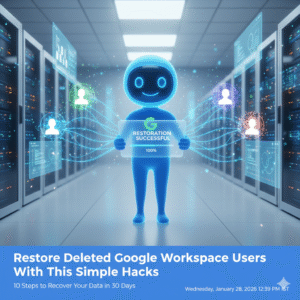
Restore Deleted Google Workspace Users With This Simple Hack

Losing critical employee data due to an accidental deletion can feel very stressful because your entire business operation relies on those files. However once you learn the proper way to restore deleted Google Workspace users you will see how easy it is to recover your lost information. I have used these exact methods to help IT admins reverse costly mistakes while seeing zero data loss for their organizations.

The Problem With Accidental Deletion

Many admins feel a sense of panic when a user account disappears because they assume the data is gone forever. This approach creates a massive amount of unnecessary pressure on your internal support team. You might feel frustrated when you realize that important emails and drive files are no longer accessible to your staff. To restore deleted Google Workspace users you must act quickly before the system purges the files forever.

The solution lies in acting quickly within the standard recovery window provided by Google. The admin console allows you to bring back a deleted user and all their associated data if you follow the right path. Once you apply these recovery steps you will see your workspace return to its normal state. I have seen companies save hundreds of hours of work by knowing the right process to restore deleted Google Workspace users.

Restore Deleted Google Workspace Users With This Simple Hacks

Step 1: Verify the Twenty Day Recovery Window

Google only allows you to restore deleted Google Workspace users within twenty days of the initial deletion. Specifically you must check the date the account was removed to ensure you are still within this vital timeframe. If you wait longer than twenty days the data is purged from the system permanently. Therefore your first priority is to confirm that you can still take action.

Step 2: Access the Users Section in Admin Console

You should log in to your Google Admin console using an account that has super admin privileges. Once you are inside navigate to the directory section and select the users option from the sidebar. This area contains all the tools you need to manage your employee accounts. This simple navigation is the starting point for every mission to restore deleted Google Workspace users.

Step 3: Use the Recently Deleted Filter

The default view only shows active users so you must change your settings to find the missing account. You can click on the add a filter option and select the recently deleted category from the list. This will reveal every account that has been removed within the last three weeks. To restore deleted Google Workspace users you simply need to find the specific name in this list.

Step 4: Review the User Data Before Restoration

Before you click the restore button you should double check the user’s details to avoid any confusion. For instance you want to make sure you are recovering the correct person if you have multiple employees with similar names. This ensures that you do not waste time while you restore deleted Google Workspace users. Consequently you maintain a clean and accurate directory for your entire business.

Step 5: Check for Available License Seats

Google Workspace requires an active license for every user you want to have in your system. If your current plan is full you may need to buy an extra seat before you can complete the restoration. You should check your billing section to see if you have any unassigned licenses ready to go. Having a license ready ensures that you can restore deleted Google Workspace users without any technical errors.

Step 6: Click the Restore Button

Once you have selected the correct user simply hover over their name and click the restore link. A pop up window will appear asking you to confirm that you want to bring the account back to life. This action triggers the system to begin reassembling the user’s emails and drive files. Therefore you are just one click away from the goal to restore deleted Google Workspace users.

Step 7: Assign the User to an Organizational Unit

You must decide where the restored user fits within your company structure to ensure they have the right permissions. For example you might need to place them back into the sales or marketing department. This step ensures that the user can immediately access the shared folders they need for their job. Proper placement keeps your security policies consistent when you restore deleted Google Workspace users.

Step 8: Reset the User Password for Security

As a safety measure you should always create a new password for any account that has been restored. Specifically this prevents any old credentials from being a weak point in your company security. You can send the new login details directly to the employee or their manager. Prompt password resets are a primary way to keep your business data protected.

Step 9: Verify Google Drive and Gmail Content

After the restoration is complete you should ask the user to check their most important files and emails. Because the system can take up to twenty four hours to fully sync you might see some items appearing slowly. This verification step ensures that every piece of vital information has returned to its original home. You should see all their previous work restored exactly as it was before the deletion.

Step 10: Set Up an Ownership Transfer Policy

To avoid future deletion scares you should implement a policy for transferring file ownership. For instance when an employee leaves you can move their drive files to a manager before deleting the account. This ensures that the business keeps the data even if the individual user is gone. Taking this proactive step is the smartest way to manage your digital assets.

Conclusion and Next Steps

If you follow the steps in this guide you should soon see your deleted users back in your directory. Please do not forget to let me know how you got on in the comments below. I am always interested in hearing your thoughts so tell me which part of the recovery process you felt was most helpful.

FAQs

1 How long do I have to restore a deleted user?

You have exactly twenty days from the date of deletion to recover a user and their data.

2 Do I lose emails when a user is deleted?

If you restore the account within twenty days all emails and files will return to the user.

3 What if the twenty day window has passed?

Once twenty days have passed the data is permanently deleted and cannot be recovered by Google.

4 Do I need a super admin account to do this?

Yes only a user with super admin privileges can restore deleted accounts in the console.

5 Can I restore multiple users at once?

You can select multiple names from the recently deleted list and restore them as a batch.

Also Read: Top 10 Admin Console Mistakes That Are Hurting Your Business Right Now

Top 10 Admin Console Mistakes That Are Hurting Your Business Right Now

Managing a digital workspace can feel very difficult because one small error in your settings can lead to massive security risks. However, once you learn how to audit your admin console properly, you will see a much more secure and efficient operation. I have used these tips to help brands protect their data while seeing a boost in employee productivity.

The Problem With Poor Admin Management

Many business owners overlook their admin console because it seems like a purely technical task. This approach creates a massive gap in your security perimeter. You might feel safe but a single open port or an unmanaged device can bring your whole system down. Poor management is like leaving your front door wide open and hoping for the best.

The solution lies in taking total control over your digital infrastructure today. AI can now scan your settings to find vulnerabilities in just a few seconds. Once you fix these errors you will see your risk levels drop immediately. I have seen companies avoid total data loss by simply tightening their admin permissions.

Top 10 Admin Console Mistakes That Are Hurting Your Business Right Now

Mistake 1: Ignoring Multi Factor Authentication

MFA is your first line of defense against unauthorized access to your company data. However, many admins leave this setting optional for their users. This creates a weak link that hackers can easily exploit to steal credentials. Therefore you must enforce MFA for every single account in your organization.

Mistake 2: Granting Excessive Super Admin Rights

Giving too many people full access to your console is a very dangerous habit. For instance, if a super admin account is compromised the attacker gets total control. You should only have two or three people with this level of power. Consequently, you reduce the surface area for a potential security breach.

Mistake 3: Failing to Audit Third Party Apps

Third party apps often request access to your core business data to function. Many admins approve these requests without checking the security of the app provider. Because of this, your sensitive information could be leaking to unknown servers. You should regularly review and revoke access for any apps that are not essential.

Mistake 4: Poor Device Management Policies

Your employees likely use multiple devices to access their work accounts every day. If these devices are not managed, you cannot wipe them if they are lost or stolen. AI can help you track these endpoints and enforce security standards automatically. This ensures that your business data stays within your control at all times.

Mistake 5: Neglecting Regular Admin Activity Logs

The admin logs tell you exactly who changed what in your system and when. However, many managers never look at these records until a problem occurs. Regular reviews allow you to spot suspicious behavior before it turns into a disaster. Therefore, you should schedule a weekly audit of your console activity.

Mistake 6: Leaving Onboarding and Offboarding Gaps

When an employee leaves your company, you must revoke their access immediately. A common error is leaving old accounts active for weeks after a person departs. This creates a massive security hole that can be used for data theft. Use automated tools to ensure that offboarding happens the moment a contract ends.

Mistake 7: Misconfiguring Data Sharing Permissions

Default settings in many consoles allow users to share files with anyone on the internet. While this is convenient, it often leads to accidental data leaks of sensitive records. You should set your sharing policies to “restricted” by default. In addition, you can use labels to identify which files require extra protection.

Mistake 8: Forgetting to Update Software and Apps

Outdated software is a primary target for malware and ransomware attacks. Many admins wait too long to push updates to their users across the network. AI can help you automate these updates so that your systems stay current without any manual work. This simple step is one of the best ways to keep your business safe.

Mistake 9: Inconsistent Storage Management

Digital storage costs can spiral out of control if you do not monitor your usage. Often, admins let old and useless files sit in the cloud for many years. This clutters your system and increases your monthly bills significantly. You should implement a clear data retention policy to delete what you no longer need.

Mistake 10: Lack of Admin Password Rotation

Admin passwords should be changed regularly to prevent long term account hijacking. However, many people use the same password for months or even years. This is a very risky practice that lowers your overall security score. Therefore, you should enforce a policy that requires password updates every ninety days.

Conclusion and Next Steps

If you follow the tips in this guide, you should soon see better security results for your business. Please do not forget to let me know how you got on in the comments below. I am always interested in hearing your thoughts, so tell me which tip you felt worked best for you.

FAQs

1 Why is MFA so important for admins?

It provides a second layer of security that prevents hackers from entering even if they have your password.

2 How many super admins should a company have?

Most experts recommend having at least two but no more than three for a medium sized business.

3 Can AI help manage my admin settings?

Yes, many modern consoles use AI to suggest security improvements and find data leaks automatically.

4 What happens if I forget to offboard a user?

The former employee may still have access to your private files which is a major security risk.

5 How often should I audit my admin logs?

You should perform a brief review of your logs at least once every week to catch suspicious activity early.

Also Read: How to manage multiple Gmail accounts efficiently