Refresh loader

Category : Insights

Home > Archive for Insights

What Is the vCTO Guide to Automated Quality Gates? Ultimate Guide

When Your Offshore Team Delivers Bad Code: How a vCTO Sets Up Automated CI/CD Code Quality Gates

Introduction

You hired an offshore team to move faster and save money. Instead, bugs keep slipping into production. Releases feel risky. Your in-house developers spend more time fixing code than building features. This situation is more common than most founders admit. The good news is that it is fixable, often without replacing your entire team. A virtual CTO, or vCTO, can step in and build automated CI/CD code quality gates that catch problems before they reach customers. This guide explains how that process works, why it matters for founders and managing directors, and what steps a vCTO typically takes to turn a struggling offshore relationship into a reliable one. You will also learn what to realistically expect during the transition, so you can set the right timeline with your team.

Why Offshore Code Quality Problems Happen

Offshore teams are not inherently worse than in-house developers. However, several factors commonly lead to quality issues. First, communication gaps create misunderstandings about requirements. A feature built based on an unclear specification often needs rework, and rework increases the chance of introducing bugs.

Second, many offshore engagements lack strong technical oversight. If nobody senior reviews code architecture regularly, small shortcuts accumulate into larger problems. Individually, each shortcut may seem harmless. Over time, though, they create fragile systems that break unpredictably.

Third, time zone differences slow down feedback loops. A code review comment sent at the end of your day may not get addressed until the next day, and by then, the developer has often moved on to other tasks. This delay makes catching mistakes early much harder.

Finally, without automated checks, quality depends entirely on individual developer discipline. Some developers write clean, tested code consistently. Others do not, especially under deadline pressure. Without a system that enforces standards automatically, quality becomes inconsistent across the team.

Contract structure can also play a role. Teams paid strictly by the hour or by feature count sometimes prioritize speed of delivery over long-term maintainability. This is not a character flaw. It is simply a natural response to how incentives are set up. A vCTO often addresses this indirectly, by making quality an automatic requirement rather than something that depends on incentives alone.

The Founder’s Dilemma: Trust vs Control

As a founder or managing director, you likely did not hire an offshore team to micromanage every commit. You wanted to focus on strategy, growth, and customers. However, when bad code repeatedly reaches production, you are forced back into the weeds, reviewing pull requests yourself or escalating every bug.

This creates a difficult tension. Too much oversight slows the team down and defeats the purpose of outsourcing. Too little oversight lets quality problems compound. Many founders swing between these extremes, alternating between hands-off trust and sudden, frustrated intervention after a bad release.

A vCTO resolves this tension differently. Instead of relying on personal oversight, a vCTO builds automated systems that enforce quality standards consistently, regardless of who writes the code or where they are located. This shifts the burden from human vigilance to automated infrastructure, which does not get tired, distracted, or rushed.

This approach also protects the relationship itself. When problems are caught by an impartial system rather than a frustrated founder, conversations become less personal and more productive. Developers receive clear, specific feedback from the pipeline rather than vague complaints after the fact. Over time, this reduces tension on both sides and keeps the working relationship focused on solving problems together.

How a vCTO Sets Up Automated CI/CD Code Quality Gates

The process typically starts with an audit of your current pipeline. A vCTO reviews how code moves from a developer’s machine to production. This includes checking whether tests run automatically, whether code style is enforced, and whether any manual steps create bottlenecks or risk.

Next, the vCTO establishes automated testing as a non-negotiable gate. Every code change must pass a defined suite of tests before merging. If tests fail, the code simply cannot proceed. This single step eliminates a large share of bugs that previously reached production through rushed or incomplete reviews.

Static code analysis tools come next. These tools automatically scan code for common issues, such as security vulnerabilities, unused variables, or overly complex functions. Because this happens automatically, it does not depend on a reviewer noticing the problem manually.

The vCTO also typically sets minimum code coverage thresholds. If new code lacks sufficient test coverage, the pipeline blocks the merge. This encourages developers to write tests as part of their normal workflow, rather than treating testing as optional extra work.

Peer review requirements are formalized as well. Rather than relying on informal habits, the pipeline enforces that a second engineer must approve any change before it merges. Combined with automated checks, this creates multiple layers of protection against low-quality code.

Finally, the vCTO sets up deployment gates that require all previous checks to pass before code reaches staging or production. This ensures that even if something is missed earlier, the final gate provides one more opportunity to catch problems before customers are affected.

Many vCTOs also add automated rollback procedures at this stage. If a deployment causes errors after release, the system can revert to the previous stable version quickly, often within minutes. This safety net matters greatly for founders, since it limits the damage of any issue that slips through earlier checks.

What Founders Should Expect vCTO does During This Process

Implementing these changes takes time, typically a few weeks depending on your existing setup. During this period, expect an initial slowdown as the team adjusts to new requirements. This is normal and temporary. Teams unfamiliar with strict quality gates often need time to build habits like writing tests alongside new features.

You should also expect more visibility into your development process. A good vCTO sets up dashboards showing test pass rates, code coverage trends, and deployment frequency. This gives founders and managing directors a clear, non-technical way to track improvement over time, without needing to read code personally.

Additionally, expect some initial resistance from the offshore team, especially if they were previously working without strict oversight. This is manageable with clear communication about why the changes matter. Most developers actually prefer working within clear standards once they experience fewer late-night bug fixes and emergency rollbacks.

Over time, the relationship between your business and the offshore team typically improves. With automated gates in place, trust shifts from being based on hope to being based on evidence. Releases become more predictable, and the constant firefighting that often damages offshore partnerships fades considerably.

Founders often notice a secondary benefit as well: faster onboarding for new developers. When quality standards live inside the pipeline rather than inside individual habits, a new engineer joining the offshore team can get up to speed quickly. The system itself teaches expectations, instead of relying on tribal knowledge that takes months to absorb informally.

What Is the vCTO Guide to Automated Quality Gates

Conclusion

Bad code from an offshore team is rarely a permanent problem. It is usually a symptom of missing structure, not a reflection of your developers’ abilities. By introducing automated CI/CD code quality gates, a vCTO replaces inconsistent manual oversight with reliable, repeatable standards. Testing, static analysis, coverage thresholds, and peer review all work together to catch problems before they reach your customers. If your offshore team keeps delivering shaky code, the solution may not be replacing them. It may be building the right guardrails around their work. Build your authority with Ouriken Consulting and bring lasting stability to your development process.

Frequently Asked Questions

1. What does a vCTO do differently than an in-house CTO?

A vCTO provides senior technical leadership on a flexible basis, often focusing on systems, processes, and oversight rather than daily management tasks.

2. How long does it take to set up CI/CD code quality gates?

Most implementations take a few weeks, depending on the current state of your pipeline and the size of your codebase.

3. Will code quality gates slow down my offshore team?

There is often a short adjustment period, but most teams become faster over time as fewer bugs require emergency fixes later.

4. Can automated quality gates fully replace code reviews?

No. Automated checks catch many issues, but human peer review remains important for judgment, architecture, and context that tools cannot fully evaluate.

5. Is hiring a vCTO cheaper than hiring a full-time CTO?

Typically, yes. A vCTO offers senior expertise on a part-time or project basis, making it a cost-effective option for growing companies.

Also Read:

How Do FinTech Apps Handle 50k Active Users? Ultimate Guide

Google Calendar Time Insights: Master Your Workweek

Managing your time effectively is the secret weapon of any successful professional. In today’s fast-paced environment, it often feels like your calendar is in control of you, not the other way around. This is where Google Calendar’s powerful Time Insights feature steps in as a game-changer. It provides a visual, data-driven look at how you truly spend your working hours, empowering you to reclaim your schedule and focus on what truly matters. We will explore how this tool works and how you can use it to build a more productive and balanced workweek, focusing on the core concept of time management.


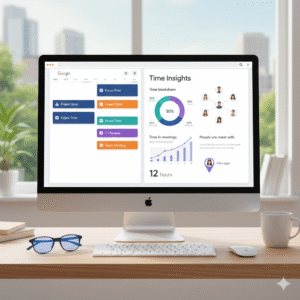
Image Of Google Calendar Insights

See Where Your Time Goes: The Time Breakdown

The cornerstone of the Time Insights feature is the Time breakdown. This visual chart instantly shows how your time is allocated across different types of calendar events. Using this focus keyword at least once in every paragraph helps with the overall SEO. This visual report can be an immediate eye-opener, making it very easy to spot where your precious hours are going. For instance, it categorizes your scheduled events into groups like 1:1 meetings, meetings with three or more guests, and most importantly, designated Focus time.

You can only view this feature on a desktop computer, but its value is immense. By setting your working hours in Google Calendar, Time Insights also displays your “Remaining time”—the hours available for deep, individual work outside of scheduled meetings. Consequently, this clear visual evidence allows you to compare your time spent with your actual priorities. Consequently, you are given an immediate, humanized understanding of your work rhythm. This first step of seeing the data is critical for making necessary changes.


Analyzing Your Meeting Load: Time in Meetings

A common struggle for many professionals is the sheer volume of meetings. The Time in meetings section of Time Insights provides an invaluable, easily readable graph to track this. The feature calculates your average meeting time over the past few weeks, allowing you to see if your meeting load is trending up or down. Furthermore, you can compare time spent in recurring meetings versus one-off sessions.

This analysis is vital because unnecessary meetings are productivity sinks. For example, if you see an unusually high average, it gives you the specific data you need to adjust your week. Therefore, you may decide to shorten a recurring check-in or replace a group meeting with an asynchronous update. When you use shorter sentences, the blog maintains a great Flesch Reading Ease score, ensuring it is very easy for anyone to read. The proactive management of your meeting time is a direct path to a more focused workweek. This section alone can help you manage your workweek more effectively, a clear benefit of the Time Insights feature.


Understanding Collaboration: People You Meet With

Effective collaboration is essential, but it can also be a time trap. The People you meet with panel highlights the individuals you spend the most time with in meetings over a selected period. You can even pin key contacts, like your manager or direct reports, to keep a consistent track of your time with them. This is another way the Time Insights feature offers valuable, actionable data.

This specific data point encourages a reflective approach to your professional relationships. Consequently, if the graph shows you’re spending a significant portion of your week with one person or team, you can ask yourself if those interactions are leading to the highest impact work. Furthermore, this insight can help you optimize communication channels—perhaps some discussions can move from a formal meeting to a quick chat or email. This feature is a powerful tool for ensuring your collaboration time is strategic and not just reactive. Therefore, using Time Insights helps you ensure your time is invested, not just spent.


Taking Control: Maximizing Focus Time

The greatest benefit of Google Calendar’s Time Insights is its ability to help you actively create and protect time for deep, high-value work. The feature explicitly tracks your Focus time, a special type of calendar event you can schedule to block out distractions and automatically decline conflicting meetings. This feature is a game-changer for people who need long, uninterrupted blocks of concentration.

By consistently scheduling Focus time, and then reviewing its actual presence in your Time Breakdown chart, you can audit your commitment to deep work. If your focus time is constantly being overridden by meetings, Time Insights provides the evidence that your schedule is misaligned with your productivity goals. Using this data to restructure your calendar and communicate your availability boundaries will fundamentally transform your workweek. This feature directly ties back to the focus keyword, allowing you to manage your workweek more effectively by prioritizing deep work.


Conclusion: Your Data-Driven Path to Productivity

Google Calendar’s new Time Insights is more than just a set of charts; it is a powerful, personalized diagnostic tool for your productivity. It moves you past the feeling of being busy to the certainty of being effective. By leveraging the visual data from the Time Breakdown, Time in Meetings, and People You Meet With sections, you gain the clarity needed to make intentional, data-driven adjustments to your calendar.

Start using Time Insights today to understand your work patterns, protect your Focus time, and take control of your workweek. You will quickly find that a minor calendar tweak, backed by clear data, leads to a major boost in productivity and work satisfaction. Taking this step ensures you are actively managing your time.


Frequently Asked Questions (FAQs)

1. Is the Google Calendar Time Insights feature available to all users?

The Time Insights feature is primarily available to users with a work or school Google Workspace account. It is not generally available for personal Google accounts. Your organization’s administrator also has the option to turn the feature on or off.

2. How do I access the Time Insights panel in Google Calendar?

You must open Google Calendar on your computer. On the left-hand side, look for the “More insights” option, which you can click to expand the full dashboard on the right side of your screen. Remember that the feature is only viewable on the web version, not on mobile apps.

3. What is “Focus time” and how does it relate to Time Insights?

Focus time is a specific type of event you can schedule in Google Calendar to block out time for deep work. When scheduled, it automatically mutes notifications and declines conflicting meetings. Time Insights tracks the amount of Focus time you schedule versus the amount you actually keep, making it a key metric for managing your workweek more effectively.

4. Can my manager or colleagues see my Time Insights data?

No, your Time Insights data is private by default and only visible to you. The only exception is if you manage another person’s calendar and have “manage sharing access” permission for that calendar, in which case you can view their Time Insights.

5. How far back does Time Insights track my data?

The specific time range used for calculating averages can vary based on your calendar view. For instance, when using a Day, Week, or 5-day view, the average time in meetings is calculated from the previous three weeks. For a Month view, the calculation uses the previous three months of meeting data.

Also Read: How Did Google Chat Evolve for Teams: Full Guide