Refresh loader

Category : Cloud Consulting

Home > Archive for Cloud Consulting

Desktop and Google Drive: How to Fix Syncing Issues

Google Drive is a vital tool for many people. Therefore, it keeps your files safe in the cloud. It also syncs them to your computer desktop. However, sometimes the synchronization stops working well. Truly, this can be very frustrating. You need your files to be up-to-date everywhere.

Some users ignore sync problems. But, this can cause you to lose work or use old versions. Consequently, fixing sync issues quickly is very important. Always remember, most syncing problems are easy to fix. By following simple checks and restarting the process, you can get your files flowing smoothly again. This ensures you always have the right version of every document. It also keeps your workflow running smoothly.

Desktop and Google Drive: How to Fix Syncing Issues


The Sync Problem: Why Files Stop Talking

First, let’s understand why your files might stop syncing between the cloud and your desktop. The syncing process is complex. It involves your computer, the Drive app, and your internet connection. Clearly, a failure in any one part can cause the whole thing to stop. Therefore, you must check the most common causes first.

The Most Common Sync Blockers

These common issues often prevent Google Drive from syncing correctly:

  • Full Storage: Your Google Drive storage space is full. The app cannot add new files.

  • Network Issues: Your internet connection is weak or disconnected. The app cannot talk to the cloud.

  • Large Files: You are trying to sync one very large file (e.g., a video). This can pause the entire process.

  • File Name Errors: The file name has an illegal character (like a forward slash /). The app cannot read the file path.

  • App Glitches: The Drive desktop application has frozen or needs an update.

  • Firewall Blocks: Your computer’s security software is blocking the Drive app from connecting.

Troubleshooting involves systematically checking each of these potential blockers. You must eliminate the simple causes first.


What is Syncing, and Why is it Important?

So, what exactly is file syncing for Google Drive? It is the continuous, automatic process of mirroring files. It ensures that the files on your desktop match the files in the cloud. Truly, this is important for backup. It is also important for collaboration.

The Value of Perfect File Synchronization

Here is why perfect syncing is so important:

  1. Data Backup: Your files are safe in the cloud if your computer breaks down.

  2. Access Everywhere: You can access the same file from your phone, tablet, or another computer.

  3. Version Control: Everyone is working on the most recent version of a document.

  4. Offline Access: You can work on files even when you do not have internet access. The files will update later.

  5. Workflow Continuity: You can seamlessly switch between devices without losing progress.

Truly, a broken sync breaks your entire workflow. It puts your important data at risk. Fixing it must be a top priority.


Pillar 1: The Quick Fixes – Restart, Check, and Pause

The first step in troubleshooting is to try the easiest, fastest fixes. These steps usually solve simple glitches and temporary network problems. Clearly, most errors are minor. Therefore, a simple restart can often fix the issue completely.

Simple Steps to Kickstart Synchronization

Firstly, pause and resume syncing. Find the Google Drive icon on your desktop toolbar. Click it. Then, select “Pause syncing.” Wait one minute. Then, select “Resume syncing.” This often resets the connection. Secondly, check your internet connection. Make sure your Wi-Fi is working. Try opening a website to confirm you are online.

Furthermore, restart the Drive application. Close the Drive desktop application completely. Wait about ten seconds. Then, relaunch the application. This clears any temporary app glitches. Also, check your available storage. Go to your Google Drive storage page online. If you are near the 15 GB limit, delete some large files first. This gives the app room to work. Lastly, check your system time. Ensure your computer’s date and time settings are correct. An incorrect time can block secure connections. Truly, these quick checks take only a few minutes. They often solve the majority of common syncing failures right away.


Pillar 2: Deep App and Settings Troubleshooting

If the quick fixes do not work, you must look deeper into the Drive application settings. Specific settings often control how and what files sync. Clearly, finding the exact setting that is causing the block is the next step. Therefore, focus on the app’s internal configuration.

Diagnosing App-Specific Settings

Firstly, check the syncing folders. Click the Drive icon. Go to Preferences or Settings. Ensure that the specific folders you want to sync are selected. Sometimes, a folder is accidentally unchecked. Secondly, review the file status. Look for a small error icon on the file. This often means the file name has an illegal character. Rename the file and try again.

Furthermore, check the blocked files list. The Drive app sometimes shows a list of files it cannot sync. Review this list. Fix the file errors one by one. Also, update the Drive app. Make sure you have the newest version of the Drive desktop application. Outdated software often causes new sync problems. Lastly, check proxy settings. If your company uses a special network setup, the Drive app might need custom proxy settings. Consult your IT team for this information. Truly, reviewing the application’s internal settings helps pinpoint the exact file or folder that is causing the entire sync process to stall.


Pillar 3: Advanced Methods – Reinstallation and Disconnection

If all other steps fail, you may need to perform more advanced troubleshooting. This includes completely disconnecting your account or reinstalling the application. Clearly, these steps are more drastic. Therefore, make sure you back up any local files first.

Resolving Persistent Syncing Errors

Firstly, disconnect your account. Go to the Drive app settings. Select the option to disconnect your account. This stops all syncing. Then, sign back in. This forces the app to re-establish a completely fresh connection to the cloud. Secondly, reinstall the Drive application. Uninstall the desktop application completely. Download the latest version from Google. Then, reinstall it. This fixes corrupted application files.

Furthermore, check your computer’s firewall. Your security software might be blocking the Drive app’s connection. Temporarily disable your firewall to see if syncing starts. If it works, you need to add Google Drive as a trusted application. Also, check for specific file conflicts. Sometimes, both the desktop and the cloud file change at the same time. The app cannot decide which version to keep. Look for files with “Copy” or “Conflict” in the name. Resolve these manually.

Lastly, clear the Drive cache. In rare cases, a corrupted local cache causes problems. You can clear this cache folder manually. You should only do this with care and after disconnecting your account. Truly, these advanced methods are powerful. They solve the most stubborn, long-lasting syncing problems effectively.


Best Practices: Preventing Future Sync Issues

Preventing future sync issues is always better than fixing them later. You must adopt smart habits. This keeps your files organized and your app running smoothly. Clearly, simple routine checks save much time and frustration. Therefore, follow these best practices for a stable workflow.

Simple Habits for Continuous Smooth Syncing

Firstly, monitor your storage often. Check your total storage usage weekly. Delete unnecessary large files before you hit the limit. Secondly, sync only essential folders. Do not sync your entire Google Drive library to your desktop. Only select the folders you use every day.

Furthermore, check file names before uploading. Avoid special characters like ?, *, or / in file names. This prevents file path errors. Also, review your blocked list regularly. Check the Drive app settings. See if any files are consistently failing to sync. Fix or delete them right away. Lastly, pause syncing before big transfers. If you know you will be offline or transferring hundreds of files, manually pause syncing first. Resume it when the task is done and the connection is stable. Truly, adopting these simple routines keeps your Google Drive application healthy. This minimizes the risk of sudden, frustrating sync failures.


Frequently Asked Questions (FAQs)

Q1: Why is my Google Drive icon stuck on “Scanning files”?

The “Scanning files” message often means the app is checking a very large folder. It can also mean a program on your computer is holding a file open. Try restarting your computer completely. This often releases the stuck file.

Q2: Will disconnecting my account delete any files from my desktop?

No, it will not. Disconnecting your account only stops the synchronization process. It does not delete any files from your computer or the cloud. All files remain safely stored in both locations.

Q3: What should I do if my large video file won’t sync?

If a large video file won’t sync, check its format. Some unusual formats may cause issues. If the format is fine, try uploading the file directly through the Google Drive website instead of using the desktop app.

Q4: Does using a VPN cause Google Drive sync problems?

Yes, sometimes it does. A VPN can change your network settings or IP address rapidly. This confuses the Drive app, which needs a stable connection to the Google servers. Try pausing or disconnecting the VPN while you sync large amounts of data.

Q5: If I archive an email, does it free up storage space?

No, it does not. Archiving an email only moves it from your Inbox to the All Mail folder. The email and its attachments still count against your total Gmail storage limit. To free up space, you must delete the email and empty the Trash.

Also Read: Gmail Storage Full? Use These Simple Search Hacks

Gmail Storage Full? Use These Simple Search Hacks

Many people use Gmail every day. Therefore, it is a key part of daily life. Gmail is connected to Google Drive and Google Photos. However, all three share one storage space. Truly, this space is usually 15 GB for free accounts. Consequently, this storage can fill up very fast. You need to know why your space is gone. You must also know how to clean it up safely.

Some people think only emails fill up Gmail. But, this is not true. Files in Drive take space. Photos also take space. When the storage gets full, you cannot receive new emails. Furthermore, this can cause big problems. Always remember, cleaning your Gmail storage is easy. By following simple steps, you can free up gigabytes of space. You can do this without losing any important messages.

Gmail Storage Full? Use These Simple Search Hacks


The Storage Mystery: Where Did My 15 GB Go?

First, let’s solve the common mystery. Where does the storage space actually go? Your total Google storage is shared across three main services. Clearly, understanding this sharing is the first step to cleaning up. Therefore, you must look at all three areas, not just your email inbox.

The Three Space Hogs

Your 15 GB of free space is divided among these three services:

  • Gmail: This includes all messages in your Inbox, Sent, Spam, and Trash folders. It also includes the file attachments in those emails.

  • Google Drive: This stores files like PDFs, documents, spreadsheets, and other files you upload. However, Google Docs, Sheets, and Slides files usually do not count.

  • Google Photos: This stores all photos and videos backed up from your devices. Note that photos uploaded before June 2021 often do not count toward your limit.

Truly, your storage is most often consumed by large video files in Drive. It is also taken up by massive email attachments. Focus your cleaning efforts on these large files.


Pillar 1: Cleaning Gmail – Finding the Biggest Emails

The first place to clean is your Gmail account. Most of the space is hidden in old emails with large attachments. Clearly, deleting just a few of these large emails can free up hundreds of megabytes instantly. Therefore, you must learn to search for the largest files quickly.

Simple Search Hacks to Find Large Files

Firstly, use the search bar to find emails bigger than a certain size. For example, type this into the search bar: size:10m. This shows all emails larger than 10 megabytes. Secondly, target older emails. You probably do not need huge attachments from years ago. Type: has:attachment before:2020/01/01. This shows all emails with attachments sent before January 1, 2020.

Furthermore, sort your inbox by size. Click the gear icon (Settings). Then, go to “See all settings.” Now, click “Inbox.” Change the inbox type. Also, check the “Sent” folder. Many people forget that large files they sent are also stored in their account. Delete these large sent items first. Also, empty your “Spam” folder. Spam usually gets deleted automatically. However, manually emptying it can free up space immediately. Lastly, empty your “Trash” folder. When you delete an email, it stays in Trash for 30 days. You must empty the Trash to truly free the space. Truly, using these simple searches and checks allows you to find and remove the biggest space-consuming files quickly.


Pillar 2: Clearing Google Drive – Targeting Hidden Files

The second key area is Google Drive. People often upload large files here. They forget about them. These files can take up huge amounts of space. Clearly, you must find the largest files in Drive. Therefore, there is a special section built just for this cleanup.

Finding and Deleting the Largest Files

Firstly, go to your Drive storage page. This shows a list of your files. This list is automatically sorted by size. The biggest files are at the top. Secondly, delete unnecessary large files first. Look for video files, zip archives, or old backups. These are usually the largest items.

Furthermore, check your “Trash” folder in Drive. Just like in Gmail, deleting a file moves it to Trash. It still counts against your limit until you empty the trash. Go to your Trash folder. Then, click “Empty trash.”

Also, look for “Hidden App Data.” Some apps store data in Drive that you cannot see in your main folder. Go to Settings in Drive. Click “Manage Apps.” If any app lists data, you can delete it there. Lastly, review files that are “Shared with me.” Files shared with you do not count against your limit unless you copied them. Check your “My Drive” folder for large files you own. Truly, focusing on the largest files you own in Drive is the fastest way to gain significant storage back.


Pillar 3: Managing Google Photos and Other Sources

The third source of storage use is Google Photos. This is especially true for users who have backed up large videos or photos recently. Clearly, you must manage your video and photo library effectively. Therefore, you can use the built-in management tools.

Finding and Deleting Large Photo/Video Files

Firstly, use the Google One Storage Management tool. This is a dedicated page. It shows all your biggest files across Gmail, Drive, and Photos in one place. Secondly, use the “Review and discard” feature in Google Photos. This tool identifies blurry photos, screenshots, or very large videos. You can review them and delete them easily.

Furthermore, delete old, unwanted videos. Videos take up much more space than photos. Focus on deleting long, unwanted video clips first. Also, check your computer’s backup. Some people back up their entire desktop or documents folder to Drive. Check your Drive settings. See if any large folders are being backed up unintentionally. Lastly, remember that deleting files must be followed by emptying the Trash in both Gmail and Drive. This is the only way to release the space back to your account. Truly, using the dedicated management tool gives you the best, clearest overview of where your storage is going.


Best Practices: Keeping Important Emails Safe

The main concern when cleaning up is losing important emails. You must ensure that only junk or old, unnecessary files are deleted. Clearly, using the right tools and strategies prevents accidental loss. Therefore, follow these best practices to keep your important emails safe.

Strategies to Protect Valuable Information

Firstly, never delete files without searching first. Use the size and date search queries provided in Pillar 1. This ensures you only target old, large, generic emails. Secondly, use labels and archiving. If an email is important but you do not need it in your inbox, archive it. Archiving removes it from your main view. However, it keeps it in your account.

Furthermore, create an “Important Attachments” folder in Drive. If you have an email with a huge, vital attachment, download the attachment to your computer. Then, upload it to Drive into a special folder. Delete the original email afterward. This saves space. Also, use the “Export data” tool (Google Takeout). If you have very old emails or documents you want to keep but not store in Gmail, download them. You can save them to your computer or an external hard drive.

Lastly, double-check the Trash before emptying it completely. Take a final look through the Trash folder. Make sure no recently deleted important items are inside. Truly, by using labels, archiving, and external backups, you can clean your inbox aggressively without risking important information.


Frequently Asked Questions (FAQs)

Q1: Does deleting emails from my phone also delete them from my computer?

Yes, it does. Gmail syncs across all devices. When you delete an email on your phone, it moves to the Trash folder everywhere, including your computer’s browser.

Q2: How long does it take for my storage space to refresh after I empty the Trash?

The storage space usually refreshes quickly, often within minutes. However, Google warns that it can sometimes take up to 24 hours to fully reflect the deleted space.

Q3: Does deleting files from my shared Google Drive count toward my 15 GB limit?

No, it does not. Files that are only shared with you do not count toward your limit. Only files that you own and that are in your “My Drive” folder count against your 15 GB limit.

Q4: If I delete a large file from Google Drive, is it gone forever?

No, not immediately. When you delete a file from Drive, it moves to the Trash. It stays there for 30 days. It still counts against your storage limit during those 30 days. You must empty the Trash to free the space.

Q5: If I upgrade to Google One (paid storage), will my Gmail run faster?

Upgrading your storage will not make Gmail run faster. It only increases the limit (e.g., from 15 GB to 100 GB). Gmail’s speed depends on your internet connection and computer performance.

Also Read: What to Expect from Google Workspace in 2026

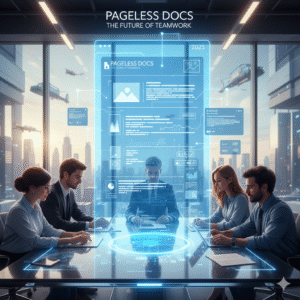
Is Pageless Docs the Future of Teamwork in 2025?

In the rapidly evolving digital workplace, tools that enhance collaboration and streamline workflows are invaluable. Google Docs has long been a cornerstone of team productivity, constantly adapting to meet modern demands. However, one of its most significant, yet subtly powerful, updates is the introduction of the Pageless format. Initially seen by some as a minor aesthetic change, the true impact of Pageless for teams in 2025 is profound. Clearly, it represents a shift from print-centric document creation to a truly digital-first, fluid, and collaborative experience. Therefore, understanding why this update matters is crucial for any organization aiming to maximize its efficiency and innovation.

Many teams still operate with a “print mentality,” even when working entirely digitally. They design documents with page breaks, margins, and headers, replicating a physical paper experience. However, this approach can stifle creativity and create unnecessary friction in a dynamic online environment. The Pageless format liberates documents from these traditional constraints, offering an expansive canvas that adapts to any screen and workflow. Truly, it’s not just about removing page breaks; instead, it’s about embracing a mindset where content flows continuously, fostering uninterrupted collaboration and dynamic information sharing. This fundamental change allows teams to work more naturally within a digital space, paving the way for enhanced productivity and innovative ways of interacting with shared knowledge.

Is Pageless Docs the Future of Teamwork in 2025?


The Shift to Pageless: A Fundamental Rethink of Documents

To begin with, let’s understand what the Pageless format truly entails and why Google introduced it. Traditionally, word processors, including Google Docs, mimicked physical paper, complete with fixed page dimensions, margins, and headers. This “page-centric” view was essential for printing documents. However, in an increasingly digital-first world where most documents are consumed on screens—from desktops to tablets and phones—the concept of a fixed “page” becomes an arbitrary constraint. Consequently, the Pageless format removes these boundaries, allowing content to flow continuously without artificial breaks.

Why Google Docs Went Pageless and Its Core Principles

Naturally, Google’s motivation for introducing Pageless was rooted in enhancing the digital collaboration experience. Firstly, the Pageless format offers an adaptive view. This means content automatically adjusts to the width of your screen, eliminating the need for horizontal scrolling or constant zooming, regardless of the device you are using. This vastly improves readability and user experience. Secondly, it fosters uninterrupted content flow. Without page breaks, collaborators can scroll seamlessly through lengthy documents, which is particularly beneficial for large projects, research papers, or continuous note-taking. Clearly, this removes a common point of friction during collaborative editing.

Furthermore, Pageless encourages a digital-first mindset. It signals a move away from designing documents primarily for print and towards optimizing them for screen consumption and dynamic interaction. This aligns with modern work practices where documents are often living entities, constantly updated and shared online. Lastly, it enables new features and integrations that are not possible in a page-based layout. For example, wide images, extensive tables, or integrated whiteboarding elements can seamlessly become part of the document without awkward resizing or layout compromises. Truly, the Pageless format is more than a display option; it’s a philosophical shift in how we create, consume, and collaborate on documents in a digital world.


Boosting Collaboration and Productivity for Teams

The most significant impact of Docs’ Pageless format is on team collaboration and overall productivity. By removing the traditional constraints of pages, the update fosters a more fluid and efficient environment for shared work. Clearly, this directly addresses common pain points in collaborative document creation, leading to smoother workflows and more effective team output. Therefore, understanding these benefits is crucial for leveraging the full potential of Pageless.

Streamlining Workflows and Enhancing Team Output

Firstly, Pageless eliminates the frustration of awkward page breaks during collaborative editing. When multiple team members are working on a document, content often shifts, causing page breaks to appear in inconvenient places, disrupting flow. With Pageless, content simply reflows, ensuring everyone sees a consistent and continuous stream of information, regardless of concurrent edits. This significantly improves the shared reading and editing experience.

Secondly, it enhances readability and accessibility across diverse devices. Team members access documents from desktops, laptops, tablets, and smartphones. The adaptive nature of Pageless means the document automatically adjusts to fit each screen, making it easier to read and interact with without constant zooming or horizontal scrolling. This is especially beneficial for remote or distributed teams, ensuring a consistent experience for everyone.

Furthermore, Pageless facilitates the integration of richer, wider content. Teams can embed large tables, extensive charts, or even integrate whiteboarding tools directly into the document without worrying about squeezing them into page margins. This allows for more comprehensive and visually engaging collaborative documents, which is excellent for brainstorming sessions, project planning, or detailed report generation. Truly, Pageless transforms Docs into a truly agile collaborative canvas, making teamwork more seamless and productive.


Fostering Creativity and Dynamic Content Creation

Beyond just productivity, Docs’ Pageless format plays a crucial role in fostering creativity and enabling more dynamic content creation within teams. By breaking free from the rigid structure of traditional pages, the update encourages a more expansive and less constrained approach to documenting ideas, planning projects, and sharing information. Clearly, this shift empowers teams to think beyond the limitations of print and embrace a truly digital canvas. Therefore, understanding its role in creative workflows is essential.

Unleashing New Possibilities for Digital Documentation

Firstly, Pageless encourages a free-form ideation and brainstorming environment. Without the mental barrier of page breaks, teams can capture thoughts, notes, and ideas continuously, almost like a digital whiteboard. This promotes a more natural flow of consciousness, which is ideal for early-stage project planning, mind-mapping, or rapid content generation. The focus shifts from formatting to the pure generation of ideas, fostering a more creative atmosphere.

Secondly, it allows for the seamless integration of diverse media and interactive elements. Imagine embedding a wide, interactive data visualization, a full-screen diagram, or even a video directly into your document without worrying about how it will appear on a printed page. Pageless provides the expansive real estate needed for such rich media, making documents more engaging and informative. This is particularly useful for design teams, marketing teams creating campaign briefs, or product teams documenting user flows.

Furthermore, the absence of page breaks encourages longer-form, continuous narratives that are optimized for digital consumption. This means teams can create comprehensive living documents that evolve over time, such as ongoing project logs, detailed knowledge bases, or expansive research documents, without the artificial fragmentation caused by page breaks. Truly, Pageless transforms Google Docs into a versatile platform for dynamic, media-rich content that sparks creativity and supports modern digital storytelling.


Adapting to the Pageless Mindset: Best Practices for Teams in 2025

While the technical implementation of Pageless is straightforward, truly harnessing its benefits requires teams to adopt a new mindset and establish best practices. Clearly, simply removing page breaks won’t automatically transform workflows; instead, conscious effort to adapt to this new paradigm is necessary. Therefore, proactive strategies for content organization, communication, and leveraging new features will be key to success in 2025.

Strategies for Maximizing Pageless Benefits

Firstly, rethink document organization. Without page numbers, teams must rely more heavily on outlines, headings, and the document outline feature in Docs for navigation. Encourage the consistent use of clear headings and subheadings to maintain structure. Implement a table of contents, which automatically updates, for lengthy documents. This provides an easy way to jump to relevant sections.

Secondly, leverage wide content effectively. Embrace the ability to add wider images, tables, and integrated elements. However, ensure these additions genuinely enhance understanding and don’t overwhelm the reader. Use these elements strategically for data visualization, diagrams, or flowcharts that benefit from a larger canvas. Furthermore, establish new internal guidelines for document creation.

Discuss how your team will use Pageless for different types of documents—e.g., meeting notes, project plans, reports. Agree on conventions for spacing, section breaks, and media insertion to maintain consistency. Lastly, educate and train your team on the benefits and features of Pageless. Conduct workshops, share tips, and encourage experimentation. Highlight how it streamlines collaboration and enhances readability on various devices. Truly, by actively adapting to the Pageless mindset, teams can unlock a new level of efficiency, creativity, and seamless collaboration in Google Docs.


Frequently Asked Questions (FAQs)

Q1: What is the main difference between “Pageless” and traditional “Pages” in Google Docs?

The main difference is that “Pages” format mimics physical paper with fixed page breaks, margins, and headers, suitable for printing. “Pageless” removes these constraints, allowing content to flow continuously, adapting to screen width, and optimized for digital consumption and collaborative editing without interruptions from page breaks.

Q2: Does Pageless mean I can no longer print my Google Docs documents?

No, you can still print documents created in Pageless format. When you choose to print, Google Docs will automatically format the content into pages, adding page breaks as needed, to ensure it’s printable. The Pageless format primarily affects the on-screen viewing and editing experience.

Q3: How does Pageless improve collaboration for remote teams?

Pageless significantly improves collaboration for remote teams by providing a consistent, adaptive viewing experience across all devices (desktops, tablets, phones), eliminating awkward page breaks during concurrent editing, and allowing for richer, wider content integration. This creates a more fluid and less disruptive shared workspace.

Q4: Are there any downsides to using the Pageless format?

A potential downside is that if you rely heavily on precise page-by-page formatting for print-specific documents (e.g., academic papers with strict page limits or specific print layouts), you might need to occasionally switch back to “Pages” view to check final print formatting. However, for digital-first documents, the benefits generally outweigh this minor inconvenience.

Q5: How can teams best navigate long Pageless documents without page numbers?

Teams can best navigate long Pageless documents by consistently using headings and subheadings, leveraging the automatic “Document Outline” feature in Google Docs, and utilizing the search function within the document. These tools allow for quick navigation to specific sections without relying on traditional page numbers.

Also Read: How Gemini AI Changes Your Google Workspace

The Zero Trust Shift: Securing Hybrid Work with ZTNA

The old security walls are gone. Hybrid work is the norm today. Relying on the old “castle-and-moat” idea is risky. This old plan trusted all inside the work net. Consequently, Zero Trust Architecture (ZTA) is the key to safe work. Zero Trust uses one rule: never trust. Always verify.

All users, devices and data must be checked. This is true even for access inside the network. This constant check is vital.

New Zero Trust fixes are part of the net. They use smart tools like AI. They use flexible access rules. Thus, these tools give better security. Workers are everywhere now. For this reason, a strong Zero Trust plan is a must for all firms. Moreover, this plan knows threats are everywhere. Therefore, the net is never trusted by default. This change helps keep the whole system safe.

Image Of The Zero Trust Shift: Securing Hybrid Work with ZTNA

Beyond The Basics: The Evolution of ZTA Pillars

The first Zero Trust design only focused on two things. First, it focused on strong Identity and Access Management (IAM). Second, it focused on dividing the net. However, threats are much smarter now. Therefore, the whole design has changed. Now it includes more detail. Also, it includes smarter access checks across all digital tools. Thus, these new improvements are making security stronger. Also, they are making the process clearer for the workers who use the system.


Context-Aware Access and Evaluation

Access checks cannot stay static. They cannot only depend on a name and a code. Instead, access decisions are always changing. They change based on many factors. Therefore, new Zero Trust systems check many different things. They check these things all the time. They check for every access request. This non-stop check is great.

For example, the system checks these key factors:

  • User Identity and Role: Who is the person trying to log in? What can this person do based on their job?
  • Device Posture: Is the device following all company rules? Is the system fully up-to-date? Does the device have the right virus scan running? For this reason, if a device’s score drops, the system cuts off access fast. Or, it lowers the access level right away.
  • Location and Geolocation: Where is the access request starting from? Is this a strange place for this worker to be?
  • Time of Day: Is the worker trying to look at secret data late at night? For instance, is it at 3 AM?

This continuous check means the system never just gives trust easily. Access can quickly change. Also, the system can stop access right in the middle of a session. This happens if the risk goes up. This action prevents a hacker from moving inside the net. Therefore, Zero Trust gives great control.


The Rise Of AI And Automation

Artificial intelligence (AI) is the main power source for the next step in Zero Trust. AI and machine learning look at huge logs of data. They do this in real time by looking for strange things. They flag risky actions that people would miss. This speed is vital now.

New AI improvements give great help. For example, AI-driven fixes include:

  • Automated Data Classification: AI automatically reads and sorts data. It gives the data labels like “Secret.” This task is crucial. This ensures that the rules for Data Loss Prevention (DLP) work right. This is true no matter where the data is kept. This helps protect private customer details.
  • Behavioral Analytics: The system learns what is normal for a user. Consequently, if a worker suddenly uses an app they never touch, the AI sees it. Or, if the worker starts getting too much data, the AI detects the odd change. Then, the system forces a re-check. Or, it blocks the action. This step helps a lot. It also stops bad behavior.

The system uses Threat Detection and Response (XDR). XDR combines security facts. It gathers data from emails and computers. It gives a full picture of any threat. Thus, the system can quickly block bad computers or users. Truly, Zero Trust gets its power from these tools.


From VPN to ZTNA: Securing The Hybrid Workforce

The biggest change in the Zero Trust setup is the move from old VPNs. Now, everyone uses Zero Trust Network Access (ZTNA). This move is necessary. It secures all remote work teams.

VPNs had a major fault. They gave a user access to the whole net once checked. This was a single point of failure. Conversely, ZTNA replaces this old way. It uses true least-privileged access. Therefore, a remote worker only makes a small, safe link. This link goes only to the one app the worker needs. It does not connect to the whole net.

This change has many pluses. The attack area shrinks greatly. Thus, it makes it hard for a hacker to find a way in. Also, the risk of harm is low if a computer is hacked. This cuts the “blast radius” of any break-in. ZTNA also runs quietly. It is fast and better for the user. It avoids the slow-down issues that were common with old VPNs. Thus, choosing ZTNA is a main step toward full Zero Trust.


ZTNA Versus VPN Comparison

Feature Old VPN Model Zero Trust Network Access (ZTNA)
Trust Model Implicit Trust (Trusts all once door opens) Never Trust, Always Verify (Checks every action)
Access Granularity Grants network access (You get the whole floor) Grants application access (You get one desk)
Attack Surface High (Exposes the net to hackers) Low (Apps stay hidden from hackers)
Lateral Movement Easy (Hacker moves freely) Blocked (Access is limited to one app)

ZTNA simplifies security a lot. You do not need to check complex firewall rules for every user. Instead, the rule is based on the user’s name. This rule follows the user. Thus, the security stays the same everywhere. Consequently, ZTNA fixes the main problem of securing workers who move often.


Key components for a robust zero trust workspace

Building a full ZTA needs many layers of defense. You must cover every part of your digital work area. These three core parts work well together. They deliver very strong workspace security.

1. Identity and Endpoint Security

A strong system for Identity and Access Management (IAM) is the most basic need. This involves forcing all users to use Multi-Factor Authentication (MFA). MFA adds a safe step after the password. It also requires using Single Sign-On (SSO). SSO centralizes the login process. Furthermore, the focus on Endpoint Security has grown. Zero Trust Architecture checks all devices deeply. It checks phones and computers. It must ensure that all devices meet strict rules before they can connect. If a worker uses their own phone, the system keeps company info separate. This is vital.


2. Micro-Segmentation and Networking

Micro-segmentation is a powerful tool. It cuts the whole net into small zones. Gaining access to any zone needs a separate, clear pass. This stops a hacker from moving around easily. If an attacker breaches one part, their harm is small. They cannot move to the finance server from the marketing server easily. They need a new key. Likewise, the network side has changed. It now views the computers in the main office as just another untrusted part. This is key. This guarantees that the rules work the same way for every link. It does not matter if a worker is at home or in the main office.


3. Data Protection and Governance

In the end, the main job of Zero Trust is to protect the info. New fixes focus on applying consistent DLP policies. These rules apply to all apps. They work for cloud apps. They work for in-office apps. This step ensures that secret info is always safe. It must be safe when it sits still. It must be safe when it moves. Also, Zero Trust creates a full record. This audit trail shows every access try. It shows every data action. This clear record is needed. It greatly improves security. Moreover, this transparency makes meeting rules much simpler. Thus, security teams can easily prove compliance.


Conclusion: Building a Secure Future

The move to Zero Trust Architecture is not a trend. It is a required security shift. The shift to hybrid work has killed the idea of a safe net border. Consequently, firms must use the “never trust, always verify” rule. This ensures that security is used everywhere. It is used on every person and device. It does not matter where they are.

This modern security plan is built on many key fixes. For instance, ZTNA replaces old VPNs. AI uses constant checks to find threats fast. Micro-segmentation stops hackers from moving around inside the net. Furthermore, focusing on the person and the device’s health makes access choices smart. Therefore, companies that use a full Zero Trust plan will gain a major plus. They will keep their data safer. They will simplify compliance and will also give their workers a safe way to work from anywhere. Truly, a strong Zero Trust plan is the best choice for future business safety.


Frequently Asked Questions

1. What does “never trust, always verify” actually mean in practice?

It means the system checks the user every time they want to do something. For example, when a user logs in, the system checks them. When they click on a new app, the system checks them again. Consequently, the system treats the whole net as a dangerous place. It trusts nothing easily.


2. How does zero trust prevent lateral movement?

Zero Trust uses micro-segmentation. This divides the net into small, secure areas. When a user gets access, they only get a small link to just one resource. Therefore, if a hacker gets that user’s access, they cannot move to other parts of the net. They are stuck in a tiny zone.


3. Is ZTNA a replacement for my VPN?

Yes, Zero Trust Network Access (ZTNA) is now taking the place of old VPNs. VPNs gave users access to the entire net. This was risky. However, ZTNA grants access only to one specific app. This is after the user and device are fully checked. This makes security much better for people working from home.


4. How does context-aware access improve security?

Context-Aware Access makes security decisions smart. It uses real-time info. For instance, it checks the device’s health. It checks the user’s location. It uses this info to guess the risk. Then, it changes the access level right away. It can deny access if the risk is too high.


5. Why is ai so important to the latest zero trust enhancements?

AI is key because it can check for threats faster than any person. It learns what is normal. It then flags strange actions fast. This allows the system to find hackers right away. Consequently, the hacker has very little time to cause harm in the workspace.


Also Read: Latest Outlook Updates: Smarter Scheduling and AI Suggestion

Importance Of Visual Hierarchy In E-Commerce Website Design

In the world of e-commerce, designing an effective website is crucial for success. With so many competing websites vying for consumer attention, it is essential to create a website that is visually appealing, user-friendly, and easy to navigate. One of the most important elements of website design is a visual hierarchy, which plays a key role in helping users understand the website’s content and navigate it efficiently.

Visual hierarchy is the arrangement of visual elements in a way that guides the viewer’s eye through the design. It involves creating a clear and intuitive order of importance, using design principles such as size, color, contrast, proximity, and alignment. Visual hierarchy is critical in e-commerce website design, as it helps users quickly and easily find the information they need, increasing the likelihood of a successful sale.

One of the primary ways that visual hierarchy is used in e-commerce website design is through the use of typography. Typography refers to the use of different fonts, sizes, and styles to create a hierarchy of information. For example, the website’s name or logo is often displayed prominently in a large font at the top of the page. This makes it easy for users to identify the website and understand its purpose.

Similarly, product titles and descriptions are often displayed in a larger font size than other text on the page. This draws attention to the product and helps users quickly understand what it is and what it does. Product prices are also typically displayed in a larger font size, making it easy for users to see the cost of the item and compare it to other products on the site.

Another way that visual hierarchy is used in e-commerce website design is through the use of color. Color can be used to create a hierarchy of importance, with brighter and more vibrant colors drawing attention to important information. For example, a call-to-action button such as “Add to Cart” may be displayed in a bright and contrasting color, making it stand out from the rest of the page.

Images and other visual elements also play a critical role in creating a visual hierarchy in e-commerce website design. Product images are often displayed prominently on the page, with larger images indicating a higher level of importance. Images can also be used to create a sense of flow and guide the viewer’s eye through the design. For example, images of related products may be placed next to each other, creating a visual pathway for users to follow.

Navigation is another essential element of e-commerce website design, and visual hierarchy plays a critical role in making navigation easy and intuitive. Navigation menus should be easy to find and use, with clear labels that help users understand what each section of the site is for. Navigation buttons may be displayed in a contrasting color or placed in a prominent location on the page, making it easy for users to find and use them.

One of the benefits of using visual hierarchy in e-commerce website design is that it can help reduce cognitive load on the user. Cognitive load refers to the amount of mental effort required to complete a task. When a website is well-designed and uses visual hierarchy effectively, users can quickly and easily find the information they need without having to spend a lot of mental energy navigating the site. This can lead to a better user experience and increase the likelihood of a successful sale.

Another benefit of using visual hierarchy in e-commerce website design is that it can help increase conversions. By guiding users through the design and highlighting important information, visual hierarchy can make it easier for users to make informed purchasing decisions. This can help increase the likelihood of a successful sale and improve overall revenue for the website.

Conclusion

visual hierarchy is a critical element of e-commerce website design. By using typography, color, images, and navigation to create a clear and intuitive order of importance, designers can make it easy for users to find the information they need and navigate the site efficiently. This can lead to a better user experience, reduce cognitive load, and increase conversions, ultimately improving the success of the website. Here are some additional points to consider when designing an e-commerce website with an effective visual hierarchy:

Keep it simple: While it may be tempting to use lots of different fonts, colors, and images to make the site stand out, it’s important to remember that simplicity is often more effective. Stick to a limited color palette and font selection, and use imagery sparingly to avoid overwhelming the user.

Use contrast effectively: Contrast is a powerful tool in the visual hierarchy, as it can be used to draw attention to important information. Make sure that the most important information on the site stands out by using contrasting colors or larger font sizes.

Test and iterate: No website design is perfect on the first try. It’s important to test different designs and layouts, gather user feedback, and iterate based on what works best for the target audience. A/B testing can be particularly useful in determining the most effective visual hierarchy for the site.

Keep the user in mind: Ultimately, the goal of e-commerce website design is to create a website that is easy and intuitive for users to navigate. Keep the user’s needs and preferences in mind throughout the design process, and use visual hierarchy to guide them through the site in a way that makes sense.

By following these tips and incorporating effective visual hierarchy into the design of an e-commerce website, designers can create a site that is visually appealing, easy to navigate, and ultimately leads to a better user experience and increased conversions.

The Impact Of Logo Design On Brand Recognition And Customer Loyalty

Introduction:

A logo is a critical component of a brand’s identity. It is the visual representation of a company or product, and it is the face of the brand. A well-designed logo can significantly impact a company’s brand recognition and customer loyalty. In this article, we will explore the impact of logo design on brand recognition and customer loyalty.

The Importance of a Logo:

A logo is the visual representation of a company, and it is the first thing people see when they interact with a brand. It is the foundation upon which a brand is built, and it is essential to the success of a brand. A well-designed logo can be used on products, packaging, and marketing materials, making it easy for customers to recognize a brand.

Brand Recognition:

Brand recognition is the extent to which customers can identify a brand from its logo or other visual elements. It is crucial for a brand to be easily recognizable, as it increases the likelihood of customers choosing that brand over its competitors. A logo that is simple, memorable, and visually appealing can significantly impact brand recognition.

A well-designed logo can communicate a brand’s values, personality, and vision, which can help to differentiate it from its competitors. For example, the Nike “swoosh” logo is simple, and memorable, and communicates the brand’s values of athleticism and determination. It is instantly recognizable, and it has become synonymous with the brand.

Customer Loyalty:

Customer loyalty is the extent to which customers are loyal to a brand and its products. It is crucial for a brand to build strong customer loyalty, as loyal customers are more likely to make repeat purchases and recommend the brand to others. A well-designed logo can help to build customer loyalty by creating an emotional connection with customers.

A logo that is visually appealing and represents a brand’s values can help to create a sense of trust and loyalty with customers. For example, the Coca-Cola logo is classic, and timeless, and represents the brand’s values of happiness and togetherness. It has become synonymous with the brand, and it is a significant factor in building customer loyalty.

Factors that Impact Logo Design:

Several factors can impact logo design, including the brand’s target audience, industry, and values. It is essential for a brand to consider these factors when designing a logo to ensure that it resonates with its customers and accurately represents the brand.

Target Audience:

A brand’s target audience is the group of people who are most likely to purchase its products or services. It is crucial for a brand to understand its target audience when designing a logo, as it can impact the design and messaging. For example, a brand targeting young adults may want to use bold, vibrant colors and a modern, edgy design to appeal to this audience.

Industry:

The industry in which a brand operates can also impact logo design. Different industries have different design trends and expectations, and it is essential for a brand to consider these when designing a logo. For example, a technology company may want to use a minimalist, futuristic design to represent its industry and values.

Values:

A brand’s values are the beliefs and principles that guide its actions and decisions. It is crucial for a brand to communicate its values through its logo, as it can help to build trust and loyalty with customers. For example, a brand that values sustainability may want to use earthy colors and a nature-inspired design to communicate its commitment to the environment.

Conclusion:

In conclusion, logo design plays a critical role in a brand’s success. A well-designed logo can significantly impact brand recognition and customer loyalty, creating an emotional connection with customers and differentiating a brand from its competitors. It is essential for brands to consider their target audience, industry, and values when designing a logo, to ensure that it accurately represents the brand and resonates with customers.

The Importance Of Mobile-Friendly Website Design

Mobile-friendly website design is crucial in today’s digital landscape. With the widespread use of smartphones and tablets, more and more people are accessing the internet through their mobile devices. In fact, mobile devices account for over half of all internet traffic worldwide.

A mobile-friendly website design ensures that your website is accessible and easy to use on any device, regardless of its screen size or orientation. This is important because users expect a seamless browsing experience, and if your website is difficult to navigate on a mobile device, they may become frustrated and leave your site.

Moreover, mobile-friendly websites are favored by search engines such as Google, as they provide a better user experience. In fact, Google has made mobile-friendliness a ranking factor for websites, meaning that mobile-friendly sites are more likely to appear at the top of search results.

Having a mobile-friendly website design can also improve your website’s conversion rates. If your website is easy to use on a mobile device, visitors are more likely to engage with your content, complete a purchase, or fill out a contact form.

In summary, having a mobile-friendly website design is essential for reaching and engaging with your target audience. It can improve your website’s usability, search engine ranking, and conversion rates, ultimately leading to increased traffic and revenue for your business.

The Role Of Cloud Computing In Digital Transformation

Digital transformation is a process of integrating digital technology into all areas of the business to achieve better results and optimize operations. With digital transformation, companies can streamline processes, improve customer experience, and enhance productivity. However, to enable digital transformation, businesses require an infrastructure that can support digital technologies.

The delivery of computing resources on-demand over the internet, including servers, storage, databases, networking, software, analytics, and intelligence, is known as cloud computing. Cloud computing provides several benefits to businesses, such as flexibility, scalability, and cost-effectiveness. In this article, we will discuss the role of cloud computing in digital transformation.

Role of Cloud Computing in Digital Transformation:

Scalability and Flexibility:

One of the key benefits of cloud computing is scalability and flexibility. Cloud computing enables businesses to scale their resources up or down according to their changing business needs. This means that businesses can easily accommodate growth without having to worry about infrastructure constraints. Additionally, cloud computing allows businesses to adjust their resources quickly and easily based on fluctuating demand. This flexibility allows companies to better align their IT infrastructure with their business objectives.

Reduced Costs:

Cloud computing can also significantly reduce the costs of IT infrastructure. With cloud computing, businesses can avoid upfront capital expenditure on hardware, software, and other infrastructure. Instead, they pay for what they use, and can easily adjust their resource consumption as needed. This pay-as-you-go model also allows businesses to predict their IT costs more accurately, making it easier to budget for IT expenses.

Enhanced Security:

Cloud computing can also enhance the security of business operations. Cloud providers typically invest heavily in security measures, including encryption, access controls, and monitoring. Additionally, by storing data in the cloud, businesses can protect against data loss due to hardware failure or other disasters.

Better Customer Experience:

Cloud computing can also enable a better customer experience. By leveraging cloud-based applications, businesses can provide a more personalized experience to their customers. For example, they can use customer data to tailor products and services to individual preferences, provide real-time support, and offer more convenient access to services.

Competitive Advantage:

Cloud computing can also provide businesses with a competitive advantage. By leveraging cloud-based applications and services, businesses can be more agile and responsive to changing market conditions. Additionally, by adopting cloud-based technologies, businesses can innovate more quickly, enabling them to bring new products and services to market faster than their competitors.

Rapid Deployment:

Cloud computing can also enable the rapid deployment of new applications and services. With traditional IT infrastructure, deploying new applications or services can take weeks or even months. However, with cloud computing, businesses can deploy new applications or services in a matter of hours or days. This allows businesses to be more agile and respond more quickly to changing market conditions or customer needs.

Simplified IT Management:

Cloud computing can also simplify IT management. With traditional IT infrastructure, businesses need to manage and maintain hardware, software, and other infrastructure components. However, with cloud computing, businesses can outsource much of this management to cloud providers. This can free up IT resources to focus on more strategic activities, such as developing new applications or services.

Improved Disaster Recovery:

Cloud computing can also improve disaster recovery capabilities. With traditional IT infrastructure, businesses need to invest in redundant hardware and backup systems to ensure business continuity in the event of a disaster. However, with cloud computing, businesses can rely on cloud providers to handle disaster recovery. Cloud providers typically have redundant systems in place to ensure that data is protected and accessible in the event of a disaster.

Global Reach:

Cloud computing also enables businesses to expand their reach globally. With cloud-based applications and services, businesses can easily expand their operations to new regions or countries. This allows businesses to reach new customers and tap into new markets.

Conclusion:

In conclusion, cloud computing plays a critical role in enabling digital transformation. By providing scalability, flexibility, and cost-effectiveness, cloud computing can help businesses to optimize their IT infrastructure and align it with their business objectives. Additionally, cloud computing enables improved collaboration, increased efficiency, enhanced security, better customer experience, and competitive advantage. As businesses continue to adopt digital technologies, cloud computing will become an increasingly important component of their IT infrastructure.

For Cloud Consulting Service click here.


Why are businesses moving to the Cloud?

ed PCLOUD has been the main computing place for companies. Most of them have migrated their apps to cloud systems, and even businesses that have data on-premise now are preparing to switch to the cloud in the future. Around the same time as they move their data to the cloud, companies around industries are modernising their computing systems to take advantage of new-age technologies and predictive analytics. 

All have access to enterprise-class technologies as they move to the cloud. It also helps smaller companies to respond more rapidly than their bigger, more experienced rivals. Small businesses will compete with the big ones and dominate the industry by staying lean because of the pay-as-you-go services and cloud business apps. Cloud storage allows for fast creativity, resource availability, and cost savings. It has a feature that encourages customers to pay only for the services that they use, lowering maintenance costs and allowing networks to operate more smoothly and efficiently.

cloud technologies

Cloud technologies provide major advantages to businesses of any scale, but a new survey has shown that fewer than 10% of firms feel that they can completely handle the growth of cloud computers, smart devices, social media and data analysis in their current IT infrastructure. Previously, the IT department was in charge of this. Now, the cloud is crucial to company decision-makers performance for several reasons. Better analysis is given by Cloud. 54 per cent of leading companies are using analytics to extract information from data in an environment of centralized and largely incomplete information, which help them target consumers and product prospects better. Cloud makes it very convenient for cloud teams to communicate on shared data from different platforms and wherever. Given the transition from cost efficiency in their back-office processes to changes in their engagement systems, the cloud is also considered to be the most efficient way to forge a stronger bond with the customer.

Related Post: How Email Marketing is beneficial for businesses?

52% of leading businesses turn to the cloud for faster goods and services innovation. For example, Kuma Games is a leading developer of episodic video games which serve millions of users each week through immersive 3D experiences – including stories ripped off news headlines and cable TV. To achieve the versatility, efficiency and scalability needed for such immersive and complex games, Kuma worked with IBM since 2007. A cloud solution enables Kuma Games to give gamers worldwide, no matter how many users concurrently, a constant high-performance, graphically enticing and seamless experience. Leading companies can quantify substantial advantages from their cloud investment, from effective returns to enhanced workforce mobility, but they can pace their investment equally important so that they minimise large start-up investment costs and pay annually on a company basis.

One of the great advantages of the decentralised cloud being its incredibly competitive price system. Most public cloud suppliers provide flexible payment per hour for companies. It allows companies, especially small and medium-sized companies, to tighten the costs by paying only based on their specifications for the infrastructure. Companies may run their online applications without a fixed cost on servers, equipment, installation or maintenance. In a period of very few hours, businesses will set up their public cloud. It can be easily purchased from the website of the cloud provider and centrally deployed and installed. With just an internet link, the IT team can instal it and handle it quickly.

Related Post: 3 Best Cloud Migration Strategies You Must Know About

In certain situations, the personnel budget accounts for more than halves of the overall costs of computing mostly because good IT engineers are hard to find and costly. Since cloud management is incredibly simple, businesses need to just pay for cloud services, and they can still restructure their IT teams to use skilled talent in fields that give the company more money. The cloud operator shall maintain the cloud hardware, services and networks. Businesses also do not care about up-to-date repairs or care about aspects such as infrastructure and improvements. It helps them to operate the facilities with a limited IT staff and reduces the total costs substantially.

3 Steps to ensure that your Cloud Data is Secured

Back in January 2018, LogicMonitor conducted a study – Cloud Vision 2020: The Future of Cloud – which estimates that 83 percent of the workloads of companies will shift to the cloud by 2020. The report also addresses serious data security issues associated with this huge cloud revolution.

According to the same report, after transferring their company data into the cloud, 66 percent of IT professionals assume that security is their biggest concern. The figures that vary over time, but the study points to increasing concern about cloud computing techniques and why protection is not adequate for cloud providers.

Measures for maintaining data security in the cloud

Cloud computing enables companies of all sizes with minimal investment in IT infrastructure to run and scale seamlessly. Nonetheless, taking into account the many risks and threats to cloud security, especially for companies from highly regulated industries such as banking, healthcare, and insurance, it is important to take multiple measures to protect data.

Related Post: 3 Best Cloud Migration Strategies You Must Know About

Implement a management system for identification and access

The aim of an Identity and Access Management (IAM) program is to ensure that the right people have access to the company’s right assets. An IAM solution is a critical part of the security strategy of an organization in today’s digitally connected world. Use single sign-on (SSO) systems, multi-factor authentication, and privileged access management, an IAM system helps an organization monitor and control user access. The right IAM solutions help companies to promote safe and efficient access to technology services across a variety of systems while providing a number of benefits, such as:

  • Easy to access to services through a centralized portal for users to access them.
  • Reducing the cost of protection because of a single IAM program handles all user access, enabling administrators to concentrate on other work besides security.
  • Better data protection approach through the integrated authentication and authorization capabilities available on a single platform.

cloud consulting services, cloud migration services, keep cloud data safe

Continue to test the safety measures

While keeping up with the times and constantly updating security measures is important, keeping a check on current measures is also essential. IP addresses, and so on, maybe costly but, relative to the damages that a company might suffer in the case of a cyberattack, it’s minimal. This year, massive data breaches have occurred, causing companies and government agencies to rely more than ever on their data security. The testing of existing security systems is one of the first areas of focus necessary to prevent such breaches. That’s why all sorts of companies are gradually working with white hats or ethical hackers fo in-depth security assessments.

As a bonus, regular testing of your cloud security measures will make a huge difference, not only to ensure security but also to enhance system performance as a whole.

Related Post: 101 Guides to Cyber Security

Consider the potential of an in-house assault

There is a tendency to believe that only outsiders can launch an attack on your enterprise when it comes to data breaches. The entire act of taking strict security measures can be made meaningless by not realizing that an attacker might be responsible for compromising your data.

An attack within the company is not unheard of – indeed, as stated by Cybersecurity Insiders’ 2019 Insider Threat Survey, 70 percent of companies experience indoor attacks very regularly. In the past 15 months, at least one Identity and Access Management system such an attack has been encountered by 60 percent of these organizations. Regardless of the sector in which it operates, the risk of internal attacks should not be taken lightly – particularly given that such violations can often go undetected. Make sure that no user should have access rights beyond the scope of their job to protect the company from internal breaches. Make sure that no user should have access rights beyond the scope of their job to protect the company from internal breaches. This limitation covers computers and software. Remove access to services that are outdated and be prompt when an employee leaves to revoke all access privileges. In addition, place a limit on which data applications the employee/user can access from and through which computer they can access it.

Conclusion

Training users or workers is also important in order to prevent any unintentional leakage of sensitive data. Be consistent with the training and keep up-to-date with development. Our technology consultants and cloud transformation specialists at Ouriken ensure that in every approach we offer data security is an important consideration.

Ouriken’s cloud consulting services identify and prioritize cloud applications, optimization, cloud migration which helps your business. Our cloud security services experience ahs also led to our Identity and Access Management (IAM) solution being developed to do what’s right to protect your data, contact us today!

[contact-form][contact-field label=”Name” type=”name” required=”true” /][contact-field label=”Email” type=”email” required=”true” /][contact-field label=”Website” type=”url” /][contact-field label=”Message” type=”textarea” /][/contact-form]