Latest Outlook Updates: Smarter Scheduling and AI Suggestion

Maximizing Your Day: The Power of Smarter Scheduling in the Latest Outlook Updates

For years, Microsoft Outlook has been the go-to tool for managing email and calendars. However, the world of work is rapidly changing. We now face more meetings, more emails, and more digital clutter than ever before. To fight this, the latest Outlook updates have introduced a powerful game-changer: artificial intelligence (AI). This new wave of smarter scheduling and AI suggestions is not just a minor tweak; it’s a complete revolution in how we manage our time and communicate.

By embracing these innovative features, you can turn your overwhelmed inbox and calendar into a streamlined system of productivity. This comprehensive guide will walk you through the most significant advancements, showing you exactly how the latest Outlook updates will help you regain control of your day.

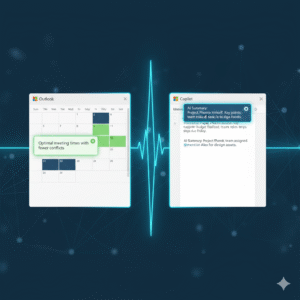
Image Of Latest Outlook Updates

The Era of AI-Powered Productivity with Latest Outlook Updates

The core of the latest Outlook updates is Microsoft’s commitment to an AI-first future. This strategy focuses on integrating intelligent technology right into the tools you use every day. The goal is simple: to automate the routine, time-consuming tasks so you can focus on work that truly matters. AI is no longer a futuristic concept; it is an active, essential part of your daily workflow. Consequently, your email client is transforming into a full-fledged personal assistant.

Furthermore, this transformation means that every new feature is designed to learn from your habits. Outlook’s AI observes how you prioritize emails, when you prefer to meet, and who your most important contacts are. As a result, the suggestions it provides become more accurate and personalized over time. This continuous learning loop ensures that the latest Outlook updates deliver constantly improving efficiency. Ultimately, you get to experience an email and calendar system that is uniquely tailored to your professional needs, making your workday smoother and less stressful. This new level of customization is what sets the new experience apart.

Scheduling Assistant: Going Beyond Basic Availability

Finding a meeting time that works for everyone is one of the most frustrating parts of office life. The old method involved endless back-and-forth emails, checking multiple calendars, and dealing with time zone headaches. Thanks to the latest Outlook updates, the Scheduling Assistant has evolved into a truly “smarter” tool.

The Scheduling Assistant now uses AI to do more than just check for open blocks on a calendar. It intelligently analyzes everyone’s schedule, considering factors like typical working hours, previously scheduled commitments, and even travel time between different locations. For instance, if a colleague is traveling, the assistant will automatically account for their time zone change and an appropriate buffer.

What’s more, this feature doesn’t just show you available slots; it actively suggests the optimal time. It might recommend a time that avoids a major conflict or one that minimizes back-to-back meetings for attendees. The objective of these latest Outlook updates is to eliminate the dreaded “When are you free?” chain, allowing you to create meeting invites in just a few clicks. This is a massive time saver for any professional.

Copilot Integration: Your Personal Email and Calendar Coach

The most significant AI addition in the latest Outlook updates is the integration of Copilot. This tool acts as an advanced virtual assistant living right inside your email and calendar. Copilot’s capabilities extend across both your inbox and your meeting management, providing unparalleled assistance. For example, in your email, Copilot can instantly summarize lengthy email threads. If you open a discussion with dozens of replies, it will condense the entire conversation into a few key bullet points, highlighting decisions and action items. This one feature can save you hours of reading every week.

Moreover, Copilot assists with drafting emails, which is a major benefit of the latest Outlook updates. You can simply provide a natural language prompt, such as, “Draft a reply to Sarah politely declining her meeting request but suggesting a follow-up call next week.” Copilot will then generate a professional, well-written draft. Beyond drafting, Copilot offers “coaching” suggestions, which are another powerful aspect of the latest Outlook updates. It analyzes the tone of your message before you send it, ensuring that you convey the intended sentiment, whether that’s firm, friendly, or urgent. Therefore, Copilot makes you a more effective and efficient communicator, ultimately improving your professional interactions.

Focused Inbox and Smart Prioritization

A cluttered inbox is a major source of anxiety and lost time. To combat this, the latest Outlook updates have refined the Focused Inbox feature, making it more intelligent than ever. The Focused Inbox automatically sorts your incoming mail into two tabs: “Focused” for emails the AI deems most important, and “Other” for everything else, like newsletters, promotions, and less critical correspondence.

The AI uses a complex set of criteria to determine priority. It learns your habits, paying attention to who you reply to most often and which threads you spend the most time reading. It also analyzes the email’s content, looking for keywords that signify urgency or importance, such as project names or your manager’s name. This process of smart prioritization in the latest Outlook updates ensures that the critical messages are always visible, which significantly reduces the time you spend sifting through junk

You can, of course, train the AI by manually moving emails between the two tabs. This action teaches the system your personal preferences, making the sorting more accurate as you continue to use the feature. This dynamic learning process is key to a calm and efficient inbox.

Enhanced Meeting Insights and Recaps

The latest Outlook updates also bring intelligence directly into the meeting experience, both before and after the event. Before a meeting, the new Meeting Insights feature provides context by pulling relevant documents and email threads related to the topic. This preparation step ensures that you are never walking into a meeting cold. You will have all the necessary background information at your fingertips, which allows you to contribute more meaningfully to the discussion. This is a clear move towards proactive productivity.

Following the meeting, a powerful new capability from the latest Outlook updates is the automatic Meeting Recap. For meetings conducted in Microsoft Teams (and integrated with Outlook), the AI automatically generates a summary. This recap includes a meeting transcript, a list of all attendees, and, crucially, a list of suggested action items.

Instead of relying on manual note-taking, the AI captures everything and highlights the most important outcomes. This feature is especially valuable for people who missed the meeting or need to quickly recall a specific decision. This advancement is a key part of the new intelligent workflow, making meetings not just easier to schedule, but also more effective in their outcomes. The latest Outlook updates ensure that you don’t just attend a meeting; you leave with clear, actionable results.

Security and Search: Intelligent Defenses and Discovery

Productivity in Outlook isn’t just about scheduling; it’s also about having confidence in the system and being able to quickly find what you need. The latest Outlook updates have significantly beefed up the security features using AI. The system now uses advanced machine learning models to detect sophisticated phishing attempts and zero-day threats that traditional filters might miss. It constantly analyzes sender behavior and email content, providing a dynamic defense that keeps your sensitive information safe. This quiet, intelligent defense is working for you 24/7, providing peace of mind.

Similarly, the search function in the latest Outlook updates has undergone a major overhaul. The search bar now understands natural language queries much better than before. Instead of having to use perfect keywords, you can type, “Find the email John sent last week about the Q3 budget” and the system will understand the intent and quickly surface the correct message, attachments included. The AI-powered search even prioritizes results based on your communication history, putting the most relevant conversations right at the top. This ability to instantly retrieve information is a core component of the enhanced user experience delivered by the latest Outlook updates, saving you precious minutes throughout your workday.

The Future of Work is Here

The introduction of smarter scheduling and AI suggestions represents a significant leap forward. The latest Outlook updates are a clear signal that Microsoft is committed to transforming our digital workspaces. By embracing these AI-powered features—from the intelligent Scheduling Assistant and the robust Copilot integration to the streamlined Focused Inbox and the proactive Meeting Recaps—you can dramatically improve your personal and team productivity.

Take the time to explore these new tools. Customizing the AI to your specific working style is an investment that will pay off immediately, allowing you to finally spend more time on meaningful work and less time managing your inbox and calendar. The future of smarter, more efficient work is officially active in the latest Outlook updates.

Frequently Asked Questions (FAQs)

1. What is the most significant new feature in the latest Outlook updates?

The most significant new feature is the integration of Copilot, which is an AI assistant that provides real-time help. It can draft emails, summarize long email threads into key bullet points, and offer “coaching” suggestions on the tone and clarity of your messages before you send them.

2. How does the “Smarter Scheduling” feature actually save me time?

The smarter scheduling in the latest Outlook updates saves time by using AI to analyze the calendars of all participants, considering time zones, travel, and existing meetings. Instead of you manually checking for open slots, the Scheduling Assistant automatically suggests the single optimal time that works for everyone, virtually eliminating the back-and-forth email negotiation process.

3. Will the new Focused Inbox in the latest Outlook updates delete my non-priority emails?

No, the Focused Inbox will not delete your emails. It simply sorts incoming messages into two tabs: “Focused” for important emails (based on AI analysis of your habits and sender priority) and “Other” for less critical messages. You can switch between the two tabs at any time to view all your mail, and you can train the AI by manually moving messages to improve its sorting accuracy.

4. Is Copilot available for all versions of Outlook after the latest Outlook updates?

Copilot is part of the Microsoft 365 ecosystem. Access to the full range of Copilot features, especially the drafting and summarizing tools, generally requires a Copilot for Microsoft 365 subscription, which may be available for business/enterprise accounts or as an add-on for personal subscriptions, depending on your organization’s setup.

5. How has the search function improved in the latest Outlook updates?

The search function now uses AI and Natural Language Processing (NLP) to understand what you mean, not just the keywords you type. For instance, you can type a phrase like “Find the attachment from the meeting last Tuesday about the new project,” and the search will intelligently prioritize the most relevant results from your entire history of mail and files.

Also Read: Microsoft Loop Explained: A Game-Changer for Collaboration

Microsoft Loop Explained: A Game-Changer for Collaboration

Microsoft Loop: A Collaboration Revolution

Modern work, indeed, demands seamless teamwork. However, traditional tools often create silos. Documents sit in one place, chat in another. This fragmentation, consequently, slows everyone down. Conversely, Microsoft Loop offers a fresh approach. It is, therefore, a truly game-changing platform. This new tool redefines how teams work together.

What exactly is Microsoft Loop, then? Essentially, it is a flexible canvas. It combines components, pages, and workspaces. Therefore, it brings content and people into one space. These “Loop components” are key. They are live, portable pieces of content. For instance, a checklist or a table. Furthermore, they sync everywhere instantly. Thus, collaboration becomes fluid and dynamic. This makes teamwork much more efficient.


Understanding Loop Components: The Core Innovation

Loop components are, by and large, the heart of Loop. They are small, interactive elements. You can share them easily across apps. For example, use them in Teams or Outlook. A component might be a paragraph of text. Similarly, it could be a task list for your team. Even a dynamic table can be a component. The magic, however, is their live nature.

Whenever someone edits a component, it updates. This update happens everywhere it exists. Therefore, everyone always sees the latest version. This prevents version control headaches. Furthermore, it eliminates endless email threads. You no longer need to send updated attachments. Instead, changes appear automatically. This makes real-time collaboration truly effortless. Moreover, these components are highly portable. You can copy and paste them freely. They maintain their live sync wherever they go. This allows for incredibly flexible work.
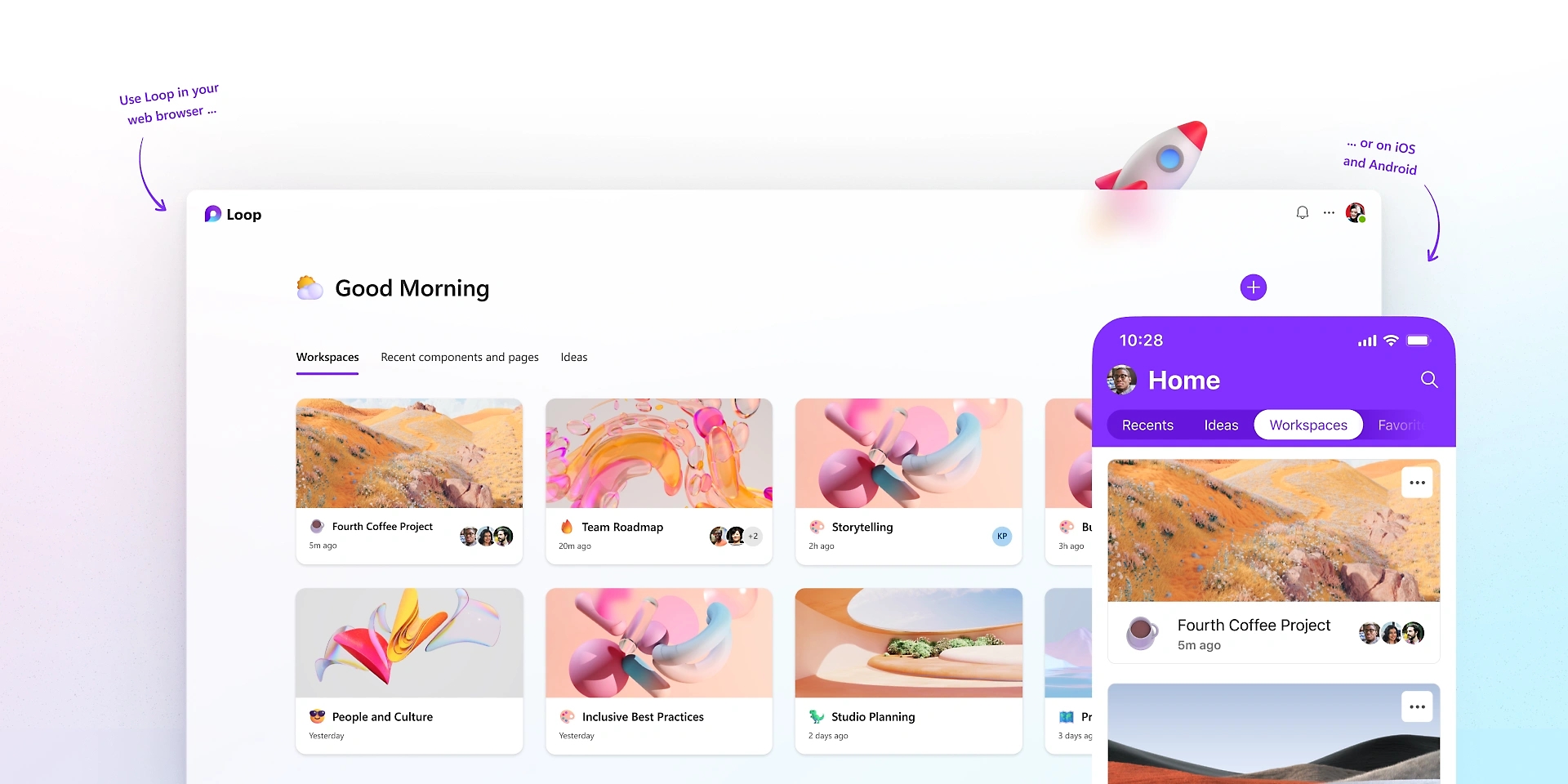

Image of Microsoft Loop

Loop Pages: The Flexible Canvas

Loop pages, consequently, serve as flexible canvases. They are dedicated spaces for thinking. Here, teams can organize all components. A page is, therefore, a place for collective ideas. You can start with a blank page easily. Then, you add various components as needed. For instance, drop in a task list component. Similarly, add a paragraph for notes. You can even include a progress tracker.

These pages are, in fact, highly adaptive. They grow with your project’s needs. You can easily drag and drop elements. Rearranging content is simple and quick. Furthermore, pages support rich media content. Include images, links, or even videos. The goal is to capture all relevant information. This ensures everything stays in one logical place. Therefore, Loop pages create a centralized hub. It consolidates all project assets effectively. This greatly enhances project visibility. Consequently, your team remains perfectly aligned.


Loop Workspaces: Your Project’s Home

Loop workspaces, by the same token, are project homes. They are shared online environments. Here, teams organize all their pages. A workspace, therefore, holds related project content. For example, a marketing campaign needs its own workspace. Similarly, a product development project gets one too. Workspaces bring together all relevant pages. They help group interconnected information together.

Each workspace has its own unique structure. You can customize it for your team. Access control is also managed easily. Decide who can view or edit content. This ensures data security and privacy. Furthermore, workspaces facilitate team oversight. Leaders can quickly see all ongoing projects. They monitor progress across different pages. Therefore, Loop workspaces provide a clear overview. They simplify project management greatly. Consequently, they foster structured, efficient collaboration.


Integrating Loop with Microsoft 365

Microsoft Loop, in fact, integrates deeply. It works seamlessly within Microsoft 365. This integration is a major advantage. Components function across different applications. For instance, use them in Microsoft Teams. You can share a task list in a chat. Your team updates it right there. The changes reflect everywhere instantly. This includes the original Loop page.

Similarly, use components in Outlook emails. Embed a live voting table in a message. Recipients vote directly within the email. Moreover, the results update automatically. This eliminates constant email chains. Furthermore, it streamlines decision-making processes. Loop also connects with Word and OneNote. This ensures content consistency across tools. Therefore, Loop extends the power of 365. It makes all your apps more interactive. Consequently, it creates a truly connected work ecosystem.


Real-Time Co-creation and Feedback

Loop greatly enhances real-time collaboration. It allows multiple users to edit simultaneously. Everyone sees changes as they happen, therefore. This fosters a highly interactive environment. For example, brainstorm ideas together instantly. Each team member contributes their thoughts. The page updates for everyone right away. This accelerates the creative process greatly.

Furthermore, feedback loops become much faster. You can get instant input on content. Colleagues highlight sections for review. They add comments directly to components. These comments are also live and trackable. Therefore, revisions are quick and efficient. This reduces project timelines significantly. Moreover, it ensures all voices are heard. Microsoft Loop makes collaboration truly responsive. It transforms feedback into a fluid conversation. Consequently, it promotes faster project completion.


Use Cases: Where Loop Shines Brightly

Microsoft Loop shines in many work scenarios. Consider project management first. Teams track tasks and progress efficiently. A shared checklist updates for everyone. Deadlines are clearly visible to all. Similarly, it excels in meeting management. Create a live agenda for every meeting. Attendees add notes and action items directly. These updates are accessible afterwards.

Furthermore, brainstorming sessions benefit immensely. Teams co-create ideas on a shared page. Each person contributes to the canvas. No ideas are lost or forgotten. Moreover, content creation becomes truly collaborative. Draft documents or presentations together. Live components ensure everyone works on the same version. Therefore, Loop boosts productivity everywhere. It provides a unified workspace for diverse tasks. Consequently, it solves many common collaboration challenges.


The Future of Hybrid Work with Loop

Hybrid work is the new standard, clearly. Teams work from various locations. They often have different time zones, too. This setup presents unique communication challenges. Microsoft Loop, however, bridges these gaps easily. It creates a persistent, shared workspace. Remote and in-site workers access the same content. They contribute whenever it suits them best.

Live components ensure consistent information. Everyone stays updated, regardless of location. This minimizes misunderstandings and delays. Furthermore, it fosters a sense of inclusion. All team members contribute equally to the project. Their input is visible and valued. Therefore, Loop supports a flexible work culture. It adapts to different schedules seamlessly. Consequently, it strengthens teamwork in any environment.


How Loop Differs from Existing Tools

You might wonder about other tools. How does Loop stand apart, then? It is more than just a document editor. Also, it is more than just a chat platform. Loop combines features from many places. It draws from wikis, documents, and messaging. The key difference is the “live component.” This element is unique to Loop.

Other tools offer real-time editing, certainly. However, their content is often static. It is fixed within one document or app. Loop components are truly portable. They maintain their live state everywhere. This fluidity is a game-changer. Furthermore, the workspace concept is distinct. It organizes pages and components logically. Therefore, Microsoft Loop offers a novel approach. It creates a truly dynamic, interconnected system. Consequently, it provides a unique collaboration experience.


Getting Started with Microsoft Loop

Beginning with Loop is quite straightforward. First, look for Loop in your Microsoft 365. It might be accessible through Teams or Outlook. You can also visit https://www.google.com/search?q=loop.microsoft.com directly. Then, create your very first workspace. Give it a meaningful and clear name. Next, start adding new pages to your workspace. Each page can serve a different purpose.

Finally, begin populating pages with components. Try a simple task list component first. Share it with your team members easily. See how it updates in real time for everyone. Experiment with different component types. Explore the various templates available to you. Therefore, starting small is a great strategy. Gradually integrate Loop into your daily workflow. Consequently, you will discover its true power.


Benefits for Different Roles

Microsoft Loop offers benefits across many roles. Project managers track progress better. They visualize tasks and deadlines clearly. Team leads can foster better engagement. They create spaces for open collaboration. Individual contributors, likewise, gain efficiency. They access all needed information in one place. Developers use it for shared code snippets. Marketers create campaigns with live updates.

Sales teams track client interactions effectively. HR departments manage onboarding processes. Even educators can use it for group projects. Students collaborate on shared assignments easily. Therefore, Loop enhances productivity for everyone. It adapts to specific departmental needs. Consequently, it streamlines workflows for diverse professionals.


The Path Ahead for Microsoft Loop

Microsoft Loop is still evolving, naturally. Microsoft continues to add new features. They listen to user feedback actively. Expect more integrations in the future. It will likely connect with more third-party apps. This will further extend its overall reach. Performance enhancements are also expected. The user experience will only improve over time.

Therefore, Loop represents a significant investment. It shows Microsoft’s commitment to collaboration. The goal is to simplify complex teamwork. It aims to empower hybrid and remote teams. Consequently, Loop will become a cornerstone. It will shape the future of modern work. Thus, it truly is a game-changer for digital collaboration.

Frequently Asked Questions (FAQs)

1. What is the fundamental difference between Loop and OneNote?

OneNote, indeed, is primarily for personal notes. Conversely, Loop is built for dynamic teamwork. Loop’s content is portable and live. For example, a Loop component updates everywhere. OneNote content, however, stays fixed within its own page. Thus, Microsoft Loop offers true cross-app fluidity.

2. Does Loop replace existing Microsoft 365 apps like Teams or Word?

No, not at all, quite the opposite. Loop enhances these other apps. For instance, you use Loop components inside Teams. It brings live content into those conversations. Microsoft Loop is, therefore, a complementary tool. It makes the entire 365 ecosystem more dynamic.

3. Where can I use Loop components currently?

Currently, you can use components in several places. This includes Microsoft Teams chat messages. You can also use them in Outlook emails. Furthermore, you can find them within the main Loop app. Microsoft is constantly adding more locations, however.

4. Are Loop components secure, especially when shared externally?

Yes, Loop components are secure, absolutely. They inherit security settings automatically. This is based on where the component is hosted. Furthermore, sharing is managed through your organization’s settings. Access control is always clearly defined. Therefore, Microsoft Loop maintains robust enterprise security.

5. Can I use Loop if my team members are not on Microsoft 365?

Generally speaking, all editors need a Microsoft account. They need one to access and edit components. However, you can share components with guests. This depends on your specific tenant settings. Microsoft Loop works best within the 365 ecosystem, therefore.

Also Read: The Future of Docs: Google’s Emoji Reactions Explained


Google Drive Smart Search: How AI Finds Your Files

Do you ever feel like Google Drive just knows what you’re looking for? Actually, it’s not a coincidence; instead, it’s the result of some incredibly smart technology. Essentially, this system uses artificial intelligence (AI) to find files before you even start looking for them. This smart search feature has certainly changed how we find our documents, shifting from simple keyword searches to something truly intelligent. For instance, the AI acts like a personal assistant, always working to make your life easier. This amazing capability is a major part of its success.

This advanced technology saves us lots of time, of course. For example, it helps eliminate the frustrating process of manually searching through folders. Likewise, the AI works in the background, consistently learning your habits and predicting your needs. As a result, it analyzes not just the file names, but also the actual content inside. This ultimately provides a personalized and surprisingly intelligent search experience. Truly, this AI-powered function makes finding what you need on Google Drive simpler and faster than ever.


The Brains Behind the Operation: How AI Works

The core of Google Drive’s smart search, undoubtedly, is its powerful AI. In fact, it uses a mix of machine learning, natural language processing (NLP), and deep learning models. Instead of simply looking for exact keyword matches, the AI interprets your search queries. For instance, it understands the context. For example, if you type “project alpha notes from last week,” the AI does not just look for those specific words in a file name; rather, it understands that you want a file related to “Project Alpha,” a specific type of document (“notes”), and a particular time (“last week”). Consequently, this is a massive improvement over traditional search methods.

Furthermore, the AI learns from your past actions and habits. Therefore, it remembers which files you access often, who you collaborate with, and what documents you use for specific tasks. Similarly, it analyzes the content of your files—whether it’s a contract, a presentation, or a report—to better categorize and show you the most relevant results. This continuous learning process, in fact, ensures the search results get more accurate and more personal over time. In conclusion, the system truly works for you.


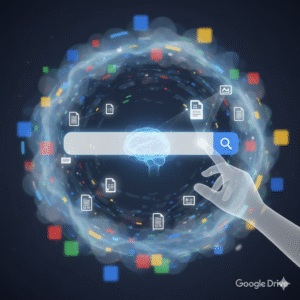
Image of Google Drive Smart Search

Beyond Keywords: The Benefits of AI-Powered Search

The benefits of Google Drive smart search go far beyond just a simple keyword match. For many people, the most obvious benefit is the huge amount of time saved. After all, when you find a file in seconds instead of minutes, you can stay focused on your work. The AI’s ability to understand context means you do not have to remember the exact file name. Thus, you can use natural language, making the search feel more like talking to a helpful assistant.

This intelligent system also improves teamwork. For instance, when you are working in a shared drive, the AI can suggest files based on what your coworkers are doing, which makes collaboration much smoother. Additionally, it can automatically classify and label sensitive content, offering an extra layer of security. Of course, this smart classification helps you maintain an organized and efficient digital workspace without lots of manual effort. Because of its proactive nature, the system often shows you relevant files before you even begin a search, anticipating your needs and helping you stay on top of everything.


Making the Most of Smart Search: Practical Tips

To fully use the power of Google Drive’s AI-powered search, a few simple habits can help. While the AI is very smart, a consistent approach to file organization makes its job even easier. To begin, use clear and descriptive file names. For example, “Meeting Notes” is okay; however, “Q4 Marketing Strategy Meeting Notes – 09.2025” is much better. Therefore, this provides the AI with more useful information for its algorithms.

Another useful tip is to use file descriptions and starring. In addition, adding a short description or important keywords to a file gives the AI more context. Consequently, you should also “star” important or frequently used files to signal their priority. The more information and context you provide, the better the AI can learn and deliver accurate, useful results. By combining these simple organizational habits with the platform’s advanced AI, you can create a highly efficient and personalized digital workspace.


FAQs

1. How does AI-powered search in Google Drive differ from a traditional search? Traditional search relies on keyword matching. By contrast, AI-powered search uses machine learning and NLP to understand the context of your query. This, as a result, provides more accurate and personalized results based on your digital habits.

2. Does Google Drive’s AI search use my personal data? Yes, it analyzes your activity, such as the files you access and your collaboration patterns. For this reason, the data helps to personalize your search experience and offer more relevant file suggestions. Google, however, has privacy controls that allow you to manage how this data is used.

3. Can AI find files if I do not remember their name? Absolutely. Given that the AI understands context and content, you can search using natural language. For example, you can search for “presentation from last month about the client report” and the AI will probably find the right file without you needing its exact name.

4. How can I improve my search results on Google Drive? You can improve your search results by using consistent and descriptive file names. Additionally, you should add descriptions to your documents and star important files. The more context you provide, the better the AI becomes at finding the right files for you.

5. Is the smart search feature available to all users? Yes, the smart search functionality is a main feature of Google Drive and is available to all users with a Google account.

Also Read: The Future of Docs: Google’s Emoji Reactions Explained

The Future of Docs: Google’s Emoji Reactions Explained

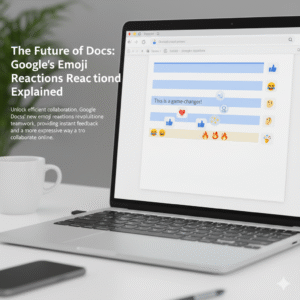
Have you ever found yourself in a Google Doc, wanting to show you agree or disagree, but a full comment just feels like too much? In fact, everyone has. Now, Google Docs has an answer for that common feeling. This is a game-changer for digital collaboration. Indeed, it is changing how teams work together. The new feature, therefore, is Google Docs’ real-time emoji reactions. You can now react instantly to text with a thumbs-up, a laughing face, or any other emoji. This simple addition, in a sense, is a big step forward for collaboration. Consequently, this change has major implications for how we work together.

Image of Google's emoji Reactions

Emojis: More Than Just Fun

You might wonder, naturally, if emoji reactions are just for fun. However, they serve a deeper purpose in today’s work environment. To begin with, they offer a quick way to give feedback. For example, you can give a thumbs-up to a section you like. This signals your support without a long comment. As a result, your colleague knows you have seen their input. Ultimately, this speeds up the review process.

Additionally, emojis add nuance. This is important. For instance, a simple sentence can be hard to read. A sentence like “This is a good idea” can be interpreted in different ways. Conversely, adding a 🙏 or a ✨ emoji makes the positive meaning clear. In contrast, a 🤔 emoji can gently suggest that you need more information. Therefore, emojis help with tone.

Furthermore, they streamline the review process. Consequently, this makes it easier for everyone. For example, instead of writing out long feedback, you can highlight text. You can then add a ❤️ or a ❓ emoji. This makes feedback visual. Likewise, it is less wordy.

More importantly, emojis build a better work culture. Since many people work remotely, this is very important. Therefore, emoji reactions add a human touch. A well-placed 😂 or 🎉 emoji can, in fact, celebrate a team win. Similarly, it can lighten the mood. Therefore, it helps with team morale. It is like having a silent cheerleading squad in your document. Finally, emojis help identify consensus. You can quickly see which parts of a document everyone likes (lots of 👍) or which parts need more discussion (a bunch of 🧐). As a result, this helps the document owner to see team sentiment.


How It Works: Super Easy!

Therefore, how does the feature work? In the first place, it’s quite simple. First, highlight the text you want to react to. After that, a small emoji icon appears. This icon is next to the text. It looks like the comment icon. Next, click the emoji icon. A selection of emojis will pop up. Then, choose your emoji. It will then appear next to the text. Of course, you can also see who reacted. In short, it’s a quick and easy process.


The Future of Collaboration

The new emoji reaction feature is a big step for Google Docs. Consequently, it is a big step for digital collaboration. For this reason, it makes our work more human. As our work changes, tools that help us communicate better will become very important. Therefore, this feature is very useful. It will, in fact, make online collaboration more expressive. This is because it is a very natural way to communicate. So, do not just comment. React. This will make your collaborative experience more engaging.

What do you think of this new feature?


FAQs

1. How do you add an emoji reaction in Google Docs?

To add a reaction, you must highlight the text. After that, you will see a small emoji icon. Then you can select your emoji.

2. Is this feature available to everyone?

This feature is available to most Google Docs users. In short, it is being rolled out to personal and business accounts.

3. Can I use any emoji?

Yes, you can use any emoji from the selection. This includes common emojis like 👍, ❤️, and 😂.

4. Can I see who added a reaction?

Yes, you can. You can see who added each emoji. This is very useful. It provides extra context.

5. How does this improve teamwork?

This feature helps teams in many ways. For example, it gives instant feedback. It also makes communication more expressive. Additionally, it helps build team morale. All things considered, it improves collaboration.

Also Read: Google Meet’s New AI Noise Cancellation: A Game-Changer

Google Meet’s New AI Noise Cancellation: A Game-Changer

Remote work has become the new norm for countless teams worldwide. While it offers flexibility and convenience, it also introduces a unique set of challenges. One of the most persistent and frustrating? Background noise. From barking dogs and wailing sirens to the gentle hum of a washing machine, unexpected sounds can derail even the most important virtual meetings. Enter Google Meet’s new AI noise cancellation. This isn’t just another filter; it’s a sophisticated leap forward that promises to revolutionize how remote teams communicate.


The Problem with Noise: More Than Just an Annoyance

Think about it: how many times have you been on a call where someone’s audio is dominated by a distraction?

  • Loss of Focus: Your brain is working overtime trying to filter out the noise, making it harder to concentrate on the speaker’s words.
  • Reduced Productivity: Repeated interruptions can extend meeting times and lead to frustration.
  • Communication Breakdown: Critical information can be missed or misunderstood, leading to errors and rework.
  • Professionalism: Persistent background noise can inadvertently project an unprofessional image, even if the individual has no control over their environment.

Traditional noise reduction tools often fall short. They might muffle some noise, but often at the cost of audio quality, sometimes making voices sound robotic or cutting off words.


How Google Meet’s AI Noise Cancellation Works Its Magic

Google’s approach leverages advanced artificial intelligence and machine learning to distinguish between human speech and unwanted background noise. It’s not just dampening sounds; it’s intelligently identifying and isolating them.

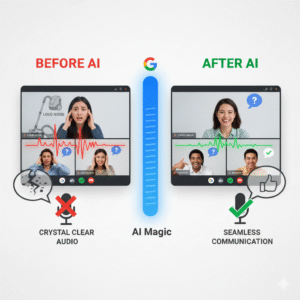
Imagine this: your colleague is presenting vital data, and suddenly a vacuum cleaner starts up in their house. Instead of hearing the jarring whir, you simply continue to hear your colleague’s clear voice. The AI is smart enough to know what to keep and what to discard. This means sounds like keyboard typing, door slams, wind, and even construction outside your window can effectively vanish from your meeting audio.

Here’s a quick look at the impact:

Image of Google Meet’s New AI Noise Cancellation

The Game-Changing Benefits for Remote Teams

  1. Crystal-Clear Communication: This is the most obvious and impactful benefit. When everyone can hear and be heard without interruption, clarity improves dramatically. Misunderstandings decrease, and information flows more smoothly.
  2. Enhanced Focus and Productivity: With fewer distractions, participants can maintain focus on the meeting’s agenda. This leads to more efficient discussions, quicker decision-making, and ultimately, higher productivity.
  3. Reduced Meeting Fatigue: Constantly battling background noise is mentally draining. By removing this cognitive load, participants will experience less fatigue, making longer meetings more bearable and productive.
  4. Increased Professionalism and Equity: This feature levels the playing field for team members who might not have a perfectly quiet home office. It ensures that everyone can participate professionally, regardless of their immediate environment.
  5. Greater Flexibility: Team members no longer need to stress about finding a perfectly silent spot. They can take calls from more diverse locations, enhancing the flexibility that remote work promises. Imagine taking a meeting from a coffee shop without the clatter of cups or the murmur of conversations interfering!


A Glimpse into the Future of Virtual Collaboration

Google Meet’s AI noise cancellation is more than just a convenient feature; it’s a testament to the ongoing evolution of virtual communication tools. As AI continues to advance, we can expect even more sophisticated solutions that make remote interactions feel as natural and seamless as in-person ones.

For remote teams, this update is truly a game-changer. It addresses a fundamental pain point, paving the way for more effective, enjoyable, and productive virtual collaboration. If you’re using Google Meet, make sure to enable this feature and experience the difference for yourself – your team will thank you!


FAQs: Google Meet’s AI Noise Cancellation

Q1: How do I turn on Google Meet’s AI noise cancellation?

A: Turning on this feature is simple and can be done before or during a meeting. Look for the three vertical dots (More options) in the bottom right corner of your screen, then go to “Settings.” In the “Audio” tab, you’ll find the “Noise cancellation” toggle. Just switch it on, and the AI will start filtering out unwanted sounds.

Q2: What kind of sounds does the AI noise cancellation filter out?

A: The feature is designed to filter out non-speech sounds that can be distracting. This includes common background noises like keyboard typing, papers shuffling, door slams, echoes, wind, and even construction sounds. However, it’s important to remember that it is not meant to filter out human voices from other people talking near you.

Q3: Is the noise cancellation feature available for everyone?

A: The availability of cloud-based AI noise cancellation can depend on your Google Workspace edition or subscription. It is a premium feature included with certain paid plans, such as Business Standard, Business Plus, Enterprise, Education Plus, and others. However, device-based noise suppression is available on most Android phones for all users, including those with personal Google accounts.

Q4: Will it affect audio from a video I’m sharing during a meeting?

A: No, when you share your screen, the AI noise cancellation does not affect the audio from the content you are presenting, such as a video or music. This ensures that your meeting participants can hear the shared media clearly without any distortion.

Q5: What should I do if the noise cancellation isn’t working properly?

A: If you find that the feature is not working as expected, first ensure you’re on a supported device and that you have the latest version of the Google Meet app or browser. You should also check that the “Noise cancellation” toggle is actually turned on in your audio settings. If you’re in a quiet environment, the feature might be less noticeable, and if you’re trying to share music or other non-speech sounds, you may need to turn it off.

Also Read:  AI-Powered Writing in Gmail & Docs

AI-Powered Writing in Gmail & Docs

In the fast-paced digital world, writing is a constant task. We write emails, create documents, and draft reports every single day. Therefore, any tool that can make this process faster and more efficient is a game-changer. For years, Google’s Smart Compose has offered simple sentence completions. In contrast, today’s AI-powered writing tools in Gmail and Docs, now powered by the Gemini model, are in a different league entirely. This new evolution moves far beyond simple suggestions. In fact, it provides a truly collaborative writing experience. This is a huge shift, consequently changing how we interact with our digital documents.

Image of AI-Powered Writing in Gmail & Docs

From Autocomplete to a True Co-Author

Smart Compose, originally a clever machine-learning feature, was a great start. It provided predictive text and helped correct grammar. However, it was, at its core, a reactive tool. It simply responded to what you typed. Today’s AI-powered writing is proactive. It can understand the context, purpose, and even the tone of your content. For instance, you can simply write a short prompt like, “Write an email to my team about the upcoming project deadline.” Immediately, the AI will generate a complete, professional draft. This is a significant improvement. It saves you time, of course. It also helps you overcome writer’s block.


Writing with AI in Google Docs: A Seamless Experience

The integration of Gemini into Google Docs offers a powerful new way to write. First, the “Help me write” feature acts as a blank canvas. You just give it a simple command, and it will generate a first draft. Furthermore, it can refine your work with remarkable ease. For example, you can select a paragraph. You can then prompt the AI to “shorten it,” “elaborate on this idea,” or “make it more formal.” This allows you to sculpt your text with a few simple clicks.

In addition, you can use the AI to generate bullet points from a dense paragraph, summarize a long article, or even brainstorm new ideas. Consequently, this makes the writing process more fluid. The AI-powered writing tool is always there, waiting to help you.


AI in Gmail: Mastering Your Inbox

The new AI-powered writing features in Gmail make managing your inbox far more efficient. In fact, it’s a huge time-saver. Consider this: you receive an email. You can now use the AI to draft an entire reply based on the original message. You can, for instance, ask it to “write a reply accepting the meeting invitation” or “draft a polite decline.” The AI understands the context. It can even extract details like names and dates. It then generates a personalized, context-aware response. Furthermore, it can summarize long email threads. This lets you quickly grasp the key points without reading every single message. Therefore, this helps you clear your inbox faster. It also helps you respond more thoughtfully and efficiently.


The Future of Writing is Collaborative

Ultimately, the goal of this AI-powered writing is not to replace human creativity. Instead, it is to enhance it. The AI acts as a smart co-pilot. It handles the mundane parts of writing. This frees you to focus on the more creative aspects. It helps you articulate your thoughts more clearly. It also helps you communicate more effectively. As these tools continue to evolve, they will become more personalized. They will learn your unique style and tone. Consequently, the collaboration will become even more seamless. We are, therefore, moving toward a future where writing is a partnership between human intelligence and AI, creating content that is both faster and better than ever before.


FAQs

1. What is the difference between Smart Compose and the new AI writing features?

Smart Compose provided simple word and sentence predictions. In contrast, the new AI-powered writing features, now based on the Gemini model, can generate entire drafts, rewrite selected text, and summarize content based on a detailed understanding of context.

2. How do I access these new AI features in Gmail and Docs?

These features are now being rolled out to Google Workspace users. You can find them through the “Help me write” button in Docs and through new prompts and options when drafting an email in Gmail.

3. Will these AI tools change my personal writing style?

The AI tools are designed to assist you, not replace you. They can, however, learn from your style. You should always review and edit the suggestions to ensure they align with your voice and intent.

4. Can the AI write about any topic?

The AI can write about a wide range of topics. However, you should use it responsibly. Always verify any facts or information it provides. In addition, avoid using it for sensitive or confidential material.

5. Is my data safe when using these AI writing tools?

Google states that it handles user data with care. It applies its standard data protection and privacy measures to these new AI features.

Also Read: Microsoft 365 Copilot: Complete Guide (2025)

Know More

Microsoft 365 Copilot: Complete Guide (2025)

Microsoft 365 Copilot

AI-Powered Microsoft 365 Copilot: A New Era of Productivity

The world of work is always changing. Consequently, the tools we use must keep up. In a world where efficiency is key, Microsoft has introduced an amazing AI assistant. It’s called Microsoft 365 Copilot. This tool is no longer a futuristic idea. In fact, it’s a real benefit for businesses of all sizes.

So, how does Copilot truly work? What does it mean for your daily work?

What Exactly is Microsoft 365 Copilot?

Basically, Microsoft 365 Copilot is a smart AI tool. It works with you across the Microsoft 365 suite. It is built on a large language model (LLM). Its true power comes from its link to the Microsoft Graph. This unique connection lets it access and understand your personal data. For instance, it can read your emails, calendar events, and chat history. Therefore, it is more than just a general AI. It is an AI that understands your specific work.

Essentially, Microsoft 365 Copilot is a productivity engine. It can create text, summarize info, and make presentations. It also analyzes data. All you need to do is use natural language commands. For example, instead of searching through old documents, you can simply ask Copilot to find a key detail for you. This saves your mental energy. You can then focus on strategic thinking, creative problem-solving, and human connections. After all, these are the unique skills AI can’t copy.

How Microsoft 365 Copilot Works Across Key Applications

The real strength of Microsoft 365 Copilot is its seamless integration. It works across the apps you use every single day. Because it’s not a separate product, it can assist you at every step of your workday.

1. AI Assistance in Microsoft Word

The blank page can be intimidating. However, with Copilot, that feeling is gone. For example, you can give it a simple instruction. “Draft a 10-page business plan for a new marketing campaign,” you might say. Copilot will then create a full first draft. It pulls facts and insights from your documents. Furthermore, it can help you improve your writing. It can summarize long documents or rewrite paragraphs. In addition, it can even translate text into another language.

2. AI Assistance in Microsoft Excel

The days of complex formulas are ending. This is where Microsoft 365 Copilot really stands out. A task that once needed advanced skills is now a simple conversation. For instance, you can ask, “Show me the top products by region in a pivot chart.” Copilot will build it instantly. Likewise, it can find trends and identify unusual data. Ultimately, it can even provide written explanations of your data. This makes complex spreadsheets easy for everyone to understand.

3. AI Assistance in Microsoft Teams

Meetings can waste a lot of time. Luckily, Microsoft 365 Copilot changes this completely. During a meeting, it can summarize the main points. It also lists action items in real-time. If a team member misses a meeting, they can just ask Copilot for a summary. They will get a detailed and accurate report. Consequently, nobody ever has to feel left out of a conversation again.

4. AI Assistance in Microsoft Outlook

Managing your inbox can be a full-time job. With Microsoft 365 Copilot, it becomes much easier. First, it can summarize long email chains. This helps you get the main idea in a few seconds. In addition, it helps you write professional emails. It gives suggestions for tone and content. This saves you from staring at a blank screen for a long time. Therefore, you can focus on the most important messages without feeling overwhelmed.

Real-Life Business Applications for Microsoft 365 Copilot

Beyond the individual user, Microsoft 365 Copilot changes how entire business departments work.

  • For Marketing and Sales: Use it to quickly write blog posts. It can also analyze customer feedback from surveys. It can even summarize long market research reports to find key details. This helps marketing teams be more flexible and data-driven.
  • For Human Resources: You can speed up the creation of training materials. It can also draft new company policies. Furthermore, it can summarize employee surveys to find key trends.
  • For Project Management: With Copilot, you can quickly create project plans. It can also track progress by summarizing team updates. Ultimately, it can generate status reports for stakeholders with one command. This greatly reduces the busywork of managing a project.

The Strategic Edge: Why Microsoft 365 Copilot is a Game-Changer for SMEs

For small and medium-sized businesses (SMEs), Microsoft 365 Copilot is a huge advantage. In the past, large companies had the budget to hire dedicated experts. Now, SMEs can get similar abilities without the high cost.

Microsoft 365 Copilot helps a small team act like a much bigger one. It allows them to achieve the same level of productivity as a large company. Consequently, SMEs can compete more effectively. They can spend more time on customer relationships and innovation. Ultimately, this lets small businesses focus on what they do best. The AI handles the hard work for them.

Microsoft 365 Copilot vs. Traditional Productivity Tools

The main difference between Copilot and old tools is the shift from passive to proactive. A regular word processor is just a tool; you have to do all the work. On the other hand, Copilot gives you a first draft, a summary, or data analysis. This saves you many hours of manual work.

A traditional spell-checker corrects your typos. In contrast, Copilot can rewrite a whole paragraph to make it clearer. You might manually create a chart in Excel. However, Copilot can understand your goal and build the chart for you. It intelligently suggests the best way to show your data.

Ensuring Security and Compliance with Microsoft 365 Copilot

Data security is a major concern with AI. Luckily, Microsoft built Microsoft 365 Copilot with top-level security. It works within your existing Microsoft 365 security system.

Your data remains your property. Copilot does not use your data to train its models for others. Furthermore, Microsoft 365 Copilot respects your data permissions. It can only see the information you have permission to access. This protects sensitive data. You can use the power of AI without risking your company’s security.

Getting Started with Microsoft 365 Copilot Today

The future of work is not far away; it is here now. Microsoft 365 Copilot shows how AI can help people, not replace them. By automating daily tasks and assisting with complex ones, it helps people and businesses unlock new levels of productivity.


Frequently Asked Questions (FAQS) 


1. What is the main difference between Microsoft 365 Copilot and other AI tools?

Copilot is an AI assistant built directly into your Microsoft 365 apps. It uses your own work data to provide personalized help, while other tools like ChatGPT are general-purpose chatbots.

2. Is Microsoft 365 Copilot secure and private?

Yes. It operates within your company’s existing Microsoft 365 security. Your data is not used to train the AI model for others.

3. What specific tasks can Copilot help me with?

It can draft emails in Outlook, summarize documents in Word, analyze data in Excel, and create meeting summaries and action items in Teams.

4. How can my business get started with Microsoft 365 Copilot?

You need to have a qualifying Microsoft 365 subscription. Copilot is then available as an add-on license for each user in your business.

5. How does Copilot get context from my work?

It connects to the Microsoft Graph, which maps the relationships between your documents, emails, and chats. This allows it to understand your work and give relevant answers.

Also Read: Updates in Google Workspace: September 2025

Updates in Google Workspace: September 2025

The digital world changes fast. Staying updated with the latest tools is a must. Google Workspace, a leader in productivity and collaboration, is always innovating. This September 2025, a wave of new Workspace updates is here. These changes are exciting. They show Google’s commitment to a smarter, more intuitive work environment. Most of the new features use Gemini AI. They help you work better and faster. These improvements cover Gmail, Drive, Meet, and Sheets. Get ready to explore the key updates you shouldn’t miss.

Gemini AI: The Brain Behind the Brilliance

google workspace
Artificial intelligence is changing how we work. In Google Workspace, AI is no longer a separate tool. It’s now a part of everything you do. Gemini AI has become a proactive partner. It anticipates your needs and offers quick solutions. This deeper integration is a major step. It moves from simple automation to sophisticated intelligence. The goal is to make your work easier. Gemini helps you get rid of boring tasks. Consequently, you can focus on more important things. Google wants every user to feel like they have a personal assistant.

A Smarter Google Drive: Gemini Summaries

Looking for a specific document can be a hassle. You might have to open many files just to find the right one. This process is often time-consuming. However, a new update makes things much easier. Gemini summaries now appear on suggested files. This is a huge change. Before you open a file, Gemini gives you a quick summary. This includes Docs, Sheets, Slides, and PDFs. It helps you quickly see what a document is about. As a result, you can save valuable time. You can also prioritize your work more effectively. This makes your Drive home page an intelligent information hub.

Creating Perfect Presentations in Google Slides

Making a great presentation takes work. You spend hours writing the perfect text. Still, poor wording can ruin your message. Fortunately, the new Refine Text feature, powered by Gemini, is here to help. You no longer have to struggle to find the right words. Gemini helps you edit text boxes in Slides. It offers smart suggestions. For example, you can shorten a long paragraph. You can also rephrase an idea for better clarity. You can even formalize the tone. Additionally, you can use a custom prompt. This lets you get a very specific result. This feature helps you be more impactful and save time.

Enhanced Document Scanning on Android

Many of us work on the go. This means we often need to scan physical documents with our phones. But scans can be blurry or have shadows. This makes them look unprofessional. Google Drive on Android has a new and improved scanning tool. This update gives you professional-grade scanning. You can now crop and rotate documents easily. You can also apply filters to make the text clearer. Most importantly, you can now erase shadows. This makes your scans clean and professional-looking. Now, digitizing receipts or notes is both easy and reliable.

Smarter Tools for Education

AI is also transforming education. Google is helping both students and teachers. There is a new subscription called Google AI Pro for Education. It offers many powerful features. These new tools are in NotebookLM. Students can now use them to study better. For instance, NotebookLM can turn documents into flashcards and quizzes. You simply upload your notes. Then, the AI creates study aids for you. This helps with active recall, which improves memory. For teachers, it means more engaging lessons. For students, it’s like having a personal tutor.

Better Collaboration and Communication

Teams need to communicate well to succeed. Google Workspace is always improving its tools to help teams connect. September’s updates help you stay in the loop and work together smoothly.

Stay Notified in Google Chat

Sometimes, you miss small but important reactions to your messages. This can be frustrating. Now, Google Chat sends real-time push notifications for reactions. This helps you stay on top of conversations. You won’t miss any feedback. Therefore, communication with your team becomes more fluid and responsive.

Find Changes Easily in Google Sheets

Tracking changes in a shared spreadsheet can be hard. The version history often shows everything, making it confusing. Now, Sheets has a new condensed version history view. This view shows only the rows with changes. This helps you quickly see what’s been updated. It saves time and prevents you from missing important edits.

Smooth Meetings in Google Calendar

Scheduling meetings with people on different calendar apps can be tricky. They may not get the Meet link automatically. When you invite an Outlook user to a Google Meet, the link is now added to the location field. This simple change makes joining meetings much easier. It ensures your meetings start on time.

Protecting Your Privacy

Privacy is crucial. When you copy a Calendar event, you don’t want to share private notes. Now, when you copy or duplicate an event, the Meet conference and its notes are not copied over. This protects your information. It ensures that meeting access and details stay secure.

The Future of Your Workflow

These September 2025 updates show Google’s clear strategy. They are building an intelligent ecosystem. Gemini AI is a core part of this. It helps automate repetitive tasks. It also improves your creative potential. These updates are about more than just new features. It is  about smarter ways to work. They help you manage information better. It also improve how you collaborate. By using these new tools, you are future-proofing your workflow. You will produce higher-quality work and be more productive.

Frequently Asked Questions (FAQs)

1. What is the main focus of the Google Workspace September 2025 updates? The updates focus on deeper Gemini AI integration. This improves productivity in apps like Drive, Slides, and for educational tools. 2. How do Gemini summaries in Google Drive work? They give you quick, AI-generated summaries of documents on your Drive homepage. This helps you understand a file’s content without opening it. 3. What can Gemini AI do for Google Slides? Gemini’s new “Refine Text” feature helps you edit text in Slides. It can shorten text, rephrase sentences, or format them into bullet points. 4. Are there improvements for mobile users? Yes. The Google Drive app for Android has a new scanning tool. It helps you easily crop, filter, and remove shadows from scanned documents. 5. How do these updates improve collaboration? New features help in many ways. For instance, in Sheets, you can see a condensed version history. In Chat, you get notifications for message reactions. Also, Meet links are now automatically added to invitations for external users.  

Logo Copyright and Trademark: What Designers Need to Know

Logo design is a creative process, but it’s also a legal one. It is important for designers to understand the complexity of logo copyrights and trademarks. These legal protections protect the intellectual property rights of designers and clients.

Copyright protects original creative works, including logos, when they are created. As an artist, you own the copyrights of your work unless you grant those rights to the client. This means you have the right to reproduce, distribute, and display your logo, but your client may have restrictions based on your contract.

On the other hand, trademarks protect the brand in the marketplace. Trademarks provide exclusive rights to use logos in relation to specific products or services, making it desirable to register trademarks for logos representing services or products if others do not use similar marks it can cause confusion.

To get through these legal aspects more thoroughly:

Explicit contracts: Clearly define copyright and use rights in your design contracts. Whether the customer or you own the copyright, identify the circumstances under which the customer can use the logo.

Trademark Amendments: Before finalizing the logo, examine the trademark thoroughly to ensure it does not infringe upon existing marks. This avoids legal conflicts down the road.

Register trademarks: Encourage customers to register their logo and trademark. This provides strong protection and a legal recourse against potential infringers.

Maintain records: Keep detailed records of your design plans, notes, and client communications. These can be invaluable in the event of a dispute.

Educate clients: Educate your clients about the importance of protecting their brand with trademarks and the potential risks of not doing so.

In summary, logo copyright and trademark are important elements of the design process. Their understanding helps designers create and protect valuable assets for clients while ensuring legal and ethical responsibilities. By taking these steps, designers can go through the legal process and build strong, lasting relationships with their clients.

Shopify SEO: How to Rank Your Online Store Higher on Google

In the highly competitive world of e-commerce, it is important to rank your online store high on Google to attract organic consumers and increase sales. Shopify, one of the most popular e-commerce platforms, offers a number of tools and features to help optimize your store for search engines. Here are some basic ways to improve your Shopify store’s SEO and boost its Google ranking:

Keyword research: Start by doing thorough keyword research to identify the words and phrases your potential customers are searching for. Use tools like Google Keyword Planner or SEMrush to find the right keywords with the right number of searches and low competition.

Customize product pages: Each product page should have a unique and descriptive title tag and meta description. Include your target keywords naturally in these products. Write compelling product descriptions that not only appeal to customers but also include relevant keywords.

Quality Content: Regularly publish high-quality, informative content about your products or services. Blog posts, shopping guides, and tutorials can attract organic traffic and position your store as an authority in your niche.

Mobile Optimization: Make sure your Shopify store is mobile-friendly. Google puts mobile-responsive websites at the top of its list. Shopify themes are often mobile-optimized, but it’s important to regularly test your store’s mobile performance.

Page Speed: Fast-loading pages are important for SEO. Use tools like Google PageSpeed ​​Insights to identify and fix speed issues. Compress images, enable browser caching, and reduce code to improve load times.

Backlinks: Create high-quality backlinks from popular websites in your industry. Guest posting, collaborating with influencers, and creating shared content can help generate valuable backlinks.

User Experience: Provide a better user experience by establishing a logical order in your store navigation and ensuring ease of access. Fast and secure retrieval systems also contribute to a positive user experience.

Structured data: Use structured data (schema markup) to generate more information about your products for search engines. This can increase your store’s visibility in search results that look great like product snippets.

Regular updates: Update your website and offerings. Search engines want new things, and a dynamic online store likely takes precedence.

Monitor and optimize: Use tools like Google Analytics and Google Search Console to monitor your website’s performance. Analyze data, check keyword rankings, and adjust your SEO strategy accordingly.

In conclusion, ranking your Shopify online store high on Google requires a combination of technological advancement, quality products and an easy-to-use experience. By consistently using these SEO techniques and staying abreast of industry trends, you can improve your store’s visibility and generate more organic traffic, ultimately leading to more sales and acquisition growth for your e-commerce business.