Refresh loader

Category : website redesigning

Home > Archive for website redesigning

Docs & Slides Integration with Smart Canvas: Collaboration Made Seamless

Teamwork is now more vital than ever. Yet, many teams struggle with old tools. They face constant switching between apps. This leads to lost time and broken workflows. Imagine a world where your documents and presentations live together. They work as one. This is the promise of Docs & Slides integration with Smart Canvas. It is a new way to work. It makes collaboration truly seamless. This approach removes the usual hurdles. It lets teams focus on ideas, not on managing files.

Modern work demands efficiency. It requires deep collaboration. The power of Docs & Slides integration goes beyond simple file sharing. It creates a dynamic workspace. This workspace acts as a central hub. Here, documents are alive. Slides are interactive. Information flows freely between them. This means less friction for teams. It means more time for creative tasks. This smart canvas approach boosts productivity greatly. It transforms how teams produce content. It makes every step of the project feel natural and smooth.

Docs & Slides Integration with Smart Canvas

The Challenge of Disconnected Workflows

Many teams face a common problem. Their tools are not connected. They use one app for writing documents. They use another for making presentations. This creates silos of information. It causes endless copying and pasting. This disconnect slows down projects. It leads to outdated information. It also wastes valuable time. This fragmented way of working harms productivity. It also makes collaboration a chore, not a joy.

Without proper Docs & Slides integration, teams run into issues. They struggle to keep track of feedback. Version control becomes a nightmare. For example, a marketing team creates a strategy document. Then, they copy key points to a presentation. Any change in the document needs a manual update in the slides. This is inefficient. It introduces errors. The lack of a unified platform means extra work. It limits the true potential of team collaboration. A smarter solution is clearly needed to overcome these daily struggles.

Introducing Smart Canvas: A Unified Workspace

Smart Canvas redefines the digital workspace. It brings together diverse tools into one seamless environment. Think of it as an intelligent foundation. It helps your Docs & Slides integration shine. This platform goes beyond linking files. It embeds content directly. This means you can see and interact with a live document from within a slide. Or, you can reference a presentation in your written report. This creates a fluid, interconnected experience.

The core idea of Smart Canvas is to make information flow. It wants to make content dynamic. It allows rich media and data to move freely. This removes barriers between different content types. It helps teams work more efficiently. For instance, data from a spreadsheet can appear live in a document. It can also update automatically in a slide. This level of Docs & Slides integration ensures that information is always current. It makes collaboration intuitive. It frees up teams to innovate.

Docs & Slides Integration: Bridging the Content Gap

The true magic happens with robust Docs & Slides integration. This feature allows documents and presentations to coexist. They can even interact within the Smart Canvas environment. This means content is no longer locked in separate files. Instead, it becomes part of a larger, connected ecosystem. This significantly boosts productivity. It ensures consistency across all project materials.

Consider a project proposal. Key data points in a document can automatically populate charts in a slide presentation. If the numbers in the document change, the charts update instantly. This eliminates manual updates. It reduces errors. It saves a lot of time. This dynamic linking is a game-changer. It makes it easier for teams to create, review, and finalize content. It shows the real power of Docs & Slides integration. It makes the entire workflow feel natural and cohesive.

Real-time Collaboration: Working Together, Instantly

One of the biggest benefits of Smart Canvas with Docs & Slides integration is real-time collaboration. Multiple team members can work on the same document or presentation at once. They can see each other’s edits as they happen. This speeds up review cycles. It simplifies feedback. It ensures everyone is always working on the latest version. This feature is essential for agile teams and fast-paced projects.

This live editing environment fosters teamwork. It promotes shared ownership. It removes the need for endless email chains with attached files. Instead, discussions happen directly within the document or slide. Comments can be left. Suggestions can be made. This interaction is immediate. It is contextual. This means questions are answered faster. Decisions are made quicker. This level of Docs & Slides integration changes how teams interact. It makes every project milestone more achievable and less stressful.

Version Control and Feedback: Simplified Workflows

Managing different versions of files is a major headache. It is a common source of errors and frustration. Smart Canvas, with its deep Docs & Slides integration, solves this. It offers built-in version history. Every change is tracked. Previous versions can be restored easily. This ensures that no work is ever truly lost. It gives teams peace of mind.

Furthermore, the feedback process is streamlined. Comments can be assigned to specific team members. They can be marked as resolved. This keeps discussions organized. It ensures that all feedback is addressed. No more sifting through emails for comments. No more confusion over which version to use. This clean system for Docs & Slides integration makes project management much simpler. It helps teams maintain focus on continuous improvement.

Enhancing Presentations with Live Data from Docs

Presentations often suffer from outdated information. This happens when data is copied from separate documents. Docs & Slides integration directly addresses this problem. It allows live data from documents to be embedded into slides. This means your presentations are always current. They are always accurate. This provides a dynamic and reliable experience for your audience.

Imagine a sales report. Key performance indicators (KPIs) from a quarterly report document appear directly in your presentation slides. If the numbers in the document are updated, the slides reflect these changes automatically. This eliminates manual adjustments. It reduces the risk of presenting old data. This feature of Docs & Slides integration makes presentations more powerful. It makes them more trustworthy. It empowers presenters to focus on their message, not on checking numbers.

Beyond Basic Integration: Smart Objects and Features

Smart Canvas takes Docs & Slides integration to the next level. It introduces smart objects. These are interactive elements. They can be embedded directly into your documents and slides. This includes things like checklists, project timelines, and even interactive polls. These objects connect to live data. They allow for richer, more engaging content.

For example, a project timeline in a document can link to tasks in a project management tool. As tasks are completed, the timeline updates across all linked documents and slides. This provides a single source of truth. It offers real-time project visibility. This goes far beyond basic Docs & Slides integration. It transforms static content into dynamic, actionable information. It significantly enhances overall collaboration and project transparency.

Security and Access: Control Over Your Collaborations

Collaboration needs strong security. Docs & Slides integration within Smart Canvas provides robust access controls. You can share documents and slides with specific people. You can assign different permission levels. For example, some can view only. Others can comment. Still others can edit. This ensures that sensitive information stays protected. It gives you full control over who sees and modifies your content.

These security features are built into the platform. They are not afterthoughts. They integrate seamlessly with your existing IT policies. This allows teams to collaborate openly. They can do so without worrying about data breaches or unauthorized access. This layer of protection is vital for any business. It makes Docs & Slides integration not just productive, but also safe and compliant.

Driving Productivity and Innovation with Seamless Workflows

The ultimate goal of Docs & Slides integration with Smart Canvas is to drive productivity. It aims to foster innovation. By removing workflow friction, teams can work faster. They can work smarter and can dedicate more time to creative thinking. They can focus on problem-solving. This leads to better outcomes for projects. It helps achieve business goals more effectively.

When documents, data, and presentations are connected, teams gain clarity. They gain efficiency and avoid redundant tasks. They minimize errors. This frees up mental energy. It allows for deeper engagement with the content. This kind of seamless Docs & Slides integration changes the entire work experience. It makes collaboration a truly powerful engine for growth and success.


Frequently Asked Questions (FAQs)

1. What exactly is Smart Canvas in the context of Docs & Slides integration?

Smart Canvas is a unified digital workspace. It brings together various content types. It includes documents, presentations, and spreadsheets. Its core purpose is to make Docs & Slides integration seamless. This allows content to flow and interact dynamically.

2. How does Docs & Slides integration improve collaboration?

Docs & Slides integration greatly improves collaboration. It allows multiple users to work in real-time on the same files and provides centralized feedback tools. It also ensures everyone sees the latest information. This eliminates version control issues. It speeds up project timelines.

3. Can live data from a document update automatically in a slide presentation?

Yes, a key feature of Docs & Slides integration with Smart Canvas is this capability. You can embed live data from a document into a slide. If the original data in the document changes, the embedded data in the presentation updates automatically.

4. What are “smart objects” in Smart Canvas?

Smart objects are interactive elements that you can embed in documents and slides. Examples include checklists, project timelines, or interactive tables. These objects can often link to other data sources. They update dynamically through Docs & Slides integration.

5. Is security a concern with such interconnected collaboration tools?

No, security is a priority. Docs & Slides integration within Smart Canvas platforms typically includes robust access controls. You can set specific permissions for viewing, commenting, or editing. This ensures data remains secure. It gives you full control over shared content.

Also Read: Google Calendar Time Insights: Master Your Workweek
Microsoft Loop Explained: A Game-Changer for Collaboration

Microsoft Loop: A Collaboration Revolution

Modern work, indeed, demands seamless teamwork. However, traditional tools often create silos. Documents sit in one place, chat in another. This fragmentation, consequently, slows everyone down. Conversely, Microsoft Loop offers a fresh approach. It is, therefore, a truly game-changing platform. This new tool redefines how teams work together.

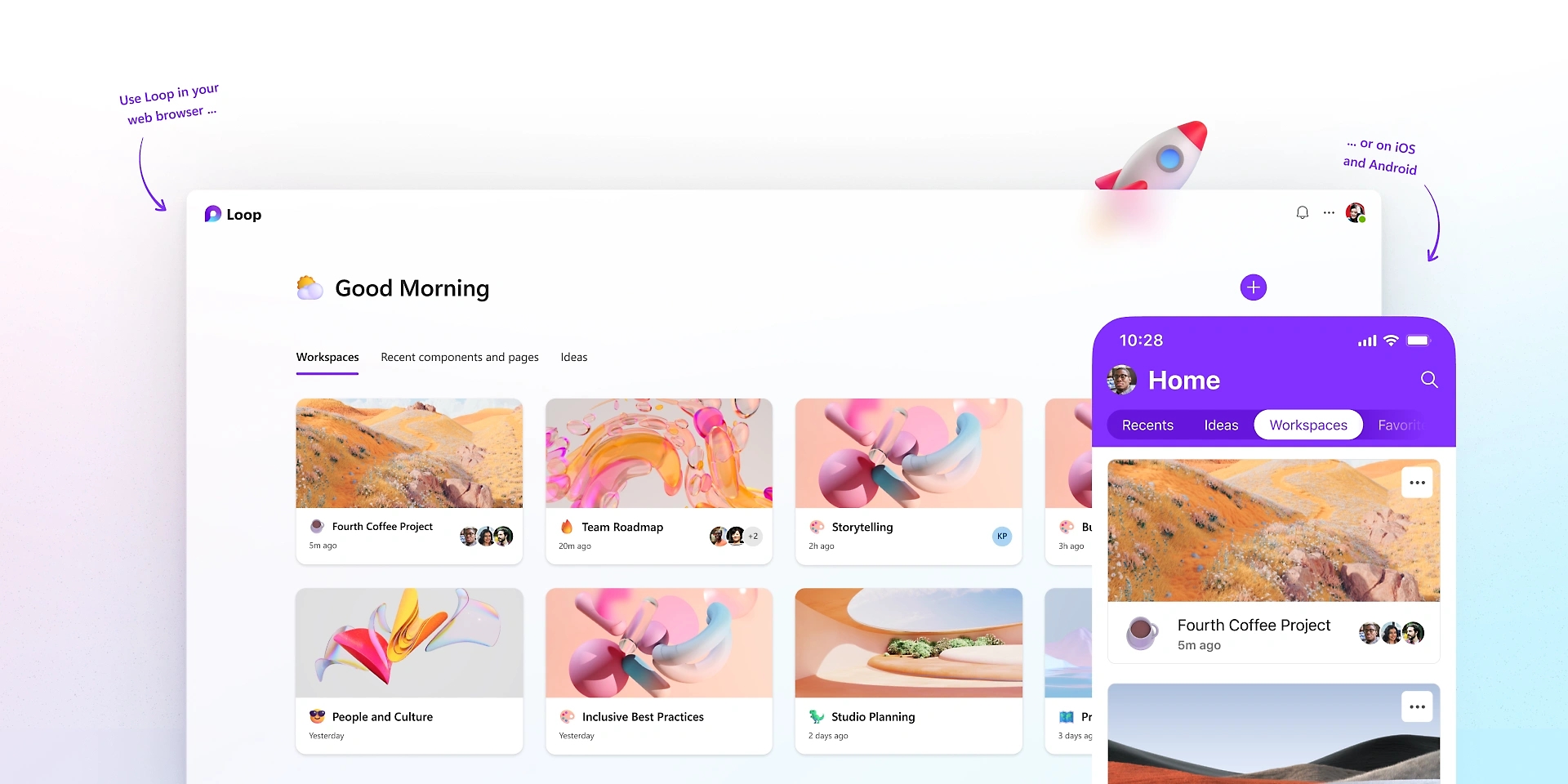
What exactly is Microsoft Loop, then? Essentially, it is a flexible canvas. It combines components, pages, and workspaces. Therefore, it brings content and people into one space. These “Loop components” are key. They are live, portable pieces of content. For instance, a checklist or a table. Furthermore, they sync everywhere instantly. Thus, collaboration becomes fluid and dynamic. This makes teamwork much more efficient.


Understanding Loop Components: The Core Innovation

Loop components are, by and large, the heart of Loop. They are small, interactive elements. You can share them easily across apps. For example, use them in Teams or Outlook. A component might be a paragraph of text. Similarly, it could be a task list for your team. Even a dynamic table can be a component. The magic, however, is their live nature.

Whenever someone edits a component, it updates. This update happens everywhere it exists. Therefore, everyone always sees the latest version. This prevents version control headaches. Furthermore, it eliminates endless email threads. You no longer need to send updated attachments. Instead, changes appear automatically. This makes real-time collaboration truly effortless. Moreover, these components are highly portable. You can copy and paste them freely. They maintain their live sync wherever they go. This allows for incredibly flexible work.


Image of Microsoft Loop

Loop Pages: The Flexible Canvas

Loop pages, consequently, serve as flexible canvases. They are dedicated spaces for thinking. Here, teams can organize all components. A page is, therefore, a place for collective ideas. You can start with a blank page easily. Then, you add various components as needed. For instance, drop in a task list component. Similarly, add a paragraph for notes. You can even include a progress tracker.

These pages are, in fact, highly adaptive. They grow with your project’s needs. You can easily drag and drop elements. Rearranging content is simple and quick. Furthermore, pages support rich media content. Include images, links, or even videos. The goal is to capture all relevant information. This ensures everything stays in one logical place. Therefore, Loop pages create a centralized hub. It consolidates all project assets effectively. This greatly enhances project visibility. Consequently, your team remains perfectly aligned.


Loop Workspaces: Your Project’s Home

Loop workspaces, by the same token, are project homes. They are shared online environments. Here, teams organize all their pages. A workspace, therefore, holds related project content. For example, a marketing campaign needs its own workspace. Similarly, a product development project gets one too. Workspaces bring together all relevant pages. They help group interconnected information together.

Each workspace has its own unique structure. You can customize it for your team. Access control is also managed easily. Decide who can view or edit content. This ensures data security and privacy. Furthermore, workspaces facilitate team oversight. Leaders can quickly see all ongoing projects. They monitor progress across different pages. Therefore, Loop workspaces provide a clear overview. They simplify project management greatly. Consequently, they foster structured, efficient collaboration.


Integrating Loop with Microsoft 365

Microsoft Loop, in fact, integrates deeply. It works seamlessly within Microsoft 365. This integration is a major advantage. Components function across different applications. For instance, use them in Microsoft Teams. You can share a task list in a chat. Your team updates it right there. The changes reflect everywhere instantly. This includes the original Loop page.

Similarly, use components in Outlook emails. Embed a live voting table in a message. Recipients vote directly within the email. Moreover, the results update automatically. This eliminates constant email chains. Furthermore, it streamlines decision-making processes. Loop also connects with Word and OneNote. This ensures content consistency across tools. Therefore, Loop extends the power of 365. It makes all your apps more interactive. Consequently, it creates a truly connected work ecosystem.


Real-Time Co-creation and Feedback

Loop greatly enhances real-time collaboration. It allows multiple users to edit simultaneously. Everyone sees changes as they happen, therefore. This fosters a highly interactive environment. For example, brainstorm ideas together instantly. Each team member contributes their thoughts. The page updates for everyone right away. This accelerates the creative process greatly.

Furthermore, feedback loops become much faster. You can get instant input on content. Colleagues highlight sections for review. They add comments directly to components. These comments are also live and trackable. Therefore, revisions are quick and efficient. This reduces project timelines significantly. Moreover, it ensures all voices are heard. Microsoft Loop makes collaboration truly responsive. It transforms feedback into a fluid conversation. Consequently, it promotes faster project completion.


Use Cases: Where Loop Shines Brightly

Microsoft Loop shines in many work scenarios. Consider project management first. Teams track tasks and progress efficiently. A shared checklist updates for everyone. Deadlines are clearly visible to all. Similarly, it excels in meeting management. Create a live agenda for every meeting. Attendees add notes and action items directly. These updates are accessible afterwards.

Furthermore, brainstorming sessions benefit immensely. Teams co-create ideas on a shared page. Each person contributes to the canvas. No ideas are lost or forgotten. Moreover, content creation becomes truly collaborative. Draft documents or presentations together. Live components ensure everyone works on the same version. Therefore, Loop boosts productivity everywhere. It provides a unified workspace for diverse tasks. Consequently, it solves many common collaboration challenges.


The Future of Hybrid Work with Loop

Hybrid work is the new standard, clearly. Teams work from various locations. They often have different time zones, too. This setup presents unique communication challenges. Microsoft Loop, however, bridges these gaps easily. It creates a persistent, shared workspace. Remote and in-site workers access the same content. They contribute whenever it suits them best.

Live components ensure consistent information. Everyone stays updated, regardless of location. This minimizes misunderstandings and delays. Furthermore, it fosters a sense of inclusion. All team members contribute equally to the project. Their input is visible and valued. Therefore, Loop supports a flexible work culture. It adapts to different schedules seamlessly. Consequently, it strengthens teamwork in any environment.


How Loop Differs from Existing Tools

You might wonder about other tools. How does Loop stand apart, then? It is more than just a document editor. Also, it is more than just a chat platform. Loop combines features from many places. It draws from wikis, documents, and messaging. The key difference is the “live component.” This element is unique to Loop.

Other tools offer real-time editing, certainly. However, their content is often static. It is fixed within one document or app. Loop components are truly portable. They maintain their live state everywhere. This fluidity is a game-changer. Furthermore, the workspace concept is distinct. It organizes pages and components logically. Therefore, Microsoft Loop offers a novel approach. It creates a truly dynamic, interconnected system. Consequently, it provides a unique collaboration experience.


Getting Started with Microsoft Loop

Beginning with Loop is quite straightforward. First, look for Loop in your Microsoft 365. It might be accessible through Teams or Outlook. You can also visit https://www.google.com/search?q=loop.microsoft.com directly. Then, create your very first workspace. Give it a meaningful and clear name. Next, start adding new pages to your workspace. Each page can serve a different purpose.

Finally, begin populating pages with components. Try a simple task list component first. Share it with your team members easily. See how it updates in real time for everyone. Experiment with different component types. Explore the various templates available to you. Therefore, starting small is a great strategy. Gradually integrate Loop into your daily workflow. Consequently, you will discover its true power.


Benefits for Different Roles

Microsoft Loop offers benefits across many roles. Project managers track progress better. They visualize tasks and deadlines clearly. Team leads can foster better engagement. They create spaces for open collaboration. Individual contributors, likewise, gain efficiency. They access all needed information in one place. Developers use it for shared code snippets. Marketers create campaigns with live updates.

Sales teams track client interactions effectively. HR departments manage onboarding processes. Even educators can use it for group projects. Students collaborate on shared assignments easily. Therefore, Loop enhances productivity for everyone. It adapts to specific departmental needs. Consequently, it streamlines workflows for diverse professionals.


The Path Ahead for Microsoft Loop

Microsoft Loop is still evolving, naturally. Microsoft continues to add new features. They listen to user feedback actively. Expect more integrations in the future. It will likely connect with more third-party apps. This will further extend its overall reach. Performance enhancements are also expected. The user experience will only improve over time.

Therefore, Loop represents a significant investment. It shows Microsoft’s commitment to collaboration. The goal is to simplify complex teamwork. It aims to empower hybrid and remote teams. Consequently, Loop will become a cornerstone. It will shape the future of modern work. Thus, it truly is a game-changer for digital collaboration.

Frequently Asked Questions (FAQs)

1. What is the fundamental difference between Loop and OneNote?

OneNote, indeed, is primarily for personal notes. Conversely, Loop is built for dynamic teamwork. Loop’s content is portable and live. For example, a Loop component updates everywhere. OneNote content, however, stays fixed within its own page. Thus, Microsoft Loop offers true cross-app fluidity.

2. Does Loop replace existing Microsoft 365 apps like Teams or Word?

No, not at all, quite the opposite. Loop enhances these other apps. For instance, you use Loop components inside Teams. It brings live content into those conversations. Microsoft Loop is, therefore, a complementary tool. It makes the entire 365 ecosystem more dynamic.

3. Where can I use Loop components currently?

Currently, you can use components in several places. This includes Microsoft Teams chat messages. You can also use them in Outlook emails. Furthermore, you can find them within the main Loop app. Microsoft is constantly adding more locations, however.

4. Are Loop components secure, especially when shared externally?

Yes, Loop components are secure, absolutely. They inherit security settings automatically. This is based on where the component is hosted. Furthermore, sharing is managed through your organization’s settings. Access control is always clearly defined. Therefore, Microsoft Loop maintains robust enterprise security.

5. Can I use Loop if my team members are not on Microsoft 365?

Generally speaking, all editors need a Microsoft account. They need one to access and edit components. However, you can share components with guests. This depends on your specific tenant settings. Microsoft Loop works best within the 365 ecosystem, therefore.

Also Read: The Future of Docs: Google’s Emoji Reactions Explained


The Future of Docs: Google’s Emoji Reactions Explained

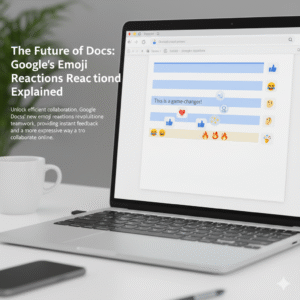
Have you ever found yourself in a Google Doc, wanting to show you agree or disagree, but a full comment just feels like too much? In fact, everyone has. Now, Google Docs has an answer for that common feeling. This is a game-changer for digital collaboration. Indeed, it is changing how teams work together. The new feature, therefore, is Google Docs’ real-time emoji reactions. You can now react instantly to text with a thumbs-up, a laughing face, or any other emoji. This simple addition, in a sense, is a big step forward for collaboration. Consequently, this change has major implications for how we work together.

Image of Google's emoji Reactions

Emojis: More Than Just Fun

You might wonder, naturally, if emoji reactions are just for fun. However, they serve a deeper purpose in today’s work environment. To begin with, they offer a quick way to give feedback. For example, you can give a thumbs-up to a section you like. This signals your support without a long comment. As a result, your colleague knows you have seen their input. Ultimately, this speeds up the review process.

Additionally, emojis add nuance. This is important. For instance, a simple sentence can be hard to read. A sentence like “This is a good idea” can be interpreted in different ways. Conversely, adding a 🙏 or a ✨ emoji makes the positive meaning clear. In contrast, a 🤔 emoji can gently suggest that you need more information. Therefore, emojis help with tone.

Furthermore, they streamline the review process. Consequently, this makes it easier for everyone. For example, instead of writing out long feedback, you can highlight text. You can then add a ❤️ or a ❓ emoji. This makes feedback visual. Likewise, it is less wordy.

More importantly, emojis build a better work culture. Since many people work remotely, this is very important. Therefore, emoji reactions add a human touch. A well-placed 😂 or 🎉 emoji can, in fact, celebrate a team win. Similarly, it can lighten the mood. Therefore, it helps with team morale. It is like having a silent cheerleading squad in your document. Finally, emojis help identify consensus. You can quickly see which parts of a document everyone likes (lots of 👍) or which parts need more discussion (a bunch of 🧐). As a result, this helps the document owner to see team sentiment.


How It Works: Super Easy!

Therefore, how does the feature work? In the first place, it’s quite simple. First, highlight the text you want to react to. After that, a small emoji icon appears. This icon is next to the text. It looks like the comment icon. Next, click the emoji icon. A selection of emojis will pop up. Then, choose your emoji. It will then appear next to the text. Of course, you can also see who reacted. In short, it’s a quick and easy process.


The Future of Collaboration

The new emoji reaction feature is a big step for Google Docs. Consequently, it is a big step for digital collaboration. For this reason, it makes our work more human. As our work changes, tools that help us communicate better will become very important. Therefore, this feature is very useful. It will, in fact, make online collaboration more expressive. This is because it is a very natural way to communicate. So, do not just comment. React. This will make your collaborative experience more engaging.

What do you think of this new feature?


FAQs

1. How do you add an emoji reaction in Google Docs?

To add a reaction, you must highlight the text. After that, you will see a small emoji icon. Then you can select your emoji.

2. Is this feature available to everyone?

This feature is available to most Google Docs users. In short, it is being rolled out to personal and business accounts.

3. Can I use any emoji?

Yes, you can use any emoji from the selection. This includes common emojis like 👍, ❤️, and 😂.

4. Can I see who added a reaction?

Yes, you can. You can see who added each emoji. This is very useful. It provides extra context.

5. How does this improve teamwork?

This feature helps teams in many ways. For example, it gives instant feedback. It also makes communication more expressive. Additionally, it helps build team morale. All things considered, it improves collaboration.

Also Read: Google Meet’s New AI Noise Cancellation: A Game-Changer

Updates in Google Workspace: September 2025

The digital world changes fast. Staying updated with the latest tools is a must. Google Workspace, a leader in productivity and collaboration, is always innovating. This September 2025, a wave of new Workspace updates is here. These changes are exciting. They show Google’s commitment to a smarter, more intuitive work environment. Most of the new features use Gemini AI. They help you work better and faster. These improvements cover Gmail, Drive, Meet, and Sheets. Get ready to explore the key updates you shouldn’t miss.

Gemini AI: The Brain Behind the Brilliance

google workspace
Artificial intelligence is changing how we work. In Google Workspace, AI is no longer a separate tool. It’s now a part of everything you do. Gemini AI has become a proactive partner. It anticipates your needs and offers quick solutions. This deeper integration is a major step. It moves from simple automation to sophisticated intelligence. The goal is to make your work easier. Gemini helps you get rid of boring tasks. Consequently, you can focus on more important things. Google wants every user to feel like they have a personal assistant.

A Smarter Google Drive: Gemini Summaries

Looking for a specific document can be a hassle. You might have to open many files just to find the right one. This process is often time-consuming. However, a new update makes things much easier. Gemini summaries now appear on suggested files. This is a huge change. Before you open a file, Gemini gives you a quick summary. This includes Docs, Sheets, Slides, and PDFs. It helps you quickly see what a document is about. As a result, you can save valuable time. You can also prioritize your work more effectively. This makes your Drive home page an intelligent information hub.

Creating Perfect Presentations in Google Slides

Making a great presentation takes work. You spend hours writing the perfect text. Still, poor wording can ruin your message. Fortunately, the new Refine Text feature, powered by Gemini, is here to help. You no longer have to struggle to find the right words. Gemini helps you edit text boxes in Slides. It offers smart suggestions. For example, you can shorten a long paragraph. You can also rephrase an idea for better clarity. You can even formalize the tone. Additionally, you can use a custom prompt. This lets you get a very specific result. This feature helps you be more impactful and save time.

Enhanced Document Scanning on Android

Many of us work on the go. This means we often need to scan physical documents with our phones. But scans can be blurry or have shadows. This makes them look unprofessional. Google Drive on Android has a new and improved scanning tool. This update gives you professional-grade scanning. You can now crop and rotate documents easily. You can also apply filters to make the text clearer. Most importantly, you can now erase shadows. This makes your scans clean and professional-looking. Now, digitizing receipts or notes is both easy and reliable.

Smarter Tools for Education

AI is also transforming education. Google is helping both students and teachers. There is a new subscription called Google AI Pro for Education. It offers many powerful features. These new tools are in NotebookLM. Students can now use them to study better. For instance, NotebookLM can turn documents into flashcards and quizzes. You simply upload your notes. Then, the AI creates study aids for you. This helps with active recall, which improves memory. For teachers, it means more engaging lessons. For students, it’s like having a personal tutor.

Better Collaboration and Communication

Teams need to communicate well to succeed. Google Workspace is always improving its tools to help teams connect. September’s updates help you stay in the loop and work together smoothly.

Stay Notified in Google Chat

Sometimes, you miss small but important reactions to your messages. This can be frustrating. Now, Google Chat sends real-time push notifications for reactions. This helps you stay on top of conversations. You won’t miss any feedback. Therefore, communication with your team becomes more fluid and responsive.

Find Changes Easily in Google Sheets

Tracking changes in a shared spreadsheet can be hard. The version history often shows everything, making it confusing. Now, Sheets has a new condensed version history view. This view shows only the rows with changes. This helps you quickly see what’s been updated. It saves time and prevents you from missing important edits.

Smooth Meetings in Google Calendar

Scheduling meetings with people on different calendar apps can be tricky. They may not get the Meet link automatically. When you invite an Outlook user to a Google Meet, the link is now added to the location field. This simple change makes joining meetings much easier. It ensures your meetings start on time.

Protecting Your Privacy

Privacy is crucial. When you copy a Calendar event, you don’t want to share private notes. Now, when you copy or duplicate an event, the Meet conference and its notes are not copied over. This protects your information. It ensures that meeting access and details stay secure.

The Future of Your Workflow

These September 2025 updates show Google’s clear strategy. They are building an intelligent ecosystem. Gemini AI is a core part of this. It helps automate repetitive tasks. It also improves your creative potential. These updates are about more than just new features. It is  about smarter ways to work. They help you manage information better. It also improve how you collaborate. By using these new tools, you are future-proofing your workflow. You will produce higher-quality work and be more productive.

Frequently Asked Questions (FAQs)

1. What is the main focus of the Google Workspace September 2025 updates? The updates focus on deeper Gemini AI integration. This improves productivity in apps like Drive, Slides, and for educational tools. 2. How do Gemini summaries in Google Drive work? They give you quick, AI-generated summaries of documents on your Drive homepage. This helps you understand a file’s content without opening it. 3. What can Gemini AI do for Google Slides? Gemini’s new “Refine Text” feature helps you edit text in Slides. It can shorten text, rephrase sentences, or format them into bullet points. 4. Are there improvements for mobile users? Yes. The Google Drive app for Android has a new scanning tool. It helps you easily crop, filter, and remove shadows from scanned documents. 5. How do these updates improve collaboration? New features help in many ways. For instance, in Sheets, you can see a condensed version history. In Chat, you get notifications for message reactions. Also, Meet links are now automatically added to invitations for external users.  

Generate More Online Sales with Website Redesigning Services!

The need for online and inside sales is growing day-by-day in modern times and there are different approaches to be pursued to increase it. You may be pleased with the fact that you have a website at the moment, but does it draw enough audiences?

Below are some signs that your website will need to be updated to improve your revenue online.

Ranking is Low

If you witness website traffic going down, then it is a warning that the architecture might be obsolete. The website should be optimized in such a way that the search engine results page (SERP) is easier. As per the report, websites that have invested in the renovation of the SEO guidelines website get over 50 percent of the overall internet traffic.

Content is outdated

One of the key ranking criteria is the creation of quality content that will inevitably lead to more traffic, higher ranking, and desired results. Content is not a king, but a KINGDOM. Content is far more relevant than simply filling out web pages. The material can then be revised from time to time to consider the popularity of different keywords.

Related Post: 5Business Ideas for Mobile App Development During COVID-19

Mobile users are not engaging

Since half of the overall visitors are smartphone or tablet users these days, websites should be mobile-friendly. This is also one of the main reasons why it should be responsive to the smartphone.

The speed of the website is slow

Time is the engine of the soul of every business. If the website’s pace is sluggish, the user interface will also be affected. If the customer interface isn’t successful, it might be tough for company owners to persuade their target markets of it. If it takes longer than 5 seconds to open, 53% of smartphone users leave the page. Eventually, the translation rate and bounce rate would be impacted. In comparison, Google also penalizes websites with a poor page speed rate, which prevents their search engine presence.

All Competitors have recently updated theirs

It is true that one does not blindly imitate their rival and have their own market plans, but if your rival produces results outshining yours after upgrading the website, then it is time for you to upgrade yours as well.

Related Post: What Things to Consider Before Hiring PHP Developer for Your Project

TO SUM UP,

If you are facing some of the problems mentioned above on your website, then it is time to contact us to redesign your website. This will encourage you to reap the advantages that come with it by redesigning the website.