Refresh loader

Category : Google Workspace

Home > Archive for Google Workspace (Page 2)

Why Your Lost Google Drive Files Are Never Truly Gone

Accidentally deleting a file happens to almost everyone. Therefore, you should not panic if your document disappears. Truly, Google Drive keeps your deleted items in a special folder for a while. Consequently, you can usually bring them back with just a few clicks.

Some users worry that their data is gone forever. But, the system is designed to protect you from mistakes. Always remember, the trash folder is your first stop for recovery. It holds your files for thirty days before removing them. This gives you a large window to fix any errors. This approach makes digital filing much safer for everyone. It ensures that your hard work stays accessible. It acts as a reliable backup for your daily tasks.

Why Your Lost Google Drive Files Are Never Truly Gone


Method 1: Recovering Files from the Trash Folder

First, let us look at the easiest way to find your files. Why is the trash folder so important? Clearly, it is the home for every item you remove. Therefore, you must check here first when something goes missing.

Steps to Restore Files from the Trash

Here are several simple steps to get your files back:

  • Open Google Drive on your computer or phone.

  • Look at the left side menu and click on the trash icon.

  • Scroll through the list to find the file you need.

  • Right click on the file name to see more options.

  • Select the restore button from the list that appears.

  • Check your original folder to see the file again.

  • Repeat these steps for any other missing documents.

Truly, this method works for almost all recently deleted items. But, you must act before the thirty day limit ends. This keeps your drive clean while giving you a second chance.


Method 2: Using the Activity Panel to Find Lost Items

So, what if you cannot find the file in the trash? It might be that the file was moved or renamed instead. Truly, the activity panel shows every change made to your drive. It acts as a history log for your digital workspace.

How to Use the Activity Tab for Search

Here is how you can track down a file using activity:

  1. Open your main Google Drive dashboard.

  2. Click on the info icon in the top right corner.

  3. Select the activity tab to see a list of recent changes.

  4. Scroll down to see who moved or deleted a file.

  5. Search for the specific date when the file was last seen.

  6. Click on the file link if it appears in the log.

  7. Ask the owner for access if the file was shared with you.

Consequently, this panel helps you understand what happened to your data. It clarifies if a file was truly deleted or just misplaced. This ensures you do not waste time searching in the wrong place. It makes managing team projects much easier and clearer.


Method 3: Restoring Permanently Deleted Files (Admin Help)

The third method is for files that are no longer in the trash. Once thirty days pass, the trash folder empties itself. Clearly, this makes recovery a bit harder for regular users. Therefore, you might need help from a system administrator.

Steps for Workspace Administrators

Firstly, sign into the Google Admin console. This tool is only for business or school accounts. Secondly, find the specific user account in the directory.

Furthermore, select the restore data option from the user menu. This allows you to pick a date range from the last twenty five days. Also, choose Drive as the application for the restoration. This will push the deleted files back into the user folder. Lastly, wait for the system to process the request. It might take a few minutes for large files to reappear. Truly, this is a powerful way to save data after the trash is empty. It provides an extra layer of safety for professional teams. This is why many companies prefer managed accounts for their work.


Method 4: Recovering Overwritten Files with Version History

The fourth method helps when you have changed a file but want the old version back. Clearly, you did not delete the file, but the content is gone. Therefore, you can use the version history feature to travel back in time.

How to Access Previous Document Versions

Firstly, open the document or right click the file. This works for Docs, Sheets, and even non Google files. Secondly, select the manage versions option from the menu.

Furthermore, look at the list of saved versions. Google keeps a history of your changes automatically. Also, click the three dots next to the version you want. This gives you the option to download or restore that specific copy. Lastly, confirm the restoration to replace the current file. This is perfect for fixing mistakes made during editing. Truly, this feature is like a time machine for your documents. It protects you from bad edits and accidental data loss. This helps you work with total confidence every single day.


Best Practices: How to Prevent Future Data Loss

Keeping your files safe is better than trying to recover them later. It needs a small amount of planning and care. Clearly, a few simple habits can save you a lot of trouble. Therefore, follow these tips to keep your Google Drive secure.

Strategies for Better File Management

Firstly, use descriptive names for all your folders. This makes it much easier to find files using the search bar. Secondly, review your trash folder once a week. This helps you spot accidental deletions before the thirty day limit.

Furthermore, create regular backups using Google Takeout. This tool lets you download all your data to a physical drive. Also, check the sharing settings on important documents. Sometimes files seem missing because your access was removed. Lastly, install the Google Drive desktop app. This keeps a local copy of your files on your computer for extra safety. Truly, a proactive approach is the best defense against data loss. It keeps your digital life organized and stress free. This secures your important memories and work for the long term.


Frequently Asked Questions (FAQs)

Q1: How long do deleted files stay in the Google Drive trash?

Files stay in the trash for exactly thirty days. After this time, Google automatically deletes them forever to save storage space.

Q2: Can I recover a file if I am not the owner?

No, only the owner of a file can restore it from the trash. If a shared file is missing, you must ask the person who created it to check their trash.

Q3: What if I emptied the trash manually? Can I still get my files?

If you have a personal account, it is very hard to recover files after the trash is emptied. However, Workspace users can ask their admin to help within twenty five days.

Q4: Does deleting a file on my phone delete it on my computer too?

Yes, Google Drive syncs across all your devices. If you delete a file on the mobile app, it will move to the trash on your computer as well.

Q5: Can Google Support help me recover permanently deleted files?

Sometimes Google Support can help personal users recover files deleted within the last few weeks. You can try reaching out to them through the help center contact page.

Also Read: Common Google Meet Errors and How to Fix Them

Desktop and Google Drive: How to Fix Syncing Issues

Google Drive is a vital tool for many people. Therefore, it keeps your files safe in the cloud. It also syncs them to your computer desktop. However, sometimes the synchronization stops working well. Truly, this can be very frustrating. You need your files to be up-to-date everywhere.

Some users ignore sync problems. But, this can cause you to lose work or use old versions. Consequently, fixing sync issues quickly is very important. Always remember, most syncing problems are easy to fix. By following simple checks and restarting the process, you can get your files flowing smoothly again. This ensures you always have the right version of every document. It also keeps your workflow running smoothly.

Desktop and Google Drive: How to Fix Syncing Issues


The Sync Problem: Why Files Stop Talking

First, let’s understand why your files might stop syncing between the cloud and your desktop. The syncing process is complex. It involves your computer, the Drive app, and your internet connection. Clearly, a failure in any one part can cause the whole thing to stop. Therefore, you must check the most common causes first.

The Most Common Sync Blockers

These common issues often prevent Google Drive from syncing correctly:

  • Full Storage: Your Google Drive storage space is full. The app cannot add new files.

  • Network Issues: Your internet connection is weak or disconnected. The app cannot talk to the cloud.

  • Large Files: You are trying to sync one very large file (e.g., a video). This can pause the entire process.

  • File Name Errors: The file name has an illegal character (like a forward slash /). The app cannot read the file path.

  • App Glitches: The Drive desktop application has frozen or needs an update.

  • Firewall Blocks: Your computer’s security software is blocking the Drive app from connecting.

Troubleshooting involves systematically checking each of these potential blockers. You must eliminate the simple causes first.


What is Syncing, and Why is it Important?

So, what exactly is file syncing for Google Drive? It is the continuous, automatic process of mirroring files. It ensures that the files on your desktop match the files in the cloud. Truly, this is important for backup. It is also important for collaboration.

The Value of Perfect File Synchronization

Here is why perfect syncing is so important:

  1. Data Backup: Your files are safe in the cloud if your computer breaks down.

  2. Access Everywhere: You can access the same file from your phone, tablet, or another computer.

  3. Version Control: Everyone is working on the most recent version of a document.

  4. Offline Access: You can work on files even when you do not have internet access. The files will update later.

  5. Workflow Continuity: You can seamlessly switch between devices without losing progress.

Truly, a broken sync breaks your entire workflow. It puts your important data at risk. Fixing it must be a top priority.


Pillar 1: The Quick Fixes – Restart, Check, and Pause

The first step in troubleshooting is to try the easiest, fastest fixes. These steps usually solve simple glitches and temporary network problems. Clearly, most errors are minor. Therefore, a simple restart can often fix the issue completely.

Simple Steps to Kickstart Synchronization

Firstly, pause and resume syncing. Find the Google Drive icon on your desktop toolbar. Click it. Then, select “Pause syncing.” Wait one minute. Then, select “Resume syncing.” This often resets the connection. Secondly, check your internet connection. Make sure your Wi-Fi is working. Try opening a website to confirm you are online.

Furthermore, restart the Drive application. Close the Drive desktop application completely. Wait about ten seconds. Then, relaunch the application. This clears any temporary app glitches. Also, check your available storage. Go to your Google Drive storage page online. If you are near the 15 GB limit, delete some large files first. This gives the app room to work. Lastly, check your system time. Ensure your computer’s date and time settings are correct. An incorrect time can block secure connections. Truly, these quick checks take only a few minutes. They often solve the majority of common syncing failures right away.


Pillar 2: Deep App and Settings Troubleshooting

If the quick fixes do not work, you must look deeper into the Drive application settings. Specific settings often control how and what files sync. Clearly, finding the exact setting that is causing the block is the next step. Therefore, focus on the app’s internal configuration.

Diagnosing App-Specific Settings

Firstly, check the syncing folders. Click the Drive icon. Go to Preferences or Settings. Ensure that the specific folders you want to sync are selected. Sometimes, a folder is accidentally unchecked. Secondly, review the file status. Look for a small error icon on the file. This often means the file name has an illegal character. Rename the file and try again.

Furthermore, check the blocked files list. The Drive app sometimes shows a list of files it cannot sync. Review this list. Fix the file errors one by one. Also, update the Drive app. Make sure you have the newest version of the Drive desktop application. Outdated software often causes new sync problems. Lastly, check proxy settings. If your company uses a special network setup, the Drive app might need custom proxy settings. Consult your IT team for this information. Truly, reviewing the application’s internal settings helps pinpoint the exact file or folder that is causing the entire sync process to stall.


Pillar 3: Advanced Methods – Reinstallation and Disconnection

If all other steps fail, you may need to perform more advanced troubleshooting. This includes completely disconnecting your account or reinstalling the application. Clearly, these steps are more drastic. Therefore, make sure you back up any local files first.

Resolving Persistent Syncing Errors

Firstly, disconnect your account. Go to the Drive app settings. Select the option to disconnect your account. This stops all syncing. Then, sign back in. This forces the app to re-establish a completely fresh connection to the cloud. Secondly, reinstall the Drive application. Uninstall the desktop application completely. Download the latest version from Google. Then, reinstall it. This fixes corrupted application files.

Furthermore, check your computer’s firewall. Your security software might be blocking the Drive app’s connection. Temporarily disable your firewall to see if syncing starts. If it works, you need to add Google Drive as a trusted application. Also, check for specific file conflicts. Sometimes, both the desktop and the cloud file change at the same time. The app cannot decide which version to keep. Look for files with “Copy” or “Conflict” in the name. Resolve these manually.

Lastly, clear the Drive cache. In rare cases, a corrupted local cache causes problems. You can clear this cache folder manually. You should only do this with care and after disconnecting your account. Truly, these advanced methods are powerful. They solve the most stubborn, long-lasting syncing problems effectively.


Best Practices: Preventing Future Sync Issues

Preventing future sync issues is always better than fixing them later. You must adopt smart habits. This keeps your files organized and your app running smoothly. Clearly, simple routine checks save much time and frustration. Therefore, follow these best practices for a stable workflow.

Simple Habits for Continuous Smooth Syncing

Firstly, monitor your storage often. Check your total storage usage weekly. Delete unnecessary large files before you hit the limit. Secondly, sync only essential folders. Do not sync your entire Google Drive library to your desktop. Only select the folders you use every day.

Furthermore, check file names before uploading. Avoid special characters like ?, *, or / in file names. This prevents file path errors. Also, review your blocked list regularly. Check the Drive app settings. See if any files are consistently failing to sync. Fix or delete them right away. Lastly, pause syncing before big transfers. If you know you will be offline or transferring hundreds of files, manually pause syncing first. Resume it when the task is done and the connection is stable. Truly, adopting these simple routines keeps your Google Drive application healthy. This minimizes the risk of sudden, frustrating sync failures.


Frequently Asked Questions (FAQs)

Q1: Why is my Google Drive icon stuck on “Scanning files”?

The “Scanning files” message often means the app is checking a very large folder. It can also mean a program on your computer is holding a file open. Try restarting your computer completely. This often releases the stuck file.

Q2: Will disconnecting my account delete any files from my desktop?

No, it will not. Disconnecting your account only stops the synchronization process. It does not delete any files from your computer or the cloud. All files remain safely stored in both locations.

Q3: What should I do if my large video file won’t sync?

If a large video file won’t sync, check its format. Some unusual formats may cause issues. If the format is fine, try uploading the file directly through the Google Drive website instead of using the desktop app.

Q4: Does using a VPN cause Google Drive sync problems?

Yes, sometimes it does. A VPN can change your network settings or IP address rapidly. This confuses the Drive app, which needs a stable connection to the Google servers. Try pausing or disconnecting the VPN while you sync large amounts of data.

Q5: If I archive an email, does it free up storage space?

No, it does not. Archiving an email only moves it from your Inbox to the All Mail folder. The email and its attachments still count against your total Gmail storage limit. To free up space, you must delete the email and empty the Trash.

Also Read: Gmail Storage Full? Use These Simple Search Hacks

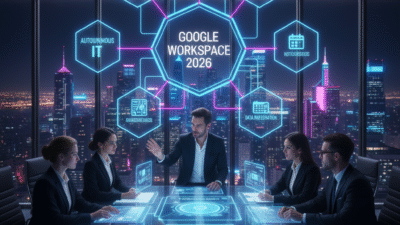
What to Expect from Google Workspace in 2026

Google Workspace is the core tool for modern work. Therefore, any change to it affects millions of people. As we look to 2026, the roadmap is very clear. It is driven by artificial intelligence (AI). Truly, AI is no longer just an extra feature. Instead, it is becoming the very foundation of Docs, Gmail, Meet, and Chat. This means work will feel easier and smarter than ever before.

Many people think the biggest changes have already happened. However, the move toward deep AI integration is just starting. In 2026, the focus will shift. It moves from simple AI helpers to AI agents. These agents will work alongside your team. They will understand your company’s data. They will also manage tasks and projects for you. Always remember, the goal is to make the digital workplace a “living system”. This system connects data, context, and experience. By preparing for this next wave, your team can gain a huge advantage.

What to Expect from Google Workspace in 2026


Pillar 1: AI Evolves from Co-Pilot to Co-Worker (Agents)

First, the most powerful change coming is the evolution of AI. AI is moving past simple tools like “Help me write” in Gmail. Instead, it is turning into specialized role-based agents. These agents are like smart, dedicated digital co-workers. Clearly, this is the next phase of productivity. Therefore, organizations must learn how to manage these agents.

From Simple Assistants to Specialized AI Agents

Google’s Gemini AI is now built into all Workspace subscriptions. This means everyone has access. However, in 2026, these tools will become much more specific.

Here is what to expect from these new AI agents:

  • Domain-Specific Outcomes: Agents will be trained only on your company’s data. Therefore, they will handle tasks specific to your industry or job.

  • Traceable and Compliant: Organizations must manage the lifecycle of these agents. This is like managing any other digital asset. You must ensure every AI is traceable and follows company rules.

  • Context Engineering: How you set up the information around the AI will be key. You must manage the entire context, not just the text you type into the AI.

  • Citizen Developers: Employees will be able to build their own AI agents. These will handle simple, repetitive tasks. This must be done with guardrails and oversight.

Truly, the shift from a general AI helper to a specialized AI agent will redefine how tasks are done. It requires a new focus on AI governance.


Pillar 2: Collaboration Blurs the Lines in Docs and Chat

Collaboration will also undergo a major redesign in 2026. The boundaries between communication, automation, and knowledge sharing will completely blur. Clearly, co-creation will move beyond simple real-time editing in Docs. Therefore, new shared, AI-powered knowledge hubs will become common.

New Ways to Co-Create and Share Knowledge

Firstly, Chat is not just for people anymore. Platforms will embed AI agents directly into chat channels. Users will be able to co-create, summarize, and automate tasks right inside Google Chat. This connects communication and automation perfectly.

Secondly, new generative AI workspaces are changing collaboration. Tools like Google’s NotebookLM are becoming shared, persistent knowledge hubs. Teams can upload their content. Then, they can ask the AI questions about it. They can also co-analyze the data. This means generating new insights from shared files is much easier. Furthermore, Google is already adding features like image generation and editing directly to Slides and other apps.

Furthermore, Smart Canvas continues to grow. This collaboration experience will connect more third-party apps. Simple @-mentions bring in the right people and data to create intelligent workflows. Truly, these changes ensure teams work in living systems where data, context, and experience converge.


Pillar 3: Meetings Become Smarter and More Accessible

Google Meet is focusing on making hybrid work fair and efficient for everyone. Consequently, AI will take on more responsibility for managing the meeting itself. Clearly, the goal is to ensure every voice is heard and every moment is captured. Therefore, new features will focus on making meetings more inclusive and effective.

AI Manages the Meeting, Humans Focus on Discussion

Firstly, AI will continue to take on note-taking. Users can now choose to generate meeting notes that are twice as long as the standard document. This helps capture all the important details. Secondly, AI works on the audio and video quality. Features like Studio Sound and Studio Look ensure quality, even with bad connections or dim lighting.

Furthermore, Calendar automation will increase. Google Calendar will become an automation hub. Workflows will start from a Calendar event. They can automatically add team members, ensure the AI is taking notes, and send follow-up questionnaires. Lastly, video content stored in Drive will become more accessible. New features make video easier to understand for users who are deaf or hard of hearing. They also help those in noisy places or those who speak a different language. Truly, AI is taking over the logistics of the meeting. This lets humans focus on discussion and decision-making.


Pillar 4: Data Integration and Automated IT

The foundation of Google Workspace will also see a major upgrade. This focuses on making data easier to use and automating IT management. Clearly, the goal is to move from IT fixing problems to IT predicting them. Therefore, IT success will be measured by the digital employee experience (DEX).

Smarter Data and Self-Healing Systems

Firstly, data integration will become seamless. Users can already import massive datasets directly to BigQuery from Google Sheets. This makes analyzing huge data sets easier than ever. BigQuery is a data warehouse tool. This means the line between data analysis and simple document creation will vanish.

Secondly, IT will become more proactive. The goal is Autonomous Endpoint Management (AEM). AI will predict device issues before they disrupt work. This automates patching and configuration fixing. Consequently, IT teams can spend less time fixing problems. They can spend more time on strategic work. Furthermore, governance will be key. IT must manage the creation and risk of AI agents like any other digital tool. Truly, the focus shifts to treating the digital workplace as a living system.


Preparing for the 2026 Workspace: The Leader’s Playbook

The roadmap for 2026 is clear: AI integration will be deep and widespread. Therefore, leaders must take specific actions now to prepare their teams. Clearly, success will hinge on three main principles. Truly, organizations must be ready to redesign their digital workplace.

Three Principles for AI Success

Firstly, AI must be grounded in enterprise data. Do not rely on general AI. Instead, use AI that is trained on your specific company’s information. This ensures the agents are accurate and relevant. Secondly, governance must scale with autonomy. As AI agents become more independent, the rules and guardrails overseeing them must become stronger. You must manage agent risk just like any application.

Furthermore, experience is the ultimate KPI. IT success will be measured by how well employees can use the new digital tools. It is about the digital employee experience (DEX). Also, training is critical. Employees need to be ready to work with AI, not just use it. They must know how to use tools like Gemini in Docs and Gmail. Lastly, embrace video and technical health. AI needs perfectly structured content to understand and use it. Truly, by focusing on these principles, leaders can ensure their teams successfully navigate the AI-powered future of Google Workspace.


Frequently Asked Questions (FAQs)

Q1: Is the new AI coming to Google Workspace free?

Yes, Google has decided to include the best of their AI features in standard Workspace Business and Enterprise plans. This means many generative AI features are now available without needing to buy an extra add-on.

Q2: What is an “AI agent” and how is it different from a simple co-pilot?

An AI co-pilot helps you with tasks, like writing an email. An AI agent is more independent. It is a targeted, role-based AI entity which is grounded in your company’s data and trained for specific business tasks. It can manage entire workflows, not just parts of one.

Q3: How will I access the new AI features in Docs and Gmail?

The AI features, called Gemini, are accessed directly within the flow of your work. You will find Gemini in the side panel of Gmail, Docs, Sheets, and Drive. You can quickly draft emails or documents using the “Help me write” feature.

Q4: What is the biggest risk for companies in the 2026 AI environment?

The biggest risk is underinvesting in AI and cloud infrastructure. There is intense competition, and underinvestment can lead to companies falling behind. Another major risk is poor governance of the new AI agents.

Q5: Will I still be able to collaborate in Google Docs and Sheets the old way?

Yes, real-time editing and co-creation remain core features. However, collaboration will be enhanced by Smart Canvas and new knowledge hubs. These hubs allow teams to co-analyze content and generate new insights together.

Also Read: What is Google Meet Companion Mode: Full Guide