Refresh loader

Category : Google Collaboration

Home > Archive for Google Collaboration

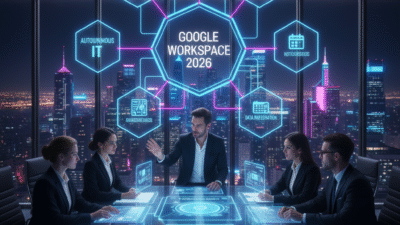
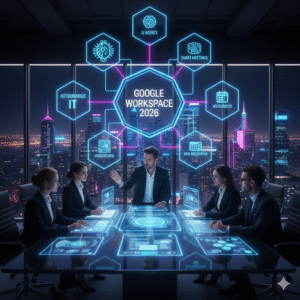
What to Expect from Google Workspace in 2026

Google Workspace is the core tool for modern work. Therefore, any change to it affects millions of people. As we look to 2026, the roadmap is very clear. It is driven by artificial intelligence (AI). Truly, AI is no longer just an extra feature. Instead, it is becoming the very foundation of Docs, Gmail, Meet, and Chat. This means work will feel easier and smarter than ever before.

Many people think the biggest changes have already happened. However, the move toward deep AI integration is just starting. In 2026, the focus will shift. It moves from simple AI helpers to AI agents. These agents will work alongside your team. They will understand your company’s data. They will also manage tasks and projects for you. Always remember, the goal is to make the digital workplace a “living system”. This system connects data, context, and experience. By preparing for this next wave, your team can gain a huge advantage.

What to Expect from Google Workspace in 2026


Pillar 1: AI Evolves from Co-Pilot to Co-Worker (Agents)

First, the most powerful change coming is the evolution of AI. AI is moving past simple tools like “Help me write” in Gmail. Instead, it is turning into specialized role-based agents. These agents are like smart, dedicated digital co-workers. Clearly, this is the next phase of productivity. Therefore, organizations must learn how to manage these agents.

From Simple Assistants to Specialized AI Agents

Google’s Gemini AI is now built into all Workspace subscriptions. This means everyone has access. However, in 2026, these tools will become much more specific.

Here is what to expect from these new AI agents:

  • Domain-Specific Outcomes: Agents will be trained only on your company’s data. Therefore, they will handle tasks specific to your industry or job.

  • Traceable and Compliant: Organizations must manage the lifecycle of these agents. This is like managing any other digital asset. You must ensure every AI is traceable and follows company rules.

  • Context Engineering: How you set up the information around the AI will be key. You must manage the entire context, not just the text you type into the AI.

  • Citizen Developers: Employees will be able to build their own AI agents. These will handle simple, repetitive tasks. This must be done with guardrails and oversight.

Truly, the shift from a general AI helper to a specialized AI agent will redefine how tasks are done. It requires a new focus on AI governance.


Pillar 2: Collaboration Blurs the Lines in Docs and Chat

Collaboration will also undergo a major redesign in 2026. The boundaries between communication, automation, and knowledge sharing will completely blur. Clearly, co-creation will move beyond simple real-time editing in Docs. Therefore, new shared, AI-powered knowledge hubs will become common.

New Ways to Co-Create and Share Knowledge

Firstly, Chat is not just for people anymore. Platforms will embed AI agents directly into chat channels. Users will be able to co-create, summarize, and automate tasks right inside Google Chat. This connects communication and automation perfectly.

Secondly, new generative AI workspaces are changing collaboration. Tools like Google’s NotebookLM are becoming shared, persistent knowledge hubs. Teams can upload their content. Then, they can ask the AI questions about it. They can also co-analyze the data. This means generating new insights from shared files is much easier. Furthermore, Google is already adding features like image generation and editing directly to Slides and other apps.

Furthermore, Smart Canvas continues to grow. This collaboration experience will connect more third-party apps. Simple @-mentions bring in the right people and data to create intelligent workflows. Truly, these changes ensure teams work in living systems where data, context, and experience converge.


Pillar 3: Meetings Become Smarter and More Accessible

Google Meet is focusing on making hybrid work fair and efficient for everyone. Consequently, AI will take on more responsibility for managing the meeting itself. Clearly, the goal is to ensure every voice is heard and every moment is captured. Therefore, new features will focus on making meetings more inclusive and effective.

AI Manages the Meeting, Humans Focus on Discussion

Firstly, AI will continue to take on note-taking. Users can now choose to generate meeting notes that are twice as long as the standard document. This helps capture all the important details. Secondly, AI works on the audio and video quality. Features like Studio Sound and Studio Look ensure quality, even with bad connections or dim lighting.

Furthermore, Calendar automation will increase. Google Calendar will become an automation hub. Workflows will start from a Calendar event. They can automatically add team members, ensure the AI is taking notes, and send follow-up questionnaires. Lastly, video content stored in Drive will become more accessible. New features make video easier to understand for users who are deaf or hard of hearing. They also help those in noisy places or those who speak a different language. Truly, AI is taking over the logistics of the meeting. This lets humans focus on discussion and decision-making.


Pillar 4: Data Integration and Automated IT

The foundation of Google Workspace will also see a major upgrade. This focuses on making data easier to use and automating IT management. Clearly, the goal is to move from IT fixing problems to IT predicting them. Therefore, IT success will be measured by the digital employee experience (DEX).

Smarter Data and Self-Healing Systems

Firstly, data integration will become seamless. Users can already import massive datasets directly to BigQuery from Google Sheets. This makes analyzing huge data sets easier than ever. BigQuery is a data warehouse tool. This means the line between data analysis and simple document creation will vanish.

Secondly, IT will become more proactive. The goal is Autonomous Endpoint Management (AEM). AI will predict device issues before they disrupt work. This automates patching and configuration fixing. Consequently, IT teams can spend less time fixing problems. They can spend more time on strategic work. Furthermore, governance will be key. IT must manage the creation and risk of AI agents like any other digital tool. Truly, the focus shifts to treating the digital workplace as a living system.


Preparing for the 2026 Workspace: The Leader’s Playbook

The roadmap for 2026 is clear: AI integration will be deep and widespread. Therefore, leaders must take specific actions now to prepare their teams. Clearly, success will hinge on three main principles. Truly, organizations must be ready to redesign their digital workplace.

Three Principles for AI Success

Firstly, AI must be grounded in enterprise data. Do not rely on general AI. Instead, use AI that is trained on your specific company’s information. This ensures the agents are accurate and relevant. Secondly, governance must scale with autonomy. As AI agents become more independent, the rules and guardrails overseeing them must become stronger. You must manage agent risk just like any application.

Furthermore, experience is the ultimate KPI. IT success will be measured by how well employees can use the new digital tools. It is about the digital employee experience (DEX). Also, training is critical. Employees need to be ready to work with AI, not just use it. They must know how to use tools like Gemini in Docs and Gmail. Lastly, embrace video and technical health. AI needs perfectly structured content to understand and use it. Truly, by focusing on these principles, leaders can ensure their teams successfully navigate the AI-powered future of Google Workspace.


Frequently Asked Questions (FAQs)

Q1: Is the new AI coming to Google Workspace free?

Yes, Google has decided to include the best of their AI features in standard Workspace Business and Enterprise plans. This means many generative AI features are now available without needing to buy an extra add-on.

Q2: What is an “AI agent” and how is it different from a simple co-pilot?

An AI co-pilot helps you with tasks, like writing an email. An AI agent is more independent. It is a targeted, role-based AI entity which is grounded in your company’s data and trained for specific business tasks. It can manage entire workflows, not just parts of one.

Q3: How will I access the new AI features in Docs and Gmail?

The AI features, called Gemini, are accessed directly within the flow of your work. You will find Gemini in the side panel of Gmail, Docs, Sheets, and Drive. You can quickly draft emails or documents using the “Help me write” feature.

Q4: What is the biggest risk for companies in the 2026 AI environment?

The biggest risk is underinvesting in AI and cloud infrastructure. There is intense competition, and underinvestment can lead to companies falling behind. Another major risk is poor governance of the new AI agents.

Q5: Will I still be able to collaborate in Google Docs and Sheets the old way?

Yes, real-time editing and co-creation remain core features. However, collaboration will be enhanced by Smart Canvas and new knowledge hubs. These hubs allow teams to co-analyze content and generate new insights together.

Also Read: What is Google Meet Companion Mode: Full Guide

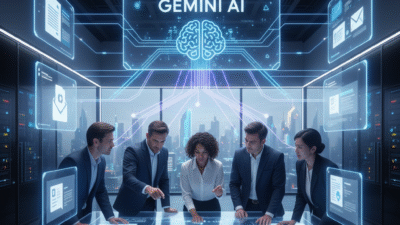
How Gemini AI Changes Your Google Workspace

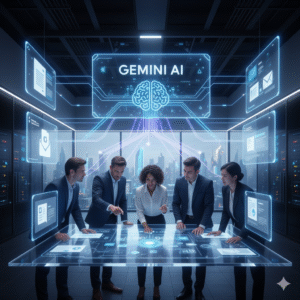
In an era defined by rapid technological advancement, artificial intelligence (AI) continually reshapes our professional landscape. Specifically, Google’s Gemini AI, a powerful and multimodal AI model, is revolutionizing how we interact with Google Workspace. Clearly, this integration is not just an incremental upgrade; instead, it represents a fundamental shift in productivity, creativity, and collaboration. Truly, Gemini AI aims to become an intelligent assistant embedded directly into the tools we use every single day—Gmail, Docs, Sheets, Slides, and more. Therefore, understanding its capabilities is crucial for anyone looking to maximize their efficiency and output in the modern workplace.

Many people still perceive AI as a futuristic concept, separate from their daily work. However, Gemini AI in Workspace brings this future directly to your fingertips. It moves beyond simple automation, offering sophisticated assistance that understands context, generates original content, and streamlines complex tasks. Furthermore, this integration transforms Google Workspace from a collection of powerful tools into an intelligent, interconnected ecosystem. This means you can spend less time on tedious, repetitive tasks and more time on strategic thinking, creative problem-solving, and meaningful human interaction. Ultimately, Gemini AI empowers us to work smarter, not just harder, redefining what’s possible within our digital workspaces.
How Gemini AI Changes Your Google Workspace


Understanding Gemini AI: The Brain Behind the Workspace Revolution

To fully grasp the impact of Gemini AI on Google Workspace, we must first understand what Gemini AI truly is. Simply put, Gemini is Google’s most advanced and capable AI model, renowned for its multimodal capabilities. This means it can seamlessly understand and operate across various types of information—text, code, audio, image, and video. Consequently, this versatility allows Gemini to perform a wide array of complex tasks that were previously impossible for AI. Furthermore, its ability to process diverse data types makes it exceptionally powerful for integrating into a suite like Google Workspace, where different content formats are handled daily.

The Core Strengths Driving Workspace Innovation

Naturally, several core strengths of Gemini AI make it particularly suited for transforming Google Workspace. Firstly, its multimodality allows it to understand context far better than previous models. For instance, it can look at a spreadsheet, read an email about it, and then generate a summary, all while understanding the underlying data. Secondly, Gemini boasts incredible reasoning capabilities. This means it can go beyond simple pattern recognition to logically deduce, plan, and execute more intricate tasks. Clearly, this is essential for drafting complex documents or analyzing detailed data.

Moreover, Gemini’s advanced coding abilities are significant for developers and non-developers alike, potentially assisting with script generation or debugging within Workspace applications. Its speed and efficiency also mean that AI-powered assistance is almost instantaneous, minimizing interruptions to your workflow. Lastly, its continuous learning and improvement ensure that its capabilities will only grow over time. Truly, these combined strengths make Gemini AI an unprecedented tool, capable of fundamentally altering how individuals and teams operate within the Google Workspace environment, driving unparalleled levels of productivity and innovation.


Enhanced Productivity in Docs and Gmail with Gemini AI

One of the most immediate and impactful areas where Gemini AI is changing work is within Google Docs and Gmail. These applications are central to daily communication and content creation, and Gemini’s integration brings a new level of intelligent assistance. Clearly, the goal is to reduce the time spent on drafting, editing, and summarizing, allowing users to focus more on the substance of their work. Therefore, understanding these enhancements is key to unlocking significant productivity gains.

Transforming Content Creation and Communication

Firstly, in Google Docs, Gemini AI acts as a sophisticated writing assistant. It can generate initial drafts from simple prompts, helping to overcome writer’s block and accelerate content creation. For example, you could ask it to “draft a project proposal for a new marketing campaign targeting Gen Z.” Furthermore, Gemini can summarize lengthy documents, saving valuable time when reviewing reports or catching up on shared files. Its ability to refine tone, suggest grammatical improvements, and even translate content further streamlines the writing process. This means higher quality output in less time.

Secondly, Gmail receives a substantial boost from Gemini AI. It can compose entire email replies based on the context of an incoming message, allowing for quicker responses and more efficient communication. Imagine simply prompting, “reply to this email, agreeing to the meeting and suggesting a follow-up agenda.” Gemini can also summarize long email threads, ensuring you quickly grasp the key points without wading through dozens of messages. Additionally, it can help sort and prioritize emails, ensuring that important communications are not missed. Truly, these features in Docs and Gmail are set to transform everyday tasks, making communication and content creation significantly more efficient and intelligent.


Smarter Data Analysis and Visualization in Sheets and Slides

Beyond text-based applications, Gemini AI extends its powerful capabilities to data-centric tools like Google Sheets and presentation software like Google Slides. These integrations promise to simplify complex data analysis, reveal hidden insights, and automate the creation of compelling visual narratives. Clearly, for anyone who deals with numbers or creates presentations, Gemini offers a significant leap forward in efficiency and analytical depth. Therefore, understanding its role here is vital for data-driven decision-making.

Unlocking Deeper Insights and Streamlining Presentations

Firstly, in Google Sheets, Gemini AI revolutionizes data analysis. It can understand natural language queries, allowing you to ask questions like, “What was our highest-selling product in Q3?” or “Compare sales growth between regions A and B over the last six months.” Gemini can then automatically generate formulas, create charts, and even identify trends or outliers within your datasets. This transforms complex data manipulation into a more intuitive, conversational experience, making advanced analytics accessible to a wider audience. Furthermore, it helps in cleaning and organizing data, reducing manual effort and improving data integrity.

Secondly, Google Slides benefits immensely from Gemini’s generative capabilities. You can prompt Gemini to “create a presentation outlining our Q4 sales performance, highlighting key achievements and challenges” and it will generate slides with relevant layouts, suggested content, and even initial data visualizations based on your linked Sheets data. Moreover, it can help refine existing presentations by suggesting design improvements, rephrasing bullet points, or summarizing lengthy sections. This means less time spent on formatting and more time focused on delivering impact. Truly, Gemini in Sheets and Slides empowers users to extract more value from their data and communicate their findings with unprecedented ease and polish.


Redefining Collaboration and Innovation with Gemini AI

The true power of Gemini AI within Google Workspace extends beyond individual productivity; it profoundly redefines how teams collaborate and innovate. By embedding intelligent assistance directly into shared workflows, Gemini fosters a more interconnected and efficient working environment. Clearly, this shift moves collaboration from simply co-editing documents to actively co-creating with an AI partner, unlocking new potentials for innovation and collective problem-solving. Therefore, understanding its collaborative implications is crucial for modern teams.

Fostering Intelligent Teamwork and Creative Solutions

Firstly, Gemini AI facilitates more effective team communication and knowledge sharing. Imagine a team working on a complex project. Gemini can summarize lengthy discussion threads in Google Chat, distill key decisions from meeting transcripts in Google Meet, and even identify action items, ensuring everyone is on the same page. This reduces miscommunication and ensures that valuable information is easily accessible to all team members, regardless of when they join a project. Furthermore, it can help draft shared project plans or brainstorm ideas collectively, serving as an intelligent facilitator.

Secondly, Gemini boosts collective creativity and problem-solving. When a team is stuck on a challenge, Gemini can generate diverse ideas, suggest alternative approaches, or provide relevant research, acting as a tireless brainstorming partner. For example, in a shared Google Doc, team members could prompt Gemini to “suggest five innovative solutions for improving customer retention,” and then collaboratively build upon those AI-generated ideas. This democratizes access to advanced analytical and creative support, empowering every team member to contribute more effectively. Truly, Gemini AI transforms Google Workspace into an intelligent hub for collaboration, driving teams toward more innovative solutions and streamlined, efficient joint efforts.


Preparing Your Organization for the Gemini AI Era

As Gemini AI increasingly integrates into Google Workspace, organisations must prepare to fully leverage its capabilities. This involves more than just enabling new features; it requires a strategic approach to training, change management, and establishing best practices. Clearly, proactive preparation ensures a smooth transition and maximizes the benefits of this powerful AI integration. Therefore, understanding how to ready your workforce and systems is paramount for successful adoption.

Strategies for Seamless AI Adoption

Firstly, invest in comprehensive training and upskilling. Your employees will need to understand not just how to use Gemini’s features, but when and why to use them effectively. This training should cover practical applications across various Workspace apps and address potential new workflows. Providing examples and hands-on exercises will be crucial. Secondly, develop clear guidelines for AI usage. This includes policies around data privacy, ethical considerations, and responsible content creation. For instance, ensuring that AI-generated content is reviewed for accuracy and bias before public use is vital.

Furthermore, foster a culture of experimentation and continuous learning. Encourage employees to explore Gemini’s capabilities and share their findings and best practices. Establishing internal AI champions can help spread knowledge and excitement. Also, review and adapt existing workflows. Gemini AI will likely automate or streamline many current tasks. Therefore, re-evaluating existing processes and redesigning them to incorporate AI assistance will be necessary to truly unlock efficiency gains. Ultimately, by proactively addressing these areas, organisations can ensure their teams are well-equipped to harness the transformative power of Gemini AI, driving a new era of productivity and innovation within Google Workspace.


Frequently Asked Questions (FAQs)

Q1: Is Gemini AI replacing human jobs in Google Workspace?

No, Gemini AI is designed to augment human capabilities, not replace jobs. It handles repetitive, time-consuming tasks and provides intelligent assistance, allowing users to focus on more strategic, creative, and human-centric aspects of their work. It’s a tool to enhance productivity and creativity, making human workers more effective.

Q2: How does Gemini AI handle data privacy and security in Workspace?

Gemini AI adheres to Google’s robust data privacy and security standards. It processes data within your Workspace environment according to your organization’s existing data governance policies. Google emphasizes that your data is not used to train models accessible by other customers, ensuring your information remains confidential and secure.

Q3: Can Gemini AI generate entirely accurate content, or does it need human review?

While Gemini AI is highly capable, especially with factual information, all AI-generated content should undergo human review for accuracy, context, tone, and any potential biases. AI is a powerful assistant, but human oversight remains crucial to ensure the quality and appropriateness of the final output, particularly for critical communications or data.

Q4: Which Google Workspace apps will Gemini AI be integrated into first?

Gemini AI is being integrated across core Google Workspace applications, including Gmail, Docs, Sheets, Slides, and Meet. The rollout is progressive, with new capabilities and deeper integrations continuously being introduced across the entire suite to enhance various aspects of work.

Q5: How can my organization prepare employees for using Gemini AI effectively?

Preparing employees involves several key steps: providing comprehensive training on how to use Gemini’s features across different Workspace apps, establishing clear guidelines for responsible AI usage, fostering a culture of experimentation and learning, and adapting existing workflows to incorporate AI assistance. Executive sponsorship and internal champions are also vital for successful adoption.

Also Read: Google Drive’s Offline Mode Upgrade: Work Without Internet

Google Drive’s Offline Mode Upgrade: Work Without Internet

Imagine you’re on a flight, in a remote cabin, or facing a sudden internet outage. Does your productivity come to a halt? Not anymore! Google Drive is rolling out a significant upgrade to its offline mode. This change makes working without an internet connection smoother and more powerful than ever. This update ensures that access to your crucial files is no longer tied to your Wi-Fi signal. Learn how to set up and master this enhanced feature. You can then truly work anywhere, anytime, like a digital pro.

Google Drive’s Offline Mode Upgrade: Work Without Internet


The Power of Working Offline

The ability to access and edit documents without an internet connection is a game-changer. It frees you from the constant need for connectivity. This means you can stay productive on planes, trains, or in areas with unreliable Wi-Fi. It’s not just about convenience. It’s about maintaining workflow. It helps you keep moving forward, even when the internet lets you down. For anyone who works on the go, this Google Drive Offline Mode upgrade is a must-have tool. It turns unproductive waiting times into productive work sessions.


What’s New with the Upgrade?

Google Drive’s latest offline mode brings several key improvements. Previously, setting up offline access could be a bit cumbersome. Now, it’s more intuitive and reliable. The upgrade enhances how Google Drive syncs your files. It makes sure the most important ones are always available. It also improves how you manage your offline documents. You get better control over which files and folders are downloaded. This means you can optimize storage on your device. This  simplifies the process. It ensures your critical files are always ready when you are.


Setting Up Your Offline Workspace

To activate the enhanced offline mode, you need to do a few simple steps. First, make sure you have the Google Drive desktop app installed. Next, open your Google Drive settings in your web browser. Find the “Offline” section and enable it. After this, Google Drive will start syncing your files. You can choose specific files or entire folders for offline access. Right-click on any file or folder in your Drive. Then, select “Available offline.” A small icon will appear next to the item. This confirms it is ready for offline use. This setup is crucial for leveraging the full potential of it.


Managing Your Offline Files Effectively

Working offline is powerful, but managing your files is key. Regularly review which files you’ve marked for offline access. This prevents unnecessary clutter and saves space on your device. You can easily unmark files if you no longer need them offline. Just right-click and deselect “Available offline.” Remember that changes made offline will sync automatically once you reconnect to the internet. Always ensure you have enough storage space on your device. This is vital for all your selected offline files. Efficient management ensures your Google Drive Offline Mode upgrade works smoothly.


Best Practices for Offline Productivity

To truly work like a pro with Google Drive’s offline mode, adopt these best practices. Before heading into an area without internet, double-check that all necessary files are marked offline. Create a dedicated “Offline Work” folder in your Drive. This helps organize your essential documents. Regularly clear your browser’s cache if you notice performance issues. Teach yourself and your team how to use this feature. This will boost overall productivity. By following these tips, it transforms how you work. It makes you productive in any environment, without interruption.


Frequently Asked Questions (FAQs)

1 Do I need a special app for Google Drive offline mode?

Yes, you need the Google Drive desktop app or access through a web browser with offline mode enabled. This allows for file synchronization.

2 How do I make a specific file available offline?

Simply right-click on the file in your Google Drive and select “Available offline” from the menu. A small icon will confirm it.

3 Will my changes made offline automatically sync?

Yes, once your device reconnects to the internet, all changes made to your offline files will automatically sync with Google Drive.

4 What if I run out of space on my device for offline files?

You will need to unmark some files for offline access or free up space on your device. Google Drive will notify you if storage is low.

5 Can I work offline with Google Docs, Sheets, and Slides?

Yes, the offline mode works for all Google Workspace files. This includes Docs, Sheets, and Slides, allowing full editing capabilities.

Also Read: How Does Workspace Make Collaboration Accessible

How Does Workspace Make Collaboration Accessible

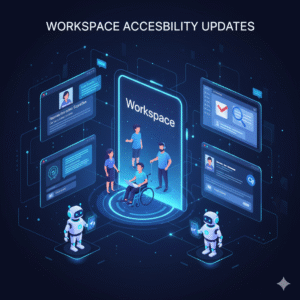
In today’s global and diverse workforce, collaboration must be universal. Everyone, regardless of their physical or cognitive abilities, deserves equal access to the tools they need to work effectively. Google Workspace is designed to connect teams across the globe. Therefore, ensuring that all tools are fully usable by everyone is a continuous and vital mission. Accessibility is not just a feature; it is a fundamental requirement for inclusive design.

Recently, Google has rolled out significant Workspace accessibility updates. These enhancements are focused on making Gmail, Docs, Meet, and other core applications more inclusive than ever before. Today, we will explore how these updates are actively tearing down digital barriers and fostering a more welcoming environment for everyone in the modern workplace.

How Does Workspace Make Collaboration Accessible

Enhanced Screen Reader Support Across All Apps

For many users who are blind or have low vision, screen readers are their primary way of interacting with digital content. Therefore, the latest Workspace accessibility updates have focused heavily on refining this experience. Specifically, Google has improved the keyboard navigation models within Docs, Sheets, and Slides. Consequently, users can move through menus, toolbars, and content areas more efficiently and predictably.

Furthermore, the semantic structure of documents and spreadsheets has been enhanced. This means screen readers can now provide clearer and more accurate context about headings, table structures, and complex data layouts. This improved structure allows users to quickly grasp the document’s organization and content. Ultimately, by ensuring seamless compatibility and clear navigation, Google is making all core functions of Workspace truly usable for those relying on screen readers.

Advancements in Live Captioning and Subtitling

Communication barriers are common in virtual meetings. Specifically, these challenges affect users who are deaf or hard of hearing, or those who are in noisy environments. Therefore, Google Meet’s live captioning has received a significant upgrade as part of the Workspace accessibility push. Consequently, the accuracy and responsiveness of real-time captions have been improved using advanced AI models.

Furthermore, new features allow users to customize the size and color of the captions to suit their specific visual needs. Now, Meet also supports live translation of captions in select languages. This capability not only helps deaf or hard-of-hearing users but also bridges language barriers for global teams. This advancement ensures that every spoken word in a meeting is accurately and inclusively communicated, making the meeting experience equitable for all participants.

Improving Contrast and Readability with High-Contrast Modes

Users with certain vision impairments or reading difficulties often struggle with low-contrast interfaces. Therefore, the latest Workspace accessibility updates introduce or refine high-contrast modes across the application suite. Specifically, these modes increase the difference between foreground elements (like text) and the background. This minimizes eye strain and improves readability. Furthermore, these updates often include better support for text resizing and magnification tools. Consequently, users can enlarge text without causing text to spill out of containers or disrupt the application’s layout. This attention to visual detail is critical. By providing adjustable visual settings, Google empowers users to customize the Workspace interface to meet their individual needs, which ensures a comfortable and accessible user experience across all applications.

Form Accessibility and Input Assistance

Digital forms are an essential part of daily workflow, but they can be a major hurdle for users with cognitive or motor disabilities. Therefore, Google has implemented several Workspace accessibility enhancements specifically for Google Forms and interactive elements in Docs and Sheets. Specifically, Forms now offers better integration with screen-reading commands, ensuring all field labels and instructions are correctly announced. Furthermore, new input assistance features, such as predictive text and clearer error messages, help users complete forms more quickly and accurately. These improvements reduce the cognitive load associated with form completion. Consequently, users can interact with documents and data entry fields with greater ease and independence, which is a vital step in making all aspects of Workspace accessibility seamless.

Mobile Accessibility and Inclusive Design on the Go

The modern workday is rarely confined to a desktop computer. Therefore, the principles of Workspace accessibility must extend fully to mobile devices. Google has focused on ensuring that all new features and updates are fully compatible with native iOS and Android accessibility settings. For example, mobile versions of Gmail and Drive now integrate more seamlessly with voice control commands and specialized switch access devices. Furthermore, the mobile interfaces maintain clear, logical navigation structures, which benefit users of all abilities. This commitment ensures that regardless of whether a user is accessing documents on a tablet, a phone, or a desktop, they experience the same high level of usability and inclusivity, making mobile work truly accessible for everyone.

Accessibility Checker and Document Remediation

Preventing accessibility issues before publication is always easier than fixing them later. Therefore, the built-in Accessibility Checker tool in Google Docs and Slides has been enhanced as part of the Workspace accessibility effort. Specifically, this checker now provides smarter, more proactive suggestions for improving document usability. For example, it will flag missing alt text for images, insufficient color contrast, or improperly structured headings. Furthermore, the tool often provides immediate, one-click fixes for simple issues. Consequently, creators are empowered to ensure their shared documents are inclusive from the very beginning. This focus on proactive remediation ensures that the collaborative work shared across the organization is accessible to every single team member, which promotes a culture of inclusion.

Conclusion

The recent Workspace accessibility updates represent a strong commitment to making collaboration truly inclusive for everyone. From the immediate feedback provided by enhanced screen reader support and the clarity of improved live captions in Meet to the comfort of high-contrast modes and the efficiency of better form accessibility, these features dismantle digital barriers. Google’s ongoing focus on mobile compatibility and the proactive guidance of the Accessibility Checker ensures that all users can participate fully and equally in the digital workplace. Ultimately, adopting and promoting these Workspace accessibility features is not just about compliance; moreover, it is about unlocking the full potential of a diverse and talented workforce by providing equitable access to the tools of modern collaboration.


Frequently Asked Questions (FAQs)

1. What is the biggest improvement for screen reader users in Workspace?

The biggest improvement is the enhanced reliability and efficiency of keyboard navigation across Docs, Sheets, and Slides. This is paired with improved semantic structure, which allows screen readers to provide clearer and more accurate context about document layouts and content.

2. How have live captions in Google Meet been updated for accessibility?

Live captions in Google Meet now offer improved accuracy and responsiveness due to advanced AI. Furthermore, users can now customize the size and color of the captions, and the service supports live translation for various languages, greatly aiding users who are deaf or hard of hearing.

3. What is the benefit of the high-contrast mode update in Workspace?

The high-contrast mode increases the visual difference between text and background elements. This change minimizes eye strain and improves readability for users with low vision or certain cognitive reading disabilities, allowing them to customize the interface to their comfort.

4. Where can I find the Accessibility Checker in Google Docs?

The Accessibility Checker is typically found in the “Tools” or “Extensions” menu within Google Docs and Slides. This tool proactively scans the document and provides suggestions and one-click fixes for common issues like missing alt text and poor color contrast.

5. Are the new Workspace accessibility updates also available on mobile apps?

Yes. Google prioritizes ensuring that all new Workspace accessibility features are fully compatible with native iOS and Android accessibility settings, including seamless integration with mobile screen readers and specialized voice control commands.

Also Read: New Workspace Add-ons: The Smart Office