Refresh loader

Category : Ecommerce Website Designing

Home > Archive for Ecommerce Website Designing

AI-Powered Meeting Summaries in Google Meet – Save Hours of Note Taking

The End of Tedious Note Taking

We all know the familiar struggle of a long virtual meeting in Google meet. Consequently, we often find ourselves desperately trying to participate in the discussion while simultaneously typing frantic notes to capture key decisions. This divided attention truly compromises both our presence in the meeting and the quality of our documentation.

Fortunately, the arrival of AI-powered meeting summaries in Google Meet is changing this workflow dramatically. This feature leverages generative AI to automatically create concise, organized notes, action items, and key takeaways immediately after or even during your session. Therefore, professionals can finally shift their focus entirely back to the conversation. This new AI-Powered Meeting Summaries approach is a true game-changer, promising to save countless hours of manual effort and significantly boost overall meeting productivity.
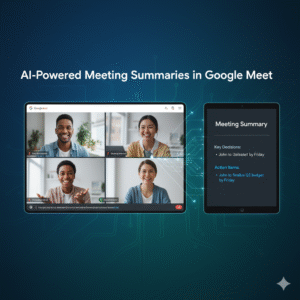
AI-Powered Meeting Summaries in Google Meet

Major Opportunities for Boosting Productivity

The ability of AI-Powered Meeting Summaries to automate documentation presents numerous opportunities for modern teams. Firstly, it allows every participant to engage fully in the dialogue, which leads to richer, more productive discussions and better outcomes. Furthermore, the AI instantly pinpoints crucial information, such as assigned tasks, deadlines, and decisions made. Consequently, these automatically generated action items ensure crystal-clear accountability across the team. Because of this accuracy, there is significantly less risk of overlooking an important detail or misunderstanding a key decision. Also, for employees with back-to-back meetings, the quick summary function serves as an instant catch-up mechanism. Clearly, using AI-Powered Meeting Summaries transforms post-meeting workflow from a time-consuming chore into a quick review process.

Moreover, these AI summaries promote better collaboration, especially in hybrid or global teams operating across various time zones. Since not everyone can attend every live session, a ready-made, shareable summary ensures that every stakeholder remains perfectly aligned. Furthermore, the summaries and full transcripts become a searchable knowledge base. Therefore, new team members can easily onboard and quickly understand the context of past projects without having to request lengthy briefings. In addition, the seamless integration of AI-Powered Meeting Summaries with Google Docs and Google Calendar simplifies the entire workflow, making documentation instantly accessible and linked to the original event. It is a highly efficient way to manage information flow.

Understanding the Operational and Security Risks

Despite the tremendous benefits, the adoption of AI-Powered Meeting Summaries does introduce important risks that teams must carefully manage. Most importantly, the reliance on AI for summarization creates a risk of subtle inaccuracies or misinterpretation, especially with complex, highly technical, or multi-topic discussions. Therefore, a quick human review and verification step remains absolutely necessary to validate the AI-Powered Meeting Summaries before they are finalized and distributed. Furthermore, the accuracy can truly depend on the quality of the audio and the clarity of the speakers.

Additionally, privacy and data security are paramount concerns with any AI-driven note-taking tool. Because the conversation data is processed by a third-party AI, businesses must ensure that the provider, especially Google in this case, has robust, enterprise-grade security and compliance measures. Consequently, organizations must thoroughly understand who has access to the recordings and transcripts and, more importantly, how that data is used—ensuring it is not used to train models outside of the specific company domain. Therefore, securing participant consent for transcription and recording is also a critical legal and ethical consideration before leveraging AI-Powered Meeting Summaries in any formal setting.

Navigating the Compliance and Trust Challenges

The use of AI-Powered Meeting Summaries also raises challenges related to compliance and internal trust. Since legal jurisdictions vary on recording and consent laws (such as one-party versus all-party consent), businesses must establish and clearly communicate an explicit policy on using AI note-takers. Therefore, hosts should always announce at the start of the meeting that the AI summary feature is active. Furthermore, trust among participants can be negatively affected if they are not fully comfortable with an ‘AI listening’ to their conversation, particularly during sensitive or confidential discussions.

Moreover, organizations must verify that the AI-Powered Meeting Summaries comply with industry-specific regulations, such as HIPAA or GDPR, depending on the nature of the conversation. Consequently, it is vital to check the security posture and data residency options provided by the platform. Therefore, transparency regarding the use of AI note-takers is not optional; it is fundamental to maintaining an ethical and compliant work environment. Ultimately, the successful deployment of AI-Powered Meeting Summaries hinges on balancing the incredible benefits of automation with meticulous risk management and full transparency.

The Smart Future of Meetings

AI-Powered Meeting Summaries in Google Meet represent a significant leap forward in workplace efficiency. This technology moves meeting participants from being passive scribes to active contributors, effectively saving countless hours of note-taking time. The core benefits of increased focus, automated action items, and better team alignment are truly transformative. However, we must proceed with caution, always verifying AI output for accuracy and meticulously managing the serious risks associated with data privacy and compliance. By integrating this powerful tool thoughtfully and establishing clear guidelines, every professional can successfully leverage AI-Powered Meeting Summaries to unlock a new level of meeting productivity and better overall results.


Frequently Asked Questions (FAQs)

1. How does the AI generate the meeting summary in Google Meet?

The AI uses the live transcription of the meeting (which converts speech to text) and then applies sophisticated language models to identify, extract, and structure the key discussion points, decisions, and action items into a concise summary document.

2. Who can start and view the AI-Powered Meeting Summaries?

Typically, the meeting organizer and internal participants can start and stop the note-taking feature. The final summary document is usually attached to the Google Calendar event and automatically shared with all meeting invitees who have the proper access permissions.

3. Is the full transcript available, or just the AI summary?

Both the full transcript and the AI-generated summary are generally available. The summary provides a quick overview, while the full, time-stamped transcript allows users to verify details or review specific parts of the conversation.

4. What is the most important risk to consider before using AI-Powered Meeting Summaries?

The most important risk is data privacy and security. You must ensure the platform’s policies comply with your company’s data handling standards, particularly concerning the storage and use of confidential meeting information.

5. Does using the AI summary feature require participants to consent?

Yes. While the specific legal requirement for consent varies by location (one-party vs. all-party consent laws), it is an ethical and best practice requirement to inform all participants at the start of the meeting that the session is being transcribed and summarized by AI.


Also Read: Workspace Admin Console Updates: What Every IT Admin Must Know

The Zero Trust Shift: Securing Hybrid Work with ZTNA

The old security walls are gone. Hybrid work is the norm today. Relying on the old “castle-and-moat” idea is risky. This old plan trusted all inside the work net. Consequently, Zero Trust Architecture (ZTA) is the key to safe work. Zero Trust uses one rule: never trust. Always verify.

All users, devices and data must be checked. This is true even for access inside the network. This constant check is vital.

New Zero Trust fixes are part of the net. They use smart tools like AI. They use flexible access rules. Thus, these tools give better security. Workers are everywhere now. For this reason, a strong Zero Trust plan is a must for all firms. Moreover, this plan knows threats are everywhere. Therefore, the net is never trusted by default. This change helps keep the whole system safe.

Image Of The Zero Trust Shift: Securing Hybrid Work with ZTNA

Beyond The Basics: The Evolution of ZTA Pillars

The first Zero Trust design only focused on two things. First, it focused on strong Identity and Access Management (IAM). Second, it focused on dividing the net. However, threats are much smarter now. Therefore, the whole design has changed. Now it includes more detail. Also, it includes smarter access checks across all digital tools. Thus, these new improvements are making security stronger. Also, they are making the process clearer for the workers who use the system.


Context-Aware Access and Evaluation

Access checks cannot stay static. They cannot only depend on a name and a code. Instead, access decisions are always changing. They change based on many factors. Therefore, new Zero Trust systems check many different things. They check these things all the time. They check for every access request. This non-stop check is great.

For example, the system checks these key factors:

  • User Identity and Role: Who is the person trying to log in? What can this person do based on their job?
  • Device Posture: Is the device following all company rules? Is the system fully up-to-date? Does the device have the right virus scan running? For this reason, if a device’s score drops, the system cuts off access fast. Or, it lowers the access level right away.
  • Location and Geolocation: Where is the access request starting from? Is this a strange place for this worker to be?
  • Time of Day: Is the worker trying to look at secret data late at night? For instance, is it at 3 AM?

This continuous check means the system never just gives trust easily. Access can quickly change. Also, the system can stop access right in the middle of a session. This happens if the risk goes up. This action prevents a hacker from moving inside the net. Therefore, Zero Trust gives great control.


The Rise Of AI And Automation

Artificial intelligence (AI) is the main power source for the next step in Zero Trust. AI and machine learning look at huge logs of data. They do this in real time by looking for strange things. They flag risky actions that people would miss. This speed is vital now.

New AI improvements give great help. For example, AI-driven fixes include:

  • Automated Data Classification: AI automatically reads and sorts data. It gives the data labels like “Secret.” This task is crucial. This ensures that the rules for Data Loss Prevention (DLP) work right. This is true no matter where the data is kept. This helps protect private customer details.
  • Behavioral Analytics: The system learns what is normal for a user. Consequently, if a worker suddenly uses an app they never touch, the AI sees it. Or, if the worker starts getting too much data, the AI detects the odd change. Then, the system forces a re-check. Or, it blocks the action. This step helps a lot. It also stops bad behavior.

The system uses Threat Detection and Response (XDR). XDR combines security facts. It gathers data from emails and computers. It gives a full picture of any threat. Thus, the system can quickly block bad computers or users. Truly, Zero Trust gets its power from these tools.


From VPN to ZTNA: Securing The Hybrid Workforce

The biggest change in the Zero Trust setup is the move from old VPNs. Now, everyone uses Zero Trust Network Access (ZTNA). This move is necessary. It secures all remote work teams.

VPNs had a major fault. They gave a user access to the whole net once checked. This was a single point of failure. Conversely, ZTNA replaces this old way. It uses true least-privileged access. Therefore, a remote worker only makes a small, safe link. This link goes only to the one app the worker needs. It does not connect to the whole net.

This change has many pluses. The attack area shrinks greatly. Thus, it makes it hard for a hacker to find a way in. Also, the risk of harm is low if a computer is hacked. This cuts the “blast radius” of any break-in. ZTNA also runs quietly. It is fast and better for the user. It avoids the slow-down issues that were common with old VPNs. Thus, choosing ZTNA is a main step toward full Zero Trust.


ZTNA Versus VPN Comparison

Feature Old VPN Model Zero Trust Network Access (ZTNA)
Trust Model Implicit Trust (Trusts all once door opens) Never Trust, Always Verify (Checks every action)
Access Granularity Grants network access (You get the whole floor) Grants application access (You get one desk)
Attack Surface High (Exposes the net to hackers) Low (Apps stay hidden from hackers)
Lateral Movement Easy (Hacker moves freely) Blocked (Access is limited to one app)

ZTNA simplifies security a lot. You do not need to check complex firewall rules for every user. Instead, the rule is based on the user’s name. This rule follows the user. Thus, the security stays the same everywhere. Consequently, ZTNA fixes the main problem of securing workers who move often.


Key components for a robust zero trust workspace

Building a full ZTA needs many layers of defense. You must cover every part of your digital work area. These three core parts work well together. They deliver very strong workspace security.

1. Identity and Endpoint Security

A strong system for Identity and Access Management (IAM) is the most basic need. This involves forcing all users to use Multi-Factor Authentication (MFA). MFA adds a safe step after the password. It also requires using Single Sign-On (SSO). SSO centralizes the login process. Furthermore, the focus on Endpoint Security has grown. Zero Trust Architecture checks all devices deeply. It checks phones and computers. It must ensure that all devices meet strict rules before they can connect. If a worker uses their own phone, the system keeps company info separate. This is vital.


2. Micro-Segmentation and Networking

Micro-segmentation is a powerful tool. It cuts the whole net into small zones. Gaining access to any zone needs a separate, clear pass. This stops a hacker from moving around easily. If an attacker breaches one part, their harm is small. They cannot move to the finance server from the marketing server easily. They need a new key. Likewise, the network side has changed. It now views the computers in the main office as just another untrusted part. This is key. This guarantees that the rules work the same way for every link. It does not matter if a worker is at home or in the main office.


3. Data Protection and Governance

In the end, the main job of Zero Trust is to protect the info. New fixes focus on applying consistent DLP policies. These rules apply to all apps. They work for cloud apps. They work for in-office apps. This step ensures that secret info is always safe. It must be safe when it sits still. It must be safe when it moves. Also, Zero Trust creates a full record. This audit trail shows every access try. It shows every data action. This clear record is needed. It greatly improves security. Moreover, this transparency makes meeting rules much simpler. Thus, security teams can easily prove compliance.


Conclusion: Building a Secure Future

The move to Zero Trust Architecture is not a trend. It is a required security shift. The shift to hybrid work has killed the idea of a safe net border. Consequently, firms must use the “never trust, always verify” rule. This ensures that security is used everywhere. It is used on every person and device. It does not matter where they are.

This modern security plan is built on many key fixes. For instance, ZTNA replaces old VPNs. AI uses constant checks to find threats fast. Micro-segmentation stops hackers from moving around inside the net. Furthermore, focusing on the person and the device’s health makes access choices smart. Therefore, companies that use a full Zero Trust plan will gain a major plus. They will keep their data safer. They will simplify compliance and will also give their workers a safe way to work from anywhere. Truly, a strong Zero Trust plan is the best choice for future business safety.


Frequently Asked Questions

1. What does “never trust, always verify” actually mean in practice?

It means the system checks the user every time they want to do something. For example, when a user logs in, the system checks them. When they click on a new app, the system checks them again. Consequently, the system treats the whole net as a dangerous place. It trusts nothing easily.


2. How does zero trust prevent lateral movement?

Zero Trust uses micro-segmentation. This divides the net into small, secure areas. When a user gets access, they only get a small link to just one resource. Therefore, if a hacker gets that user’s access, they cannot move to other parts of the net. They are stuck in a tiny zone.


3. Is ZTNA a replacement for my VPN?

Yes, Zero Trust Network Access (ZTNA) is now taking the place of old VPNs. VPNs gave users access to the entire net. This was risky. However, ZTNA grants access only to one specific app. This is after the user and device are fully checked. This makes security much better for people working from home.


4. How does context-aware access improve security?

Context-Aware Access makes security decisions smart. It uses real-time info. For instance, it checks the device’s health. It checks the user’s location. It uses this info to guess the risk. Then, it changes the access level right away. It can deny access if the risk is too high.


5. Why is ai so important to the latest zero trust enhancements?

AI is key because it can check for threats faster than any person. It learns what is normal. It then flags strange actions fast. This allows the system to find hackers right away. Consequently, the hacker has very little time to cause harm in the workspace.


Also Read: Latest Outlook Updates: Smarter Scheduling and AI Suggestion

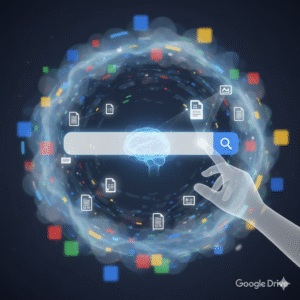
Google Drive Smart Search: How AI Finds Your Files

Do you ever feel like Google Drive just knows what you’re looking for? Actually, it’s not a coincidence; instead, it’s the result of some incredibly smart technology. Essentially, this system uses artificial intelligence (AI) to find files before you even start looking for them. This smart search feature has certainly changed how we find our documents, shifting from simple keyword searches to something truly intelligent. For instance, the AI acts like a personal assistant, always working to make your life easier. This amazing capability is a major part of its success.

This advanced technology saves us lots of time, of course. For example, it helps eliminate the frustrating process of manually searching through folders. Likewise, the AI works in the background, consistently learning your habits and predicting your needs. As a result, it analyzes not just the file names, but also the actual content inside. This ultimately provides a personalized and surprisingly intelligent search experience. Truly, this AI-powered function makes finding what you need on Google Drive simpler and faster than ever.


The Brains Behind the Operation: How AI Works

The core of Google Drive’s smart search, undoubtedly, is its powerful AI. In fact, it uses a mix of machine learning, natural language processing (NLP), and deep learning models. Instead of simply looking for exact keyword matches, the AI interprets your search queries. For instance, it understands the context. For example, if you type “project alpha notes from last week,” the AI does not just look for those specific words in a file name; rather, it understands that you want a file related to “Project Alpha,” a specific type of document (“notes”), and a particular time (“last week”). Consequently, this is a massive improvement over traditional search methods.

Furthermore, the AI learns from your past actions and habits. Therefore, it remembers which files you access often, who you collaborate with, and what documents you use for specific tasks. Similarly, it analyzes the content of your files—whether it’s a contract, a presentation, or a report—to better categorize and show you the most relevant results. This continuous learning process, in fact, ensures the search results get more accurate and more personal over time. In conclusion, the system truly works for you.


Image of Google Drive Smart Search

Beyond Keywords: The Benefits of AI-Powered Search

The benefits of Google Drive smart search go far beyond just a simple keyword match. For many people, the most obvious benefit is the huge amount of time saved. After all, when you find a file in seconds instead of minutes, you can stay focused on your work. The AI’s ability to understand context means you do not have to remember the exact file name. Thus, you can use natural language, making the search feel more like talking to a helpful assistant.

This intelligent system also improves teamwork. For instance, when you are working in a shared drive, the AI can suggest files based on what your coworkers are doing, which makes collaboration much smoother. Additionally, it can automatically classify and label sensitive content, offering an extra layer of security. Of course, this smart classification helps you maintain an organized and efficient digital workspace without lots of manual effort. Because of its proactive nature, the system often shows you relevant files before you even begin a search, anticipating your needs and helping you stay on top of everything.


Making the Most of Smart Search: Practical Tips

To fully use the power of Google Drive’s AI-powered search, a few simple habits can help. While the AI is very smart, a consistent approach to file organization makes its job even easier. To begin, use clear and descriptive file names. For example, “Meeting Notes” is okay; however, “Q4 Marketing Strategy Meeting Notes – 09.2025” is much better. Therefore, this provides the AI with more useful information for its algorithms.

Another useful tip is to use file descriptions and starring. In addition, adding a short description or important keywords to a file gives the AI more context. Consequently, you should also “star” important or frequently used files to signal their priority. The more information and context you provide, the better the AI can learn and deliver accurate, useful results. By combining these simple organizational habits with the platform’s advanced AI, you can create a highly efficient and personalized digital workspace.


FAQs

1. How does AI-powered search in Google Drive differ from a traditional search? Traditional search relies on keyword matching. By contrast, AI-powered search uses machine learning and NLP to understand the context of your query. This, as a result, provides more accurate and personalized results based on your digital habits.

2. Does Google Drive’s AI search use my personal data? Yes, it analyzes your activity, such as the files you access and your collaboration patterns. For this reason, the data helps to personalize your search experience and offer more relevant file suggestions. Google, however, has privacy controls that allow you to manage how this data is used.

3. Can AI find files if I do not remember their name? Absolutely. Given that the AI understands context and content, you can search using natural language. For example, you can search for “presentation from last month about the client report” and the AI will probably find the right file without you needing its exact name.

4. How can I improve my search results on Google Drive? You can improve your search results by using consistent and descriptive file names. Additionally, you should add descriptions to your documents and star important files. The more context you provide, the better the AI becomes at finding the right files for you.

5. Is the smart search feature available to all users? Yes, the smart search functionality is a main feature of Google Drive and is available to all users with a Google account.

Also Read: The Future of Docs: Google’s Emoji Reactions Explained

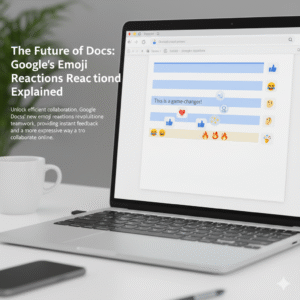
The Future of Docs: Google’s Emoji Reactions Explained

Have you ever found yourself in a Google Doc, wanting to show you agree or disagree, but a full comment just feels like too much? In fact, everyone has. Now, Google Docs has an answer for that common feeling. This is a game-changer for digital collaboration. Indeed, it is changing how teams work together. The new feature, therefore, is Google Docs’ real-time emoji reactions. You can now react instantly to text with a thumbs-up, a laughing face, or any other emoji. This simple addition, in a sense, is a big step forward for collaboration. Consequently, this change has major implications for how we work together.

Image of Google's emoji Reactions

Emojis: More Than Just Fun

You might wonder, naturally, if emoji reactions are just for fun. However, they serve a deeper purpose in today’s work environment. To begin with, they offer a quick way to give feedback. For example, you can give a thumbs-up to a section you like. This signals your support without a long comment. As a result, your colleague knows you have seen their input. Ultimately, this speeds up the review process.

Additionally, emojis add nuance. This is important. For instance, a simple sentence can be hard to read. A sentence like “This is a good idea” can be interpreted in different ways. Conversely, adding a 🙏 or a ✨ emoji makes the positive meaning clear. In contrast, a 🤔 emoji can gently suggest that you need more information. Therefore, emojis help with tone.

Furthermore, they streamline the review process. Consequently, this makes it easier for everyone. For example, instead of writing out long feedback, you can highlight text. You can then add a ❤️ or a ❓ emoji. This makes feedback visual. Likewise, it is less wordy.

More importantly, emojis build a better work culture. Since many people work remotely, this is very important. Therefore, emoji reactions add a human touch. A well-placed 😂 or 🎉 emoji can, in fact, celebrate a team win. Similarly, it can lighten the mood. Therefore, it helps with team morale. It is like having a silent cheerleading squad in your document. Finally, emojis help identify consensus. You can quickly see which parts of a document everyone likes (lots of 👍) or which parts need more discussion (a bunch of 🧐). As a result, this helps the document owner to see team sentiment.


How It Works: Super Easy!

Therefore, how does the feature work? In the first place, it’s quite simple. First, highlight the text you want to react to. After that, a small emoji icon appears. This icon is next to the text. It looks like the comment icon. Next, click the emoji icon. A selection of emojis will pop up. Then, choose your emoji. It will then appear next to the text. Of course, you can also see who reacted. In short, it’s a quick and easy process.


The Future of Collaboration

The new emoji reaction feature is a big step for Google Docs. Consequently, it is a big step for digital collaboration. For this reason, it makes our work more human. As our work changes, tools that help us communicate better will become very important. Therefore, this feature is very useful. It will, in fact, make online collaboration more expressive. This is because it is a very natural way to communicate. So, do not just comment. React. This will make your collaborative experience more engaging.

What do you think of this new feature?


FAQs

1. How do you add an emoji reaction in Google Docs?

To add a reaction, you must highlight the text. After that, you will see a small emoji icon. Then you can select your emoji.

2. Is this feature available to everyone?

This feature is available to most Google Docs users. In short, it is being rolled out to personal and business accounts.

3. Can I use any emoji?

Yes, you can use any emoji from the selection. This includes common emojis like 👍, ❤️, and 😂.

4. Can I see who added a reaction?

Yes, you can. You can see who added each emoji. This is very useful. It provides extra context.

5. How does this improve teamwork?

This feature helps teams in many ways. For example, it gives instant feedback. It also makes communication more expressive. Additionally, it helps build team morale. All things considered, it improves collaboration.

Also Read: Google Meet’s New AI Noise Cancellation: A Game-Changer

Google Meet’s New AI Noise Cancellation: A Game-Changer

Remote work has become the new norm for countless teams worldwide. While it offers flexibility and convenience, it also introduces a unique set of challenges. One of the most persistent and frustrating? Background noise. From barking dogs and wailing sirens to the gentle hum of a washing machine, unexpected sounds can derail even the most important virtual meetings. Enter Google Meet’s new AI noise cancellation. This isn’t just another filter; it’s a sophisticated leap forward that promises to revolutionize how remote teams communicate.


The Problem with Noise: More Than Just an Annoyance

Think about it: how many times have you been on a call where someone’s audio is dominated by a distraction?

  • Loss of Focus: Your brain is working overtime trying to filter out the noise, making it harder to concentrate on the speaker’s words.
  • Reduced Productivity: Repeated interruptions can extend meeting times and lead to frustration.
  • Communication Breakdown: Critical information can be missed or misunderstood, leading to errors and rework.
  • Professionalism: Persistent background noise can inadvertently project an unprofessional image, even if the individual has no control over their environment.

Traditional noise reduction tools often fall short. They might muffle some noise, but often at the cost of audio quality, sometimes making voices sound robotic or cutting off words.


How Google Meet’s AI Noise Cancellation Works Its Magic

Google’s approach leverages advanced artificial intelligence and machine learning to distinguish between human speech and unwanted background noise. It’s not just dampening sounds; it’s intelligently identifying and isolating them.

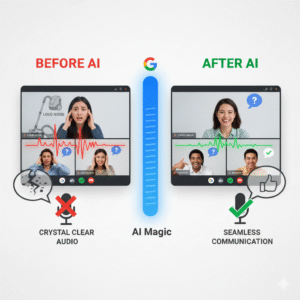
Imagine this: your colleague is presenting vital data, and suddenly a vacuum cleaner starts up in their house. Instead of hearing the jarring whir, you simply continue to hear your colleague’s clear voice. The AI is smart enough to know what to keep and what to discard. This means sounds like keyboard typing, door slams, wind, and even construction outside your window can effectively vanish from your meeting audio.

Here’s a quick look at the impact:

Image of Google Meet’s New AI Noise Cancellation

The Game-Changing Benefits for Remote Teams

  1. Crystal-Clear Communication: This is the most obvious and impactful benefit. When everyone can hear and be heard without interruption, clarity improves dramatically. Misunderstandings decrease, and information flows more smoothly.
  2. Enhanced Focus and Productivity: With fewer distractions, participants can maintain focus on the meeting’s agenda. This leads to more efficient discussions, quicker decision-making, and ultimately, higher productivity.
  3. Reduced Meeting Fatigue: Constantly battling background noise is mentally draining. By removing this cognitive load, participants will experience less fatigue, making longer meetings more bearable and productive.
  4. Increased Professionalism and Equity: This feature levels the playing field for team members who might not have a perfectly quiet home office. It ensures that everyone can participate professionally, regardless of their immediate environment.
  5. Greater Flexibility: Team members no longer need to stress about finding a perfectly silent spot. They can take calls from more diverse locations, enhancing the flexibility that remote work promises. Imagine taking a meeting from a coffee shop without the clatter of cups or the murmur of conversations interfering!


A Glimpse into the Future of Virtual Collaboration

Google Meet’s AI noise cancellation is more than just a convenient feature; it’s a testament to the ongoing evolution of virtual communication tools. As AI continues to advance, we can expect even more sophisticated solutions that make remote interactions feel as natural and seamless as in-person ones.

For remote teams, this update is truly a game-changer. It addresses a fundamental pain point, paving the way for more effective, enjoyable, and productive virtual collaboration. If you’re using Google Meet, make sure to enable this feature and experience the difference for yourself – your team will thank you!


FAQs: Google Meet’s AI Noise Cancellation

Q1: How do I turn on Google Meet’s AI noise cancellation?

A: Turning on this feature is simple and can be done before or during a meeting. Look for the three vertical dots (More options) in the bottom right corner of your screen, then go to “Settings.” In the “Audio” tab, you’ll find the “Noise cancellation” toggle. Just switch it on, and the AI will start filtering out unwanted sounds.

Q2: What kind of sounds does the AI noise cancellation filter out?

A: The feature is designed to filter out non-speech sounds that can be distracting. This includes common background noises like keyboard typing, papers shuffling, door slams, echoes, wind, and even construction sounds. However, it’s important to remember that it is not meant to filter out human voices from other people talking near you.

Q3: Is the noise cancellation feature available for everyone?

A: The availability of cloud-based AI noise cancellation can depend on your Google Workspace edition or subscription. It is a premium feature included with certain paid plans, such as Business Standard, Business Plus, Enterprise, Education Plus, and others. However, device-based noise suppression is available on most Android phones for all users, including those with personal Google accounts.

Q4: Will it affect audio from a video I’m sharing during a meeting?

A: No, when you share your screen, the AI noise cancellation does not affect the audio from the content you are presenting, such as a video or music. This ensures that your meeting participants can hear the shared media clearly without any distortion.

Q5: What should I do if the noise cancellation isn’t working properly?

A: If you find that the feature is not working as expected, first ensure you’re on a supported device and that you have the latest version of the Google Meet app or browser. You should also check that the “Noise cancellation” toggle is actually turned on in your audio settings. If you’re in a quiet environment, the feature might be less noticeable, and if you’re trying to share music or other non-speech sounds, you may need to turn it off.

Also Read:  AI-Powered Writing in Gmail & Docs

AI-Powered Writing in Gmail & Docs

In the fast-paced digital world, writing is a constant task. We write emails, create documents, and draft reports every single day. Therefore, any tool that can make this process faster and more efficient is a game-changer. For years, Google’s Smart Compose has offered simple sentence completions. In contrast, today’s AI-powered writing tools in Gmail and Docs, now powered by the Gemini model, are in a different league entirely. This new evolution moves far beyond simple suggestions. In fact, it provides a truly collaborative writing experience. This is a huge shift, consequently changing how we interact with our digital documents.

Image of AI-Powered Writing in Gmail & Docs

From Autocomplete to a True Co-Author

Smart Compose, originally a clever machine-learning feature, was a great start. It provided predictive text and helped correct grammar. However, it was, at its core, a reactive tool. It simply responded to what you typed. Today’s AI-powered writing is proactive. It can understand the context, purpose, and even the tone of your content. For instance, you can simply write a short prompt like, “Write an email to my team about the upcoming project deadline.” Immediately, the AI will generate a complete, professional draft. This is a significant improvement. It saves you time, of course. It also helps you overcome writer’s block.


Writing with AI in Google Docs: A Seamless Experience

The integration of Gemini into Google Docs offers a powerful new way to write. First, the “Help me write” feature acts as a blank canvas. You just give it a simple command, and it will generate a first draft. Furthermore, it can refine your work with remarkable ease. For example, you can select a paragraph. You can then prompt the AI to “shorten it,” “elaborate on this idea,” or “make it more formal.” This allows you to sculpt your text with a few simple clicks.

In addition, you can use the AI to generate bullet points from a dense paragraph, summarize a long article, or even brainstorm new ideas. Consequently, this makes the writing process more fluid. The AI-powered writing tool is always there, waiting to help you.


AI in Gmail: Mastering Your Inbox

The new AI-powered writing features in Gmail make managing your inbox far more efficient. In fact, it’s a huge time-saver. Consider this: you receive an email. You can now use the AI to draft an entire reply based on the original message. You can, for instance, ask it to “write a reply accepting the meeting invitation” or “draft a polite decline.” The AI understands the context. It can even extract details like names and dates. It then generates a personalized, context-aware response. Furthermore, it can summarize long email threads. This lets you quickly grasp the key points without reading every single message. Therefore, this helps you clear your inbox faster. It also helps you respond more thoughtfully and efficiently.


The Future of Writing is Collaborative

Ultimately, the goal of this AI-powered writing is not to replace human creativity. Instead, it is to enhance it. The AI acts as a smart co-pilot. It handles the mundane parts of writing. This frees you to focus on the more creative aspects. It helps you articulate your thoughts more clearly. It also helps you communicate more effectively. As these tools continue to evolve, they will become more personalized. They will learn your unique style and tone. Consequently, the collaboration will become even more seamless. We are, therefore, moving toward a future where writing is a partnership between human intelligence and AI, creating content that is both faster and better than ever before.


FAQs

1. What is the difference between Smart Compose and the new AI writing features?

Smart Compose provided simple word and sentence predictions. In contrast, the new AI-powered writing features, now based on the Gemini model, can generate entire drafts, rewrite selected text, and summarize content based on a detailed understanding of context.

2. How do I access these new AI features in Gmail and Docs?

These features are now being rolled out to Google Workspace users. You can find them through the “Help me write” button in Docs and through new prompts and options when drafting an email in Gmail.

3. Will these AI tools change my personal writing style?

The AI tools are designed to assist you, not replace you. They can, however, learn from your style. You should always review and edit the suggestions to ensure they align with your voice and intent.

4. Can the AI write about any topic?

The AI can write about a wide range of topics. However, you should use it responsibly. Always verify any facts or information it provides. In addition, avoid using it for sensitive or confidential material.

5. Is my data safe when using these AI writing tools?

Google states that it handles user data with care. It applies its standard data protection and privacy measures to these new AI features.

Also Read: Microsoft 365 Copilot: Complete Guide (2025)

Know More

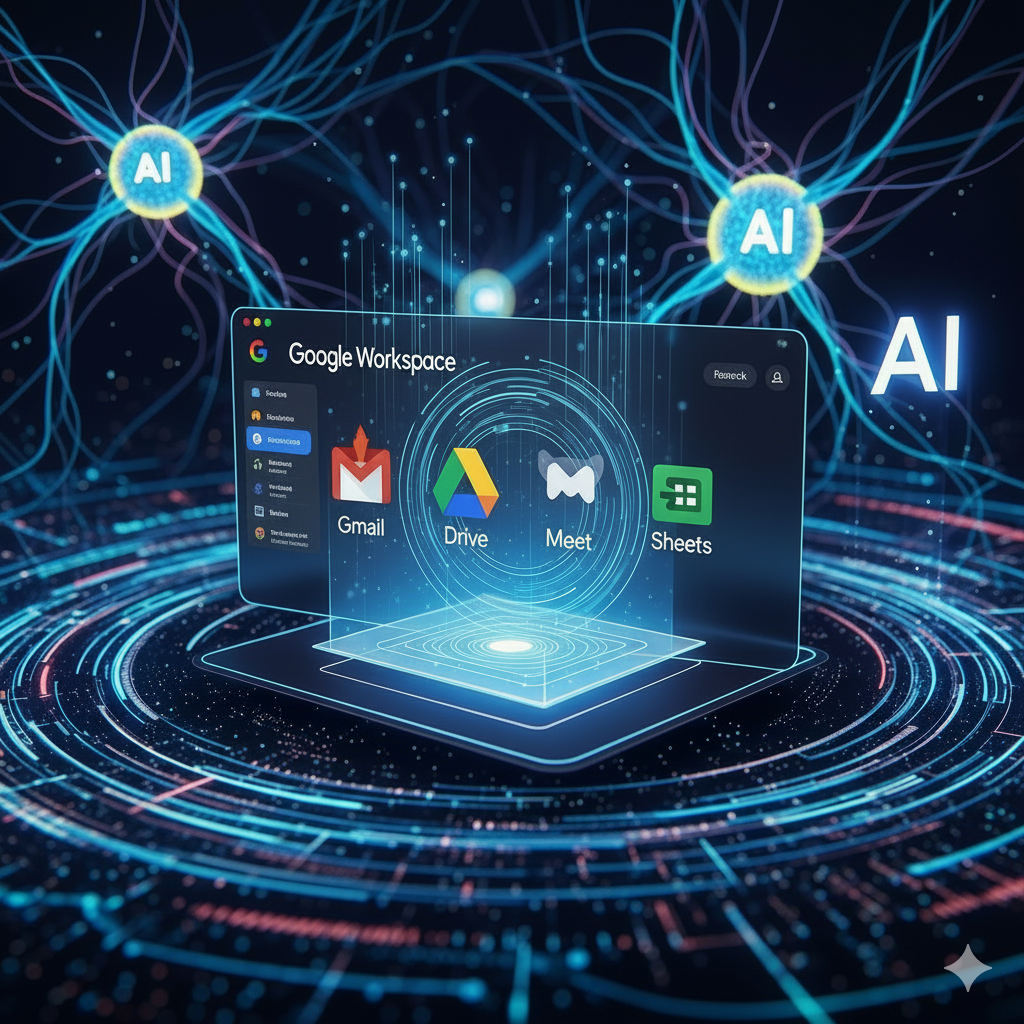
Updates in Google Workspace: September 2025

The digital world changes fast. Staying updated with the latest tools is a must. Google Workspace, a leader in productivity and collaboration, is always innovating. This September 2025, a wave of new Workspace updates is here. These changes are exciting. They show Google’s commitment to a smarter, more intuitive work environment. Most of the new features use Gemini AI. They help you work better and faster. These improvements cover Gmail, Drive, Meet, and Sheets. Get ready to explore the key updates you shouldn’t miss.

Gemini AI: The Brain Behind the Brilliance

google workspace
Artificial intelligence is changing how we work. In Google Workspace, AI is no longer a separate tool. It’s now a part of everything you do. Gemini AI has become a proactive partner. It anticipates your needs and offers quick solutions. This deeper integration is a major step. It moves from simple automation to sophisticated intelligence. The goal is to make your work easier. Gemini helps you get rid of boring tasks. Consequently, you can focus on more important things. Google wants every user to feel like they have a personal assistant.

A Smarter Google Drive: Gemini Summaries

Looking for a specific document can be a hassle. You might have to open many files just to find the right one. This process is often time-consuming. However, a new update makes things much easier. Gemini summaries now appear on suggested files. This is a huge change. Before you open a file, Gemini gives you a quick summary. This includes Docs, Sheets, Slides, and PDFs. It helps you quickly see what a document is about. As a result, you can save valuable time. You can also prioritize your work more effectively. This makes your Drive home page an intelligent information hub.

Creating Perfect Presentations in Google Slides

Making a great presentation takes work. You spend hours writing the perfect text. Still, poor wording can ruin your message. Fortunately, the new Refine Text feature, powered by Gemini, is here to help. You no longer have to struggle to find the right words. Gemini helps you edit text boxes in Slides. It offers smart suggestions. For example, you can shorten a long paragraph. You can also rephrase an idea for better clarity. You can even formalize the tone. Additionally, you can use a custom prompt. This lets you get a very specific result. This feature helps you be more impactful and save time.

Enhanced Document Scanning on Android

Many of us work on the go. This means we often need to scan physical documents with our phones. But scans can be blurry or have shadows. This makes them look unprofessional. Google Drive on Android has a new and improved scanning tool. This update gives you professional-grade scanning. You can now crop and rotate documents easily. You can also apply filters to make the text clearer. Most importantly, you can now erase shadows. This makes your scans clean and professional-looking. Now, digitizing receipts or notes is both easy and reliable.

Smarter Tools for Education

AI is also transforming education. Google is helping both students and teachers. There is a new subscription called Google AI Pro for Education. It offers many powerful features. These new tools are in NotebookLM. Students can now use them to study better. For instance, NotebookLM can turn documents into flashcards and quizzes. You simply upload your notes. Then, the AI creates study aids for you. This helps with active recall, which improves memory. For teachers, it means more engaging lessons. For students, it’s like having a personal tutor.

Better Collaboration and Communication

Teams need to communicate well to succeed. Google Workspace is always improving its tools to help teams connect. September’s updates help you stay in the loop and work together smoothly.

Stay Notified in Google Chat

Sometimes, you miss small but important reactions to your messages. This can be frustrating. Now, Google Chat sends real-time push notifications for reactions. This helps you stay on top of conversations. You won’t miss any feedback. Therefore, communication with your team becomes more fluid and responsive.

Find Changes Easily in Google Sheets

Tracking changes in a shared spreadsheet can be hard. The version history often shows everything, making it confusing. Now, Sheets has a new condensed version history view. This view shows only the rows with changes. This helps you quickly see what’s been updated. It saves time and prevents you from missing important edits.

Smooth Meetings in Google Calendar

Scheduling meetings with people on different calendar apps can be tricky. They may not get the Meet link automatically. When you invite an Outlook user to a Google Meet, the link is now added to the location field. This simple change makes joining meetings much easier. It ensures your meetings start on time.

Protecting Your Privacy

Privacy is crucial. When you copy a Calendar event, you don’t want to share private notes. Now, when you copy or duplicate an event, the Meet conference and its notes are not copied over. This protects your information. It ensures that meeting access and details stay secure.

The Future of Your Workflow

These September 2025 updates show Google’s clear strategy. They are building an intelligent ecosystem. Gemini AI is a core part of this. It helps automate repetitive tasks. It also improves your creative potential. These updates are about more than just new features. It is  about smarter ways to work. They help you manage information better. It also improve how you collaborate. By using these new tools, you are future-proofing your workflow. You will produce higher-quality work and be more productive.

Frequently Asked Questions (FAQs)

1. What is the main focus of the Google Workspace September 2025 updates? The updates focus on deeper Gemini AI integration. This improves productivity in apps like Drive, Slides, and for educational tools. 2. How do Gemini summaries in Google Drive work? They give you quick, AI-generated summaries of documents on your Drive homepage. This helps you understand a file’s content without opening it. 3. What can Gemini AI do for Google Slides? Gemini’s new “Refine Text” feature helps you edit text in Slides. It can shorten text, rephrase sentences, or format them into bullet points. 4. Are there improvements for mobile users? Yes. The Google Drive app for Android has a new scanning tool. It helps you easily crop, filter, and remove shadows from scanned documents. 5. How do these updates improve collaboration? New features help in many ways. For instance, in Sheets, you can see a condensed version history. In Chat, you get notifications for message reactions. Also, Meet links are now automatically added to invitations for external users.  

The Power of POS System in Shopify

Providing a seamless shopping experience for customers in today’s fast-paced retail environment, as well as managing inventory and sales is critical to success Shopify, one of the leading eCommerce platforms, hears such demand variety of these down and integrates e-Point of Sale (POS) systems into its arsenal of components. This powerful combination of retail and in-store retail is changing how businesses operate, whether they have a brick-and-mortar store, an online store, or both.

Using a POS system in Shopify offers a wide range of benefits that improve the customer experience and the retailer’s efficiency. One key advantage is the ability to integrate inventory across sales channels. Whether the product is sold in-store or online, inventory is automatically updated in real-time, eliminating over-sales and inventory mismatches. This feature ensures that customers can get accurate information on product availability, improving trust and confidence.

Additionally, the POS system in Shopify simplifies checkout processes, reduces wait times, and increases customer satisfaction. With integrated payment gateways that allow customers to pay via multiple methods, such as credit card, mobile wallet, or Shopify’s own payment system, Shopify Payments also offers this flexibility and frictionless payment experience with the compulsion to encourage repeat purchases and foster customer loyalty.

In addition to streamlining sales and inventory management, POS systems empower retailers to generate valuable data insights. Detailed sales reports, customer profiles, and purchase histories help businesses make informed decisions about replenishment, marketing strategies, and personal customer engagement. Retailers can gain a deeper understanding of their customers and identify opportunities to innovate or market-related products.

Shopify’s POS system facilitates customer loyalty programs and discounts, encourages repeat business and increases customer retention. Retailers can offer targeted promotions, reward points and exclusive deals to build stronger customer relationships.

In conclusion, the use of POS systems in Shopify has changed the way retailers manage their business. By seamlessly integrating online and in-store sales, integrating inventory, and providing valuable data insights, the Shopify POS system empowers businesses to deliver exceptional customer experiences, and it makes their retail operations very efficient. Adoption of this technology can be key to improvement in today’s competitive world of sales.

To know more about Shopify’s POS system click here.

How To Optimize The Performance Of Your Web Apps

Optimizing the functionality of your web application  (Web Apps)  is essential to ensure a smooth experience and a high level of user engagement. Fast and responsive web applications (Web Apps)  not only satisfy users but also affect your search engine rankings. Here are some basic ways to improve the performance of your website:

Reduce HTTP Requests:

Reduce the number of HTTP requests by combining CSS and JavaScript files, and using CSS sprites for images. Each request adds overhead, and by reducing them, load times can be improved dramatically.

Enable Compression:

Compressing your CSS, JavaScript, and other assets can reduce their file size, allowing you to download faster and render the page. Gzip and Brotli are popular compression methods supported by modern browsers.

Use Caching:

Use browser caching to store static resources locally, allowing returning visitors to install your web application faster. Set appropriate cache headers to ensure that the browser loads updated files when needed.

Optimize Images:

Use tools like JPEG Optimizer or WebP format to compress images without losing quality. Use responsive graphics to serve different sizes depending on the user’s device, saving bandwidth.

Lazy Loading:

Use lazy loading for images and videos so that they only load when the user navigates to their view. This reduces the time spent on initial page loading and data processing.

CSS And JavaScript Optimization:

Reduce and combine your CSS and JavaScript files to reduce their size. Consider using asynchronous loads for critical scripts by eliminating unused code.

Server-Side Caching:

Use server-side caching to access dynamic content once and serve it to multiple users, reducing server load and response time.

Content Delivery Network (CDN):

Use a CDN to distribute your web application static assets across multiple servers around the world. This reduces latency by sending resources from a server close to where the user is.

Optimize Database Queries:

Optimize your database queries to reduce response time. Use indexes, avoid unnecessary queries, and use caching mechanisms for frequently accessed data.

Monitor And Analyze:

Use tools such as Google PageSpeed ​​Insights or Lighthouse to monitor your Web site’s performance on a regular basis. Analyze performance metrics and user behavior to identify challenges and areas for improvement.

Mobile Optimization:

Make sure your web application is responsive and mobile-friendly. Mobile users make up a large portion of Internet traffic, so it’s important to optimize for mobile devices.

With these strategies you can increase your web app performance, resulting in faster load times, better user engagement, and improved overall user satisfaction. Testing and fine-tuning your web app performance on a regular basis will ensure it stays competitive and meets your audience’s expectations.

Understanding Shopify Payments: Guide For Beginners

If you are an aspiring entrepreneur looking to start an online store, Shopify is probably one of the options you have come across. With its user-friendly interface and extensive features, it’s no surprise that Shopify has become the go-to choice for eCommerce businesses. One of the most important aspects of setting up your online store is the payment system, and that’s where Shopify payments come into play. In this guide, we’ll walk through the ins and outs of Shopify Payments so you can get started on the right foot.

What Are Shopify Rewards?

Shopify Payments is an integrated payment processing solution designed specifically for Shopify users. It allows you to accept payment methods directly on your online store without the need for a third-party payment method. With Shopify Payments, you can simplify the checkout process for your customers and get your money back faster and more securely.

How does it work?

To use Shopify Payments, you will need to set up a merchant account to receive payments. The process includes submitting business information, adding bank accounts, and verifying your identity. Once approved, you can start accepting major credit cards like Visa, MasterCard, American Express, and even digital wallets like Apple Pay and Google Pay.

Benefits of Shopify payments:

Seamless Integration:

As a native Shopify product, setting up Shopify Payments is a breeze, and integrates seamlessly with your online store.

Low transaction fees:

Shopify offers competitive rates for users who choose to pay for Shopify, potentially saving you money in the long run.

Quick payments:

With Shopify payments, your funds are typically transferred to your bank account within a few business days, creating a steady stream of income.

Advanced Security:

Shopify Payments adheres to the industry’s highest security standards, protecting your and your customer’s financial information.

Supporting Countries:

Although Shopify Payments is available in many countries, it’s important to check if it supports your country or region. If Shopify Payments is unavailable in your area, you can look for a third-party payment gateway that integrates with Shopify.

Shopify Payments is definitely a valuable tool to streamline your online business payment processes. Providing customers with a convenient and secure shopping experience can increase customer satisfaction and sales. Use this guide to get started with Shopify Payments and start your eCommerce journey with confidence.

To know more about Shopify Payment click here.