Refresh loader

Category : E-mail management

Home > Archive for E-mail management

Gmail Storage Full? Use These Simple Search Hacks

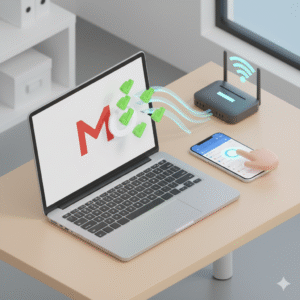
Many people use Gmail every day. Therefore, it is a key part of daily life. Gmail is connected to Google Drive and Google Photos. However, all three share one storage space. Truly, this space is usually 15 GB for free accounts. Consequently, this storage can fill up very fast. You need to know why your space is gone. You must also know how to clean it up safely.

Some people think only emails fill up Gmail. But, this is not true. Files in Drive take space. Photos also take space. When the storage gets full, you cannot receive new emails. Furthermore, this can cause big problems. Always remember, cleaning your Gmail storage is easy. By following simple steps, you can free up gigabytes of space. You can do this without losing any important messages.

Gmail Storage Full? Use These Simple Search Hacks


The Storage Mystery: Where Did My 15 GB Go?

First, let’s solve the common mystery. Where does the storage space actually go? Your total Google storage is shared across three main services. Clearly, understanding this sharing is the first step to cleaning up. Therefore, you must look at all three areas, not just your email inbox.

The Three Space Hogs

Your 15 GB of free space is divided among these three services:

  • Gmail: This includes all messages in your Inbox, Sent, Spam, and Trash folders. It also includes the file attachments in those emails.

  • Google Drive: This stores files like PDFs, documents, spreadsheets, and other files you upload. However, Google Docs, Sheets, and Slides files usually do not count.

  • Google Photos: This stores all photos and videos backed up from your devices. Note that photos uploaded before June 2021 often do not count toward your limit.

Truly, your storage is most often consumed by large video files in Drive. It is also taken up by massive email attachments. Focus your cleaning efforts on these large files.


Pillar 1: Cleaning Gmail – Finding the Biggest Emails

The first place to clean is your Gmail account. Most of the space is hidden in old emails with large attachments. Clearly, deleting just a few of these large emails can free up hundreds of megabytes instantly. Therefore, you must learn to search for the largest files quickly.

Simple Search Hacks to Find Large Files

Firstly, use the search bar to find emails bigger than a certain size. For example, type this into the search bar: size:10m. This shows all emails larger than 10 megabytes. Secondly, target older emails. You probably do not need huge attachments from years ago. Type: has:attachment before:2020/01/01. This shows all emails with attachments sent before January 1, 2020.

Furthermore, sort your inbox by size. Click the gear icon (Settings). Then, go to “See all settings.” Now, click “Inbox.” Change the inbox type. Also, check the “Sent” folder. Many people forget that large files they sent are also stored in their account. Delete these large sent items first. Also, empty your “Spam” folder. Spam usually gets deleted automatically. However, manually emptying it can free up space immediately. Lastly, empty your “Trash” folder. When you delete an email, it stays in Trash for 30 days. You must empty the Trash to truly free the space. Truly, using these simple searches and checks allows you to find and remove the biggest space-consuming files quickly.


Pillar 2: Clearing Google Drive – Targeting Hidden Files

The second key area is Google Drive. People often upload large files here. They forget about them. These files can take up huge amounts of space. Clearly, you must find the largest files in Drive. Therefore, there is a special section built just for this cleanup.

Finding and Deleting the Largest Files

Firstly, go to your Drive storage page. This shows a list of your files. This list is automatically sorted by size. The biggest files are at the top. Secondly, delete unnecessary large files first. Look for video files, zip archives, or old backups. These are usually the largest items.

Furthermore, check your “Trash” folder in Drive. Just like in Gmail, deleting a file moves it to Trash. It still counts against your limit until you empty the trash. Go to your Trash folder. Then, click “Empty trash.”

Also, look for “Hidden App Data.” Some apps store data in Drive that you cannot see in your main folder. Go to Settings in Drive. Click “Manage Apps.” If any app lists data, you can delete it there. Lastly, review files that are “Shared with me.” Files shared with you do not count against your limit unless you copied them. Check your “My Drive” folder for large files you own. Truly, focusing on the largest files you own in Drive is the fastest way to gain significant storage back.


Pillar 3: Managing Google Photos and Other Sources

The third source of storage use is Google Photos. This is especially true for users who have backed up large videos or photos recently. Clearly, you must manage your video and photo library effectively. Therefore, you can use the built-in management tools.

Finding and Deleting Large Photo/Video Files

Firstly, use the Google One Storage Management tool. This is a dedicated page. It shows all your biggest files across Gmail, Drive, and Photos in one place. Secondly, use the “Review and discard” feature in Google Photos. This tool identifies blurry photos, screenshots, or very large videos. You can review them and delete them easily.

Furthermore, delete old, unwanted videos. Videos take up much more space than photos. Focus on deleting long, unwanted video clips first. Also, check your computer’s backup. Some people back up their entire desktop or documents folder to Drive. Check your Drive settings. See if any large folders are being backed up unintentionally. Lastly, remember that deleting files must be followed by emptying the Trash in both Gmail and Drive. This is the only way to release the space back to your account. Truly, using the dedicated management tool gives you the best, clearest overview of where your storage is going.


Best Practices: Keeping Important Emails Safe

The main concern when cleaning up is losing important emails. You must ensure that only junk or old, unnecessary files are deleted. Clearly, using the right tools and strategies prevents accidental loss. Therefore, follow these best practices to keep your important emails safe.

Strategies to Protect Valuable Information

Firstly, never delete files without searching first. Use the size and date search queries provided in Pillar 1. This ensures you only target old, large, generic emails. Secondly, use labels and archiving. If an email is important but you do not need it in your inbox, archive it. Archiving removes it from your main view. However, it keeps it in your account.

Furthermore, create an “Important Attachments” folder in Drive. If you have an email with a huge, vital attachment, download the attachment to your computer. Then, upload it to Drive into a special folder. Delete the original email afterward. This saves space. Also, use the “Export data” tool (Google Takeout). If you have very old emails or documents you want to keep but not store in Gmail, download them. You can save them to your computer or an external hard drive.

Lastly, double-check the Trash before emptying it completely. Take a final look through the Trash folder. Make sure no recently deleted important items are inside. Truly, by using labels, archiving, and external backups, you can clean your inbox aggressively without risking important information.


Frequently Asked Questions (FAQs)

Q1: Does deleting emails from my phone also delete them from my computer?

Yes, it does. Gmail syncs across all devices. When you delete an email on your phone, it moves to the Trash folder everywhere, including your computer’s browser.

Q2: How long does it take for my storage space to refresh after I empty the Trash?

The storage space usually refreshes quickly, often within minutes. However, Google warns that it can sometimes take up to 24 hours to fully reflect the deleted space.

Q3: Does deleting files from my shared Google Drive count toward my 15 GB limit?

No, it does not. Files that are only shared with you do not count toward your limit. Only files that you own and that are in your “My Drive” folder count against your 15 GB limit.

Q4: If I delete a large file from Google Drive, is it gone forever?

No, not immediately. When you delete a file from Drive, it moves to the Trash. It stays there for 30 days. It still counts against your storage limit during those 30 days. You must empty the Trash to free the space.

Q5: If I upgrade to Google One (paid storage), will my Gmail run faster?

Upgrading your storage will not make Gmail run faster. It only increases the limit (e.g., from 15 GB to 100 GB). Gmail’s speed depends on your internet connection and computer performance.

Also Read: What to Expect from Google Workspace in 2026

Is Gmail Scheduled Send Your Best Productivity Hack

In the demanding world of modern business, email remains the central hub of professional communication. However, managing an overflowing inbox and ensuring timely responses can quickly become overwhelming. Consequently, for busy professionals, any tool that enhances efficiency and ensures important messages are addressed is a game-changer. Truly, Gmail built-in features—Scheduled Send and Follow-Up Nudges—are precisely those kinds of tools. They move beyond simple functionality, offering intelligent solutions that help you master your communication timing and never let a critical thread fall through the cracks. Therefore, understanding and leveraging these features is essential for boosting productivity in 2025.

Many professionals fall into the trap of reacting constantly to their inbox, sending emails the moment they write them, regardless of the recipient’s time zone or work schedule. Furthermore, they often rely on manual reminders to chase up unanswered emails, an unreliable and time-consuming process. Scheduled Send and Follow-Up Nudges solve both of these problems simultaneously.

The former allows for strategic timing, while the latter employs Google’s AI to act as a tireless, proactive assistant, ensuring no conversation is forgotten. Always remember, the goal is not just to clear your inbox, but to communicate smarter and with greater impact. By integrating these clever features into your daily workflow, you can regain control of your time and significantly increase your response rates.

Gmail’s Scheduled Send & Follow-Up Nudges: Newest Tools


The Strategic Advantage of Scheduled Send


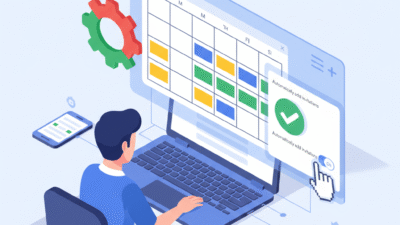
To begin with, let’s explore the immense strategic potential of Gmail’s Scheduled Send feature. Simply put, Scheduled Send allows you to write an email now, but automatically deliver it at a perfect time later. Clearly, this functionality is much more than a convenience; instead, it is a powerful tool for optimizing communication impact, respecting boundaries, and managing your own energy levels. Truly, the ability to control when your email lands in the recipient’s inbox is a significant advantage in the competitive world of professional outreach.

Timing Your Message for Maximum Impact


Naturally, the primary benefit of Scheduled Send is maximizing open and response rates. Research consistently shows that emails sent during peak business hours (like Tuesday to Thursday mornings) often receive the best engagement. If you are working late at night or over the weekend, sending an email immediately might mean it gets buried under a flood of new messages the next morning. Therefore, scheduling that same email to arrive precisely at 8:00 AM on a Tuesday gives it the best chance of being seen and acted upon promptly.

Secondly, Scheduled Send is crucial for managing time zones. If you work with clients or colleagues across the globe, scheduling ensures your message arrives during their working day, not in the middle of their night. This thoughtful approach shows professionalism and respect, strengthening business relationships. Furthermore, it helps you maintain personal boundaries. You can tackle your email backlog during your “power hours” or preferred work time without disrupting your colleagues’ evenings or weekends. This contributes to a healthier work-life balance for both you and your recipients. Truly, Scheduled Send transforms email delivery from a reactive process into a precise, strategic act.


The AI Power of Follow-Up Nudges


While Scheduled Send is a manual tool for proactive timing, Gmail’s Follow-Up Nudges are powered by machine learning, acting as a smart, automated safety net. Clearly, this AI feature is designed to ensure that important conversations never stall simply because you forgot to follow up or reply. Truly, it eliminates the need for manual to-do lists and external reminders, centralizing your communication management right inside your inbox. Therefore, leveraging this AI assistant is crucial for maintaining excellent professional responsiveness.

How AI Nudges Keep Conversations on Track


Firstly, the Nudges feature works in two critical ways. It reminds you to reply to incoming emails that Gmail thinks you might have missed. For instance, if an important email from a client or a direct question from a colleague remains unanswered for a few days, the thread will be automatically bumped back to the top of your inbox with a helpful “Nudge” suggesting a reply. This prevents critical requests from being overlooked in a busy flow of new mail.

Secondly, Nudges remind you to follow up on sent emails that haven’t received a response. If you’ve sent a proposal, a request for information, or a deadline reminder, and a few days pass without a reply, the original message will reappear at the top of your inbox with a prompt like “Sent X days ago. Follow up?” This is particularly valuable in sales, project management, and cross-departmental coordination, where consistent follow-up is essential for closing deals and hitting deadlines.

Furthermore, the AI uses context and past conversation patterns to determine which emails are most likely important, making the suggestions highly relevant. Truly, Nudges ensure that your professional communications are both timely and persistent, significantly increasing your overall effectiveness and helping you appear more organized.


Tricks and Best Practices for Scheduled Send


Mastering the Scheduled Send feature requires adopting a few key tricks and best practices. Simply clicking “Schedule Send” isn’t enough; instead, strategic use transforms the feature into a productivity powerhouse. Clearly, integrating this functionality seamlessly into your writing and review process maximizes its benefits, ensuring both polish and impact. Therefore, these tips will help busy professionals elevate their use of this simple tool.

Maximizing Efficiency and Avoiding Common Pitfalls


Firstly, use the “Pause and Review” trick. Write complex or sensitive emails late in the evening when you have focused time, but schedule them to send the next morning. This gives you a crucial “cooling-off” period to review the message with fresh eyes before it goes out. This pause helps eliminate typos, correct tone, and ensure accuracy, which is excellent for high-stakes communications.

Secondly, pre-schedule internal reminders and announcements. If you have a standing meeting every Monday morning, you can write and schedule the reminder email the previous Friday. This offloads a repetitive task, ensuring your Monday morning is clear for high-priority work. Furthermore, be mindful of time zone settings. When scheduling for international contacts, always select the delivery time based on their local time zone. This is a small detail that shows immense professionalism.

Conversely, one major pitfall to avoid is scheduling an immediate follow-up. Always build a three-to-five-day buffer to allow the recipient sufficient time to reply before your scheduled message appears, preventing awkwardness or redundancy. Truly, these smart practices ensure Scheduled Send serves as a consistent, strategic asset in your communication arsenal.


Integrating Nudges for Superior Inbox Management


Follow-Up Nudges work best when you understand how to integrate them into a larger inbox management strategy. Clearly, the AI acts as a suggestion engine, but your manual actions determine its ultimate effectiveness. Truly, a seamless workflow combines the AI’s assistance with your own organizational systems, leading to superior responsiveness and less mental clutter. Therefore, making small adjustments to your settings and habits can significantly enhance this feature.

Working with AI for Flawless Follow-Up


Firstly, trust the AI, but verify. Gmail’s Nudges are highly accurate, but they are not infallible. Use the Nudge as a prompt to check the original email thread. Did you receive a partial reply? Has the context changed? The Nudge simply reminds you to follow up, but you still need to craft a valuable, context-aware message. Conversely, if a Nudge seems irrelevant, simply dismiss it or archive the conversation to help the AI learn your priorities over time.

Secondly,pair Nudges with the Snooze feature. If an email is Nudged back to the top, but you know you can’t address it until a specific future date (e.g., after a meeting next week), use the “Snooze” feature. This manually hides the email, setting a custom time for it to reappear. This prevents the Nudge from becoming a constant distraction while keeping the item firmly scheduled for future action.

Furthermore, ensure Nudges are enabled for both incoming replies and outgoing follow-ups in your Gmail settings. This simple setting activation ensures you benefit from both sides of the AI-powered reminder system. Truly, by actively engaging with Nudges and integrating them with other inbox tools, you transform your email management into a dynamic, intelligent system that drastically improves professional reliability.


The Professional Payoff: Productivity and Perception


The true payoff for busy professionals who master Scheduled Send and Follow-Up Nudges is twofold: a dramatic increase in personal productivity and a significant improvement in professional perception. Clearly, these benefits extend far beyond simply processing emails; instead, they influence how clients, colleagues, and partners view your reliability and efficiency. Truly, a professional who communicates effectively and follows through is highly valued in any organization. Therefore, these tools offer a tangible competitive advantage.

Driving Efficiency and Building a Reputation for Reliability


Firstly, in terms of productivity, these tools allow you to separate the task of writing from the act of sending. You can batch email composition during focused work blocks, knowing the messages will be delivered at the optimal time later. This separation minimizes context-switching, a notorious drain on focus. Furthermore, Nudges essentially automate the complex mental task of memory and tracking, freeing up cognitive resources for high-value strategic work.

Secondly, regarding professional perception, timely communication is everything. Scheduled Send ensures you appear respectful of others’ time zones and inboxes, even when you work non-traditional hours. Nudges ensure you never miss a deadline or let a request languish, building a reputation for impeccable follow-through and responsiveness. Always remember, consistency in communication signals professionalism and reliability. Truly, by making these two Gmail features foundational to your daily routine, you not only manage your inbox more efficiently but actively enhance your standing as a reliable, high-performing professional.


Frequently Asked Questions (FAQs)

Q1: Can I cancel an email after I use Scheduled Send in Gmail?


Yes, you can easily cancel a scheduled email before its delivery time. Simply navigate to the “Scheduled” folder in the left-hand menu of Gmail, open the email you wish to stop, and click the “Cancel send” button at the top right. The email will then be moved back to your Drafts folder for editing or deletion.

Q2: How do I turn on or adjust the Follow-Up Nudges feature in Gmail?


To enable or adjust Nudges, go to Settings (gear icon) -> See all settings -> General tab. Scroll down to the Nudges section and ensure both options are checked: “Suggest emails to reply to” and “Suggest emails to follow up on.” You can also adjust the frequency of these reminders.

Q3: What happens if the recipient replies just before my scheduled follow-up sends?


Gmail’s Schedule Send is not “smart”; it will send the email at the programmed time regardless of whether a reply has been received in the meantime. To avoid this awkward situation, it is best practice to manually check the thread before the scheduled time or use a manual tool like “Snooze” instead of pre-scheduling a follow-up.

Q4: Are Nudges only for emails I send, or do they apply to emails I receive too?


Nudges apply to both. Gmail’s AI uses Nudges to remind you to reply to emails you have received (if they seem important and are unanswered) and to follow up on emails you have sent (if you haven’t received a reply after a few days).

Q5: How can Scheduled Send help me manage my work-life balance?


Scheduled Send helps manage work-life balance by allowing you to write emails when it is convenient for you (e.g., late at night or on a Sunday) but deliver them during standard business hours. This sets appropriate boundaries for both you and your recipients, preventing the expectation of immediate, off-hours responses.

Also Read: Is Pageless Docs the Future of Teamwork in 2025?