Refresh loader

Category : Data Backup

Home > Archive for Data Backup

How to reduce Google Drive storage costs in 5 minutes

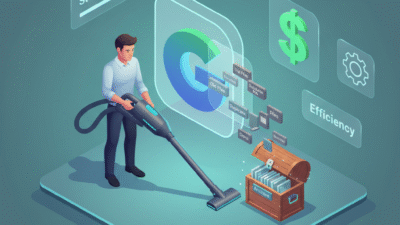
You must act fast to stop wasting money on unused cloud space in the digital world today. Therefore, you should learn how to reduce Google Drive storage costs with smart file management. Truly, a cluttered drive is a direct drain on your company’s monthly budget. Consequently, you can grow your profit by cleaning up your digital files for 2026.

Many people think that buying more storage is the only way to fix a “Drive Full” alert. But, the reality is that better habits can save you hundreds of dollars every year. Always remember, an organized drive is a strong signal for any search engine. This ensures that your brand stays efficient and your team stays very productive. This approach requires you to audit your files for duplicates and old data today. It helps you build a much more sustainable business for the long term. It makes your daily digital operations feel much more secure and very effective.

Google Drive storage


Finding and Removing High-Storage Leaks

First, you must identify which files are taking up the most space right now. Why does your drive feel full even if you do not have many documents? Clearly, large video files and high-res images are the most common culprits in 2026. Therefore, you must use the built-in storage tools to find these leaks today.

Steps to Identify Heavy Files

Here are several ways to spot storage hogs in your Google account:

  • Quota View: Go to drive.google.com/drive/quota to see files sorted by size.

  • Search Operators: Use larger:10M in Gmail to find emails with big attachments.

  • Media Audit: Look for old webinar recordings or raw video footage you no longer need.

  • Hidden App Data: Check your “Manage Apps” settings for data left by third-party tools.

  • Duplicate Detection: Use tools like Filerev to find 100% identical copies of files.

  • Shared With Me: Remember that files shared with you do not count against your limit.

  • Search Engine Value: Faster file access improves your overall brand efficiency score.

Truly, these steps solve the problem of a full drive in just a few minutes. But, you must also remember to empty your “Trash” folder to permanently free up the space. This keeps your billing accurate and prevents any sudden price hikes for your firm. It creates a very high and professional standard for your daily cloud management.


Mastering Pooled Storage in Google Workspace

So, how do you make the most of the storage you already pay for in 2026? Truly, modern Workspace plans use “Pooled Storage” to share space across your whole team. Consequently, you should learn how to balance the load between heavy and light users. It acts as a direct way to avoid upgrading to a more expensive plan.

Using Pooled Storage to Save Money

Here is how you can manage your team’s space to keep costs low right now:

  1. Storage Limits: Set individual quotas for each user to prevent any one person from hogging space.

  2. Shared Drives: Move project files to Shared Drives so they belong to the team, not a person.

  3. Light User Credit: Use the extra space from light users to cover your heavy content creators.

  4. Retention Policies: Set rules to auto-delete old drafts after a certain number of years.

  5. Ownership Transfers: Transfer files from departing employees to a single archive account.

  6. Annual Audits: Review your total storage use once a year to stay under your plan’s cap.

  7. Trust Rankings: A well-managed workspace helps you keep a top search engine rank.

Furthermore, this improves your search engine performance by showing your firm is smart. It makes your company look very professional and ready for 2026 digital shifts. This ensures that you only pay for the storage your team actually needs. It creates a very fast and clear path for your professional digital success.


Moving Data to Lower-Cost Storage Tiers

The third phase involves finding a cheaper home for files you must keep but rarely use. Clearly, keeping “Cold Data” in your active Google Drive is very expensive today. Therefore, you should use “Google Cloud Storage” for your long-term archives in 2026.

Using Archive Classes for Huge Savings

Firstly, identify project folders that have not been touched in over six months. This allows you to move them to “Coldline” or “Archive” storage classes right away. Secondly, use automation tools to move these files based on their “Last Modified” date.

Furthermore, use transition words in your archive guides to help your team find old files. Also, remember that a lean main drive helps your search engine authority and site speed. Lastly, check if your “Cloud Partner” offers a discount for long-term data storage. Truly, a tiered plan is the best tool for saving money on massive data sets. It allows you to keep every important record without paying the high “Drive” price. This is why top IT admins are moving toward “Lifecycle Management” right now.


Measuring Your Digital Cleanup Success

The fourth phase is where you track if your new habits are actually saving you money. Clearly, you must know if your “Storage Bill” is going down or staying flat in 2026. Therefore, you must use the “Google Admin Reports” to see your trends every month.

Metrics for a Cost-Effective Drive

Firstly, track the “Total Storage Used” to ensure you stay within your plan’s free limit. This helps you avoid “Auto-Upgrade” fees that can double your bill today. Secondly, calculate the “Cost Per Terabyte” to see if your archive strategy is working.

Furthermore, look for any “Inactive Users” who are still taking up a paid license and space. Also, use your data to see if a cleaner drive leads to a higher “Team Productivity” score. Lastly, check your search engine ranking to see if better data health helps your traffic. Truly, a lean path is a journey that leads to a much stronger brand. It turns a messy cost into a series of smart, secure wins for your whole team. This ensures your business stays strong while others face high cloud costs.


Maintaining a Lean Workspace

Finalizing your plan requires you to build a culture of “File Minimalism” in your team. It needs you to set clear rules for naming, storing, and deleting files every single day. Clearly, staying under your storage limit is a team effort for your brand in 2026. Therefore, follow these simple tips to keep your workspace safe and very fast.

Simple Tips for Lifelong Storage Success

Firstly, host a “Digital Cleanup Day” once every six months for your whole staff. This helps everyone find and delete old drafts and large video recordings today. Secondly, encourage your team to use “Shortcuts” instead of making copies of files.

Furthermore, use transition words in your tech updates to keep the message very clear. Also, remind your team that a fast drive helps the company earn more search engine trust. Lastly, check your search engine data to see if your stability helps your web traffic grow. Truly, a safe path is a journey that leads to a much better brand in 2026. It builds a path of profit that lets your whole team grow very fast. This secures your future in the digital world for a long time.


Frequently Asked Questions (FAQs)

Q1: Does Google charge for files in the Trash?

Yes, files in the Trash count against your storage until you empty the folder permanently.

Q2: What is the best way to find my largest Google Drive files?

You can visit drive.google.com/drive/quota to see a list of your files sorted by size.

Q3: Do files in “Shared with me” use my storage space?

No, shared files only count against the storage limit of the person who owns them.

Q4: Can I set storage limits for individual users in my team?

Yes, Google Workspace admins can set specific storage quotas for different users or groups.

Q5: Will deleting my old emails free up Google Drive space?

Yes, because Google Drive, Gmail, and Google Photos all share the same pooled storage.

Also read: How to fix Google Workspace billing issues

Desktop and Google Drive: How to Fix Syncing Issues

Google Drive is a vital tool for many people. Therefore, it keeps your files safe in the cloud. It also syncs them to your computer desktop. However, sometimes the synchronization stops working well. Truly, this can be very frustrating. You need your files to be up-to-date everywhere.

Some users ignore sync problems. But, this can cause you to lose work or use old versions. Consequently, fixing sync issues quickly is very important. Always remember, most syncing problems are easy to fix. By following simple checks and restarting the process, you can get your files flowing smoothly again. This ensures you always have the right version of every document. It also keeps your workflow running smoothly.

Desktop and Google Drive: How to Fix Syncing Issues


The Sync Problem: Why Files Stop Talking

First, let’s understand why your files might stop syncing between the cloud and your desktop. The syncing process is complex. It involves your computer, the Drive app, and your internet connection. Clearly, a failure in any one part can cause the whole thing to stop. Therefore, you must check the most common causes first.

The Most Common Sync Blockers

These common issues often prevent Google Drive from syncing correctly:

  • Full Storage: Your Google Drive storage space is full. The app cannot add new files.

  • Network Issues: Your internet connection is weak or disconnected. The app cannot talk to the cloud.

  • Large Files: You are trying to sync one very large file (e.g., a video). This can pause the entire process.

  • File Name Errors: The file name has an illegal character (like a forward slash /). The app cannot read the file path.

  • App Glitches: The Drive desktop application has frozen or needs an update.

  • Firewall Blocks: Your computer’s security software is blocking the Drive app from connecting.

Troubleshooting involves systematically checking each of these potential blockers. You must eliminate the simple causes first.


What is Syncing, and Why is it Important?

So, what exactly is file syncing for Google Drive? It is the continuous, automatic process of mirroring files. It ensures that the files on your desktop match the files in the cloud. Truly, this is important for backup. It is also important for collaboration.

The Value of Perfect File Synchronization

Here is why perfect syncing is so important:

  1. Data Backup: Your files are safe in the cloud if your computer breaks down.

  2. Access Everywhere: You can access the same file from your phone, tablet, or another computer.

  3. Version Control: Everyone is working on the most recent version of a document.

  4. Offline Access: You can work on files even when you do not have internet access. The files will update later.

  5. Workflow Continuity: You can seamlessly switch between devices without losing progress.

Truly, a broken sync breaks your entire workflow. It puts your important data at risk. Fixing it must be a top priority.


Pillar 1: The Quick Fixes – Restart, Check, and Pause

The first step in troubleshooting is to try the easiest, fastest fixes. These steps usually solve simple glitches and temporary network problems. Clearly, most errors are minor. Therefore, a simple restart can often fix the issue completely.

Simple Steps to Kickstart Synchronization

Firstly, pause and resume syncing. Find the Google Drive icon on your desktop toolbar. Click it. Then, select “Pause syncing.” Wait one minute. Then, select “Resume syncing.” This often resets the connection. Secondly, check your internet connection. Make sure your Wi-Fi is working. Try opening a website to confirm you are online.

Furthermore, restart the Drive application. Close the Drive desktop application completely. Wait about ten seconds. Then, relaunch the application. This clears any temporary app glitches. Also, check your available storage. Go to your Google Drive storage page online. If you are near the 15 GB limit, delete some large files first. This gives the app room to work. Lastly, check your system time. Ensure your computer’s date and time settings are correct. An incorrect time can block secure connections. Truly, these quick checks take only a few minutes. They often solve the majority of common syncing failures right away.


Pillar 2: Deep App and Settings Troubleshooting

If the quick fixes do not work, you must look deeper into the Drive application settings. Specific settings often control how and what files sync. Clearly, finding the exact setting that is causing the block is the next step. Therefore, focus on the app’s internal configuration.

Diagnosing App-Specific Settings

Firstly, check the syncing folders. Click the Drive icon. Go to Preferences or Settings. Ensure that the specific folders you want to sync are selected. Sometimes, a folder is accidentally unchecked. Secondly, review the file status. Look for a small error icon on the file. This often means the file name has an illegal character. Rename the file and try again.

Furthermore, check the blocked files list. The Drive app sometimes shows a list of files it cannot sync. Review this list. Fix the file errors one by one. Also, update the Drive app. Make sure you have the newest version of the Drive desktop application. Outdated software often causes new sync problems. Lastly, check proxy settings. If your company uses a special network setup, the Drive app might need custom proxy settings. Consult your IT team for this information. Truly, reviewing the application’s internal settings helps pinpoint the exact file or folder that is causing the entire sync process to stall.


Pillar 3: Advanced Methods – Reinstallation and Disconnection

If all other steps fail, you may need to perform more advanced troubleshooting. This includes completely disconnecting your account or reinstalling the application. Clearly, these steps are more drastic. Therefore, make sure you back up any local files first.

Resolving Persistent Syncing Errors

Firstly, disconnect your account. Go to the Drive app settings. Select the option to disconnect your account. This stops all syncing. Then, sign back in. This forces the app to re-establish a completely fresh connection to the cloud. Secondly, reinstall the Drive application. Uninstall the desktop application completely. Download the latest version from Google. Then, reinstall it. This fixes corrupted application files.

Furthermore, check your computer’s firewall. Your security software might be blocking the Drive app’s connection. Temporarily disable your firewall to see if syncing starts. If it works, you need to add Google Drive as a trusted application. Also, check for specific file conflicts. Sometimes, both the desktop and the cloud file change at the same time. The app cannot decide which version to keep. Look for files with “Copy” or “Conflict” in the name. Resolve these manually.

Lastly, clear the Drive cache. In rare cases, a corrupted local cache causes problems. You can clear this cache folder manually. You should only do this with care and after disconnecting your account. Truly, these advanced methods are powerful. They solve the most stubborn, long-lasting syncing problems effectively.


Best Practices: Preventing Future Sync Issues

Preventing future sync issues is always better than fixing them later. You must adopt smart habits. This keeps your files organized and your app running smoothly. Clearly, simple routine checks save much time and frustration. Therefore, follow these best practices for a stable workflow.

Simple Habits for Continuous Smooth Syncing

Firstly, monitor your storage often. Check your total storage usage weekly. Delete unnecessary large files before you hit the limit. Secondly, sync only essential folders. Do not sync your entire Google Drive library to your desktop. Only select the folders you use every day.

Furthermore, check file names before uploading. Avoid special characters like ?, *, or / in file names. This prevents file path errors. Also, review your blocked list regularly. Check the Drive app settings. See if any files are consistently failing to sync. Fix or delete them right away. Lastly, pause syncing before big transfers. If you know you will be offline or transferring hundreds of files, manually pause syncing first. Resume it when the task is done and the connection is stable. Truly, adopting these simple routines keeps your Google Drive application healthy. This minimizes the risk of sudden, frustrating sync failures.


Frequently Asked Questions (FAQs)

Q1: Why is my Google Drive icon stuck on “Scanning files”?

The “Scanning files” message often means the app is checking a very large folder. It can also mean a program on your computer is holding a file open. Try restarting your computer completely. This often releases the stuck file.

Q2: Will disconnecting my account delete any files from my desktop?

No, it will not. Disconnecting your account only stops the synchronization process. It does not delete any files from your computer or the cloud. All files remain safely stored in both locations.

Q3: What should I do if my large video file won’t sync?

If a large video file won’t sync, check its format. Some unusual formats may cause issues. If the format is fine, try uploading the file directly through the Google Drive website instead of using the desktop app.

Q4: Does using a VPN cause Google Drive sync problems?

Yes, sometimes it does. A VPN can change your network settings or IP address rapidly. This confuses the Drive app, which needs a stable connection to the Google servers. Try pausing or disconnecting the VPN while you sync large amounts of data.

Q5: If I archive an email, does it free up storage space?

No, it does not. Archiving an email only moves it from your Inbox to the All Mail folder. The email and its attachments still count against your total Gmail storage limit. To free up space, you must delete the email and empty the Trash.

Also Read: Gmail Storage Full? Use These Simple Search Hacks