Refresh loader

Archive : Team Collaboration

Home > Posts tagged Team Collaboration

What is Google Meet Companion Mode: Full Guide

Work has changed a lot. Many teams now use “hybrid meetings.” This means some people are in a meeting room. Other people join from home or another place. This mix can be hard. People at home might not feel part of the talk. They might not see everyone well. They might also struggle to share their ideas. This is where Google Meet Companion Mode helps a lot.

It is a special way to join a meeting. You join the meeting from your own laptop or phone. You do this even if you are in the same room as others. Companion Mode makes sure everyone feels equal. It lets you use your own device to see everyone, share your screen, and chat easily. It helps hybrid meetings work well and makes sure every voice is heard. This mode truly brings everyone together.

What is Google Meet Companion Mode: Full Guide


The Hybrid Meeting Problem: Making Everyone Feel Equal


First, let’s look at the main problem with hybrid meetings. When some people are in a room and others are online, things can feel uneven. The people in the room might talk more easily. They might forget about those online. This can make online people feel left out. It also makes it hard for them to share their thoughts.

Why Hybrid Meetings Can Be Hard


Here are some common problems with hybrid meetings:

  • Unequal Participation: People online might not get a chance to speak. They may not feel comfortable interrupting.

  • Poor Visibility: Those online often see only a few people in the room. They miss body language. They do not see who is talking sometimes.

  • Hard to Share Content: Sharing your screen can be tricky. It might mean giving up the main screen. This can stop the flow of the meeting.

  • Chat Confusion: The meeting room might have one chat screen. But everyone online has their own. Keeping up with chat can be hard for those in the room.

  • Tech Issues: Sometimes the room’s microphone picks up sound badly. Or the camera shows only part of the room. This makes it hard to hear or see.

These problems can make meetings less useful. They can also make team members feel frustrated. Google Meet Companion Mode helps fix these issues. It creates a better space for everyone.


What Is Companion Mode? Your Personal Meeting Power-Up


So, what exactly is Google Meet Companion Mode? It is a special way to join a Google Meet meeting. You use your own laptop or mobile device. You join alongside the main meeting happening in a room. Think of it as your personal control panel for the meeting. You do not turn on your audio or video when you use Companion Mode. Instead, the main room’s camera and mic handle that.

How It Works to Make Meetings Better


Here are the key things Companion Mode does:

  1. Personal View of Everyone: You see everyone’s face on your own screen. This includes people in the meeting room and people online. No more guessing who is talking in the room. This makes everyone feel more connected.

  2. Easy Screen Sharing: You can share your screen with a single click. This does not take over the main room’s display. You can show documents or ideas quickly. This means no more fumbling with cables or settings.

  3. Dedicated Chat Window: You get your own chat window. You can read and send messages easily. This is true even if you are in the meeting room. No need to huddle around a single screen.

  4. Use Hand Raise: You can raise your digital hand to show you want to speak. This helps the meeting leader see you. It makes it easier to join the talk.

  5. Polls and Q&A: You can take part in polls. You can also ask questions in the Q&A section. This is true whether you are in the room or online. Everyone’s voice counts.

  6. Whiteboard Access: You can join Jamboard (Google’s whiteboard) sessions. You can add ideas with others. This makes group brainstorming easy for everyone.

Truly, Companion Mode changes hybrid meetings. It gives everyone the power to join in fully. It makes every meeting more fair and useful.


How to Use Companion Mode: Simple Steps for Better Meetings


Using Google Meet Companion Mode is very easy. You do not need special tools. You just need your own device and the Meet app or website. Knowing how to join correctly helps you get the most out of it. It ensures you connect the right way.

Simple Steps to Connect and Engage


Here are the simple steps to use Companion Mode:

  1. Join the Meeting: First, open Google Meet on your laptop or phone. Find the meeting you want to join.

  2. Look for “Companion Mode”: When you are about to join, you will see an option like “Use Companion mode” or “Join in Companion Mode.” Click this.

  3. Choose Your Audio/Video: When you join this way, your own mic and camera are OFF. This is important. The main meeting room provides the audio and video for everyone in the room. If you are joining from home, you would use “Join now” instead.

  4. In the Meeting: Once you are in, you will see the main meeting on your screen. You will also see options for chat, screen share, hand raise, and polls.

  5. In a Meeting Room: If you are physically in a meeting room, join Companion Mode from your laptop. Make sure your laptop’s mic and speaker are muted. This stops bad echo sounds. You will use the room’s main speakers and mic for talking and listening. But you use your screen for all the other tools.

  6. Sharing Your Screen: Click the “Present now” button. Choose what you want to share. This will show on the main meeting room’s screen. It will also show on everyone else’s screen.

Truly, these steps make joining a hybrid meeting simple and effective. You get all the power of Google Meet right on your own device.


Top Tricks: Making Companion Mode Work Even Better


Using Companion Mode is great. But a few tricks can make it even better. These tips help you avoid common problems. They also help you make the most of this powerful tool. They ensure your hybrid meetings are not just good, but excellent.

Smart Ways to Boost Your Meeting Experience


Here are some smart tricks for Companion Mode:

  1. Mute Your Device: If you are in a meeting room, always make sure your laptop’s mic and speakers are muted. This is key. It stops loud echoes that can disturb the whole meeting. You will hear and speak through the main room’s system.

  2. Use Your Device for Chat: Even in the room, use your personal screen for chat. It is easier to type and read messages. You do not have to crowd around the room’s main screen.

  3. Prepare Your Shares: If you plan to share your screen, open the document or presentation first. Have it ready. This makes sharing very fast when it’s your turn.

  4. Watch the Main Screen AND Your Screen: Use your personal screen for chat and seeing faces. But also keep an eye on the main meeting room’s screen. This helps you follow the big picture.

  5. Encourage Everyone: If you lead a meeting, ask everyone to use Companion Mode. This makes the meeting more fair. It helps everyone take part easily.

  6. Use Jamboard: If your team brainstorms, open a Jamboard. Companion Mode makes it easy for everyone to add sticky notes and drawings. This is true for people in the room and online.

Truly, these simple tricks help you get the most from Companion Mode. They turn good meetings into great ones. They help everyone feel more involved.


The Big Benefits: Why Companion Mode is a Game Changer


Google Meet Companion Mode is more than just a new feature. It is a tool that changes how hybrid meetings work and solves many common problems. It helps teams work better together. This means more useful meetings and happier team members. Clearly, for any business using hybrid work, this mode is a big win.

How Your Team Wins with Companion Mode


Here are the big benefits Companion Mode brings:

  1. Equal Voice for All: Everyone can see faces, raise hands, and chat easily. This makes it simpler for all to speak up. It helps introverts join in more.

  2. Better Engagement: When people feel included, they take part more. They share more ideas. This leads to better talks and outcomes.

  3. Smoother Sharing: Sharing a screen is fast and easy. No more delays. This keeps the meeting flowing and saves time.

  4. Less Tech Trouble: It stops echo issues when many devices are on in one room. It uses the room’s good mic and camera. This makes meetings less frustrating.

  5. Faster Decisions: When everyone is fully engaged, ideas flow better. Decisions get made more quickly. This helps projects move faster.

  6. Stronger Teamwork: When everyone feels equal, teamwork gets stronger. People feel more connected to each other. This is very important for hybrid teams.

  7. More Flexible Meetings: Teams can meet in any way that suits them. They can mix people in the room with those online. Companion Mode handles it all.

Truly, Companion Mode helps hybrid meetings succeed. It lets teams work together easily which leads to more effective talks and stronger bonds among workers. It is a key tool for modern workplaces.


Frequently Asked Questions (FAQs)

Q1: When should I use Companion Mode versus just joining a normal Google Meet?


You should use Companion Mode if you are in a physical meeting room with others. You join with your device, but use the room’s speakers and mic. If you are joining from home or an office alone, you should just join the normal way (with your device’s mic and camera on).

Q2: Can people using Companion Mode talk in the meeting?


Yes, people in Companion Mode can talk. If you are in the meeting room, you talk through the room’s main microphone. If you are alone and want to talk, you should not use Companion Mode. You should join normally so your mic is active. Companion Mode is mostly for sharing, chat, and seeing faces when you are already in a room with others.

Q3: Does Companion Mode use my device’s camera or microphone?


No, when you join in Companion Mode, your device’s camera and microphone are automatically turned OFF. This prevents echo and feedback. The main meeting room’s camera and microphone capture the in-room participants. You use your device for screen sharing, chat, polls, and seeing all participants’ faces.

Q4: Can I use Companion Mode if I am the meeting host?


Yes, you can be the meeting host and use Companion Mode. It helps you manage the meeting better. You can see everyone, manage chat, and share content easily. You can still control the meeting functions from your device.

Q5: Is Companion Mode a free feature in Google Meet?


Yes, Companion Mode is a standard, free feature within Google Meet. It is available to all Google Workspace users. This includes those with personal Google accounts. It helps make hybrid meetings better for everyone without extra cost.

Also Read: Is Gmail Scheduled Send Your Best Productivity Hack

Is Pageless Docs the Future of Teamwork in 2025?

In the rapidly evolving digital workplace, tools that enhance collaboration and streamline workflows are invaluable. Google Docs has long been a cornerstone of team productivity, constantly adapting to meet modern demands. However, one of its most significant, yet subtly powerful, updates is the introduction of the Pageless format. Initially seen by some as a minor aesthetic change, the true impact of Pageless for teams in 2025 is profound. Clearly, it represents a shift from print-centric document creation to a truly digital-first, fluid, and collaborative experience. Therefore, understanding why this update matters is crucial for any organization aiming to maximize its efficiency and innovation.

Many teams still operate with a “print mentality,” even when working entirely digitally. They design documents with page breaks, margins, and headers, replicating a physical paper experience. However, this approach can stifle creativity and create unnecessary friction in a dynamic online environment. The Pageless format liberates documents from these traditional constraints, offering an expansive canvas that adapts to any screen and workflow. Truly, it’s not just about removing page breaks; instead, it’s about embracing a mindset where content flows continuously, fostering uninterrupted collaboration and dynamic information sharing. This fundamental change allows teams to work more naturally within a digital space, paving the way for enhanced productivity and innovative ways of interacting with shared knowledge.

Is Pageless Docs the Future of Teamwork in 2025?


The Shift to Pageless: A Fundamental Rethink of Documents

To begin with, let’s understand what the Pageless format truly entails and why Google introduced it. Traditionally, word processors, including Google Docs, mimicked physical paper, complete with fixed page dimensions, margins, and headers. This “page-centric” view was essential for printing documents. However, in an increasingly digital-first world where most documents are consumed on screens—from desktops to tablets and phones—the concept of a fixed “page” becomes an arbitrary constraint. Consequently, the Pageless format removes these boundaries, allowing content to flow continuously without artificial breaks.

Why Google Docs Went Pageless and Its Core Principles

Naturally, Google’s motivation for introducing Pageless was rooted in enhancing the digital collaboration experience. Firstly, the Pageless format offers an adaptive view. This means content automatically adjusts to the width of your screen, eliminating the need for horizontal scrolling or constant zooming, regardless of the device you are using. This vastly improves readability and user experience. Secondly, it fosters uninterrupted content flow. Without page breaks, collaborators can scroll seamlessly through lengthy documents, which is particularly beneficial for large projects, research papers, or continuous note-taking. Clearly, this removes a common point of friction during collaborative editing.

Furthermore, Pageless encourages a digital-first mindset. It signals a move away from designing documents primarily for print and towards optimizing them for screen consumption and dynamic interaction. This aligns with modern work practices where documents are often living entities, constantly updated and shared online. Lastly, it enables new features and integrations that are not possible in a page-based layout. For example, wide images, extensive tables, or integrated whiteboarding elements can seamlessly become part of the document without awkward resizing or layout compromises. Truly, the Pageless format is more than a display option; it’s a philosophical shift in how we create, consume, and collaborate on documents in a digital world.


Boosting Collaboration and Productivity for Teams

The most significant impact of Docs’ Pageless format is on team collaboration and overall productivity. By removing the traditional constraints of pages, the update fosters a more fluid and efficient environment for shared work. Clearly, this directly addresses common pain points in collaborative document creation, leading to smoother workflows and more effective team output. Therefore, understanding these benefits is crucial for leveraging the full potential of Pageless.

Streamlining Workflows and Enhancing Team Output

Firstly, Pageless eliminates the frustration of awkward page breaks during collaborative editing. When multiple team members are working on a document, content often shifts, causing page breaks to appear in inconvenient places, disrupting flow. With Pageless, content simply reflows, ensuring everyone sees a consistent and continuous stream of information, regardless of concurrent edits. This significantly improves the shared reading and editing experience.

Secondly, it enhances readability and accessibility across diverse devices. Team members access documents from desktops, laptops, tablets, and smartphones. The adaptive nature of Pageless means the document automatically adjusts to fit each screen, making it easier to read and interact with without constant zooming or horizontal scrolling. This is especially beneficial for remote or distributed teams, ensuring a consistent experience for everyone.

Furthermore, Pageless facilitates the integration of richer, wider content. Teams can embed large tables, extensive charts, or even integrate whiteboarding tools directly into the document without worrying about squeezing them into page margins. This allows for more comprehensive and visually engaging collaborative documents, which is excellent for brainstorming sessions, project planning, or detailed report generation. Truly, Pageless transforms Docs into a truly agile collaborative canvas, making teamwork more seamless and productive.


Fostering Creativity and Dynamic Content Creation

Beyond just productivity, Docs’ Pageless format plays a crucial role in fostering creativity and enabling more dynamic content creation within teams. By breaking free from the rigid structure of traditional pages, the update encourages a more expansive and less constrained approach to documenting ideas, planning projects, and sharing information. Clearly, this shift empowers teams to think beyond the limitations of print and embrace a truly digital canvas. Therefore, understanding its role in creative workflows is essential.

Unleashing New Possibilities for Digital Documentation

Firstly, Pageless encourages a free-form ideation and brainstorming environment. Without the mental barrier of page breaks, teams can capture thoughts, notes, and ideas continuously, almost like a digital whiteboard. This promotes a more natural flow of consciousness, which is ideal for early-stage project planning, mind-mapping, or rapid content generation. The focus shifts from formatting to the pure generation of ideas, fostering a more creative atmosphere.

Secondly, it allows for the seamless integration of diverse media and interactive elements. Imagine embedding a wide, interactive data visualization, a full-screen diagram, or even a video directly into your document without worrying about how it will appear on a printed page. Pageless provides the expansive real estate needed for such rich media, making documents more engaging and informative. This is particularly useful for design teams, marketing teams creating campaign briefs, or product teams documenting user flows.

Furthermore, the absence of page breaks encourages longer-form, continuous narratives that are optimized for digital consumption. This means teams can create comprehensive living documents that evolve over time, such as ongoing project logs, detailed knowledge bases, or expansive research documents, without the artificial fragmentation caused by page breaks. Truly, Pageless transforms Google Docs into a versatile platform for dynamic, media-rich content that sparks creativity and supports modern digital storytelling.


Adapting to the Pageless Mindset: Best Practices for Teams in 2025

While the technical implementation of Pageless is straightforward, truly harnessing its benefits requires teams to adopt a new mindset and establish best practices. Clearly, simply removing page breaks won’t automatically transform workflows; instead, conscious effort to adapt to this new paradigm is necessary. Therefore, proactive strategies for content organization, communication, and leveraging new features will be key to success in 2025.

Strategies for Maximizing Pageless Benefits

Firstly, rethink document organization. Without page numbers, teams must rely more heavily on outlines, headings, and the document outline feature in Docs for navigation. Encourage the consistent use of clear headings and subheadings to maintain structure. Implement a table of contents, which automatically updates, for lengthy documents. This provides an easy way to jump to relevant sections.

Secondly, leverage wide content effectively. Embrace the ability to add wider images, tables, and integrated elements. However, ensure these additions genuinely enhance understanding and don’t overwhelm the reader. Use these elements strategically for data visualization, diagrams, or flowcharts that benefit from a larger canvas. Furthermore, establish new internal guidelines for document creation.

Discuss how your team will use Pageless for different types of documents—e.g., meeting notes, project plans, reports. Agree on conventions for spacing, section breaks, and media insertion to maintain consistency. Lastly, educate and train your team on the benefits and features of Pageless. Conduct workshops, share tips, and encourage experimentation. Highlight how it streamlines collaboration and enhances readability on various devices. Truly, by actively adapting to the Pageless mindset, teams can unlock a new level of efficiency, creativity, and seamless collaboration in Google Docs.


Frequently Asked Questions (FAQs)

Q1: What is the main difference between “Pageless” and traditional “Pages” in Google Docs?

The main difference is that “Pages” format mimics physical paper with fixed page breaks, margins, and headers, suitable for printing. “Pageless” removes these constraints, allowing content to flow continuously, adapting to screen width, and optimized for digital consumption and collaborative editing without interruptions from page breaks.

Q2: Does Pageless mean I can no longer print my Google Docs documents?

No, you can still print documents created in Pageless format. When you choose to print, Google Docs will automatically format the content into pages, adding page breaks as needed, to ensure it’s printable. The Pageless format primarily affects the on-screen viewing and editing experience.

Q3: How does Pageless improve collaboration for remote teams?

Pageless significantly improves collaboration for remote teams by providing a consistent, adaptive viewing experience across all devices (desktops, tablets, phones), eliminating awkward page breaks during concurrent editing, and allowing for richer, wider content integration. This creates a more fluid and less disruptive shared workspace.

Q4: Are there any downsides to using the Pageless format?

A potential downside is that if you rely heavily on precise page-by-page formatting for print-specific documents (e.g., academic papers with strict page limits or specific print layouts), you might need to occasionally switch back to “Pages” view to check final print formatting. However, for digital-first documents, the benefits generally outweigh this minor inconvenience.

Q5: How can teams best navigate long Pageless documents without page numbers?

Teams can best navigate long Pageless documents by consistently using headings and subheadings, leveraging the automatic “Document Outline” feature in Google Docs, and utilizing the search function within the document. These tools allow for quick navigation to specific sections without relying on traditional page numbers.

Also Read: How Gemini AI Changes Your Google Workspace

How Did Google Chat Evolve for Teams: Full Guide

Google Chat has changed a lot. It has moved from simple chats to powerful tools. These tools help teams work better. This change is big for business productivity. Google Chat is now more than just a chat app. It helps teams of all sizes work together. This story will look at how Google Chat has grown. It will show its new features. It will explain how these help make ‘super teams’ in any company.

The Early Days: Simple Chat and Basic Teamwork

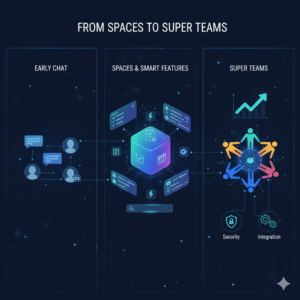
Google Chat began as a part of Google Workspace. Before, it was Google Hangouts Chat. Its main job was simple. It let people send messages to each other. Users could chat one-on-one. They could also chat in small groups. The first goal was quick talk. It was good for fast questions. It helped teams share simple updates.

At that time, features were basic. You could send text and could share files. You could start a video call. This was fine for many teams. But as work changed, teams needed more. They needed deeper ways to work together and needed tools to manage projects. They needed better ways to share info. Google Chat had to grow. It had to meet these new needs. It had to help businesses do more.

Image Of The Evolution of Google Chat for Business Productivity

The Rise of “Spaces”: Organized Work Hubs

The biggest step in Google Chat’s growth was “Spaces.” Google renamed the feature from “Rooms” to “Spaces.” This change was more than just a new name. It showed a new way of thinking. Spaces became central hubs for teamwork. They were not just for chat but for working on projects which helped manage tasks and let teams share files easily.

A Space is like a project room. All things related to a project go there. This includes talks, files, and tasks. Think of a Space for a marketing project. All talks about ads, images and videos are there. All tasks like “design new banner” are listed there. This makes work much more organized. It helps teams stay on track. This design helps cut down on many emails. It stops endless group chats. It puts all key info in one spot. This boosts teamwork a lot.

Smart Features for Better Productivity

Google Chat did not stop at Spaces. It added many smart features. These features help teams do more. They make daily work easier.

  • Integrated Task Management: Tasks are now part of Spaces. You can create a task and assign it to a team member. You can set a due date and can track its progress. All team members can see these tasks. This helps keep everyone aligned. It makes sure no task is forgotten.
  • Enhanced File Sharing and Collaboration: Google Chat connects deeply with Google Drive. You can share documents, sheets, and slides easily. Team members can open files right from Chat. They can work on them together. They can even see file updates in the Space. This smooth flow saves time. It makes working on documents much easier.
  • Smart Replies and Suggestions: The app uses AI to help. It suggests quick replies. This saves time when you are busy. It also suggests useful actions. For example, it might suggest “create a task” based on your chat. These small helps add up. They make work faster.
  • Powerful Search: Finding old info in chats can be hard. Google Chat has strong search tools. You can find messages, files, and tasks fast. You can search across all your Spaces. This means no more digging through old emails. All info is at your fingertips.

From Teams to “Super Teams”: The Evolution in Action

The goal of these changes is clear. It is to turn regular teams into “super teams.” A super team works very well together which is highly productive. It gets things done fast. Google Chat helps make this happen in several ways:

  • Improved Clarity and Focus: Spaces keep work topics separate. This means less noise. Team members can focus on one project at a time. They do not get lost in too many chats.
  • Better Project Management: With tasks and files in one place, project tracking is simple. Managers can see progress. Team members know their roles. This leads to projects finishing on time.
  • Faster Decision Making: All info is easy to find. Team members can quickly talk and share ideas. This speeds up choices. It helps avoid delays.
  • Enhanced Team Cohesion: A shared Space builds a sense of team. Everyone works towards the same goal. They share wins. This makes the team feel stronger. It makes them work better together.
  • Integration with Other Tools: Google Chat works well with other apps. It connects with apps inside and outside Google Workspace. This means you can add tools your team already uses. This makes it a central hub for all work.

Security and Control for Business Use

For businesses, security is key. Google Chat offers strong security features. This helps protect sensitive company data.

  • Data Encryption: All messages and files are encrypted. This keeps info safe from bad actors.
  • Admin Controls: IT admins have full control. They can manage who joins Spaces and can set rules for data sharing. They can track usage. This ensures data compliance. It meets company policies.
  • Retention Policies: Businesses can set rules for how long data is kept. This helps meet legal needs. It keeps company records safe.

These security features mean businesses can trust Google Chat. They can use it for all kinds of team work. They know their data is protected.

The Future of Google Chat

Google Chat will keep growing. We can expect even more smart features. It will likely get deeper links with AI. It might offer more ways to automate tasks. The focus will stay on helping teams. It will aim to make them more productive. It will help them achieve more.

Google Chat is not just a messaging app. It is a full platform for teamwork which helps turn any group of people into a powerful, efficient “super team.” For businesses, this means better results and happier teams. It means reaching goals faster.


FAQs

1. How has Google Chat changed from its early days?

Google Chat started as a simple messaging app. It was mostly for quick talks. Now, it has grown into a full teamwork platform. It includes features for tasks, files, and project management, mainly through “Spaces.”

2. What are “Spaces” in Google Chat, and why are they important?

“Spaces” are central hubs for team projects. They bring together conversations, files, and tasks for a specific topic or project. They are important because they organize work, reduce email clutter, and improve team focus.

3. How does Google Chat help with task management?

Google Chat lets users create, assign, and track tasks directly within a Space. You can set due dates and see progress. This feature helps teams manage project workflows and ensures everyone knows what needs to be done.

4. Can Google Chat integrate with other business tools?

Yes, Google Chat connects deeply with Google Drive for file sharing. It also works well with other apps inside and outside Google Workspace. This makes it a central tool for managing different aspects of business work.

5. What security features does Google Chat offer for businesses?

Google Chat includes strong security features. These include data encryption for messages and files. It offers admin controls for managing users and data rules. It also has data retention policies to meet legal and company needs.

Also Read: The Zero Trust Shift: Securing Hybrid Work with ZTNA