Refresh loader

Archive : microsoft 365

Home > Posts tagged microsoft 365

How to migrate to Google Workspace in five easy steps

You must plan your move to Google Workspace with great care today. Therefore, you should learn the best ways to migrate without losing any data. Truly, moving your emails and files is a big task for any business. Consequently, you can keep your information safe by following a clear, step by step plan.

Many people think that moving between platforms is a risky and messy process. But, the reality is that the right tools make the switch very smooth. Always remember, a successful migration is a strong signal for any search engine. This ensures that your brand stays stable and your team stays productive. This approach requires you to audit your data and test your tools. It helps you build a much more modern workplace for the long term. It makes your daily operations feel much more flexible and very effective.

migrate to Google Workspace with a plan


Phase 1: Auditing Your Current Data and Users

First, you must look at what you have in Microsoft 365. Why is a data audit the most important first step? Clearly, you cannot move what you do not know you have. Therefore, you must count every mailbox, calendar, and file before you start.

Steps to Inventory Your Digital Assets

Here are several ways you can prepare for a clean migration:

  • List every user account that needs a new home in Google.

  • Identify all shared mailboxes and group emails in your system.

  • Check the size of every OneDrive and SharePoint folder today.

  • Remove old and unneeded files to save on storage space.

  • Document all special permissions for your most sensitive data.

  • Find any large attachments that might slow down your move.

  • Mark your most critical users for a priority migration.

Truly, these steps prevent any surprises once the migration begins. But, you must also set a clear date for when the move starts. This keeps your team on track and prevents any last minute panic. It creates a very professional and high standard for your project.


Phase 2: Choosing the Right Migration Tool

So, how do you actually move the data from one cloud to the other? Truly, Google offers many tools to help you with this transition. Consequently, you should pick the tool that fits your company size and needs. It acts as a digital bridge that moves your data safely and quickly.

Top Tools for a Data Safe Transition

Here is how you can pick the best migration tool for your team:

  1. Data Migration Service (DMS): Use this built-in tool for small and simple moves.

  2. Google Workspace Migrate: Choose this for large firms with many complex files.

  3. Third-Party Tools: Look at apps like BitTitan or CloudM for extra features.

  4. IMAP Migration: Use this method if you only need to move your emails.

  5. GWMME Tool: Try this for server-side migrations with advanced settings.

  6. Desktop Sync: Use Google Drive for Desktop for small batches of files.

  7. Technical Support: Partner with a pro if your data is very complex.

Furthermore, this improves your search engine performance by reducing downtime for your team. It makes your brand look very prepared and ready for 2026 tech. This ensures that every email and contact lands in the right spot. It creates a very fast and clear path for your technical setup.


Phase 3: Setting Up Your Google Environment

The third phase involves preparing the destination for your data. Clearly, you must create a place for your files to land before you send them. Therefore, you should set up your Google Workspace account with all the right roles.

Preparing the Landing Zone for Your Data

Firstly, create all your user accounts in the Google Admin console. This allows the migration tool to map the old users to the new ones. Secondly, assign the correct licenses to every person on your team.

Furthermore, verify your domain with Google so you can take new emails. Also, set up your organizational units and groups to match your structure. Lastly, remember that a clean setup helps your search engine trust and user speed. Truly, a ready environment is the best way to handle your data safely. It allows the migration to run without hitting any technical walls. This is why top admins spend so much time on their settings.


Phase 4: Running Tests and Executing the Move

The fourth phase is where the actual data transfer happens. Clearly, you should never move everything all at once without a test. Therefore, you must run a pilot migration for a small group of users first.

How to Execute a Zero Loss Migration

Firstly, pick five users to test the migration of their mail and files. This helps you find any errors before they impact the whole company. Secondly, check the test data to ensure every label and folder is correct.

Furthermore, start the full migration during a slow time like the weekend. Also, use a “delta migration” to catch any new emails sent during the move. Lastly, check your search engine ranking to see how your site handles the change. Truly, a phased approach is your best tool against data loss. It turns a scary move into a series of small, safe steps. This ensures your business stays running while the data moves behind the scenes.


Best Practices: Finalizing the Switch

Closing out your migration requires a few last critical steps. It needs you to update your DNS records to point to your new home. Clearly, you must tell the world where to send your emails now. Therefore, follow these simple tips to finish your move with total success.

Simple Tips for a Successful Cutover

Firstly, update your MX records to point to Google Workspace today. This tells other mail servers to send your new messages to Gmail. Secondly, update your SPF and DKIM records to stop your mail from being spam.

Furthermore, tell your team to stop using Microsoft 365 for any new work. Also, use transition words in your guides to show people how to use Drive. Lastly, keep your old accounts for 30 days just in case you missed a file. Truly, a clean finish is a journey that leads to a much better brand. It builds a path of safety that lets your whole team grow very fast. This secures your future in the digital world for a long time.


Frequently Asked Questions (FAQs)

Q1: Will I lose my old emails during the move?

No, if you use a professional migration tool, all your old emails will move safely to Gmail.

Q2: How long does a full migration take?

For a small team, it usually takes one day, but large firms can take a full week.

Q3: Does migrating help my search engine ranking?

Yes, moving to a faster and more modern platform improves your site’s health and user trust scores.

Q4: Can I move my SharePoint files to Google Drive?

Yes, tools like Google Workspace Migrate can move your SharePoint data and keep your permissions.

Q5: Should I hire a pro for my migration?

If you have more than 50 users or very complex data, a pro can save you time and prevent errors.
Also Read: How to prevent data leaks and keep files secure

Microsoft Loop Explained: A Game-Changer for Collaboration

Microsoft Loop: A Collaboration Revolution

Modern work, indeed, demands seamless teamwork. However, traditional tools often create silos. Documents sit in one place, chat in another. This fragmentation, consequently, slows everyone down. Conversely, Microsoft Loop offers a fresh approach. It is, therefore, a truly game-changing platform. This new tool redefines how teams work together.

What exactly is Microsoft Loop, then? Essentially, it is a flexible canvas. It combines components, pages, and workspaces. Therefore, it brings content and people into one space. These “Loop components” are key. They are live, portable pieces of content. For instance, a checklist or a table. Furthermore, they sync everywhere instantly. Thus, collaboration becomes fluid and dynamic. This makes teamwork much more efficient.


Understanding Loop Components: The Core Innovation

Loop components are, by and large, the heart of Loop. They are small, interactive elements. You can share them easily across apps. For example, use them in Teams or Outlook. A component might be a paragraph of text. Similarly, it could be a task list for your team. Even a dynamic table can be a component. The magic, however, is their live nature.

Whenever someone edits a component, it updates. This update happens everywhere it exists. Therefore, everyone always sees the latest version. This prevents version control headaches. Furthermore, it eliminates endless email threads. You no longer need to send updated attachments. Instead, changes appear automatically. This makes real-time collaboration truly effortless. Moreover, these components are highly portable. You can copy and paste them freely. They maintain their live sync wherever they go. This allows for incredibly flexible work.


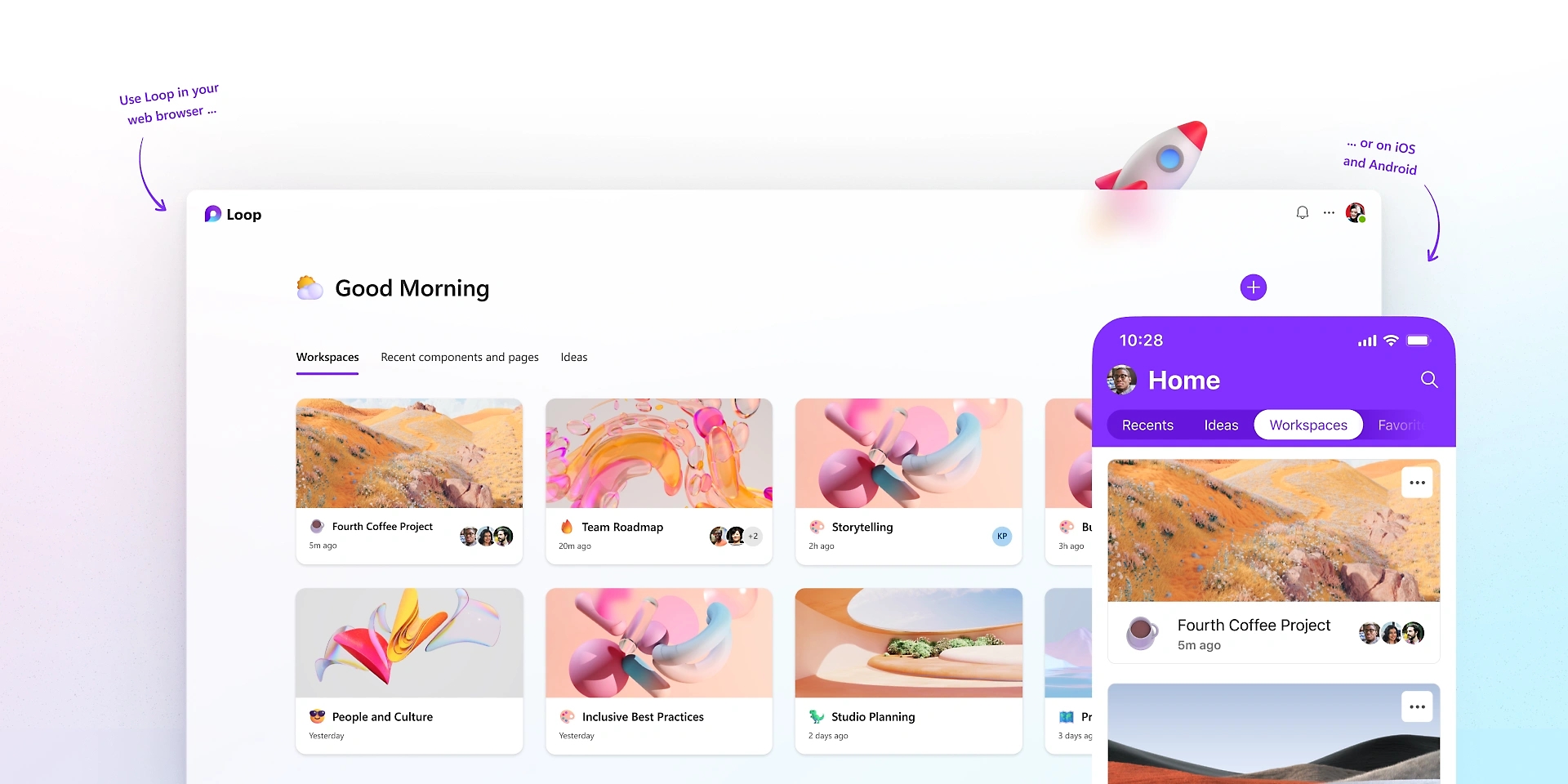
Image of Microsoft Loop

Loop Pages: The Flexible Canvas

Loop pages, consequently, serve as flexible canvases. They are dedicated spaces for thinking. Here, teams can organize all components. A page is, therefore, a place for collective ideas. You can start with a blank page easily. Then, you add various components as needed. For instance, drop in a task list component. Similarly, add a paragraph for notes. You can even include a progress tracker.

These pages are, in fact, highly adaptive. They grow with your project’s needs. You can easily drag and drop elements. Rearranging content is simple and quick. Furthermore, pages support rich media content. Include images, links, or even videos. The goal is to capture all relevant information. This ensures everything stays in one logical place. Therefore, Loop pages create a centralized hub. It consolidates all project assets effectively. This greatly enhances project visibility. Consequently, your team remains perfectly aligned.


Loop Workspaces: Your Project’s Home

Loop workspaces, by the same token, are project homes. They are shared online environments. Here, teams organize all their pages. A workspace, therefore, holds related project content. For example, a marketing campaign needs its own workspace. Similarly, a product development project gets one too. Workspaces bring together all relevant pages. They help group interconnected information together.

Each workspace has its own unique structure. You can customize it for your team. Access control is also managed easily. Decide who can view or edit content. This ensures data security and privacy. Furthermore, workspaces facilitate team oversight. Leaders can quickly see all ongoing projects. They monitor progress across different pages. Therefore, Loop workspaces provide a clear overview. They simplify project management greatly. Consequently, they foster structured, efficient collaboration.


Integrating Loop with Microsoft 365

Microsoft Loop, in fact, integrates deeply. It works seamlessly within Microsoft 365. This integration is a major advantage. Components function across different applications. For instance, use them in Microsoft Teams. You can share a task list in a chat. Your team updates it right there. The changes reflect everywhere instantly. This includes the original Loop page.

Similarly, use components in Outlook emails. Embed a live voting table in a message. Recipients vote directly within the email. Moreover, the results update automatically. This eliminates constant email chains. Furthermore, it streamlines decision-making processes. Loop also connects with Word and OneNote. This ensures content consistency across tools. Therefore, Loop extends the power of 365. It makes all your apps more interactive. Consequently, it creates a truly connected work ecosystem.


Real-Time Co-creation and Feedback

Loop greatly enhances real-time collaboration. It allows multiple users to edit simultaneously. Everyone sees changes as they happen, therefore. This fosters a highly interactive environment. For example, brainstorm ideas together instantly. Each team member contributes their thoughts. The page updates for everyone right away. This accelerates the creative process greatly.

Furthermore, feedback loops become much faster. You can get instant input on content. Colleagues highlight sections for review. They add comments directly to components. These comments are also live and trackable. Therefore, revisions are quick and efficient. This reduces project timelines significantly. Moreover, it ensures all voices are heard. Microsoft Loop makes collaboration truly responsive. It transforms feedback into a fluid conversation. Consequently, it promotes faster project completion.


Use Cases: Where Loop Shines Brightly

Microsoft Loop shines in many work scenarios. Consider project management first. Teams track tasks and progress efficiently. A shared checklist updates for everyone. Deadlines are clearly visible to all. Similarly, it excels in meeting management. Create a live agenda for every meeting. Attendees add notes and action items directly. These updates are accessible afterwards.

Furthermore, brainstorming sessions benefit immensely. Teams co-create ideas on a shared page. Each person contributes to the canvas. No ideas are lost or forgotten. Moreover, content creation becomes truly collaborative. Draft documents or presentations together. Live components ensure everyone works on the same version. Therefore, Loop boosts productivity everywhere. It provides a unified workspace for diverse tasks. Consequently, it solves many common collaboration challenges.


The Future of Hybrid Work with Loop

Hybrid work is the new standard, clearly. Teams work from various locations. They often have different time zones, too. This setup presents unique communication challenges. Microsoft Loop, however, bridges these gaps easily. It creates a persistent, shared workspace. Remote and in-site workers access the same content. They contribute whenever it suits them best.

Live components ensure consistent information. Everyone stays updated, regardless of location. This minimizes misunderstandings and delays. Furthermore, it fosters a sense of inclusion. All team members contribute equally to the project. Their input is visible and valued. Therefore, Loop supports a flexible work culture. It adapts to different schedules seamlessly. Consequently, it strengthens teamwork in any environment.


How Loop Differs from Existing Tools

You might wonder about other tools. How does Loop stand apart, then? It is more than just a document editor. Also, it is more than just a chat platform. Loop combines features from many places. It draws from wikis, documents, and messaging. The key difference is the “live component.” This element is unique to Loop.

Other tools offer real-time editing, certainly. However, their content is often static. It is fixed within one document or app. Loop components are truly portable. They maintain their live state everywhere. This fluidity is a game-changer. Furthermore, the workspace concept is distinct. It organizes pages and components logically. Therefore, Microsoft Loop offers a novel approach. It creates a truly dynamic, interconnected system. Consequently, it provides a unique collaboration experience.


Getting Started with Microsoft Loop

Beginning with Loop is quite straightforward. First, look for Loop in your Microsoft 365. It might be accessible through Teams or Outlook. You can also visit https://www.google.com/search?q=loop.microsoft.com directly. Then, create your very first workspace. Give it a meaningful and clear name. Next, start adding new pages to your workspace. Each page can serve a different purpose.

Finally, begin populating pages with components. Try a simple task list component first. Share it with your team members easily. See how it updates in real time for everyone. Experiment with different component types. Explore the various templates available to you. Therefore, starting small is a great strategy. Gradually integrate Loop into your daily workflow. Consequently, you will discover its true power.


Benefits for Different Roles

Microsoft Loop offers benefits across many roles. Project managers track progress better. They visualize tasks and deadlines clearly. Team leads can foster better engagement. They create spaces for open collaboration. Individual contributors, likewise, gain efficiency. They access all needed information in one place. Developers use it for shared code snippets. Marketers create campaigns with live updates.

Sales teams track client interactions effectively. HR departments manage onboarding processes. Even educators can use it for group projects. Students collaborate on shared assignments easily. Therefore, Loop enhances productivity for everyone. It adapts to specific departmental needs. Consequently, it streamlines workflows for diverse professionals.


The Path Ahead for Microsoft Loop

Microsoft Loop is still evolving, naturally. Microsoft continues to add new features. They listen to user feedback actively. Expect more integrations in the future. It will likely connect with more third-party apps. This will further extend its overall reach. Performance enhancements are also expected. The user experience will only improve over time.

Therefore, Loop represents a significant investment. It shows Microsoft’s commitment to collaboration. The goal is to simplify complex teamwork. It aims to empower hybrid and remote teams. Consequently, Loop will become a cornerstone. It will shape the future of modern work. Thus, it truly is a game-changer for digital collaboration.

Frequently Asked Questions (FAQs)

1. What is the fundamental difference between Loop and OneNote?

OneNote, indeed, is primarily for personal notes. Conversely, Loop is built for dynamic teamwork. Loop’s content is portable and live. For example, a Loop component updates everywhere. OneNote content, however, stays fixed within its own page. Thus, Microsoft Loop offers true cross-app fluidity.

2. Does Loop replace existing Microsoft 365 apps like Teams or Word?

No, not at all, quite the opposite. Loop enhances these other apps. For instance, you use Loop components inside Teams. It brings live content into those conversations. Microsoft Loop is, therefore, a complementary tool. It makes the entire 365 ecosystem more dynamic.

3. Where can I use Loop components currently?

Currently, you can use components in several places. This includes Microsoft Teams chat messages. You can also use them in Outlook emails. Furthermore, you can find them within the main Loop app. Microsoft is constantly adding more locations, however.

4. Are Loop components secure, especially when shared externally?

Yes, Loop components are secure, absolutely. They inherit security settings automatically. This is based on where the component is hosted. Furthermore, sharing is managed through your organization’s settings. Access control is always clearly defined. Therefore, Microsoft Loop maintains robust enterprise security.

5. Can I use Loop if my team members are not on Microsoft 365?

Generally speaking, all editors need a Microsoft account. They need one to access and edit components. However, you can share components with guests. This depends on your specific tenant settings. Microsoft Loop works best within the 365 ecosystem, therefore.

Also Read: The Future of Docs: Google’s Emoji Reactions Explained