
Refresh loader

Archive : Meeting Productivity

Home > Posts tagged Meeting Productivity

Common Google Meet Errors and How to Fix Them

Google Meet helps many people connect every day. Therefore, it is a key tool for work and school. But, sometimes audio or video problems pop up. Truly, this can be very frustrating. You need to hear and see everyone clearly.

Some users just give up during a meeting. But, this causes delays and missed info. Consequently, knowing how to fix issues quickly is very important. Always remember, most problems are simple to solve. By following easy steps, you can get your sound and picture back fast. This ensures your meetings run smoothly. It also keeps everyone connected and productive.

Fix Google Meet Audio and Video Issues Fast


The Meet Mishap: Why Your Call Goes Wrong

First, let us look at common Meet problems. Why do audio and video sometimes fail? Many things can go wrong during a video call. Clearly, this causes much stress for users. Therefore, you must know the usual suspects.

Common Reasons for Meet Trouble

Here are several things that often break your Meet call:

  • Wrong Device: Meet uses the wrong microphone or speaker.

  • Muted Mic: Your microphone is muted in Meet or on your device.

  • Bad Camera: The camera is off, blocked, or used by another app.

  • Weak Internet: Your Wi-Fi is slow or keeps cutting out.

  • Browser Issues: Your web browser has an old version or too many tabs open.

  • Permissions: Meet cannot use your mic or camera. Your computer blocks it.

  • System Glitch: Your computer or Meet app has a small bug.

Truly, these are the main reasons for trouble. Luckily, most fixes are very simple to do. You can solve them quickly.


What is Quick Troubleshooting? Your Meeting Saver

So, what is quick troubleshooting for Meet? It means finding and fixing problems fast. Truly, it helps you get back to your call without delay. It saves your meeting and also helps you stay calm. It acts as your personal tech guide.

Key Steps for Fast Problem Solving

Here are several things you should always do first:

  1. Check the basics. Look at your mic and camera icons.

  2. Restart the simple things. Close and open the browser.

  3. Check settings. Make sure Meet uses the right devices.

  4. Test your internet. See if other websites work well.

  5. Update your browser. Old versions often have bugs.

Consequently, these fast steps often fix most issues. They keep your meetings running without a hitch. This means less stress for you. It also means more focus on your work.


Pillar 1: Audio Issues – No Sound or Mic Not Working

The first pillar covers sound problems. Many users cannot hear others. Many also find their microphone does not work. Clearly, these are big issues for any meeting. Therefore, you must fix sound fast.

Solving Your Sound and Mic Troubles

Firstly, check your mute buttons. Look at the microphone icon in Meet. Is it red? Click it to unmute. Also, check your physical microphone. Does it have a mute switch? Toggle it off. Secondly, select the right devices in Meet. Click the three dots in Meet. Go to “Settings.” Choose “Audio.” Make sure Meet uses your correct speaker and microphone.

Furthermore, check your computer’s sound settings. Look at your computer’s volume controls. Is the sound turned all the way down? Is the mic level very low? Adjust them. Also, close other apps. Other programs might be using your microphone. Close Zoom, Skype, or any recording apps. Lastly, restart your browser. Close Google Chrome or Firefox completely. Open it again. Rejoin the Meet call. Truly, these steps solve most sound issues. They ensure you can hear and be heard in every meeting. This makes communication much clearer.


Pillar 2: Video Problems – Fuzzy, Frozen, or No Picture

The second pillar focuses on video trouble. Your camera might not show anything. Or, your picture might be fuzzy or frozen. Clearly, seeing everyone is very important for good talks. Therefore, you must fix your video fast.

Fixing Your Camera and Picture Quality

Firstly, check your camera icon in Meet. Is it off? Click it to turn your camera on. Also, make sure nothing blocks your camera lens. Sometimes a finger or paper covers it. Secondly, select the right camera in Meet. Go to “Settings” in Meet. Choose “Video.” Pick your correct camera from the list.

Furthermore, check your computer’s camera settings. Make sure your operating system allows Meet to use the camera. Also, close other apps using the camera. Programs like Zoom or photo booths might be holding your camera busy. Close them all. Lastly, restart your computer. Sometimes, a full restart fixes camera glitches. It refreshes all system drivers. Truly, these steps fix most video problems. They bring your picture back clearly. This helps you see faces and feel more connected.


Pillar 3: Connectivity and Browser Issues – The Hidden Culprits

The third pillar covers internet and browser problems. Sometimes the issue is not your mic or camera. It is your connection or web browser. Clearly, a weak internet or old browser can stop everything. Therefore, you must check these often.

Diagnosing Your Internet and Browser Health

Firstly, check your internet speed. Run a quick speed test online. Is your download and upload speed good? If not, move closer to your Wi-Fi router. Secondly, restart your Wi-Fi router. Unplug it for 30 seconds. Plug it back in. Wait for it to reconnect. This often solves many internet glitches.

Furthermore, close unnecessary browser tabs. Many open tabs slow down your computer. They also use up internet bandwidth. Also, update your web browser. Make sure you have the latest version of Chrome or Firefox. Old browsers have bugs. Lastly, clear your browser cache and cookies. This removes old data that might cause problems. You can find this option in your browser settings. Truly, a stable internet and a healthy browser are key. They ensure smooth, uninterrupted Meet calls. This prevents many random disconnections.


Best Practices: Preventing Meet Problems Before They Start

Prevention is always better than a quick fix. You can stop many Meet problems before they even happen. Clearly, simple checks save much time and stress. Therefore, make these steps a part of your pre-meeting routine.

Simple Habits for Perfect Meet Calls

Firstly, test your setup 5 minutes before the meeting. Open Meet. Check your mic, camera, and speaker. This gives you time to fix any issues. Secondly, keep your browser updated automatically. Set your browser to install updates on its own.

Furthermore, close other heavy apps. If you are doing a Meet call, close games, large downloads, or other video apps. Also, use a wired internet connection if possible. An Ethernet cable is more stable than Wi-Fi. Lastly, have a backup plan. Know how to dial in with your phone for audio if your computer mic fails. Truly, these simple habits prevent most common Meet troubles. They ensure you always look and sound great for every important call.


Frequently Asked Questions (FAQs)

Q1: What does it mean if my video is “frozen” in Meet?

This often means your internet connection is too slow. Try reducing video quality in Meet settings. Also, ask others in your home to pause their streaming or downloads.

Q2: Why does my microphone suddenly stop working during a call?

This can happen if another app tries to use your mic. Or, your computer might go to sleep. Check your mute buttons first. Then, check your computer’s mic privacy settings.

Q3: Should I use headphones during a Google Meet call?

Yes, using headphones is highly recommended. Headphones prevent “echo” where your mic picks up sound from your speakers. This makes the call much clearer for everyone.

Q4: My camera is showing a black screen. What should I do?

A black screen often means another app is using your camera, or your system needs a restart. Close all other apps. Restart your computer. Then, rejoin the Meet call.

Q5: Can I reduce my internet usage during a Meet call?

Yes, you can. In Meet settings, you can choose “Send lower resolution video” for your camera. You can also turn off your video completely when you are not speaking.

Also Read: Desktop and Google Drive: How to Fix Syncing Issues
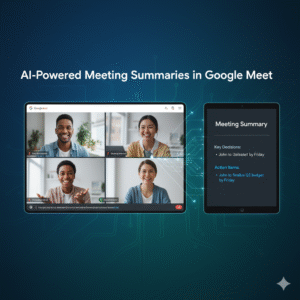
AI-Powered Meeting Summaries in Google Meet – Save Hours of Note Taking

The End of Tedious Note Taking

We all know the familiar struggle of a long virtual meeting in Google meet. Consequently, we often find ourselves desperately trying to participate in the discussion while simultaneously typing frantic notes to capture key decisions. This divided attention truly compromises both our presence in the meeting and the quality of our documentation.

Fortunately, the arrival of AI-powered meeting summaries in Google Meet is changing this workflow dramatically. This feature leverages generative AI to automatically create concise, organized notes, action items, and key takeaways immediately after or even during your session. Therefore, professionals can finally shift their focus entirely back to the conversation. This new AI-Powered Meeting Summaries approach is a true game-changer, promising to save countless hours of manual effort and significantly boost overall meeting productivity.

AI-Powered Meeting Summaries in Google Meet

Major Opportunities for Boosting Productivity

The ability of AI-Powered Meeting Summaries to automate documentation presents numerous opportunities for modern teams. Firstly, it allows every participant to engage fully in the dialogue, which leads to richer, more productive discussions and better outcomes. Furthermore, the AI instantly pinpoints crucial information, such as assigned tasks, deadlines, and decisions made. Consequently, these automatically generated action items ensure crystal-clear accountability across the team. Because of this accuracy, there is significantly less risk of overlooking an important detail or misunderstanding a key decision. Also, for employees with back-to-back meetings, the quick summary function serves as an instant catch-up mechanism. Clearly, using AI-Powered Meeting Summaries transforms post-meeting workflow from a time-consuming chore into a quick review process.

Moreover, these AI summaries promote better collaboration, especially in hybrid or global teams operating across various time zones. Since not everyone can attend every live session, a ready-made, shareable summary ensures that every stakeholder remains perfectly aligned. Furthermore, the summaries and full transcripts become a searchable knowledge base. Therefore, new team members can easily onboard and quickly understand the context of past projects without having to request lengthy briefings. In addition, the seamless integration of AI-Powered Meeting Summaries with Google Docs and Google Calendar simplifies the entire workflow, making documentation instantly accessible and linked to the original event. It is a highly efficient way to manage information flow.

Understanding the Operational and Security Risks

Despite the tremendous benefits, the adoption of AI-Powered Meeting Summaries does introduce important risks that teams must carefully manage. Most importantly, the reliance on AI for summarization creates a risk of subtle inaccuracies or misinterpretation, especially with complex, highly technical, or multi-topic discussions. Therefore, a quick human review and verification step remains absolutely necessary to validate the AI-Powered Meeting Summaries before they are finalized and distributed. Furthermore, the accuracy can truly depend on the quality of the audio and the clarity of the speakers.

Additionally, privacy and data security are paramount concerns with any AI-driven note-taking tool. Because the conversation data is processed by a third-party AI, businesses must ensure that the provider, especially Google in this case, has robust, enterprise-grade security and compliance measures. Consequently, organizations must thoroughly understand who has access to the recordings and transcripts and, more importantly, how that data is used—ensuring it is not used to train models outside of the specific company domain. Therefore, securing participant consent for transcription and recording is also a critical legal and ethical consideration before leveraging AI-Powered Meeting Summaries in any formal setting.

Navigating the Compliance and Trust Challenges

The use of AI-Powered Meeting Summaries also raises challenges related to compliance and internal trust. Since legal jurisdictions vary on recording and consent laws (such as one-party versus all-party consent), businesses must establish and clearly communicate an explicit policy on using AI note-takers. Therefore, hosts should always announce at the start of the meeting that the AI summary feature is active. Furthermore, trust among participants can be negatively affected if they are not fully comfortable with an ‘AI listening’ to their conversation, particularly during sensitive or confidential discussions.

Moreover, organizations must verify that the AI-Powered Meeting Summaries comply with industry-specific regulations, such as HIPAA or GDPR, depending on the nature of the conversation. Consequently, it is vital to check the security posture and data residency options provided by the platform. Therefore, transparency regarding the use of AI note-takers is not optional; it is fundamental to maintaining an ethical and compliant work environment. Ultimately, the successful deployment of AI-Powered Meeting Summaries hinges on balancing the incredible benefits of automation with meticulous risk management and full transparency.

The Smart Future of Meetings

AI-Powered Meeting Summaries in Google Meet represent a significant leap forward in workplace efficiency. This technology moves meeting participants from being passive scribes to active contributors, effectively saving countless hours of note-taking time. The core benefits of increased focus, automated action items, and better team alignment are truly transformative. However, we must proceed with caution, always verifying AI output for accuracy and meticulously managing the serious risks associated with data privacy and compliance. By integrating this powerful tool thoughtfully and establishing clear guidelines, every professional can successfully leverage AI-Powered Meeting Summaries to unlock a new level of meeting productivity and better overall results.


Frequently Asked Questions (FAQs)

1. How does the AI generate the meeting summary in Google Meet?

The AI uses the live transcription of the meeting (which converts speech to text) and then applies sophisticated language models to identify, extract, and structure the key discussion points, decisions, and action items into a concise summary document.

2. Who can start and view the AI-Powered Meeting Summaries?

Typically, the meeting organizer and internal participants can start and stop the note-taking feature. The final summary document is usually attached to the Google Calendar event and automatically shared with all meeting invitees who have the proper access permissions.

3. Is the full transcript available, or just the AI summary?

Both the full transcript and the AI-generated summary are generally available. The summary provides a quick overview, while the full, time-stamped transcript allows users to verify details or review specific parts of the conversation.

4. What is the most important risk to consider before using AI-Powered Meeting Summaries?

The most important risk is data privacy and security. You must ensure the platform’s policies comply with your company’s data handling standards, particularly concerning the storage and use of confidential meeting information.

5. Does using the AI summary feature require participants to consent?

Yes. While the specific legal requirement for consent varies by location (one-party vs. all-party consent laws), it is an ethical and best practice requirement to inform all participants at the start of the meeting that the session is being transcribed and summarized by AI.


Also Read: Workspace Admin Console Updates: What Every IT Admin Must Know