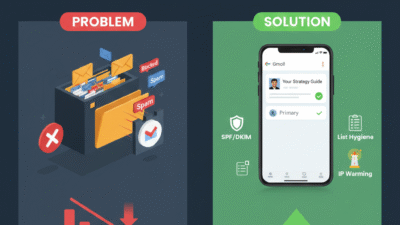
The Problem with the Spam Folder Trap
I’ve heard it a thousand times. A company spends a fortune on a big emails list. And yet, their sales reps treat the spam folder like a final home for their work. Usually, that is just a polite way of saying the setup is too weak. Also, the reps are too busy sending more mail to bother with technical health. If you are obsessing over your send count while your open rate is flat, you are building a ghost town.
In fact, a list where 20% of the people are truly active is worth much more. Furthermore, the biggest budget killer in 2026 is the “Blast All” strategy. This happens when reps send the same cold pitch to thousands of people. This approach creates a massive disconnect. Because of this, Gmail wants to protect its users from low-quality mail.
The solution lies in a “scientific” fusion of tech setup and content. This turns a simple email into a trusted piece of data. This isn’t just a small fix. Instead, it is a strategic shift. This empowers every rep to reach the inbox every time. Once you apply these touchpoints, you will see your open rates fill with prospects.

1. Stop Guessing and Start Warming
If you aren’t looking at your postmaster tools, you are flying blind. Specifically, you need to know why a specific server blocked you. For example, was it the volume or the sudden spike in sends? Smart teams use email warming tools to build a steady track record. Then, they suggest the best time to send for every group.
Moreover, smart strategies allow for a steady gain in inbox placement. This is because they focus on high-quality sender habits. By using a slow and steady start, you improve your sender reputation. This drives predictable growth for your outreach. It sounds simple. However, most teams are too busy “guessing” to look at the health of their domain.
2. The Technical Fix: Beyond Simple Subject Lines
The move to true technical health is happening faster than expected. While old school marketers focus on words, smart systems focus on your DNS settings. These settings use records like DMARC to prove you are who you say you are. These records act like a digital passport for your mail.
However, simple records are not enough for true inbox success. The most advanced stage is the Multi-Record System. These specialized settings coordinate your identity across different mail servers. These systems coordinate trust between you and Google. Consequently, they act as a green light for your messages.
3. Context is King: Use Clean Lists and Great Content
To build truly successful campaigns, you should not have to glue poor lists together. Modern email tools now allow you to check if an address is real before you send. Specifically, this draws on verification tools to deliver a clean path to the inbox. This means a rep can enter a campaign with a full list of valid leads ready to go.
Additionally, imagine a scenario where your content better understands the user’s needs. It draws on personal context to stay out of the promotions tab. This grounding ensures that your messages remain relevant to the person reading them. Therefore, it reduces the spam flags that slow down your best performers. It helps them finish their day with more replies and fewer blocks.
4. The 80/20 Rule: Automate the List Cleaning
If your reps spend 100% of their time on manual cleaning, they have 0% for selling. You must follow an 80/20 rule. Thus, use AI to handle 80% of the list health work. This includes removing dead emails or fixing typos in names. This leaves the 20% of high-value writing to your human team.
Using automated verification helps reps stay on the right side of Gmail rules. AI can even set up fast alerts when your bounce rate goes up. This allows your team to get into a creative flow. They avoid constantly dealing with blacklists and blocks. This leads to much faster sales results.
5. Track the Metrics That Actually Hit the Inbox
If your manager is bragging about “total sends,” you should find a new manager. Those are vanity marks that hide the truth of poor health. You can have a million sends and zero reads in the bank. To know if you are winning, you must track the “Dirty Four”:
-
Inbox Rate: First, what percentage of your mail actually lands in the main folder?
-
Bounce Rate: Next, what is the total number of dead emails on your list?
-
Spam Score: Then, for every mail sent, how many people mark you as spam?
-
Open Ratio: Finally, when trust rises, does your open rate climb to new levels?
Conclusion
How to make every rep reach the inbox? It shifts from a mystery to a system when you clean your lists ruthlessly. You must set clear tech goals. Also, track health marks obsessively using postmaster data. Repeat this cycle for 90 days. Then, your email reach becomes predictable. This certainty lets you send your messages with trust and confidence.
Key Takeaways
-
First, poor email health stops your messages from reaching the inbox because it triggers spam filters.
-
Therefore, teams using clean sender lists save hours of wasted outreach effort.
-
Specifically, fixing your technical setup allows your brand to build long-term trust with Gmail.
-
Furthermore, this connection helps deliver high open rates for every campaign you send.
-
Consequently, users spend 80% of their time reading emails that look safe and personal.
-
This leaves only 20% for marketing noise that usually ends up in the trash folder.
-
For instance, using correct SPF and DKIM records improves your sender score instantly.
-
Thus, identifying bad links in your body text happens much faster than guessing.
-
In addition, moving to a warm IP address allows for steady growth in your reach.
-
Finally, integrated lists outperform messy data across every part of your sales funnel.
FAQs
Q1: Why are my emails suddenly going to the spam folder?
Ans. This usually happens because your sender score dropped or your tech records are missing.
Q2: How long does it take to fix a bad sender reputation?
Ans. Most domains see a real lift in trust within 60 to 90 days of clean sending.
Q3: Is it better to send fewer emails to stay safe?
Ans. Quality over volume wins every time in the eyes of Google spam filters.
Q4: Will a new domain solve my blocking issues?
Ans. No, because you still need to warm it up and set the right records.
Q5: What is the biggest risk of ignoring email health?
Ans. A total domain block can be catastrophic, so make sure you use automated health checks.
READ MORE:
Restore Deleted Google Workspace Users With This Simple Hack
Top 10 Admin Console Mistakes That Are Hurting Your Business Right Now