Refresh loader

Category : Data Protection

Home > Archive for Data Protection

Restore Deleted Google Workspace Users With This Simple Hack

Losing critical employee data due to an accidental deletion can feel very stressful because your entire business operation relies on those files. However once you learn the proper way to restore deleted Google Workspace users you will see how easy it is to recover your lost information. I have used these exact methods to help IT admins reverse costly mistakes while seeing zero data loss for their organizations.

The Problem With Accidental Deletion

Many admins feel a sense of panic when a user account disappears because they assume the data is gone forever. This approach creates a massive amount of unnecessary pressure on your internal support team. You might feel frustrated when you realize that important emails and drive files are no longer accessible to your staff. To restore deleted Google Workspace users you must act quickly before the system purges the files forever.

The solution lies in acting quickly within the standard recovery window provided by Google. The admin console allows you to bring back a deleted user and all their associated data if you follow the right path. Once you apply these recovery steps you will see your workspace return to its normal state. I have seen companies save hundreds of hours of work by knowing the right process to restore deleted Google Workspace users.
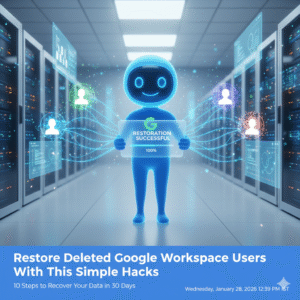
Restore Deleted Google Workspace Users With This Simple Hacks

Step 1: Verify the Twenty Day Recovery Window

Google only allows you to restore deleted Google Workspace users within twenty days of the initial deletion. Specifically you must check the date the account was removed to ensure you are still within this vital timeframe. If you wait longer than twenty days the data is purged from the system permanently. Therefore your first priority is to confirm that you can still take action.

Step 2: Access the Users Section in Admin Console

You should log in to your Google Admin console using an account that has super admin privileges. Once you are inside navigate to the directory section and select the users option from the sidebar. This area contains all the tools you need to manage your employee accounts. This simple navigation is the starting point for every mission to restore deleted Google Workspace users.

Step 3: Use the Recently Deleted Filter

The default view only shows active users so you must change your settings to find the missing account. You can click on the add a filter option and select the recently deleted category from the list. This will reveal every account that has been removed within the last three weeks. To restore deleted Google Workspace users you simply need to find the specific name in this list.

Step 4: Review the User Data Before Restoration

Before you click the restore button you should double check the user’s details to avoid any confusion. For instance you want to make sure you are recovering the correct person if you have multiple employees with similar names. This ensures that you do not waste time while you restore deleted Google Workspace users. Consequently you maintain a clean and accurate directory for your entire business.

Step 5: Check for Available License Seats

Google Workspace requires an active license for every user you want to have in your system. If your current plan is full you may need to buy an extra seat before you can complete the restoration. You should check your billing section to see if you have any unassigned licenses ready to go. Having a license ready ensures that you can restore deleted Google Workspace users without any technical errors.

Step 6: Click the Restore Button

Once you have selected the correct user simply hover over their name and click the restore link. A pop up window will appear asking you to confirm that you want to bring the account back to life. This action triggers the system to begin reassembling the user’s emails and drive files. Therefore you are just one click away from the goal to restore deleted Google Workspace users.

Step 7: Assign the User to an Organizational Unit

You must decide where the restored user fits within your company structure to ensure they have the right permissions. For example you might need to place them back into the sales or marketing department. This step ensures that the user can immediately access the shared folders they need for their job. Proper placement keeps your security policies consistent when you restore deleted Google Workspace users.

Step 8: Reset the User Password for Security

As a safety measure you should always create a new password for any account that has been restored. Specifically this prevents any old credentials from being a weak point in your company security. You can send the new login details directly to the employee or their manager. Prompt password resets are a primary way to keep your business data protected.

Step 9: Verify Google Drive and Gmail Content

After the restoration is complete you should ask the user to check their most important files and emails. Because the system can take up to twenty four hours to fully sync you might see some items appearing slowly. This verification step ensures that every piece of vital information has returned to its original home. You should see all their previous work restored exactly as it was before the deletion.

Step 10: Set Up an Ownership Transfer Policy

To avoid future deletion scares you should implement a policy for transferring file ownership. For instance when an employee leaves you can move their drive files to a manager before deleting the account. This ensures that the business keeps the data even if the individual user is gone. Taking this proactive step is the smartest way to manage your digital assets.

Conclusion and Next Steps

If you follow the steps in this guide you should soon see your deleted users back in your directory. Please do not forget to let me know how you got on in the comments below. I am always interested in hearing your thoughts so tell me which part of the recovery process you felt was most helpful.

FAQs

1 How long do I have to restore a deleted user?

You have exactly twenty days from the date of deletion to recover a user and their data.

2 Do I lose emails when a user is deleted?

If you restore the account within twenty days all emails and files will return to the user.

3 What if the twenty day window has passed?

Once twenty days have passed the data is permanently deleted and cannot be recovered by Google.

4 Do I need a super admin account to do this?

Yes only a user with super admin privileges can restore deleted accounts in the console.

5 Can I restore multiple users at once?

You can select multiple names from the recently deleted list and restore them as a batch.

Also Read: Top 10 Admin Console Mistakes That Are Hurting Your Business Right Now
How to Share Google Drive Files with External Clients Safely

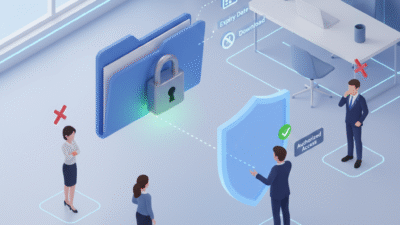
You must protect your business secrets when you work with people outside your firm today. Therefore, you should learn how to share Google Drive files with external clients safely. Truly, a single wrong click can expose your private data to the whole web. Consequently, you can secure your digital assets by using the right sharing tools for 2026.

Many people think that clicking a “Share” button is all they need to do. But, the reality is that open links can lead to big security risks for you. Always remember, a secure file system is a strong signal for any search engine. This ensures that your brand stays professional and your client data stays very private. This approach requires you to set strict rules for every document you send out. It helps you build a much more reliable business for the long term. It makes your daily digital collaboration feel much more secure and very effective.

Google Drive


Using Specific Email Access instead of Public Links

First, you must stop using the “Anyone with the link” setting for private work. Why is sending a public link so dangerous for your business? Clearly, anyone who finds that link can see your files without your permission. Therefore, you must only invite specific email addresses to view your documents in 2026.

The Benefits of Direct Email Sharing

Here are several reasons why direct sharing is a win for your safety:

  • Access Control: Only the people you invite can open the file.

  • Identity Proof: Google checks their email before they can see the data.

  • Revoke Power: You can remove a single person’s access in one second.

  • Tracking: You can see exactly who opened the file and when.

  • No Leaks: If the link is forwarded, the new person cannot see anything.

  • Professionalism: Clients feel safer knowing you take their privacy seriously.

  • Search Engine Value: Secure data handling improves your overall brand trust.

Truly, these steps solve the problem of accidental data leaks in just a few clicks. But, you must also check your sharing list every month to remove old clients. This keeps your file system clean and prevents any sudden data breaches for your firm. It creates a very high and professional standard for your daily digital security.


Setting Expiry Dates and Disabling Downloads

So, how do you ensure a client loses access once a project is finished? Truly, you do not want your old files sitting in a stranger’s folder forever. Consequently, you should use “Expiry Dates” to automatically lock your files in 2026. It acts as a direct fix for long-term security risks.

Advanced Sharing Settings for Extra Safety

Here is how you can put a digital lock on your shared files:

  1. Set Expiry: Tell Google to stop sharing the file on a specific date.

  2. Disable Downloads: Stop viewers from saving or printing your private work.

  3. Prevent Copying: Turn off the option for others to make a copy of the file.

  4. View-Only Mode: Ensure clients cannot change your words or data by mistake.

  5. Hide Comments: Keep your internal team notes private from the external client.

  6. Use Watermarks: Add your logo to images so people know who owns the work.

  7. Trust Rankings: High security habits help you keep a top search engine rank.

Furthermore, this improves your search engine performance by showing you are a security pro. It makes your company look very organized and ready for 2026 digital growth. This ensures that your intellectual property stays under your total control. It creates a very fast and clear path for your professional peace of mind.


Managing Shared Drives and Folders Correctly

The third phase involves organizing your files so you do not share too much. Clearly, sharing a whole folder is faster but it can also be very risky. Therefore, you should use “Shared Drives” with strict member roles to stay safe today.

Organizing Your Client Folders for Safety

Firstly, create a unique folder for every different client you have in 2026. This allows you to keep one client’s data far away from another client’s view. Secondly, use the “Contributor” role if they need to add files but not delete them.

Furthermore, use the “Viewer” role for anyone who only needs to read your reports. Also, use transition words in your folder names to keep them very easy to find. Lastly, remember that a neat file structure helps your search engine authority and trust. Truly, a clean folder plan is the best tool for avoiding sharing mistakes. It allows you to invite people to work without fearing they will see the wrong file. This is why top agencies use “Client Portals” to manage their work right now.


Monitoring Your Sharing Audit Logs

The fourth phase is where you check who is actually looking at your data. Clearly, you must know if your files are truly staying within your safe circle. Therefore, you must track the “Sharing Activity” in your Google Workspace reports today.

Metrics for a Secure Shared Drive

Firstly, track the “External Sharing” report to see every file shared outside your firm. This helps you see if a team member is sharing too many public links in 2026. Secondly, check the “Audit Log” to see if any unknown devices tried to access your work.

Furthermore, look for any “Large Downloads” that might show a data theft in progress. Also, use your data to see if a secure office leads to more “Client Referrals” for you. Lastly, check your search engine ranking to see if site safety helps your web traffic. Truly, a safe office is a journey that leads to a much stronger brand. It turns a boring task into a series of smart, secure wins for your whole team. This ensures your business stays strong while others face digital leaks.


Keeping Your Drive Safe and Fast

Finalizing your plan requires you to make “Safe Sharing” a part of your office culture. It needs you to train your team and update your sharing rules every single year. Clearly, staying safe in the cloud is a team effort in 2026. Therefore, follow these simple tips to keep your workspace safe and very fast.

Simple Tips for Lifelong File Safety

Firstly, run a “Sharing Audit” once every three months to find any open links. This helps you stay one step ahead of any old project files that are still live today. Secondly, encourage your team to use “Temporary Access” for all short-term contractors.

Furthermore, use transition words in your security emails to keep them very clear and helpful. Also, remind everyone that their clean work helps the company earn more search engine trust. Lastly, check your search engine data to see if safety helps your web traffic grow. Truly, a safe path is a journey that leads to a much better brand in 2026. It builds a path of trust that lets your whole team grow very fast. This secures your future in the digital world for a long time.


Frequently Asked Questions (FAQs)

Q1: Can people without a Google account see my shared files?

Yes, you can use “Visitor Sharing” to let them view files with a secure pin code.

Q2: What happens when an expiry date is reached?

The client loses all access to the file automatically, and they can no longer open the link.

Q3: Does secure sharing affect my website’s SEO?

Yes, brands that handle data safely earn more trust, which is a key signal for search engines.

Q4: How do I stop a client from sharing my file with someone else?

Go to sharing settings and uncheck the box that allows viewers to share the file.

Q5: Is it safer to share a folder or a single file?

Sharing a single file is always safer because it limits what the client can see in your drive.

Also Read: Why your secure your workspace needs an update now